Key takeaways
- A partial refresh leaves some objects unprocessed: Running a data-only refresh on a table doesn't recalculate its calculated columns, hierarchies, or relationships, so they stay out of a Ready state.
- The filter box finds every unready object at once: Typing
:State<>"Ready"and enabling the Flat list option lists all objects across the model that still need processing. - The filter box can query any object property: Prefixing a search with a colon enables Dynamic LINQ filtering, so you can search the explorer tree on any property, not just
State.
This summary is produced by the author, and not by AI.
Finding objects that aren't ready
If you’re refreshing different parts of your tabular model at different times of the day, you may need to know what the current refresh state is, across all objects of the model. For example, running a dataOnly refresh on a table, doesn't automatically refresh calculated columns, hierarchies or relationships.
To know which objects are not in a “Ready” state, simply open Tabular Editor, load the model from your Analysis Services instance, and write the following in the Filter text box at the top right corner of the screen:
:State<>"Ready"
Make sure to toggle the “Flat list” search result option (the right-most button on the toolbar). This should produce a result like the following:
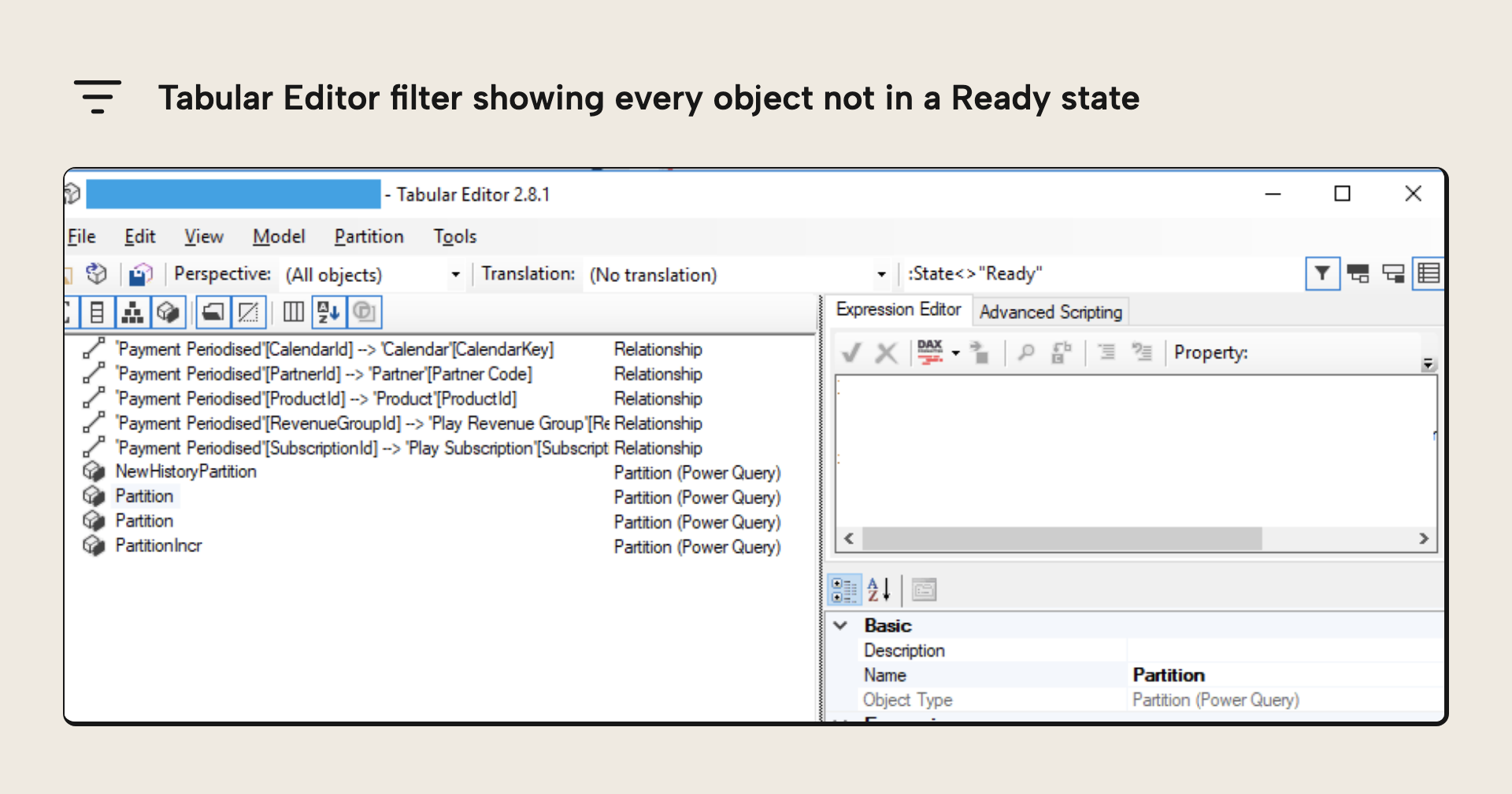
In general, the Filter text box can be used to search across all object properties using Dynamic LINQ syntax. To enable Dynamic LINQ filtering in Tabular Editor, make sure to put a colon (:) at the front of your search query.
For further reading
- Process database, table, or partition (Analysis Services) (Microsoft Learn). Covers the distinction between Process Data and Process Recalc operations, including which object types each one affects and when a separate recalculation pass is required.
- Updating the results of formulas (process and recalculation) (Microsoft Learn). Explains why DAX calculated columns and calculated tables require a separate recalculation pass after a data-only refresh, which is the root cause of the unready states this article addresses.
- Data refresh in Power BI (Tabular Editor). Covers the full range of Power BI refresh types, including the difference between data and schema refreshes, providing useful background for understanding partial refresh workflows.
- Best Practice Analyzer (BPA) rules for semantic models (Tabular Editor). Explains how to define, load, and customize Best Practice Analyzer rules in Tabular Editor, including how to codify object-state and refresh-hygiene checks as automated rules that run on every model open.
In conclusion
A partial or data-only refresh can quietly leave parts of your model unprocessed, and those objects keep returning stale or empty results until they are recalculated. Tabular Editor makes them easy to find: connect to the model, type :State<>"Ready" in the filter box, switch on the Flat list option, and every object that still needs processing shows up in one place. The same colon-prefixed Dynamic LINQ trick works against any property, so it is worth keeping in your toolkit well beyond refresh troubleshooting.
Inspect object state directly while working in Tabular Editor 3.
Give Tabular Editor a spin