
Key takeaways
- Shortcuts boost productivity: Setting up and using keyboard shortcuts is a powerful way to work faster in Tabular Editor 3.
- Create custom shortcuts: You can modify default shortcuts to avoid conflicts and define shortcuts for commands like C# macros.
- Bind shortcuts to hardware: Shortcuts can integrate with programmable keyboards like the Stream Deck for a unique, helpful workflow.
This summary is produced by the author, and not by AI.
What are keyboard shortcuts and why should I care?
While they might seem like a trivial thing, using keyboard shortcuts is one of the quickest and easiest ways to guarantee improved productivity. This is especially true in Tabular Editor, since you can customize the shortcuts to your liking.
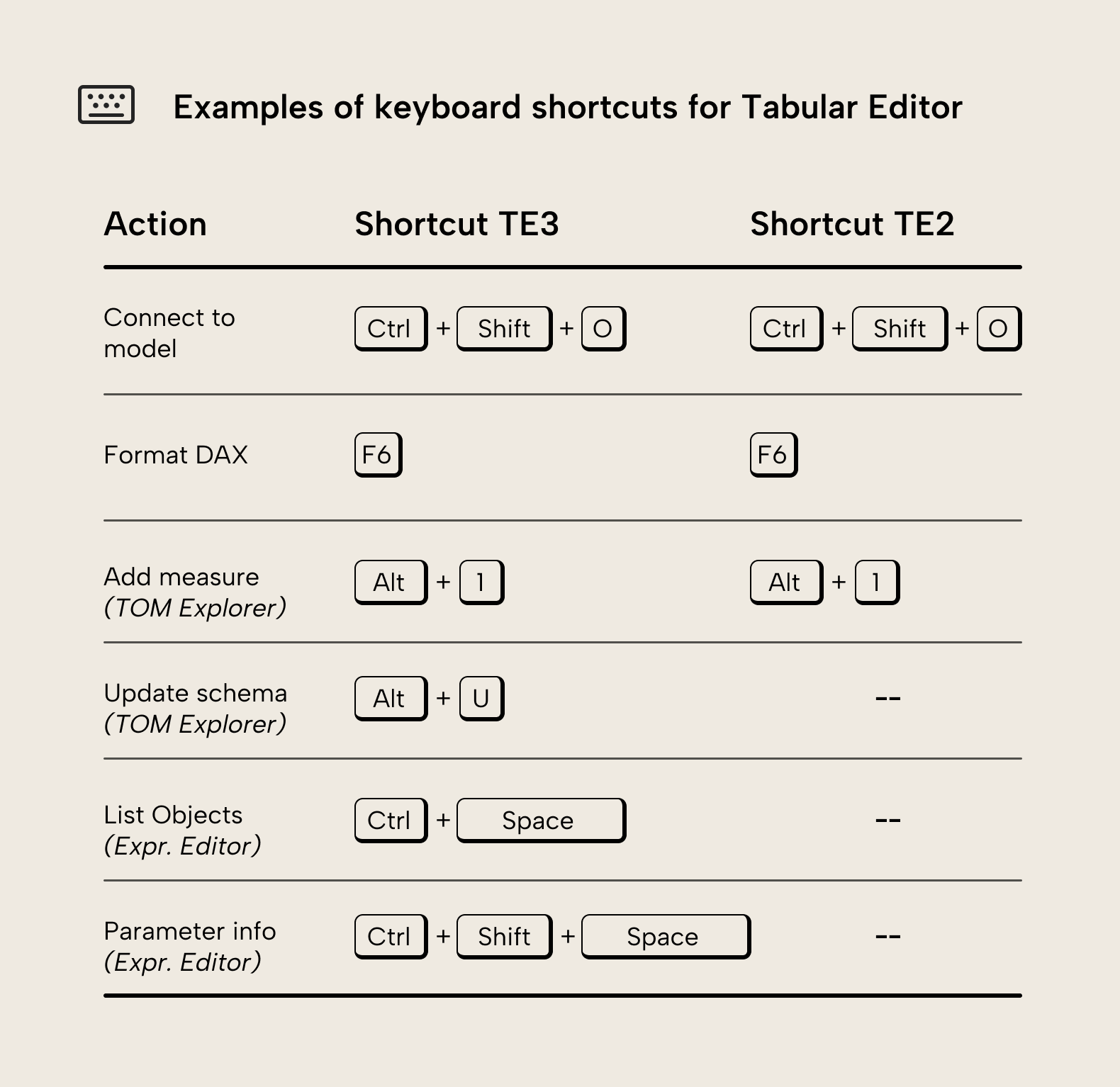
There are many keyboard shortcuts in Tabular Editor 3. Here are some examples of useful shortcuts that can save you time:
TIP
These are just a few examples. In general, if you’re using part of the application consistently, it’s a good idea to identify whether there’s a keyboard shortcut you can use, instead. You can see this indicated either next to the action (i.e. in a menu) or when you hover on a button.
NOTE
In both versions, there is some support to navigate the UI using the keyboard, but support is limited. For instance, in TE3, Alt+V will open the view menu, and it’s possible to use the arrows to select the desired item. This approach, though, in general, is slower than using the mouse.
Be aware of the context of keyboard shortcuts!
While the shortcuts mentioned earlier can be used from any place of the application and the effect will be the same, other shortcuts depend on what you are doing. If you are editing code, Ctrl+U will uncomment active or selected lines, whereas pressing Ctrl+U on a hidden column in the TOM explorer will make it visible again.
Finding all existing shortcuts
If you read the documentation (admittedly a big if), you may have realized that the Ctrl+U shortcut to uncomment code isn't documented (at least at the time of this writing). So how do people find it? There’s basically two ways. The first is to try shortcuts you are familiar with from other applications and see if they do what you expect. This works better than you might think, but of course it’s a hit or miss story. The second and more comprehensive way to find out all the shortcuts is to head over to preferences and select “Keyboard”. There you can find all the commands and see if they have an associated shortcut.
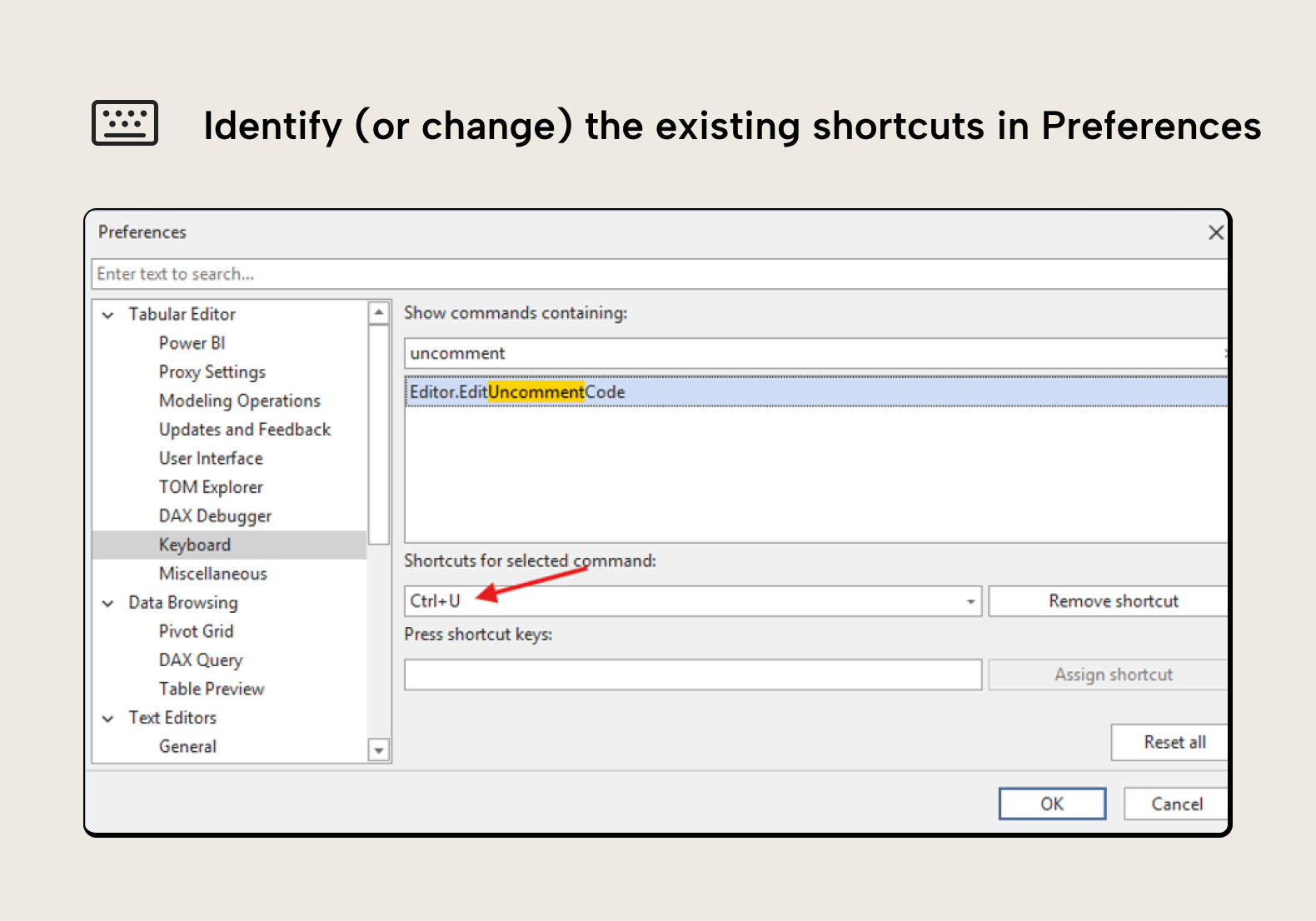
If you don’t enter anything in the search bar and just scroll down all the possible commands checking if they have an existing shortcut, it’s very easy to get overwhelmed. But unless you are training to become a keyboard ninja, there’s no need to study all the shortcuts in Tabular Editor 3. Just observe how you work and try to integrate a few shortcuts on the actions that you do most often. If you like using these shortcuts, you can move forward and learn a few more. If you actually prefer using your mouse, that’s okay too. Tabular Editor 3 is flexible enough to adjust to the different preferences of developers.
NOTE
Before you throw away your mouse, be aware that not all options are accessible with the keyboard alone. For example, even if you reach the VertiPaq feature navigating the UI or through a custom shortcut, clicking on the “Collect stats” button isn't possible with the keyboard alone.
Customizing keyboard shortcuts
Now that we have discussed keyboard shortcuts, we can finally get to the core of this article, which is customizing keyboard shortcuts. How it’s done is very simple. In the same dialog box where we checked if a command already had a shortcut or not, it is possible to add or modify shortcut by clicking on the box under “Press shortcut keys” and, well, pressing the desired shortcut keys and clicking on “Assign shortcut”
Some neat examples of custom keyboard shortcuts:
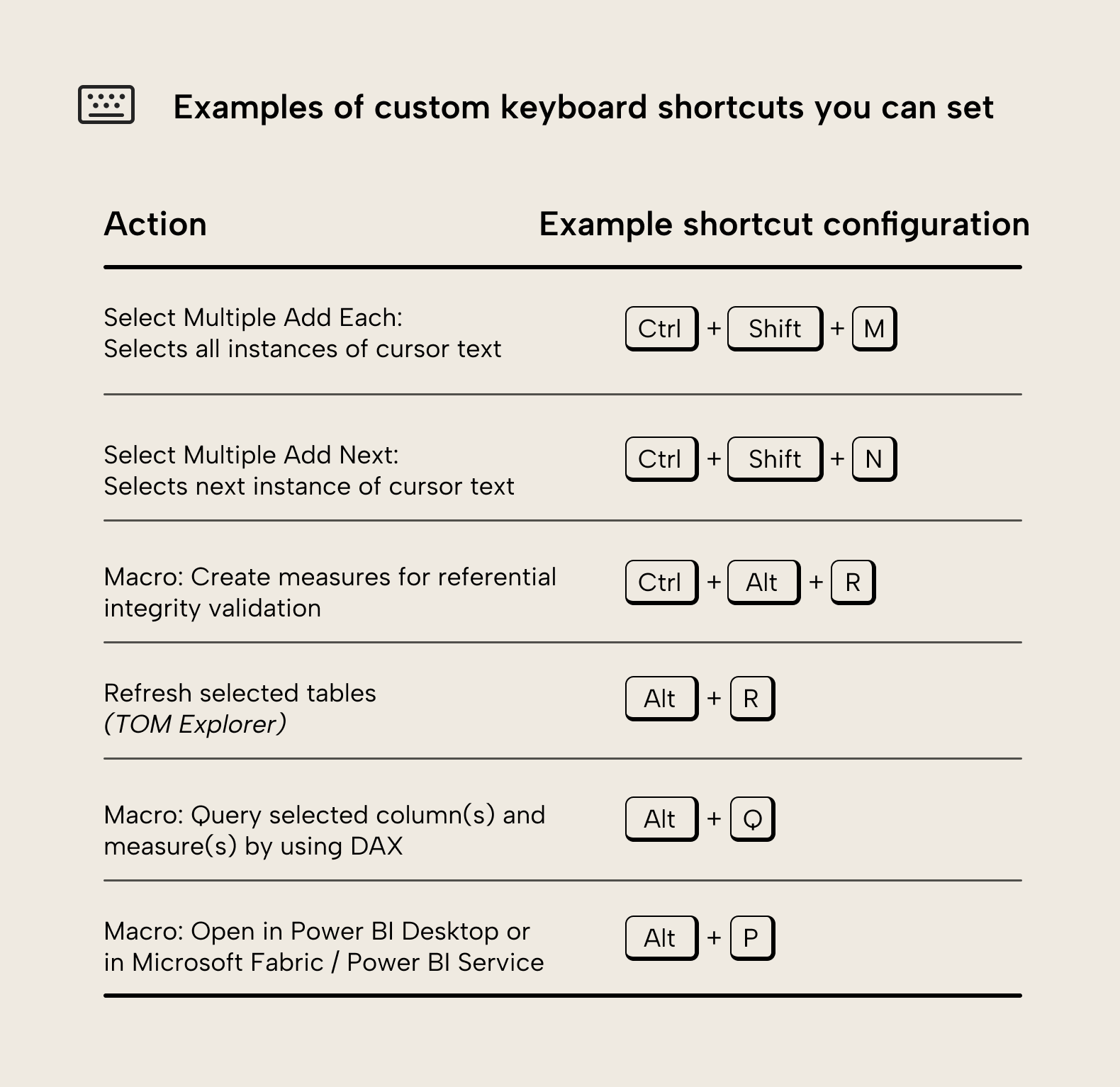
As you can see, you can configure macros to custom keyboard shortcuts. This is very powerful, because it means that any action you can script can be bound to a keyboard shortcut. Some examples are listed here, but this is really just scratching the surface.
How to configure a macro to a keyboard shortcut in Tabular Editor
First things first, you need to create the macro from a Tabular Editor script. Then, you follow these steps:
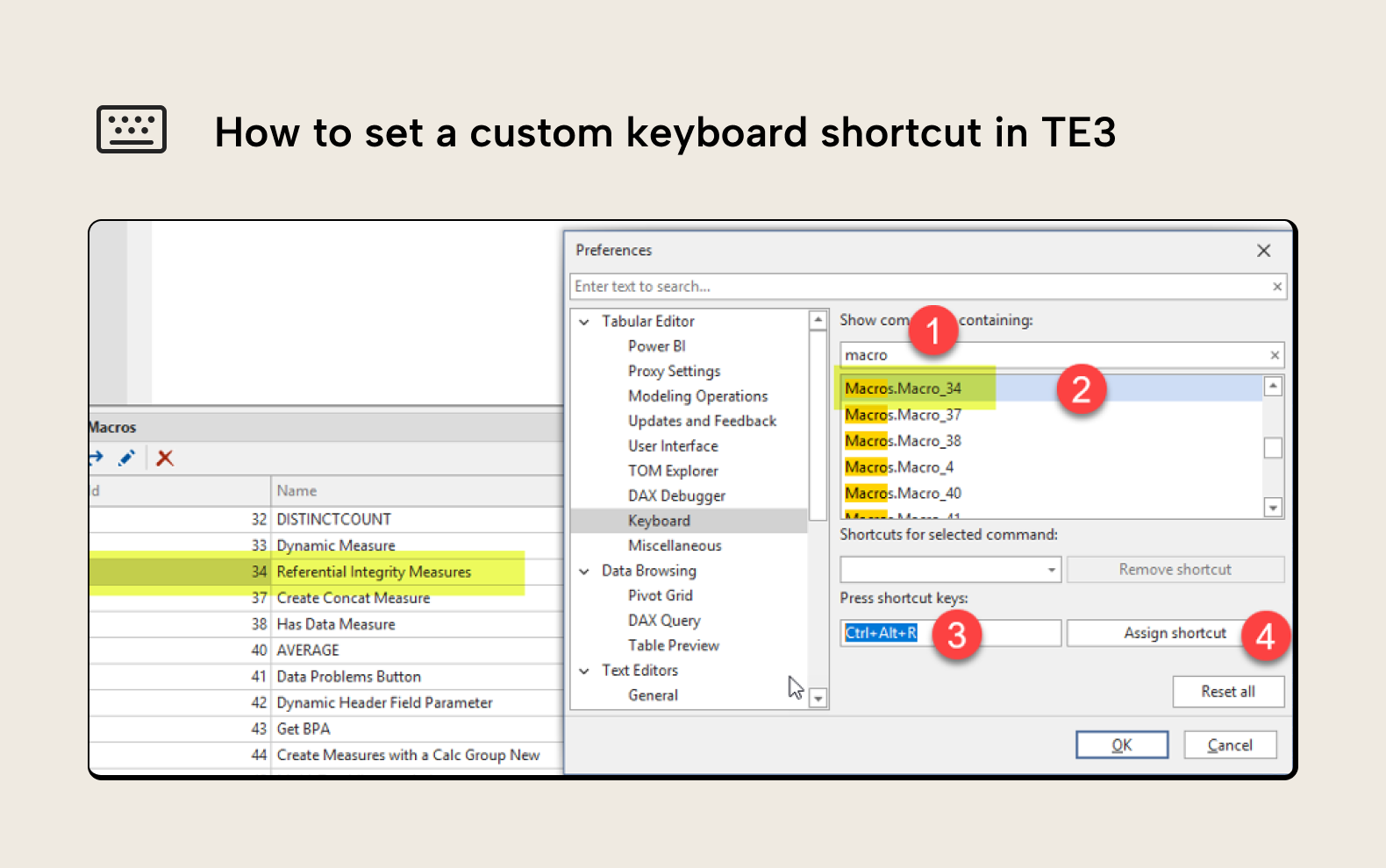
- Open the keyboard section of the preferences and search for “macro”
- Select the command with a number matching the ID in which your desired macro was stored (in the example it’s 34)
- Choose a shortcut that you think you will be able to remember. In this case for referential integrity measures
Ctrl+Alt+Rcould work - Don’t forget to click on “Assign shortcut”
If you are curious about the macro of this example, don’t hesitate to check out this article and if you like experimenting even more, then read this one as well.
Keyboard shortcut conflicts within Tabular Editor
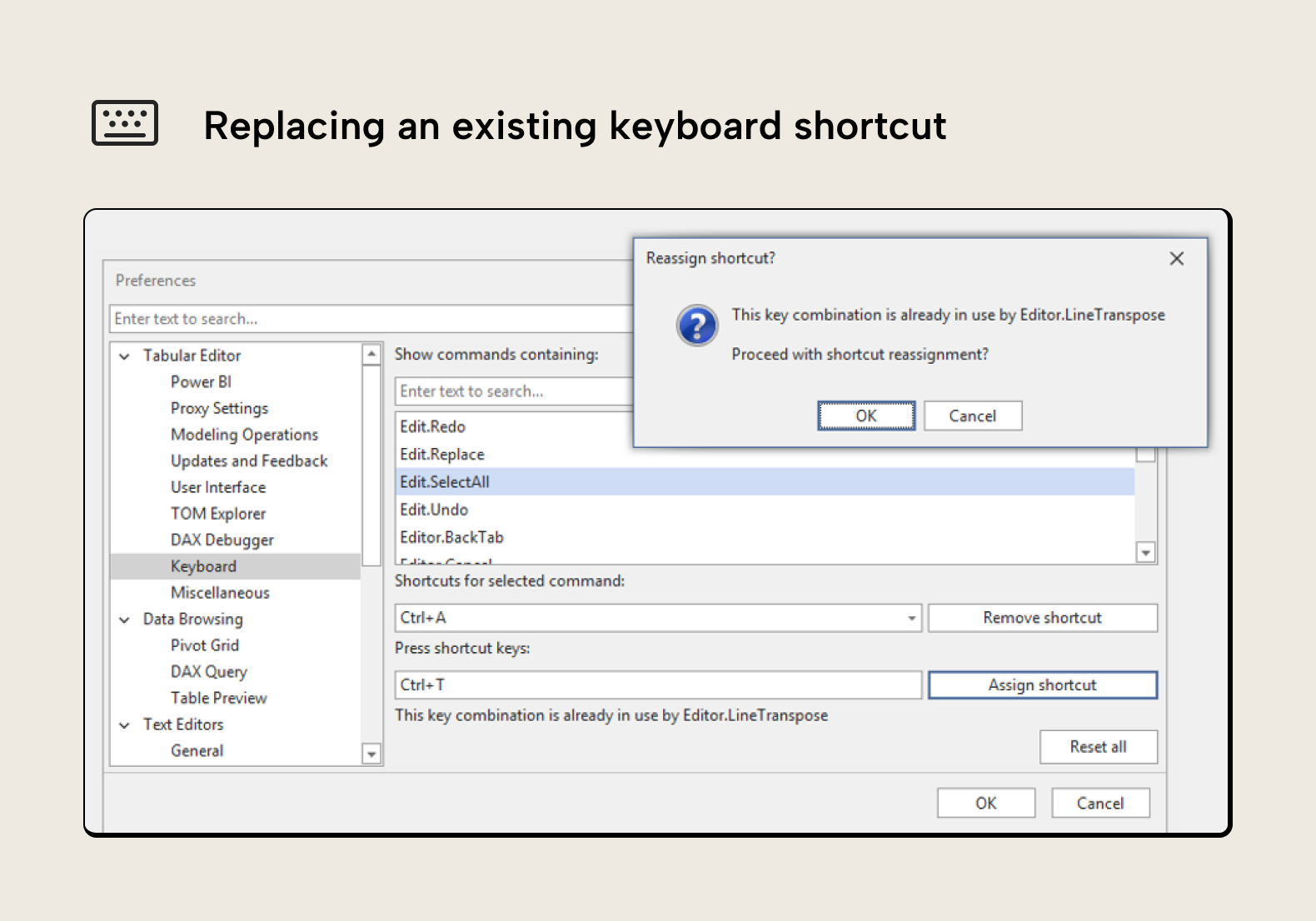
When you assign a shortcut that already exists inside Tabular Editor, you first get a message underneath telling you what that shortcut currently does. If you nevertheless click on "Assign shortcut”, then you need to confirm that you want to reassign the shortcut to the current command. If you know what you are doing, go ahead.
Keyboard shortcut conflicts with other applications
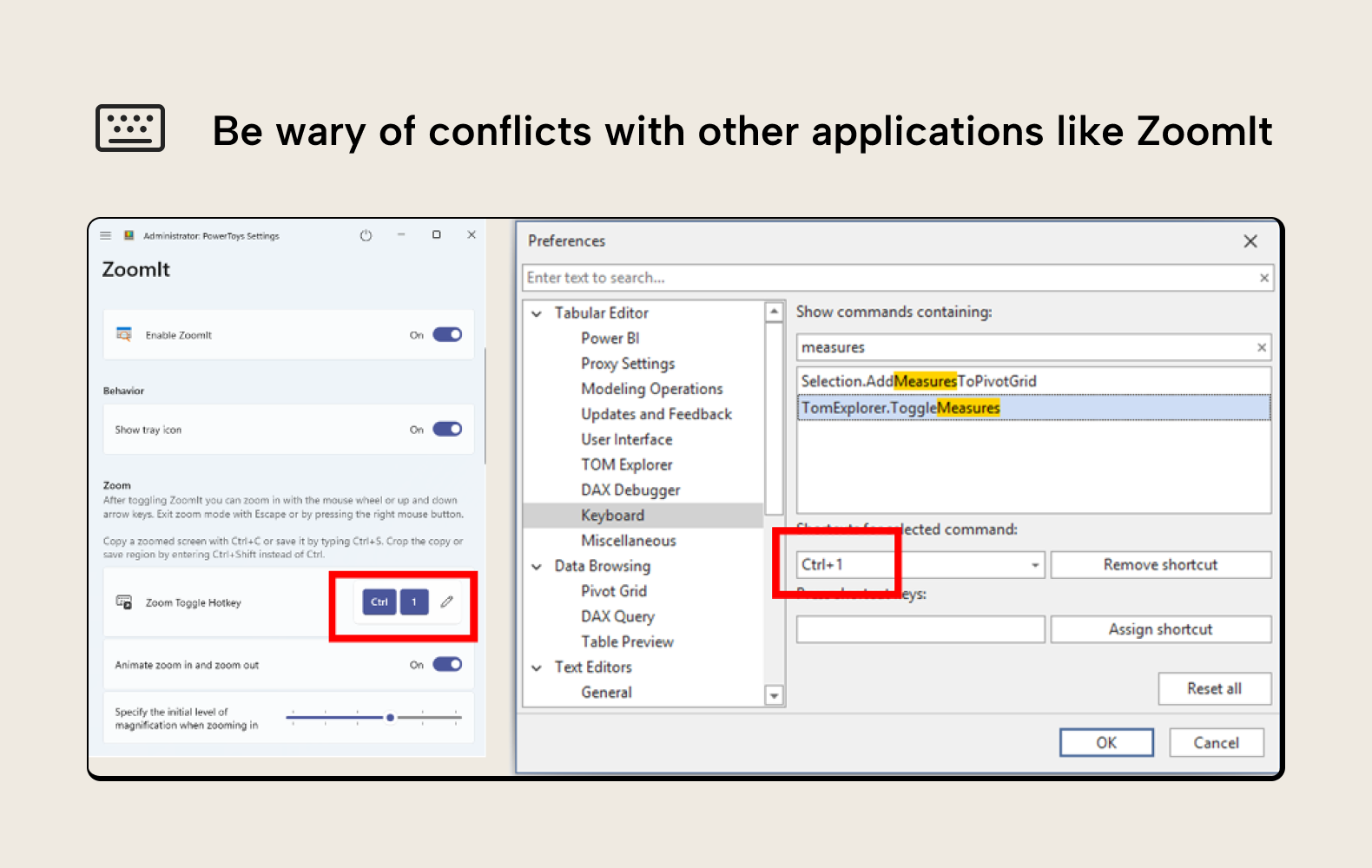
Some applications like AutoHotkey or PowerToys operate “always on top” of other applications. In these cases, shortcuts from these applications will override any shortcuts from other applications like Tabular Editor, even when focused. You won’t get any warnings here, because (of course) the applications aren’t aware of each other.
For instance, Ctrl+1 is supposed to toggle the measures in the TOM Explorer, but if you are executing PowerToys with the ZoomIt functionality enabled, Ctrl+1 will zoom in the screen:
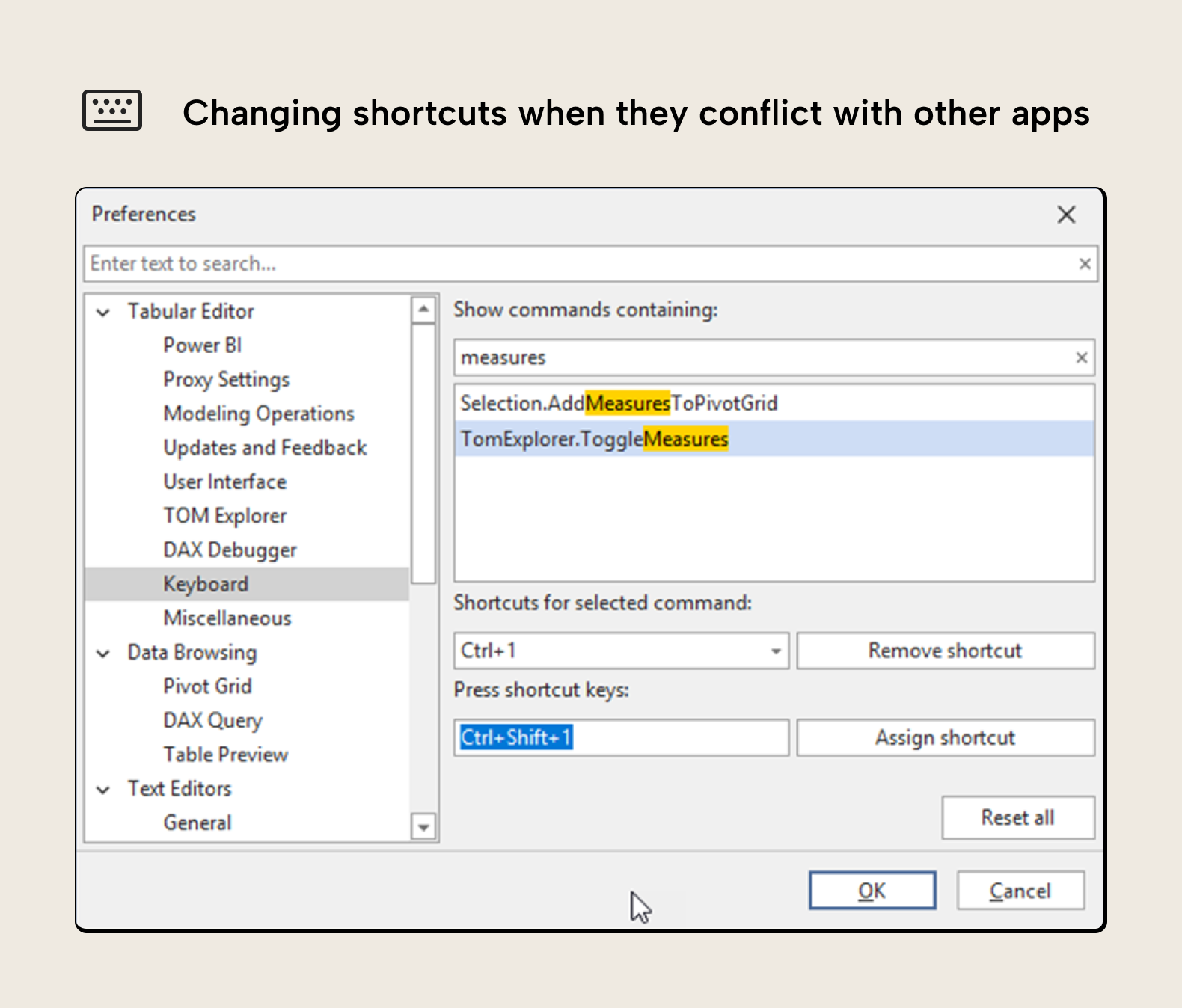
A simple way to handle this situation is to just remap shortcuts in one application, adding an additional keypress with i.e. Shift or Alt:
Why should I customize keyboard shortcuts?
There are a few reasons why you may want to customize shortcuts in Tabular Editor 3. Let’s discuss them one by one.
Increasing overall productivity
As we saw in the previous section, there are many commands that don’t have a default keyboard shortcut and thus require multiple clicks to execute, and UI navigation with the keyboard we have also seen it’s not really an option. Even for apparently trivial things that are just a couple clicks, being able to execute a command without raising your hands from the keyboard can speed up your development process significantly.
Executing macros from your Stream Deck
One of the most interesting use cases of shortcuts is to execute them from a programmable keyboard, such as Stream Deck. Alexander Korn has fantastic blog post that discusses (among other things) how he sets up the macro shortcuts and how he sets up buttons on his Stream Deck to execute those shortcuts and thus those macros.
It’s important to emphasize that this isn't an alternative to the shortcuts, but rather a different way to execute them. Instead of pressing one or more keys in your keyboard, you will press a single key on your Stream Deck which can have a name and even a custom icon.
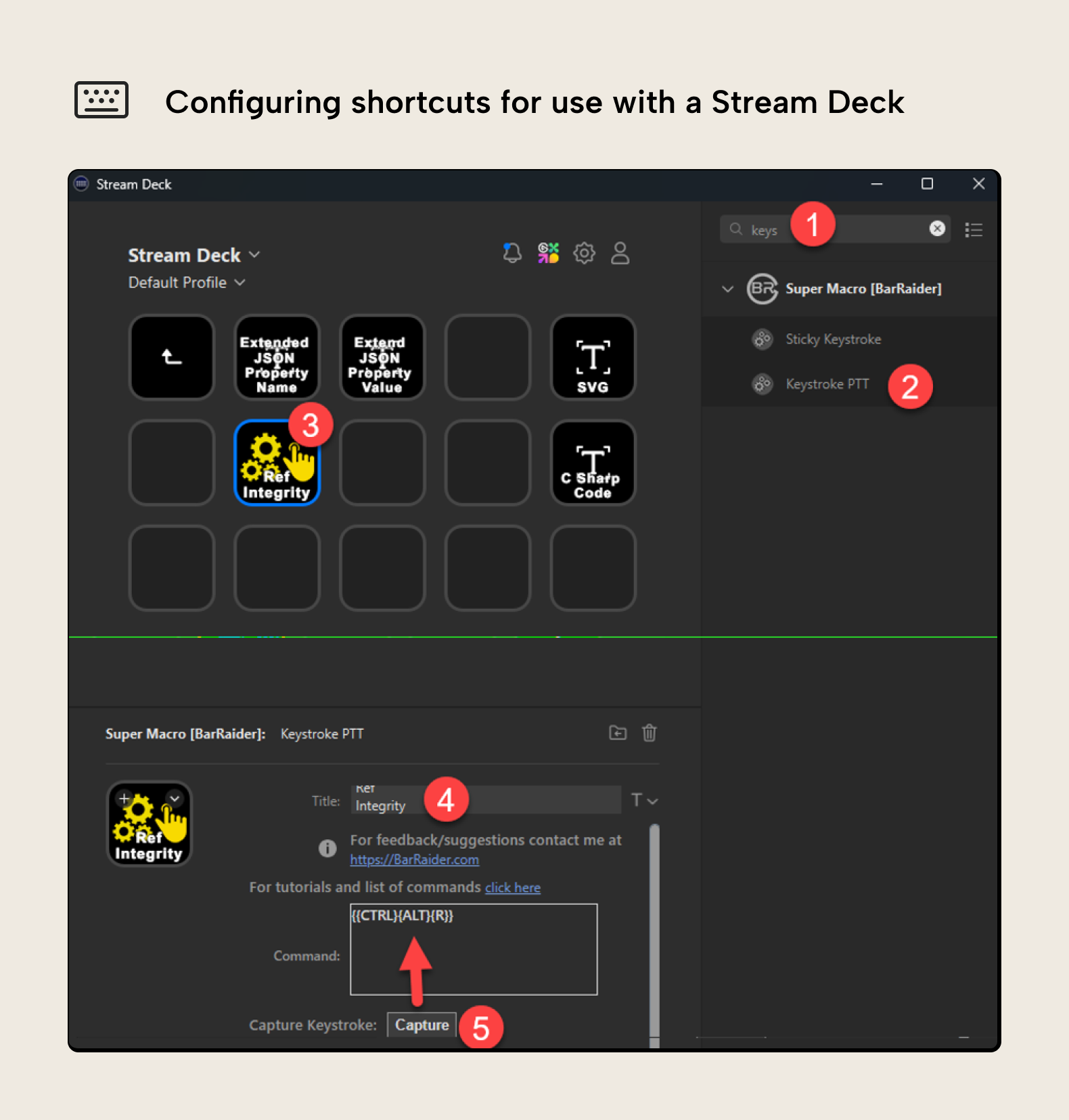
To configure one key of your Stream Deck to execute a Tabular Editor 3 macro, in Stream Deck you will need to install the SuperMacro add-in that contains the “Keystroke PTT” element. Then follow these steps:
- Search “Keys” to limit the elements on the list
- Find Keystroke PTT
- Drag the keystroke PTT to the desired Stream Deck key
- Configure a name so you know what this button will do (you can even change the icon if you want)
- In capture Keystroke, click on “Capture” button and execute the same keyboard shortcut you configured in Tabular Editor 3. It will show the code representing that keyboard shortcut.
On the upside, it’s nice to be able to call a macro with a physical button that has a custom icon. The downside is that it takes some time to set up, and it is a bit fragile as macro IDs can’t be easily controlled when saving a script as macro (it is then fairly complex to share with others or even across different PCs).
NOTE
Unlike the contextual menu, a Stream Deck will always show all macros and not only those relevant for the objects you have selected. Thus, the recommendation would be to use this approach only for macros that do not require any selection to run.
For further reading
- Generating a dynamic measure selector (tabulareditor.com). A concrete C# script you can save as a macro and trigger with a custom shortcut like the referential-integrity example in the article.
- Tabular Editor 3 keyboard shortcuts reference (docs.tabulareditor.com). The full official list of default TE3 shortcuts, useful for finding which commands already have bindings before you customize them.
In conclusion
So now you know. Keyboard shortcuts in Tabular Editor are quite powerful, because you can configure them for a broad range of commands. Knowing them all is nearly impossible, but learning those that we will use more often can help speed up the development process substantially.
Turn frequent modeling actions into faster Tabular Editor 3 shortcuts.
Give Tabular Editor a spin