Key takeaways
- OLS restricts tables and columns: Object-level security completely hides one or more tables or columns from a group of users, and you can't vary it per report on the same model.
- It only applies to read-only users: Like RLS, OLS affects users with read permission only, not those who can modify the model (Admin, Member, or Contributor roles).
- OLS and RLS can combine in a role: A role can contain both, but a user can't belong to two roles that would combine RLS and OLS.
This summary is produced by the author, and not by AI.
Why should we care about OLS?
Power BI Developers who develop only with Power BI Desktop are unlikely to know about Object Level Security (OLS). Until the TMDL view was introduced in January 2025, it was impossible to define OLS in Power BI Desktop. Now it’s possible, but not quite user-friendly. So, what is it, and why should we care?
Having many similar semantic models is generally not considered a good practice, as it increases maintenance effort and raises the risk of inconsistent KPI definitions across models. At the same time, consolidating these models into a single, centralized semantic model that serves multiple reports and user groups introduces additional challenges, most notably how to restrict access to specific tables and columns for users who should not be able to see them. Object-Level Security (OLS) addresses this challenge by enabling a shared semantic model while ensuring that sensitive or irrelevant data remains hidden from unauthorized users.
In this article, we will explore how to define OLS and the details that need to be considered. OLS is different from Row Level Security (RLS). In RLS, we limit the rows that users in a security role can see. OLS can make columns and entire tables disappear completely, depending on the user's security role. While RLS and OLS can be combined, there are certain limitations that we will discuss later in the article.
How to define OLS
There are three main aspects of setting up OLS in a semantic model. Let’s see them in order:
Setting up security roles
Like RLS, OLS can only be defined when one or more security roles exist in the model. Roles can be created in Power BI Desktop through the “Manage Roles” button in report view, table view, and model view, as well as in Tabular Editor through the Model menu, right-click on model, or right-clicking in the roles folder of the model. And with a C# Script, of course. Plenty of options.
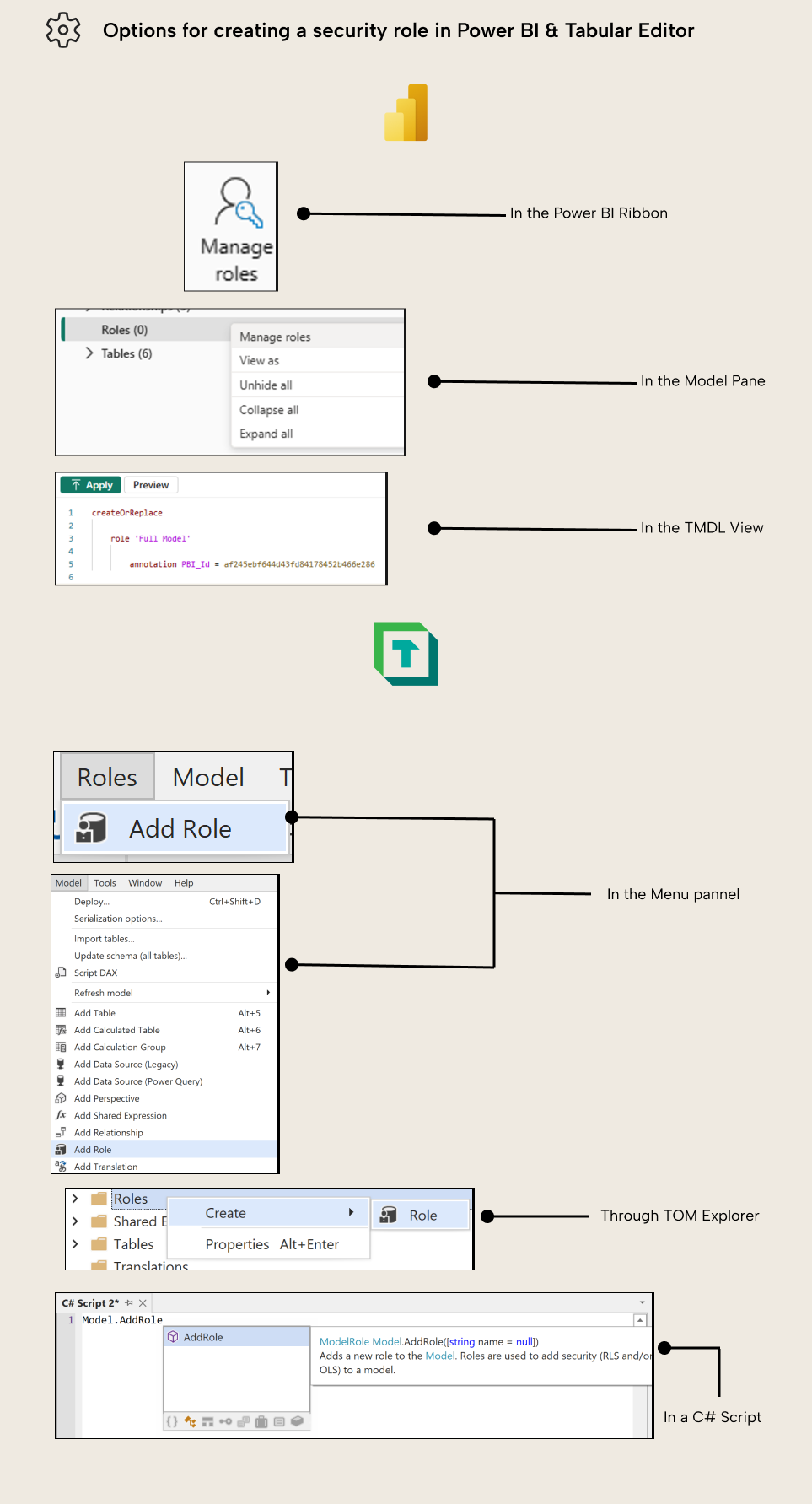
To define a security role, you only need a name, and that’s it. It’s when you define RLS and OLS that you need to specify the role in which the configuration applies.
There is one property that might need to be changed, though, and that is Model Permission, as the default setting is “none”. To configure a role that has access to read at least part of the model, you will need to manually change it to “read”.
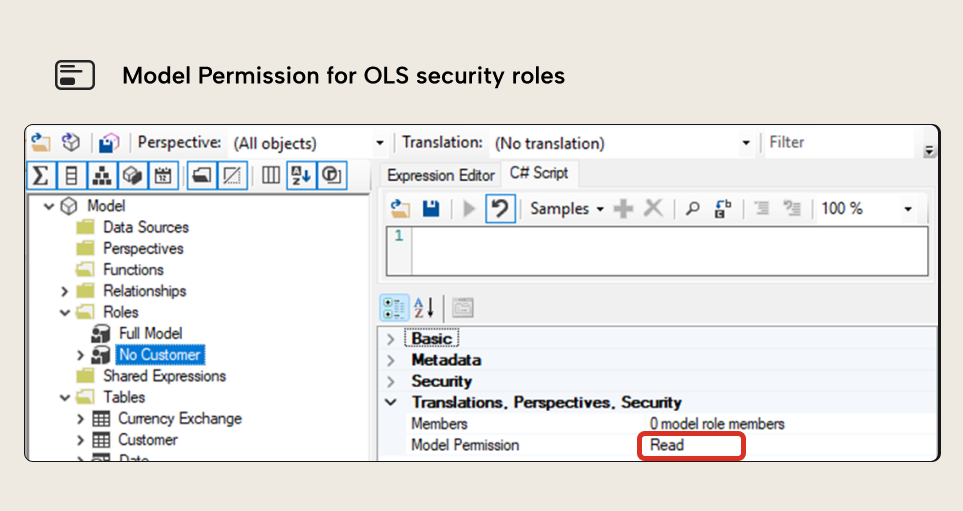
Configuring new OLS
Once we have a security role, new possibilities will become available in Tabular Editor 2 or Tabular Editor 3. When selecting one or more tables, two more properties show up in the properties pane: “Object-Level Security” and “Row-Level Security”. When we expand “Object-Level Security”, one row for each security role appears, and for each of them, you can define the level of access: default, read, or none.
By default, roles have read permission over the entire model. When defining OLS, you need to configure the level of access to “none” for the tables and columns that the users of the security role should not see. Let’s configure a “Full Model” and a “No Customer” security role. Now, let’s remove permission from the Customer table for the “No Customer” security role.
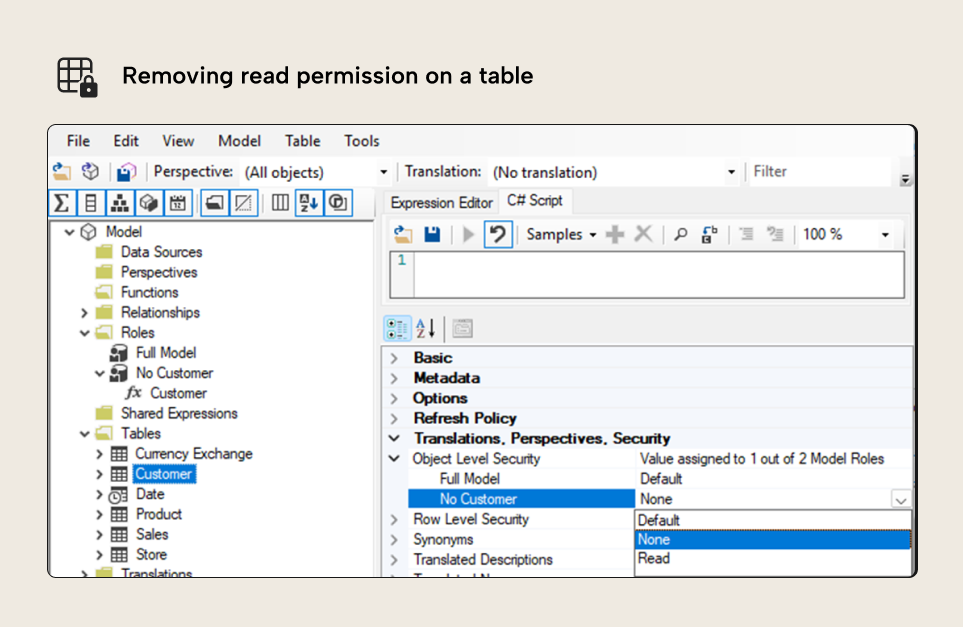
Now, let’s remove read permission for the CustomerKey column in the sales table.
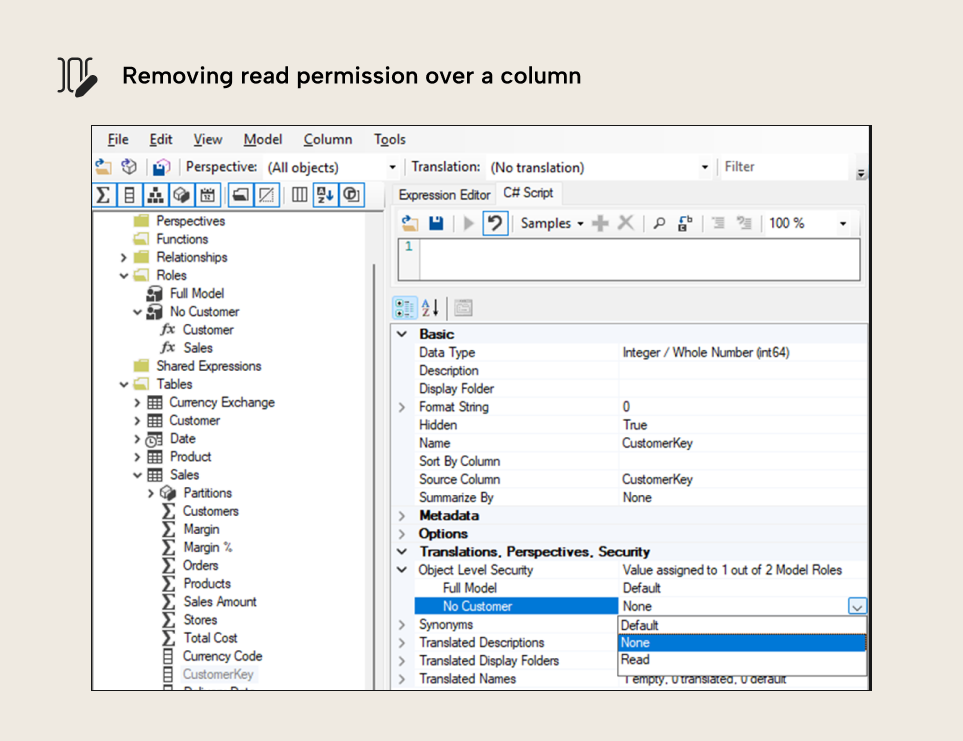
If you configure access level to “none” at the table level, and “read” for one or more columns of that table, you will get an error message when you commit the changes back to the model, saying that column access level cannot be less restrictive than the access level of the table where it belongs.
NOTE
It isn't possible to change the default access to “none” and enable a few tables to read. Security roles have a “Model Permission” property that can also be “read” and “none” (among other options), but setting it to none means that users of that role will not be able to access the semantic model regardless of the OLS configuration.
Measures, Calculation Groups, and DAX User-defined Functions (DAX UDFs) do not have native OLS or RLS, but there are some published workarounds available for measures and calculation group items if you want to dig deeper on this front.
Checking existing OLS
Sometimes, we may inherit the maintenance of a semantic model with an existing OLS configuration. In Tabular Editor, as we saw in the previous screenshots, we can check (and modify) existing configuration through the Roles folder in the TOM Explorer, or through individual Tables and Columns.
In Power BI Desktop, the configuration is only visible through the role configuration when we drag it to the TMDL view editor.
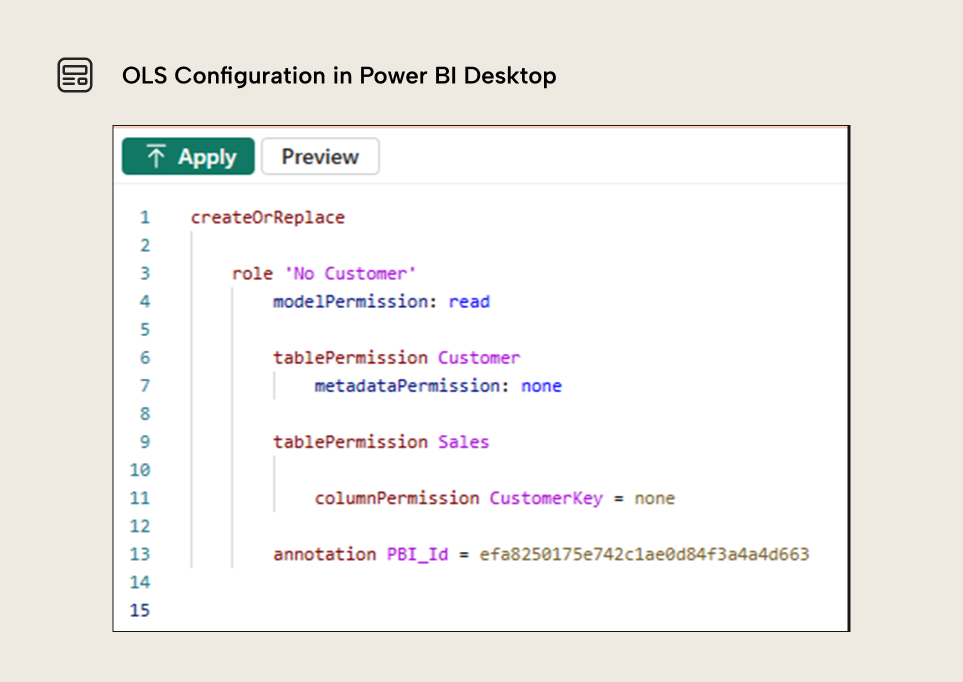
While OLS configuration in Power BI Desktop isn't quite user friendly, it does offer the possibility to impersonate a security role and check if the report will still display correctly.
Using the “View as” option, we will see the report and the available tables and columns as if we were one of the users assigned to the role.
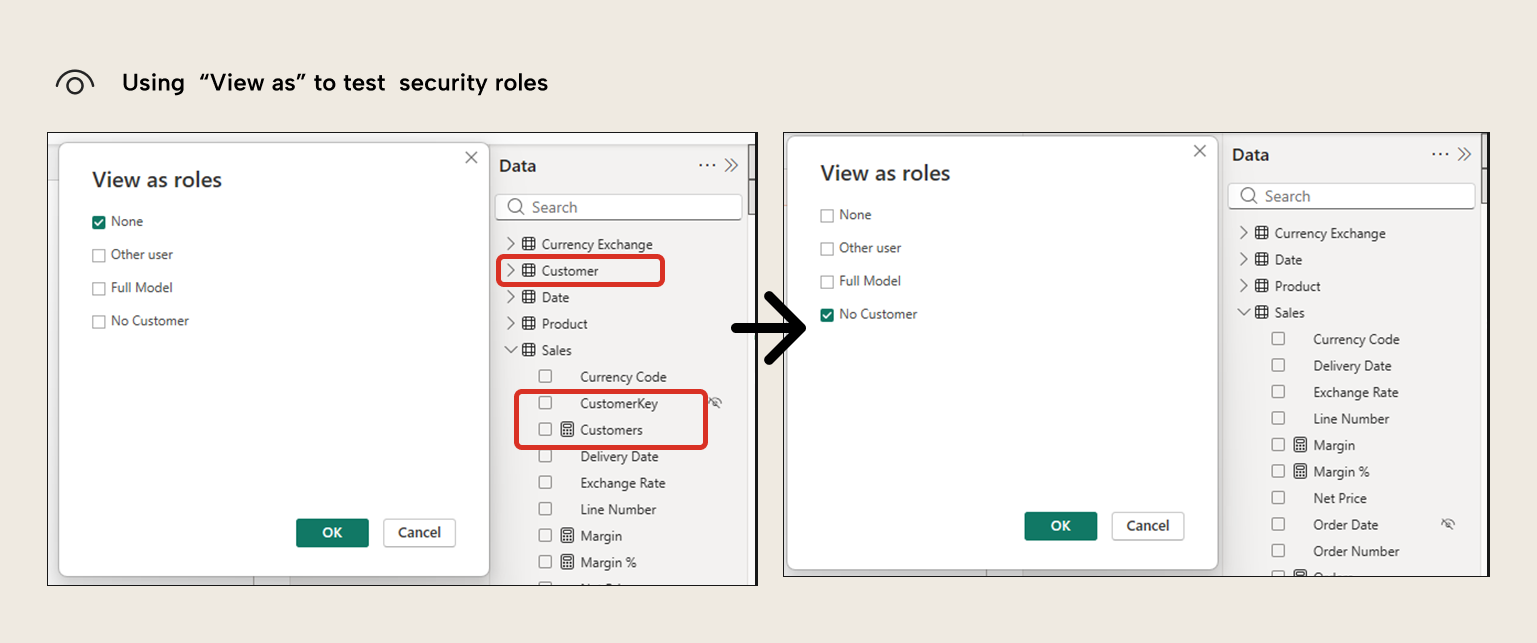
Note how “Customers” measure also disappears as it refers to a column not accessible by the security role.
Be aware that “View as” doesn't change the model view at all. In fact, there’s even a banner warning us about this.
This feature is very useful for testing that all users will see the report correctly, but unfortunately, this is only possible with the report that is defined in conjunction with the semantic model.
In Tabular Editor 3 it’s possible as well to impersonate roles and individual users. Once security roles are defined in the model, a new impersonation button appears in the ribbon when working in a DAX Query tab or a Pivot Grid tab. (Read more)
NOTE
Be aware that the TOM Explorer in Tabular Editor will show everything, even when impersonating security roles. As shown in the screenshots above, in Power BI Desktop, the Data Pane will show only the visible tables and fields.
Assigning users to the security roles
Before you share your report, remember that all users accessing reports connected to a model with security roles need to belong to at least one of the roles. You will also need a security role for users who can see everything.
In the same way that it happens with RLS, OLS configuration will not apply to users who have the workspace role of Admin, Member, or Contributor. They will see the entire model regardless of the restrictions configured in a role where they have been assigned.
NOTE
If the semantic model has security roles, all users accessing the connected reports need to belong to one or more of the security roles; otherwise they will see an error message. If user metadata in Azure Entra ID is reliable, dynamic security groups may be a good way of handling the users of each security role (read more).
Now that we have a fundamental understanding of how to set up OLS, we will explore, in the following section, what happens if a user belongs to more than one security role or if a user views a report that uses a column that they do not have access to.
Details about OLS
There are a few things that we need to consider when working with OLS. Let’s look at them one by one:
What happens if I have access to a report that uses a column that I do not have access to?
When you don’t have access to the column, it's as if that column did not exist at all, as if it had been deleted from the model. Therefore, the visual will break as it refers to an object that, under the current security role, doesn't exist.
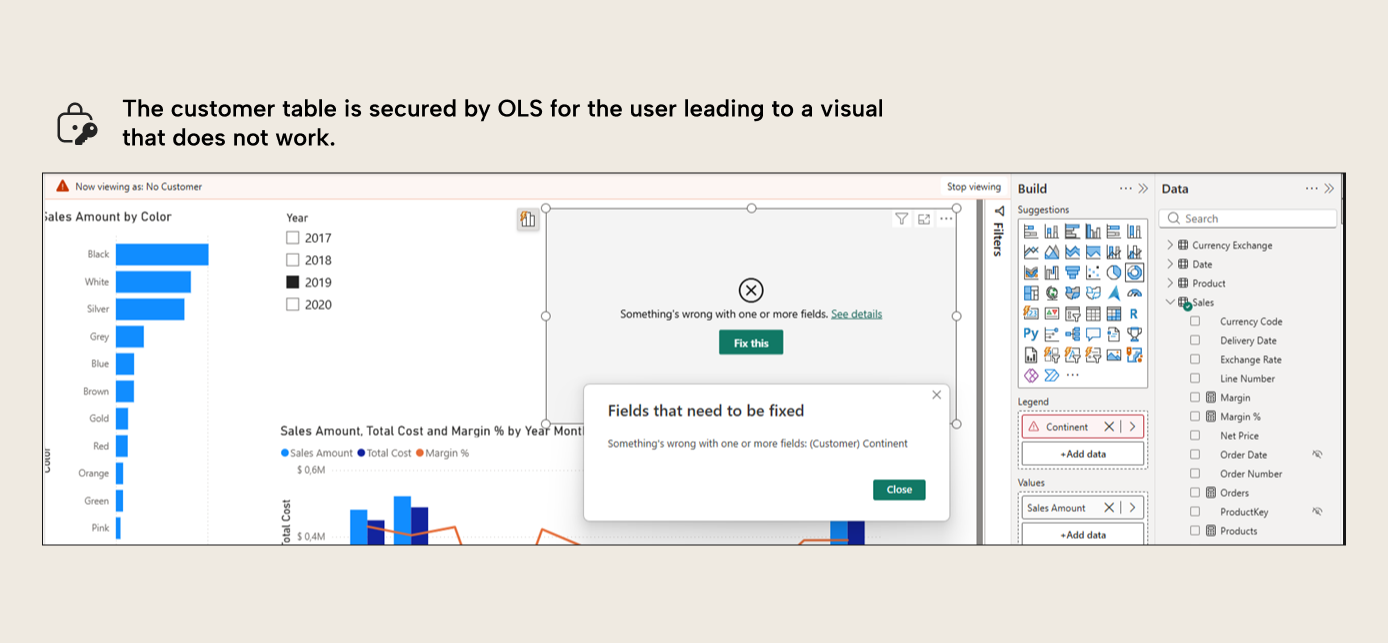
There are some workarounds to avoid visuals from breaking using Field Parameters and RLS, but these might not work in all visuals and add some complexity to the final solution.
Creating separate reports for separate roles with OLS configured might be the safest way forward, even if it adds some overhead. Splitting a large report into smaller ones, creating versions for different roles where necessary, and then combining them in a Power BI App with different audiences following the same groups of users, might be the best approach.
What happens when a user belongs to more than one security role, and both have different OLS configurations?
At first, you might think that if one security role has no permission over one table and the other role has no permission on another table, belonging to both security roles would result in not having permission over either table, but that’s not what happens. In Tabular Models, when combining security roles with different OLS configurations, the user has access to all tables that one or more of the security roles have read permission to.
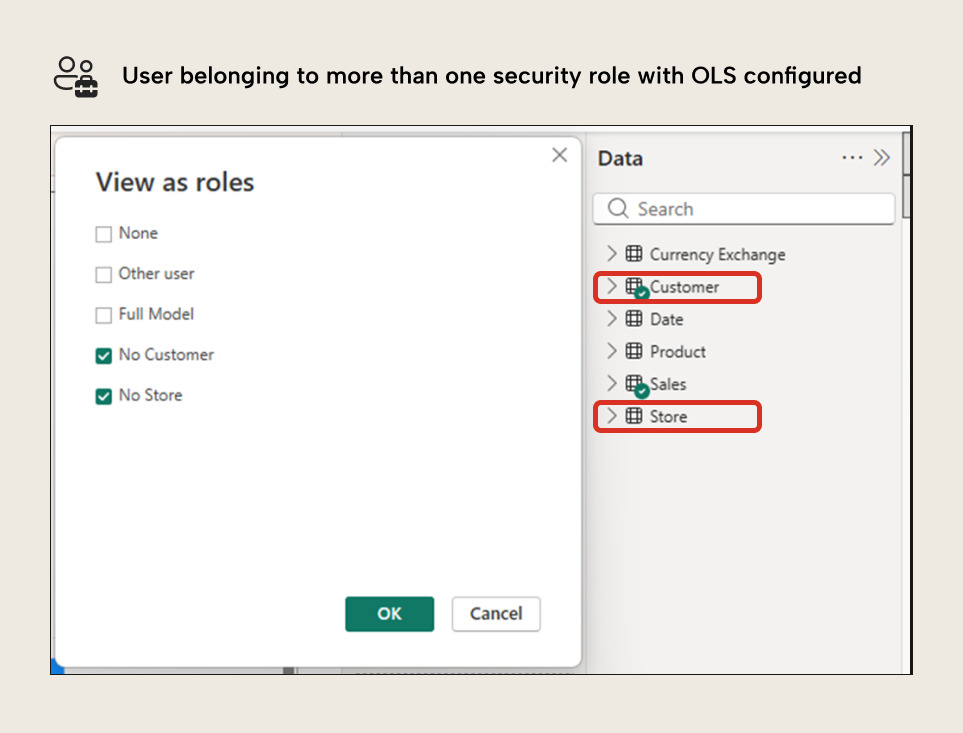
What happens if a user belongs to more than one security role, and these security roles have both RLS and OLS?
This isn't allowed by the analysis services engine. When committing the changes, you will get an error message. Generally, it's recommended that users belong to only one security role. This way, it's possible to combine OLS and RLS, making it easier to manage. If necessary, security roles can be created programmatically, and users can be assigned to them in the same manner. The details of this, though, are outside of the scope of this article.
For further reading
- Row-level security in Power BI semantic models (tabulareditor.com). The article repeatedly contrasts OLS with RLS; this is the companion deep-dive on the row-filtering security model OLS combines with.
- Five ways that the TMDL view can help you be more productive in Power BI (tabulareditor.com). Since OLS in Power BI Desktop is only editable through the TMDL view, this covers how to work in that editor effectively.
- Object-level security (OLS) (Microsoft Learn). Microsoft's official OLS reference, including the step-by-step for configuring table and column permissions with Tabular Editor used in this article.
- Object-level security (Analysis Services tabular models) (Microsoft Learn). Documents the engine-level OLS restrictions behind the errors and role-combination limits the article warns about.
In conclusion
Object Level Security or OLS is a powerful feature to limit access of groups of users to certain tables and columns, and can be particularly useful when building large semantic models that will serve many different reports and users. However, it's important to understand how it works and test thoroughly all the different security roles to avoid pitfalls such as users seeing broken visuals or data they are not supposed to see.
Manage OLS roles and hidden objects with clearer Tabular Editor 3 workflows.
Give Tabular Editor a spin