Key takeaways
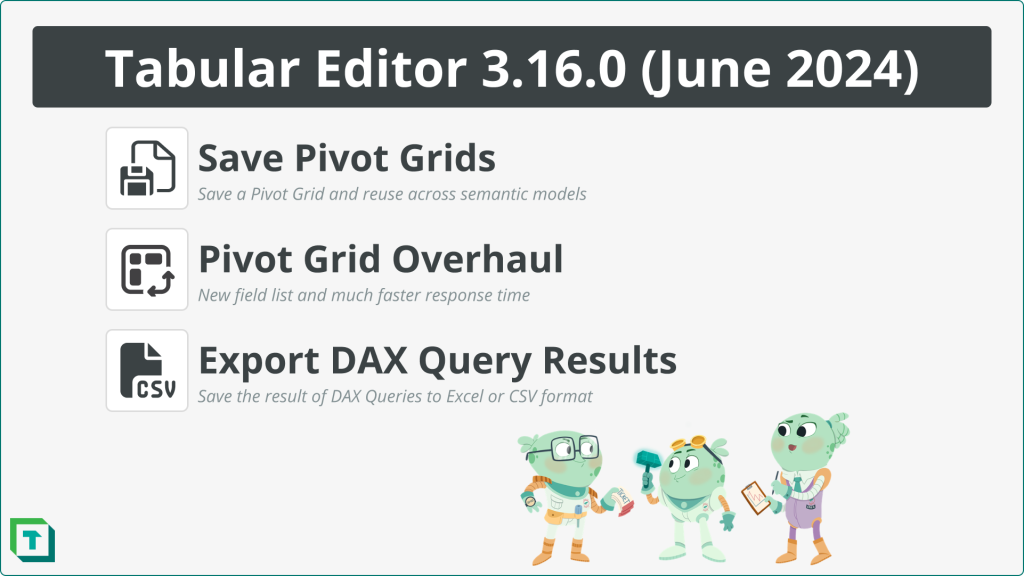
- Save and reuse Pivot Grids across models: A saved Pivot Grid keeps its whole layout and even follows measure renames, handy for comparing a dev and test model.
- The Pivot Grid got an overhaul: Faster, with a clearer field list, and it can finally use hidden measures and columns.
- Export DAX query results to CSV or Excel: A new toolbar button dumps query results straight out for row-by-row review.
- DAX formatting and bug fixes: Keyword-named tables like
Currencyare no longer capitalised on format, plus the usual round of fixes.
This summary is produced by the author, and not by AI.
Introduction
We are excited to introduce the new version of Tabular Editor 3, which is available now. This month, we have significantly boosted the Pivot Grid to make it faster, more efficient, and reusable across models. Additionally, we have added the feature that all developers publicly dismiss but secretly desire: Export to Excel/CSV!
Make sure to head to our downloads page to get the newest release.
You can also take a look at this release’s features in this video:
Improvements
This release centers on improvements, beginning with the ability to save pivot grids.
Save Pivot Grids
You can now save Pivot Grids and reuse them across semantic models. This feature enables easy and consistent validation and testing of your DAX measures and models. The Pivot Grid layout will be saved in its entirety, columns, measures, rows, filters, etc. Reopening a saved Pivot Grid can, for example, be useful when investigating differences between a development and test model. A nifty feature we have added is that even if a measure has been renamed in the development model, the Pivot Grid can be opened in the test model without having to recreate anything – the Pivot Grid will use the name for the measure that is applicable in the open model.
If fields in the saved Pivot Grid do not exist in the model where you open it, a friendly warning will notify you about the missing fields. The warning helps you identify which fields are removed automatically from the layout.
NOTE
A current limitation to saving Pivot Grids is that the conditional formatting will not be saved. This will be fixed in a later release.
Pivot Grid overhaul
The Pivot Grid has been revamped, adding a performance boost, a new default field list, and the ability to use hidden fields in the semantic model. Additionally, the Pivot Grid has a new and improved Field list that makes it much more intuitive.
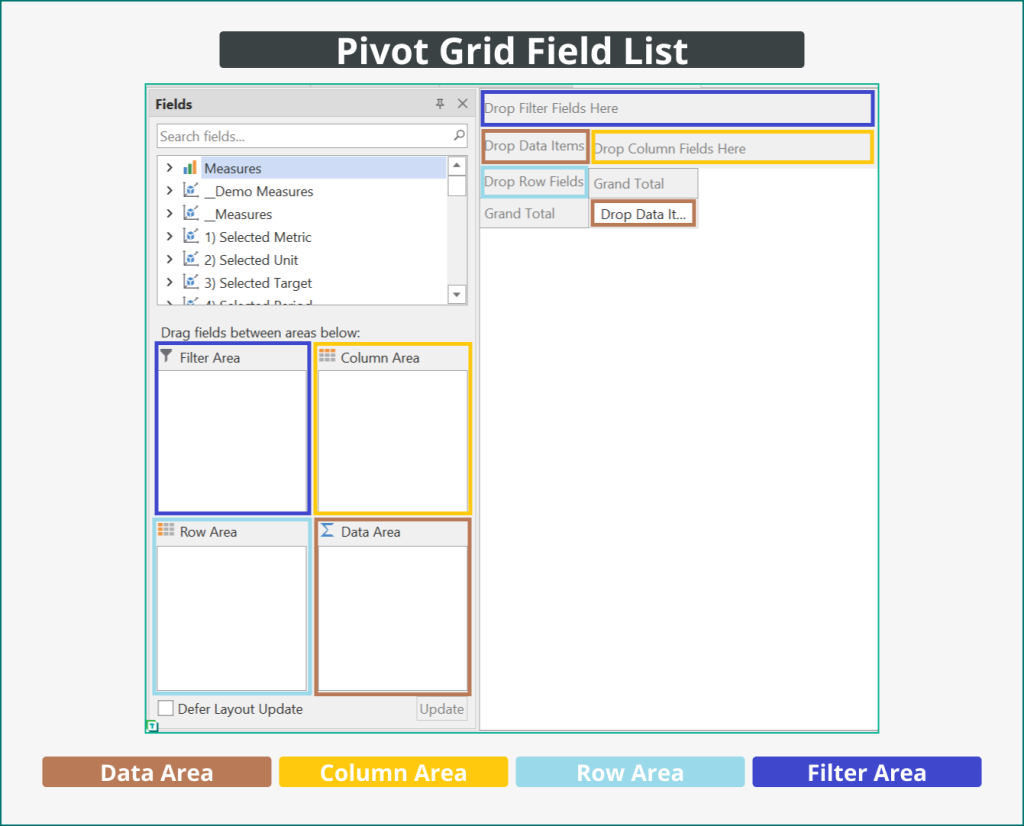
The areas in the field list are used in the following manner:
- The Data Area is where you place measures or KPIs.
- The Row Area and Column Area let you slice the data by columns or hierarchies.
- The Filter Area is used to filter the data based on values in columns or hierarchies
You can still build the Pivot Grid using the old experience. To do so, right-click a field from the TOM Explorer and add it to the Pivot Grid.
A long-standing limitation of the Pivot Grid has been that hidden measures or columns cannot be used. We are pleased to announce that with this overhaul, this limitation is in the past.
NOTE
Columns without an attribute hierarchy (Available in MDX = false) cannot be used in the Pivot Grid and are not shown in the Field list.
Please read all the details in the documentation for Pivot Grids.
Export to CSV or Excel
Sometimes, you just need to excavate the result of a DAX query to understand what you have produced row by row, and there is, after all, no other tool for that than Excel. Based on highly secret and anonymized user requests, we’ve added a convenient button to the DAX query toolbar, allowing you to effortlessly export the results to CSV or Excel format.

So, the next time your boss requests to “review the detailed data,” you have a simple and convenient method to do so.
TIP
To export more than 1001 rows, choose “click to get all rows” after running the DAX query.

Bug fixes
In Tabular Editor 3.16.0, we have implemented numerous bug fixes to improve the software’s performance and stability. Please refer to our release notes for a detailed list of all the fixes.
DAX formatting keywords
Unquoted table name references that are also DAX keywords, such as Currency, will no longer be treated as keywords during auto-formatting. This means they will not be capitalized.
Additionally, certain object properties in DAX scripts can now be left empty. For more information, see the updated DAX Scripts documentation.
Feedback
If you have any feedback or experience any bugs, please reach out in our community forum. We look forward to hearing from you!
For further reading
- Saved layout reference (Tabular Editor Docs). The feature reference for saved Pivot Grid layouts, behavior, and field-list usage.
- Script editing reference (Tabular Editor Docs). Details on DAX script editing behavior, including the property handling updated in this release.
- Work with DAX query view (Microsoft Learn). Microsoft's reference for DAX query workflows and result-grid behavior.
In conclusion
That's the June 2024 release: saved, reusable Pivot Grids, a faster Pivot Grid with hidden-field support, CSV/Excel export from DAX queries, and some formatting fixes. Grab 3.16.0, and let us know what you think over in the community forum.
Use Tabular Editor 3 to work faster across DAX, modeling, and deployment tasks.
Give Tabular Editor a spin