How to Buy Tabular Editor 3

Purchasing software should be simple — whether you're buying a single license for yourself or rolling out Tabular Editor across an enterprise team.

This page is designed to help you quickly understand the different ways you can purchase Tabular Editor 3, what each option includes, and which buying method best fits your organization’s procurement process.

Whether you prefer self-serve checkout, purchase orders, Azure Marketplace, or an approved reseller, we make it easy to get started.

tabular-editor-situation-32-1080x1080

Choose the buying option that fits your workflow

Four purchasing options are available, depending on how your company handles procurement:
 

Buy Online

Best for instant access, individuals & teams

Purchase Order

Best for procurement-led organizations

Buy via Azure Marketplace

Best for Enterprise Microsoft buyers

Work with a reseller

Best for preferred vendor requirements

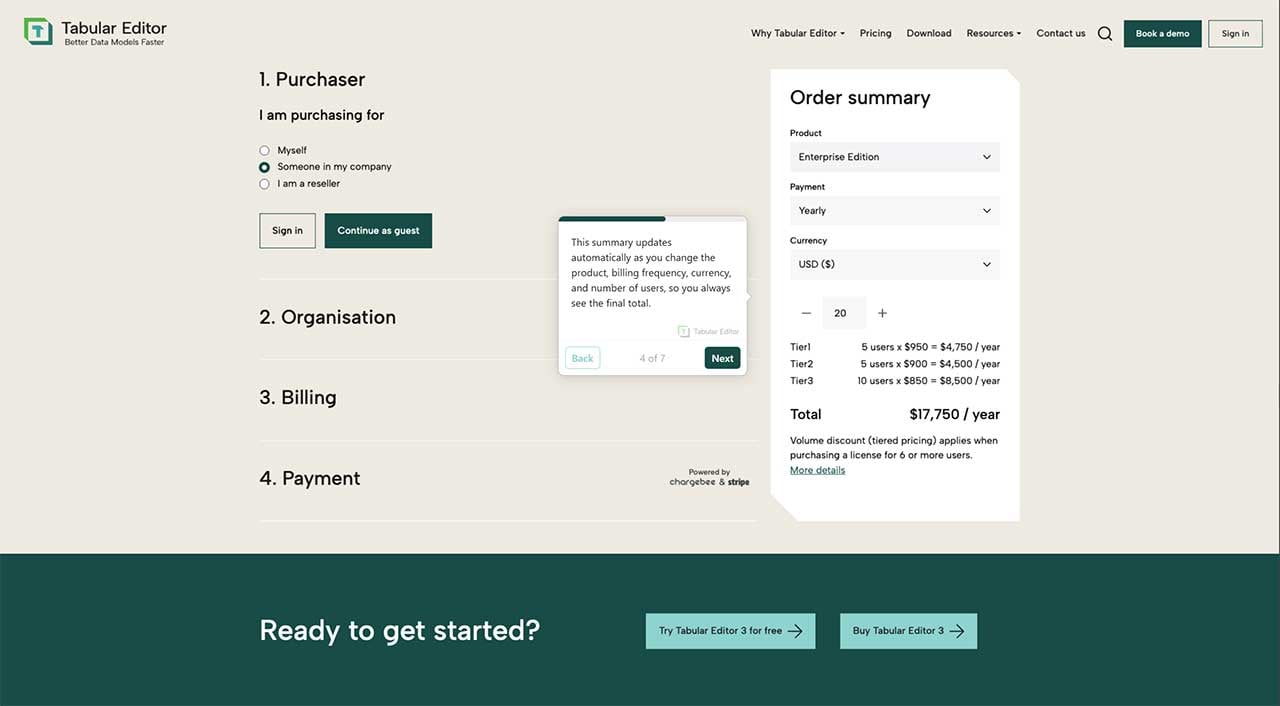
Click-Through Demo: Buying Tabular Editor

This short click-through demo walks you through the entire purchasing process—from selecting the right license type and billing frequency to choosing your preferred currency and number of users.

It also explains how tiered pricing works for Enterprise licenses, so you can clearly see how volume impacts your total cost. In just a few minutes, you’ll know exactly what to choose and how to get started.
how-to-purchase-tabular-editor-click-through-demo-1

How to Buy Online (Self-Serve Checkout) 

Best for individuals and teams who want to get started immediately.

With our online checkout, you can purchase Tabular Editor 3 in just a few minutes — no procurement process required.

How it works:
  • Select your preferred edition and number of seats
  • Purchase for yourself or on behalf of someone else in your company
  • Pay securely by credit card
  • Receive your license key and confirmation instantly
  • Assign seats or share license keys through the Self-Service Portal
  • Add more seats anytime — co-termed with your existing subscription
Invoice payments are available for annual subscriptions (minimum thresholds apply).

How to buy via Purchase Order or request a quote

Best for organizations with formal procurement requirements.

If your company requires invoicing, purchase orders, or internal approval workflows, we support a smooth enterprise-friendly purchasing process.

Steps:

  1. Request a formal quote through Sales Support or our Quote Request page

  2. We provide an official quote document

  3. Your team issues a PO or confirms acceptance

  4. We process the order and generate your subscription license

  5. You will receive an order confirmation including an onboarding email and your license key.

We also support:

  • Vendor onboarding workflows
  • Security and compliance documentation
  • Enterprise procurement requirements
If your organization needs documentation before purchase, visit our Trust Center or contact Sales Support.

How to buy via Azure Marketplace

Best for enterprises purchasing through Microsoft procurement channels.

Tabular Editor 3 is available on the Azure Marketplace, making it easy to buy through existing Azure consumption agreements.

This option is ideal for customers with:

  • Centralized Microsoft procurement
  • Marketplace-based renewals
  • How it works:
  • Purchase Tabular Editor 3 directly through Azure Marketplace
  • Your subscription is activated immediately
  • Seats and licenses are managed in the Self-Service Portal
  • Renewals are handled through Microsoft Marketplace

How to buy through Resellers

Best for organizations that require purchasing through preferred vendors.

If your company works with specific resellers or channel partners, you can purchase Tabular Editor 3 through one of our authorized partners.

Process:

  • Choose a reseller
  • The reseller provides a quote and completes the transaction
  • We issue your license once the purchase is finalized
We work with resellers globally.

Frequently Asked Questions

Can we pay via invoice or purchase order?
Yes — invoice/PO purchasing is supported for organizations with procurement workflows.
I cannot use a credit card for payment. Are there any other payment options available?
We allow payment by bank/wire transfer for purchases of annually paid subscriptions including at least 1 enterprise license, 2 business licenses, or 5 desktop licenses. If you choose this option during checkout, you will receive an invoice with payment instructions (payment term NET 15 days). You can also attach or update a credit card to your subscription at any time on our Self-Service portal.
Do you support vendor onboarding?
Yes. We support vendor onboarding, compliance documentation, and procurement requirements.
Can we purchase multi-year agreements?
Yes. Multi-year commitments are available. Contact Sales for a quote.
Can I get a quote before purchasing?
Sure. Get your quote here or contact sales.
Do you offer volume discounts?
Enterprise Edition purchases for 6 or more users are eligible for volume discounts. See here for more details.
Can we purchase through Azure Marketplace?
Yes. Tabular Editor 3 is available as an Azure Marketplace subscription. See this page for details.
Will I be able to purchase Tabular Editor through a reseller?
Sure thing! We work with multiple resellers globally to make it more convenient for you to purchase Tabular Editor. Contact Sales if you would like a recommendation.
Will my Tabular Editor subscription renew automatically?
By default, your Tabular Editor subscription will automatically renew unless you take action to change this. You can adjust your subscription settings via our Self-Service portal or contact our sales team to opt out of automatic renewal.
How do I cancel my subscription?
If you wish to cancel your Tabular Editor subscription, just sign into our Self-Service portal and follow the steps to cancel your subscription. Please make sure to submit your cancellation request at least 1 day prior to the end of your license term.
Can I change the plan and the number of users after I purchase Tabular Editor 3?
Absolutely! You can make changes to your plan or increase the number of users for your existing Tabular Editor 3 subscription by signing into our Self-Service portal. Simply head to the subscription tab and follow the steps to upgrade your plan or add more users for your existing subscription.
Are license keys shared between multiple users?
For Tabular Editor 3 Desktop and Business editions, each user receives their own non-transferable license key. Enterprise edition customers receive a single license key per subscription, which can be shared by multiple named users up to the quantity (“seats”) purchased. You can reassign users of your Enterprise Edition license key through our self-service portal (each seat can be reassigned at most once every 30 days).