
Key takeaways
- BPA improves your models: The Best Practice Analyzer, from Tabular Editor and also in Fabric notebooks, scans semantic models to improve quality and performance.
- Rules are easy to get: BPA rules are built into Tabular Editor 3 and Fabric, and you can also find them on GitHub.
- TE3 gives the best experience: The BPA in Tabular Editor is actionable, so you can ignore rules that don't apply and fix the issues it finds.
- Write your own rules: Generic rules help, but tailoring rules to your models gets you the most, and AI tools make that much easier now.
This summary is produced by the author, and not by AI.
TIP
As of January 2026, Tabular Editor now comes with built-in BPA rules for all installations.
What is BPA?
As you develop your semantic model, you want to perform regular checks to ensure its quality. This is especially important as you manage and change the model over time during its lifecycle. One tool that helps you do this with minimal to no effort is the Best Practice Analyzer, or BPA.The BPA is a tool created by Tabular Editor, which has since been adopted in Microsoft Fabric notebooks. It will scan your model to see if it's adhering to some global best practice rules, so that you can make the model better.
These rules could be common mistakes, like using Auto Date/Time, which can greatly increase the size of your model, or not setting format strings for your DAX measures. You can also set up more complex rules that notify you of anti-patterns in DAX or M, which can cause slower reports and data refreshes. When you use the BPA, it notifies you when you violate these rules so that you can fix them and improve your model.
The BPA provides several benefits:
- Points you toward straightforward, well-known ways to improve your model, including organization, performance, and size.
- You can scan multiple models at once, helping ensure quality assurance and quality control (QA/QC) in teams or larger organizations if data modelling is decentralized.
- Allows you to define your own, custom rules tailored to your organization, team, or model, to make the BPA more useful.
Since the BPA is open source, you can use it from a variety of different tools, such as:
- Tabular Editor 2: You can set up and use BPA rules in the UI of TE2.
- Tabular Editor CLI: This lets you programmatically use BPA rules to automate checks against your semantic model, for instance, during CI/CD.
- Tabular Editor 3: You can use the same BPA rules in TE3 as in TE2.
- Notebooks in Fabric: Fabric has a version of the BPA in notebooks based on the one from Tabular Editor that works in Python instead of C#.
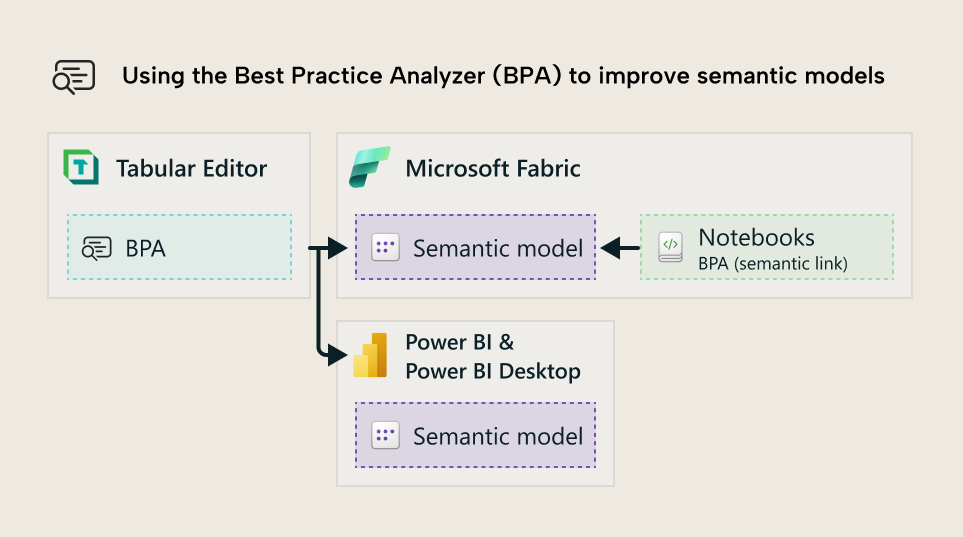
This article explains how you can set up and use the Best Practice Analyzer in Tabular Editor 3, and how to get the most out of it by creating your own rules to use in any scenario.
Getting BPA rules
There are many BPA rules created by others which already exist. For instance, as of January 2026, Tabular Editor 3 comes with BPA rules preloaded. You can also find BPA rules on GitHub repositories from the Tabular Editor team as well as the Microsoft Fabric Customer Advisory Team (CAT), which they use with their customers.
To load these rules into Tabular Editor, you can simply get the link to the rules .json file (such as from the GitHub repository). Alternatively, you can download these files to your local machine. Then, you can provide this link or upload the BPA rules file from the BPA window:
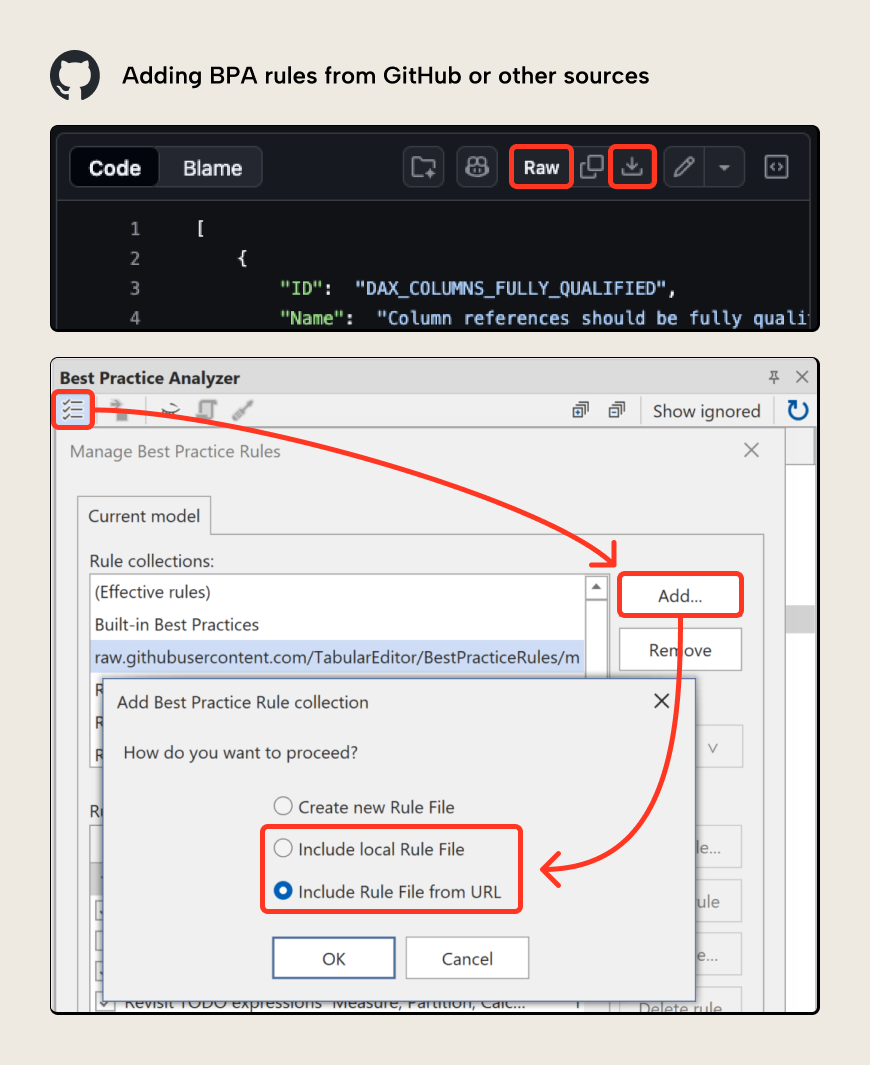
Depending on what you select, you can add these rules to three different scopes: Rules within the current model, rules for the local user, and rules on the local machine. For more information, see Managing Best Practice Rules in our documentation.
NOTE
When you add BPA rules from a local rule file, uncheck the option “use relative path” when selecting the file, if you have any issues with the import.
The rules built into Tabular Editor 3 or that you find online are standard and battle-tested, but they might not necessarily suit your models. We've tried to only include universally applicable rules to all scenarios and audiences. Users and organizations likely have specific practices that they’d also like to enforce, which they can do using custom BPA rules (we discuss that later in this article).
Using the BPA rules
In Tabular Editor, you can disable individual rules to stop them from being scanned. This allows you to curate the rules to just the ones that you find useful:
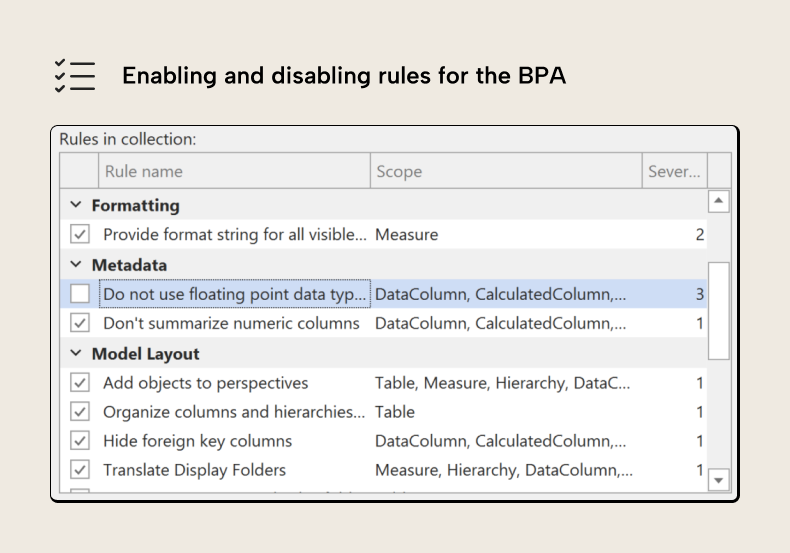
In Tabular Editor, BPA rules are actionable. This means you can act directly on your model using the rules, either by navigating to the object to fix it or by automatically fixing it with a button. If the rule flags an issue erroneously – or you wish to just ignore it – you can choose to ignore the rule for that object, and it will be remembered for this model.
Rules can be fixed with the push of a button if a Fix Expression is defined for the rule (this is an optional property for a rule). This is a C# expression that works like a script that programmatically changes the model. To use this, you just click the “screwdriver” button at the top of the BPA window when selecting one or more rules. For instance, the following example shows a BPA issue where foreign keys are not hidden; clicking the screwdriver will automatically hide those columns and the issue won't appear anymore:
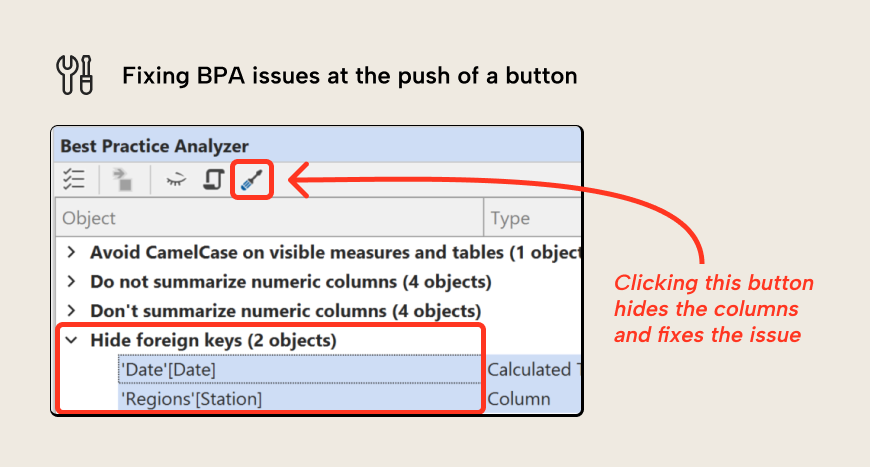
Not all rules have a Fix Expression. If not, you can double-click on the issue to go to the object and make the fix yourself. However, some issues might be false positives that you don't necessarily need to "fix".
For instance, you might have a rule that suggests disabling IsAvailableInMdx, which can lead to performance increases in some cases. However, doing so means that you cannot use that field from Analyze in Excel, which queries by using MDX. So, you can ignore the rules, which means they won’t show up in the BPA window unless you select “show ignored”:
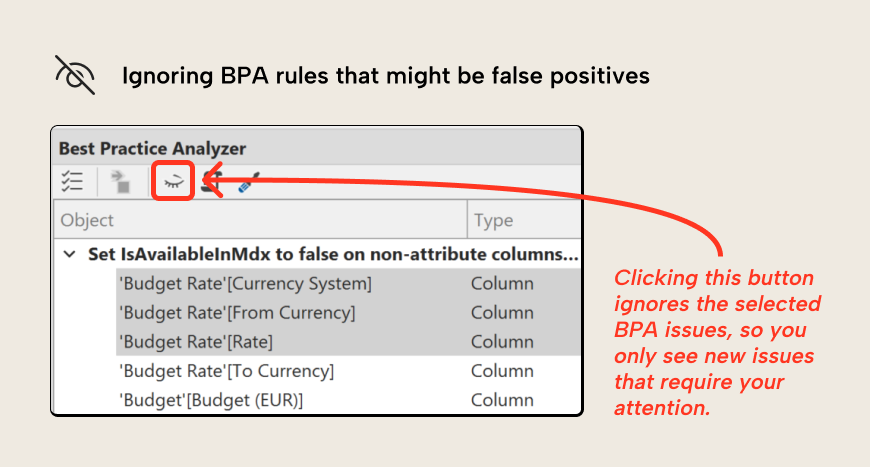
Ignoring rules sets a custom annotation on the object, and it’s easy to stop ignoring something or audit any rules that might have been ignored erroneously (or unintentionally). This means that you can always act on BPA issues, either fixing or ignoring them. Anything new that the BPA raises is thus immediately worthy of your attention.
NOTE
The BPA in a Fabric notebook doesn't yet allow you to act on your semantic models; you can't ignore or automatically fix rules from a notebook unless you specify the fix in a new notebook. Notebooks also aren't aware of any rules you configured or ignored from Tabular Editor.
If you plan on using the BPA in Fabric notebooks, we do recommend that you adapt these notebooks to customize and action your BPA rules.
Create your own BPA rules and fix expressions; use AI to help
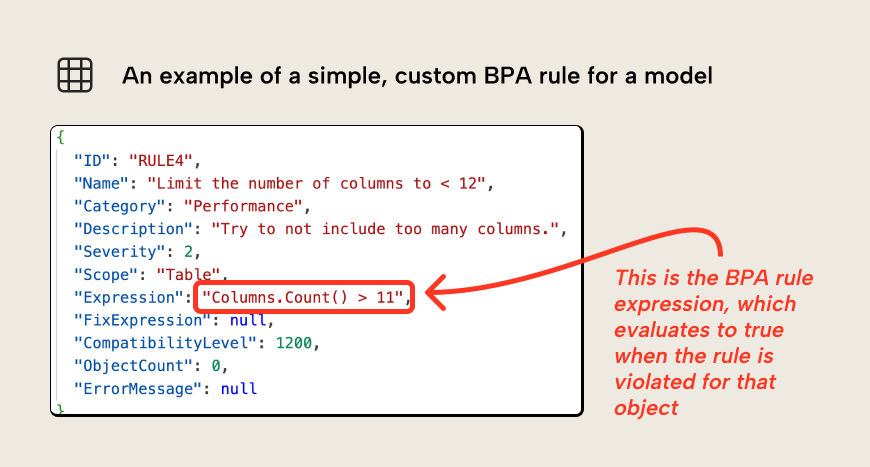
The best way to use the BPA is to create your own rules. This involves modifying an existing BPA rules JSON file to specify a new BPA rule expression or fix expression. A BPA rule expression is a C# expression for one or more types of semantic model object (measures, tables, etc.) which evaluates to true if the rule is being violated.
You can create a BPA rule in the Tabular Editor application, or by modifying a BPA rule JSON file. The following shows you an example of what this looks like in the Tabular Editor user interface when you select "new rule":
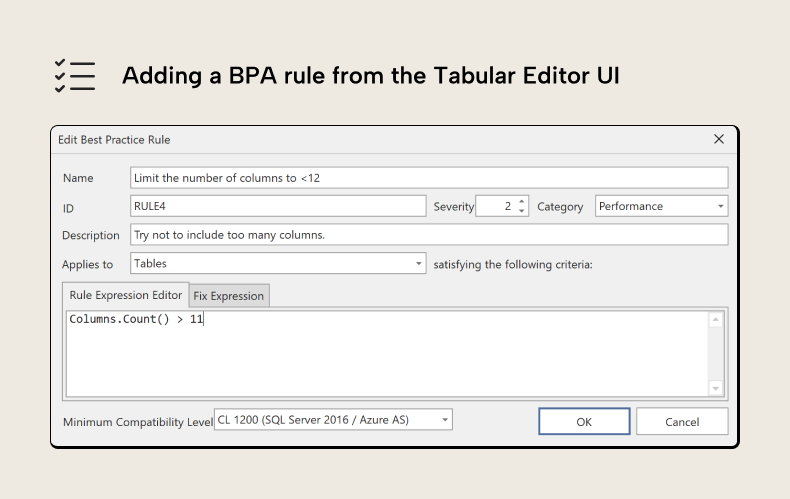
As you can see, the BPA rule requires that you specify its expression in the "Rule Expression Editor". You can also enter all of this information directly in the BPA rule JSON. The following shows a simple example of a custom BPA rule that raises an issue if there are more than 12 columns in a semantic model table:
However, unfortunately, very few people create custom BPA rules because this requires knowledge of C#. Fortunately, this is straightforward now with AI thanks to large language models (LLMs) and coding agents like Claude Code.
We created and shared a Best Practice Analyzer skill that you can use with AI agents like Claude Desktop, Claude Code, or GitHub Copilot (among others) so that they know how to create BPA rules for you. Skills are simple text files that follow a certain format and are designed to improve agents' performance in a particular task. In this case, the skill is designed by us at Tabular Editor so that a coding agent can help you audit and manage your BPA rules, and work with you to suggest new rules.
If you use Claude Code, you can install these skills via the Tabular Editor plugin from the Power BI Agentic Development repository, which is maintained by Kurt Buhler:
claude plugin marketplace add data-goblin/power-bi-agentic-development
claude plugin install tabular-editor@power-bi-agentic-development
For instance, you can use this skill to audit the existing BPA rules that you have configured for a model. It can identify the full rule set that is applied, and any disabled or ignored rules, then provide suggestions for changes or additions:
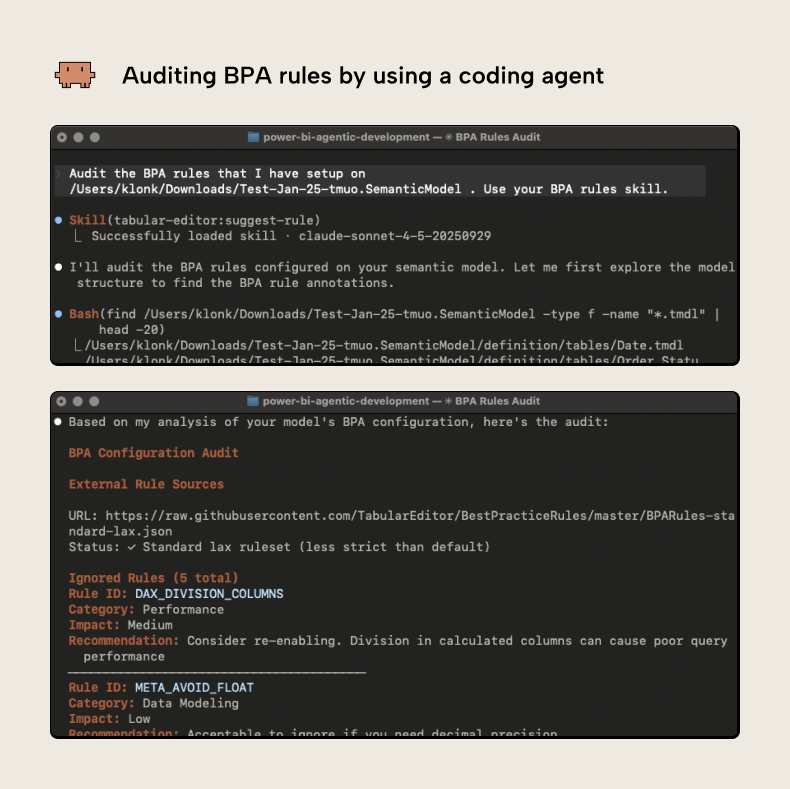
In the previous example, the user asks “Audit the BPA rules that I have setup” on a semantic model. The agent loads the skill, and then identifies the rules applied. In this case, the coding agent (Claude Code) recommended adding new rules because of excessive merges in Power Query, which can cause performance issues.
It's now trivial for the user to ask the agent to add this rule to the semantic model using the correct syntax:
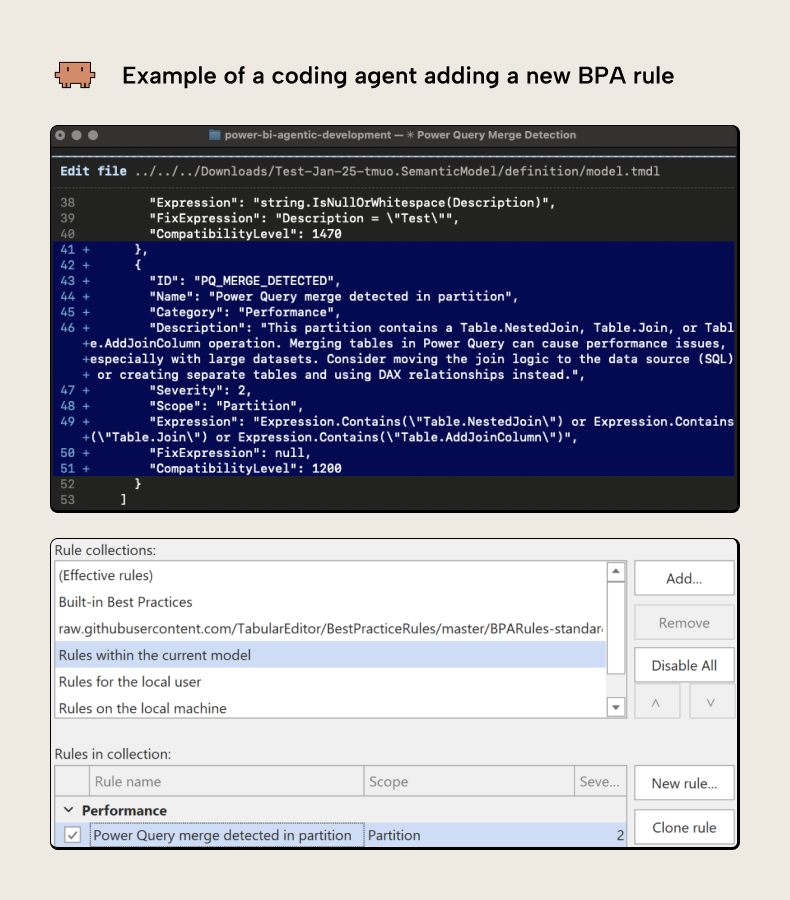
The rule will now automatically check your model for any merges so that human authors or agents can review and possibly revise the approach.
TIP
BPA rules aren't just useful for human authors of semantic models, but also agents. These BPA rules can be one way to provide automated feedback to agents as they make changes to semantic models to ensure better outputs. We'll discuss this more in later articles.
For further reading
- Using the Best Practice Analyzer (Tabular Editor Docs). Covers how to load rule sets, suppress individual violations, and create custom rules with C# filter expressions.
- Power BI semantic model checklist (Tabular Editor Blog). Provides a practical model-quality checklist that maps well to the kinds of checks you can encode as BPA rules.
- Best Practice Rules repository (Tabular Editor GitHub). Contains the shared rule definitions that are useful starting points when building or adapting a custom rule set.
- Use notebooks with semantic models (Microsoft Learn). Documents the Fabric notebook BPA experience and its current capabilities compared with Tabular Editor.
In conclusion
The BPA is a valuable tool in Tabular Editor that you can use to improve the quality of your semantic models. It scans your models for issues that you can action by automatically fixing them or ignoring them. However, the BPA is most useful when you make your own custom rules and fix expressions, which you can do on your own or with the assistance of AI agents.
Run better BPA checks for semantic models in Tabular Editor 3.
Give Tabular Editor a spin