Some organizations welcome AI. Others must avoid it entirely. With Tabular Editor 3, that choice is completely yours.
When we announced that AI is coming to Tabular Editor 3, we received a lot of excitement – and it also raised some important questions about how these new capabilities will affect your ability to use Tabular Editor 3 in environments where AI tools are restricted or prohibited.
We want to reassure you: you will always have full control.
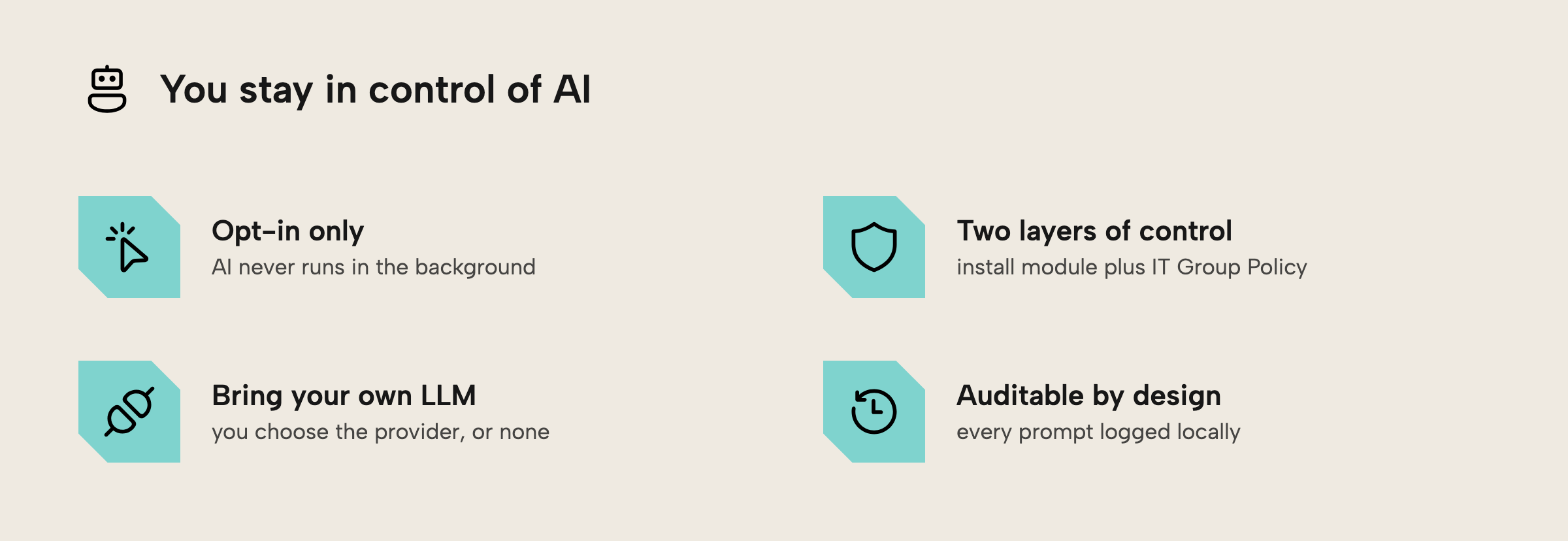
Explicit action required - No background AI
AI in Tabular Editor never runs in the background or activates automatically. Nothing happens unless you explicitly invoke an AI feature – for example, by typing a prompt in the AI Assistant, or by selecting one of the “Ask AI…” menu commands.
If you keep using Tabular Editor as you always have, no AI functionality will ever be engaged. The AI features are available only when you deliberately use them. You stay in control – every time.
Two layers of control
We’ve built AI in Tabular Editor 3 with two distinct layers of control to fit both individual users and enterprise environments.
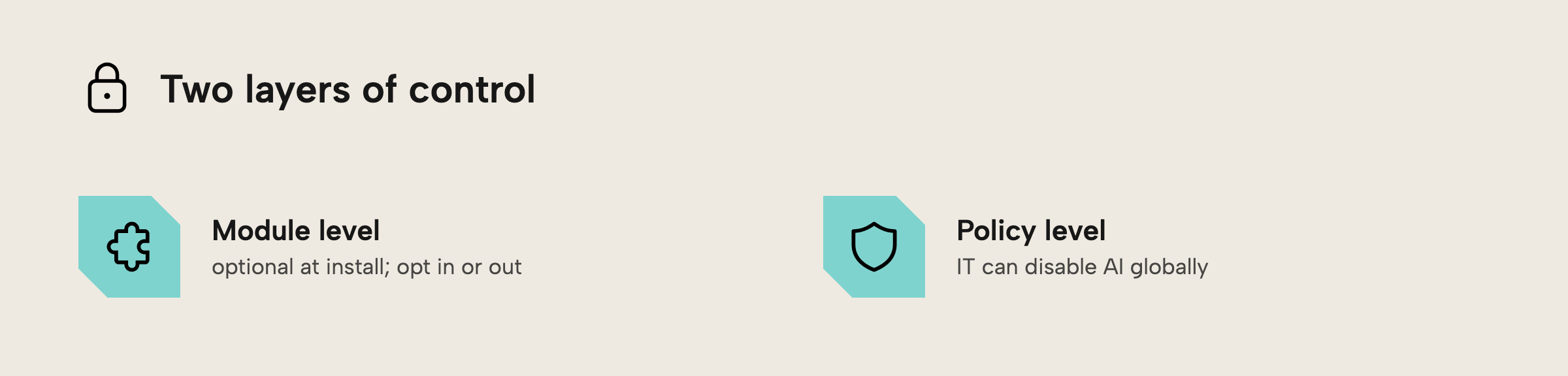
Module level (installation choice)
The AI Assistant is an optional module you choose at install time:
- In this release, it isn’t selected by default, so you opt in explicitly to install it.
- In General Availability (GA), it is selected by default, but you can still deselect it.
- If the module isn’t installed, the AI features don’t exist in that installation of Tabular Editor.
Policy level (centralized IT governance)
Even when the module is installed, IT administrators can disable AI globally through a Windows Group Policy:
- Enforcing the policy makes the AI Assistant appear as if it isn’t installed, and prevents users from installing it.
- The setting is DisableAi (see our common policies).
- It gives consistent enforcement across all users, full compliance with internal or external requirements, and a seamless experience where AI use is restricted.
Bring your own LLM
Tabular Editor 3 doesn’t include a built-in AI provider. You decide which Large Language Model (LLM) to use and how to connect it. At launch, we plan to support OpenAI, Anthropic, Azure OpenAI, and the OpenRouter Unified API.
If your organization restricts AI endpoints entirely, simply don’t configure them – no external AI connections will be made.
All AI interactions remain fully under your organization's control.
Visibility and auditability
We know compliance requires transparency. Every AI interaction in Tabular Editor will be logged locally, including:
- The timestamp of the request
- The user who initiated it
- The prompt or action taken
This provides traceability, accountability, and an audit trail whenever you need it.
Why this matters
Tabular Editor is a productivity tool trusted by thousands of professionals. We want AI to enhance your workflow – only if and when you choose to use it.
By making AI explicitly user-invoked, module- and policy-controlled, auditable, and vendor-neutral, we ensure that you remain fully in charge of how AI is used within your environment.
What's next
As we roll out the AI Assistant in Tabular Editor 3, we’ll continue to share technical details, configuration examples, and best practices for secure and compliant deployment. Ahead of launch, we’ll conduct a penetration test using a third-party service, and provide the pentest report in our Trust Center.
Your feedback plays a key role in shaping this feature responsibly, so if you have any questions, concerns, or requests, please reach out – we’re listening.