


AI builds your semantic model. You review every change

Chat with the built-in AI Assistant or bring your own agent through the MCP Server – while Tabular Editor 3 keeps you in control.

Automate your tabular modeling workflow

Write DAX faster, apply changes in seconds, and enforce best practices automatically.
Tabular Editor combines AI, scripting, and best practice analysis to remove manual work across your entire model. 
  Trusted by companies in 130 countries

Two ways to work with AI – one set of guardrails

AI Assistant

Build, fix, and understand your model through chat – using your own LLM provider.

MCP Server

Let Claude Code, GitHub Copilot, Codex, or Cursor work on the model you have open. No API key needed.

Built-in guardrails

See every change, undo what you don't want, and let agents check their work against your Best Practice Analyzer rules.

Work faster with the AI Assistant

Chat with an assistant that knows semantic modeling.

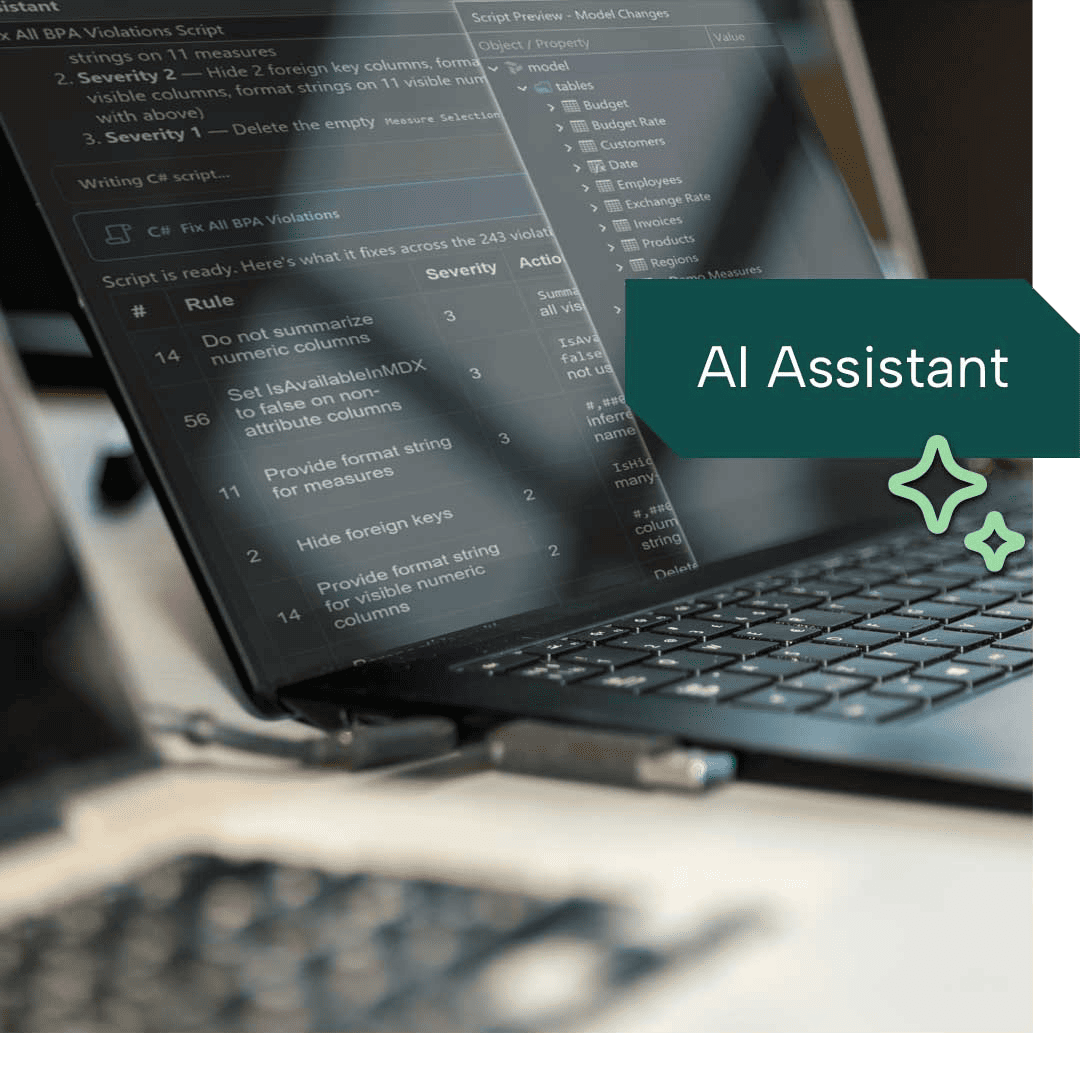
Build and change your model through chat, without leaving Tabular Editor's visual interface – so you can see and control everything the assistant does. It's powered by instructions from semantic modeling experts and runs on the LLM your organization already uses, including local models.

  • Explore your model and write DAX queries
  • Apply model changes directly from chat
  • Run Best Practice Analyzer checks and fix issues
  • Add custom instructions for your own standards
AI-Assistant-jpeg-medium-1
MCPserver

Bring your own agent with the MCP Server

Your agent does the work – you keep the final say.

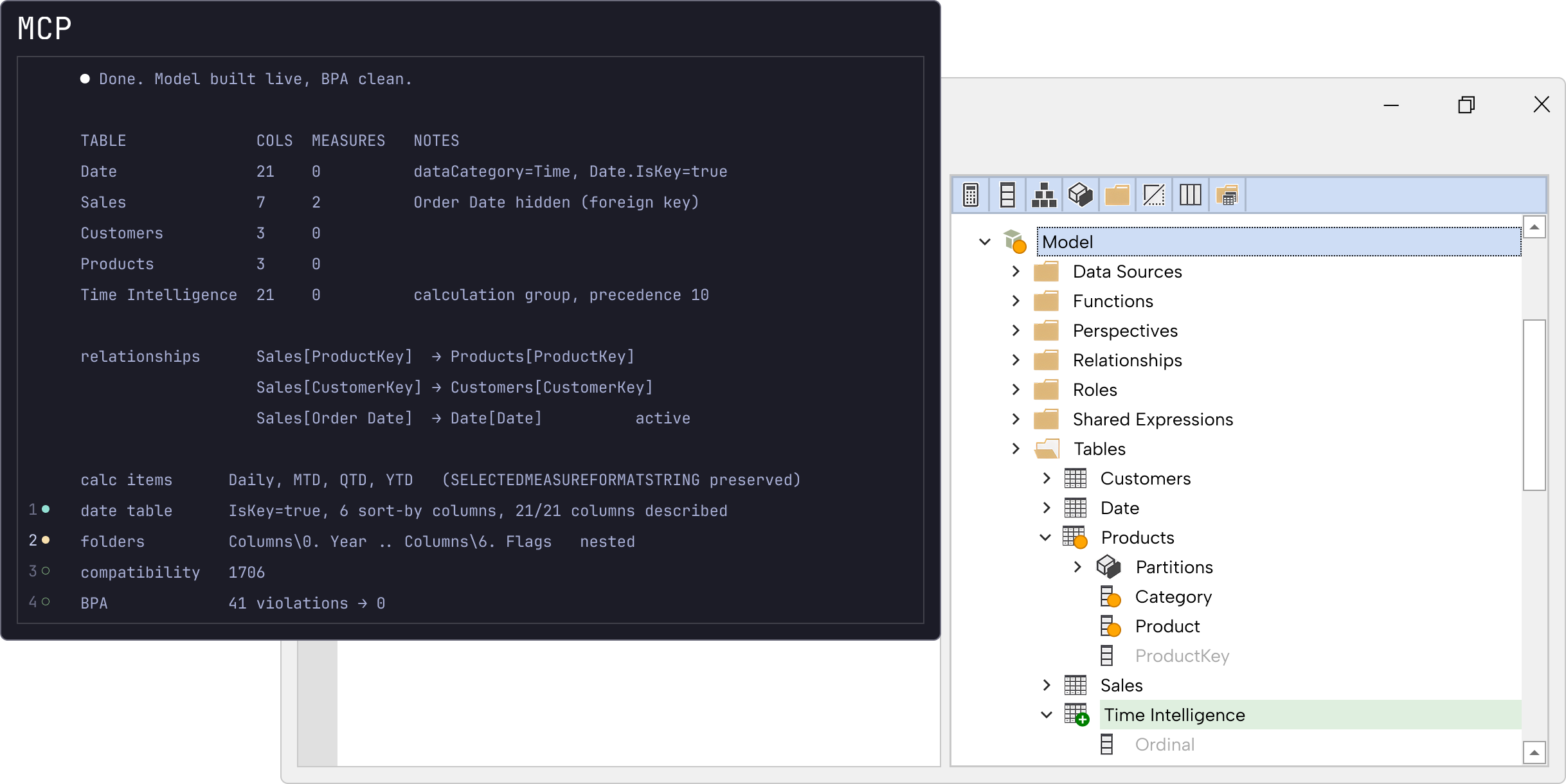
Already using Claude Code, GitHub Copilot, Codex, or Cursor? Connect it to the model you have open in Tabular Editor – no extra API key needed. Every change shows up in your session, ready for you to inspect, undo, or save.

  • Connect the agent you already use
  • Review every change visually, right where you work
  • Let the agent check its work with BPA and VertiPaq Analyzer

See and control every change

Full visibility, whichever way you work with AI.

With most AI tools, it's hard to tell what an agent actually changed. In Tabular Editor, every change is visible in the interface – so you keep what works and undo what doesn't.

  • See changed objects and properties at a glance
  • Revert selected edits – or everything at once
  • Nothing outside your model runs without your review
  • Agents check their work against your Best Practice Analyzer rules

tabular-editor-situation-6-1080x1080
tabular-editor-situation-10-1080x1080

Enterprise-ready AI

Set the boundaries once – for chat and agents alike.

The AI Assistant and the MCP Server share the same permissions, so you decide once what AI can access and do – and every action is logged.

  • Allow model edits without granting access to your data
  • Central governance through policies (Enterprise)
  • Local audit log of all AI activity (Enterprise)
  • Independently penetration-tested

Ready for the next level?

Let AI do the model work – and stay in control

Try the AI Assistant and MCP Server in Tabular Editor 3 and see every change for yourself.
What is the Tabular Editor AI Assistant?
A chat-based assistant built into Tabular Editor. It can explore your model, write and run DAX queries, create and run C# scripts, run Best Practice Analyzer checks, and look up VertiPaq Analyzer statistics.
What is the MCP Server?
The MCP Server lets an agent you already use – such as Claude Code, GitHub Copilot, Codex, or Cursor – work on the model you have open in Tabular Editor 3. It uses the same tools and permissions as the AI Assistant, and you don't need an API key in Tabular Editor.
Which LLM providers can I use with the AI Assistant?
The AI Assistant uses a bring-your-own-key model. It supports OpenAI, Anthropic, Azure OpenAI, and any OpenAI-compatible endpoint, including local models.
Are the AI features included in all Tabular Editor 3 editions?
Yes. The AI Assistant and the MCP Server are available in Desktop, Business, and Enterprise.
Can the AI change my model without me knowing?
No. You decide up front what AI can do through five permissions: model metadata, model data, Best Practice Analyzer, documents, and macros. Letting the AI Assistant apply changes directly is opt-in. Every change is visible in Tabular Editor, and you can undo selected edits – or everything with a single Ctrl+Z – before you save.
Is my data sent to third parties?
Only to the LLM provider you choose, and only what your permissions allow – for example, model metadata without model data. Tabular Editor does not provide or route any AI service, and conversation history is stored locally on your machine.
Can IT control or disable AI?
Yes. AI features can be deselected during installation, and IT can disable all AI functionality through a group policy. Enterprise customers get additional central governance through policies, and Tabular Editor keeps a local audit log of all AI Assistant and MCP activity. Read more here.
Is the AI Assistant secure?
The AI Assistant has undergone independent penetration testing. Visit our Trust Center for details.
How do I get started?
AI features are included in a standard installation of Tabular Editor 3. Add your API key under Tools > Preferences > AI Features to use the AI Assistant, or choose Tools > MCP Server to connect your own agent.