
Key takeaways
- XMLA is how tools talk to your model: XML for Analysis is the connection Tabular Editor, SSMS, DAX Studio, Excel, and the Tabular Editor CLI use to reach your semantic model from outside the Power BI app.
- It has been around since 2001: Published as an open spec by Microsoft and Hyperion, XMLA has powered Analysis Services for two decades, which is why a whole third-party ecosystem works on day one.
- It's not the only way in: The Power BI REST API, Semantic Link, and the Fabric REST API each cover narrower use; XMLA is broadest, but knowing the alternatives helps you pick the right one.
Most Power BI developers have come across “XMLA endpoint” somewhere: a tenant setting, a Microsoft Learn page, or a tool’s connection dialog. The term sounds technical, and it is, but the idea behind it is straightforward.
Your semantic model is a database. Like any database, it lives somewhere: on your laptop while you’re authoring it in Power BI Desktop, or in a workspace once you’ve published it to the Power BI Service or Fabric. To use a database with anything other than the application that hosts it, you need a connection. The XMLA endpoint is that connection.
This article walks through what the XMLA endpoint is, where it comes from, how to turn it on, what you can do with it once you have it, and where the alternatives (the Power BI REST API, Semantic Link, and the Fabric REST API) fit in.
What the XMLA endpoint is
A semantic model is a tabular database. More specifically, it’s a hosted instance of Microsoft’s Analysis Services engine. Power BI Desktop, the Power BI Service, Fabric, and Azure Analysis Services all run that engine; they answer queries against it, and accept changes to it.
If HTTP/S is the protocol your browser uses to talk to a web server, XMLA is the protocol an analytical client uses to talk to an analytical database. Tabular Editor is the browser; a workspace (or the local Desktop process) is the server; XMLA is the line between them.
XMLA is the language those hosts speak when something other than the host application connects to them. Tabular Editor wants to add a measure: it opens an XMLA connection, sends the change, the host applies it. DAX Studio wants to run a query: same thing, over the same connection. Excel’s Analyze in Excel uses XMLA to drive pivot tables on top of your model. SSMS uses it to script a model. The new Tabular Editor CLI uses it to deploy a model from a terminal or CI/CD pipeline to a Service workspace.
In short: XMLA is the standard way for external client tools to read from or write to a semantic model.
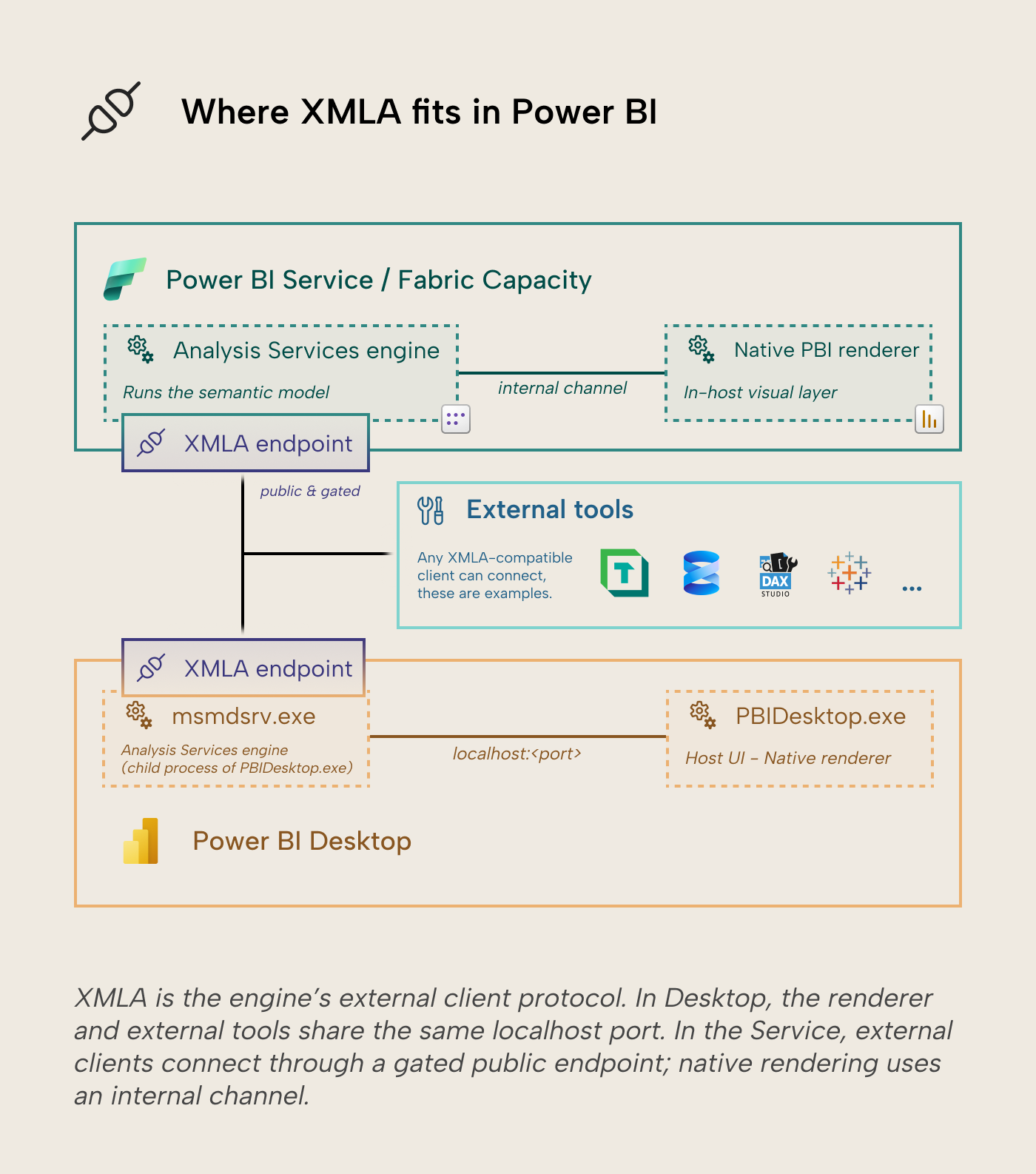
Local versus remote: same protocol, two places
When you have a model open in Power BI Desktop, that model is running on your machine. It accepts XMLA connections on a port on localhost. That’s how the External Tools dropdown launches Tabular Editor, DAX Studio, or Bravo with the model already wired up. You don’t enable anything; the local XMLA endpoint is part of how Power BI Desktop runs.
When you publish that model to a Power BI workspace, the model is now hosted by the Service (or Fabric). It accepts XMLA connections too, but the address is different: a public URL that authenticated tools can reach over the internet. The protocol is identical to the local one; the address and the authentication change. For an XMLA client, a Power BI or Fabric workspace looks and behaves like an Analysis Services server, the same server type SSAS shipped in 2005.
For the rest of this article, “the XMLA endpoint” usually means the remote one, because that’s the part developers have to think about: capacity tier, tenant settings, authentication. The local one in Desktop is always there as soon as you launch Power BI Desktop.
A 25-year-old open protocol
XMLA was published in April 2001 as an open specification by Microsoft and Hyperion Solutions, designed for client tools to talk to analytical databases over the internet. SSAS has shipped XMLA support since SQL Server 2005, nearly two decades before Fabric existed.
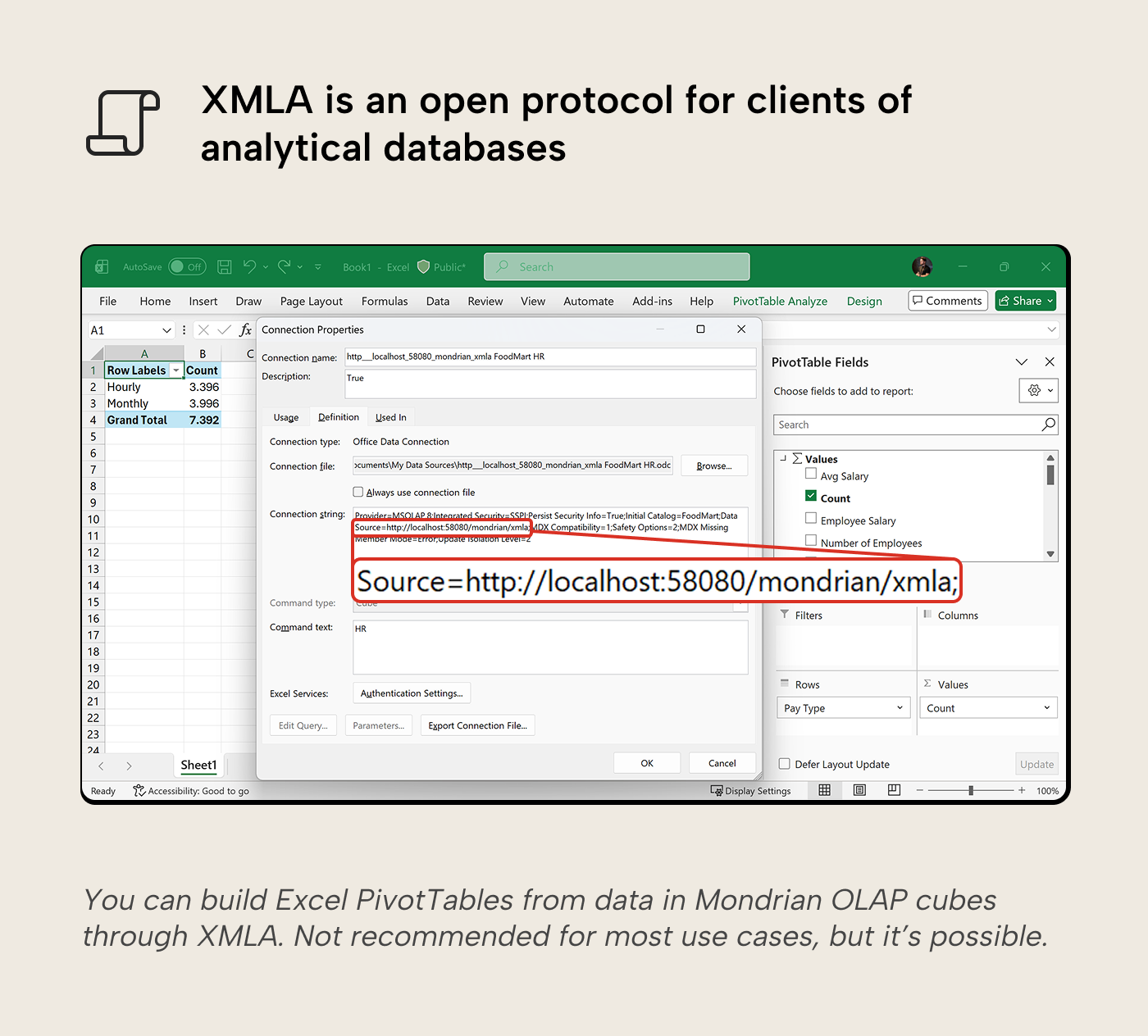
That history matters because XMLA wasn’t invented for Power BI; it was inherited. Tabular Editor, DAX Studio, SSMS, and most of the other tools we associate with semantic-model work were already mature XMLA clients before the Power BI Service supported XMLA. When Microsoft exposed an XMLA endpoint on the Service for Premium customers in 2019, the entire third-party tools ecosystem became available for Power BI semantic models on day one. None of those tools needed Power BI-specific support; they needed an XMLA endpoint to point at.
How to enable the remote XMLA endpoint
Whether the remote endpoint is available depends on the workspace’s capacity tier. In every paid tier, the endpoint defaults to read-only. A capacity admin (or PPU user) flips it to read/write for tools to be able to change the model.
- Fabric (F-SKU). Admin Portal → Capacity settings → Fabric Capacity → capacity name → Power BI Workloads → XMLA Endpoint → Read Write.
- Power BI Premium Per User (PPU). Admin Portal → Premium Per User → Semantic model workload settings → XMLA Endpoint → Read Write.
- Power BI Premium (P-SKU, legacy). Admin Portal → Capacity settings → Power BI Premium → capacity name → Workloads → XMLA Endpoint → Read Write.
- Pro alone (no Premium / PPU / Fabric). A workspace on shared capacity has no XMLA endpoint at all. On a Premium or Fabric workspace, write operations need both a workspace role of Contributor or higher and a Pro or PPU license on the connecting user.
The tenant-level setting Allow XMLA endpoints and Analyze in Excel with on-premises semantic models also has to be on (it’s enabled by default, but some enterprise admins turn it off).
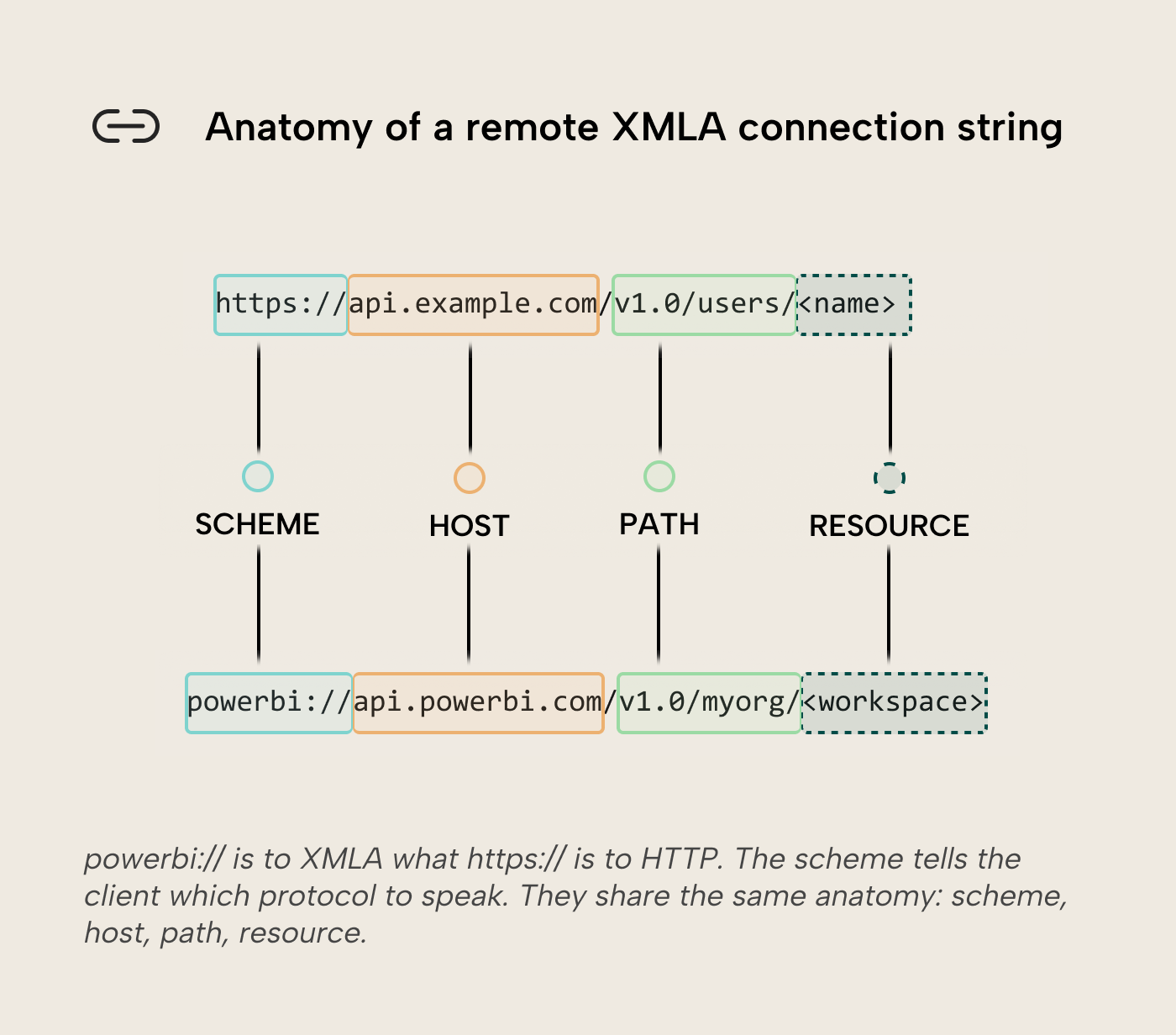
Once the endpoint is on, the connection string follows the same pattern for everything:
powerbi://api.powerbi.com/v1.0/myorg/<workspace>
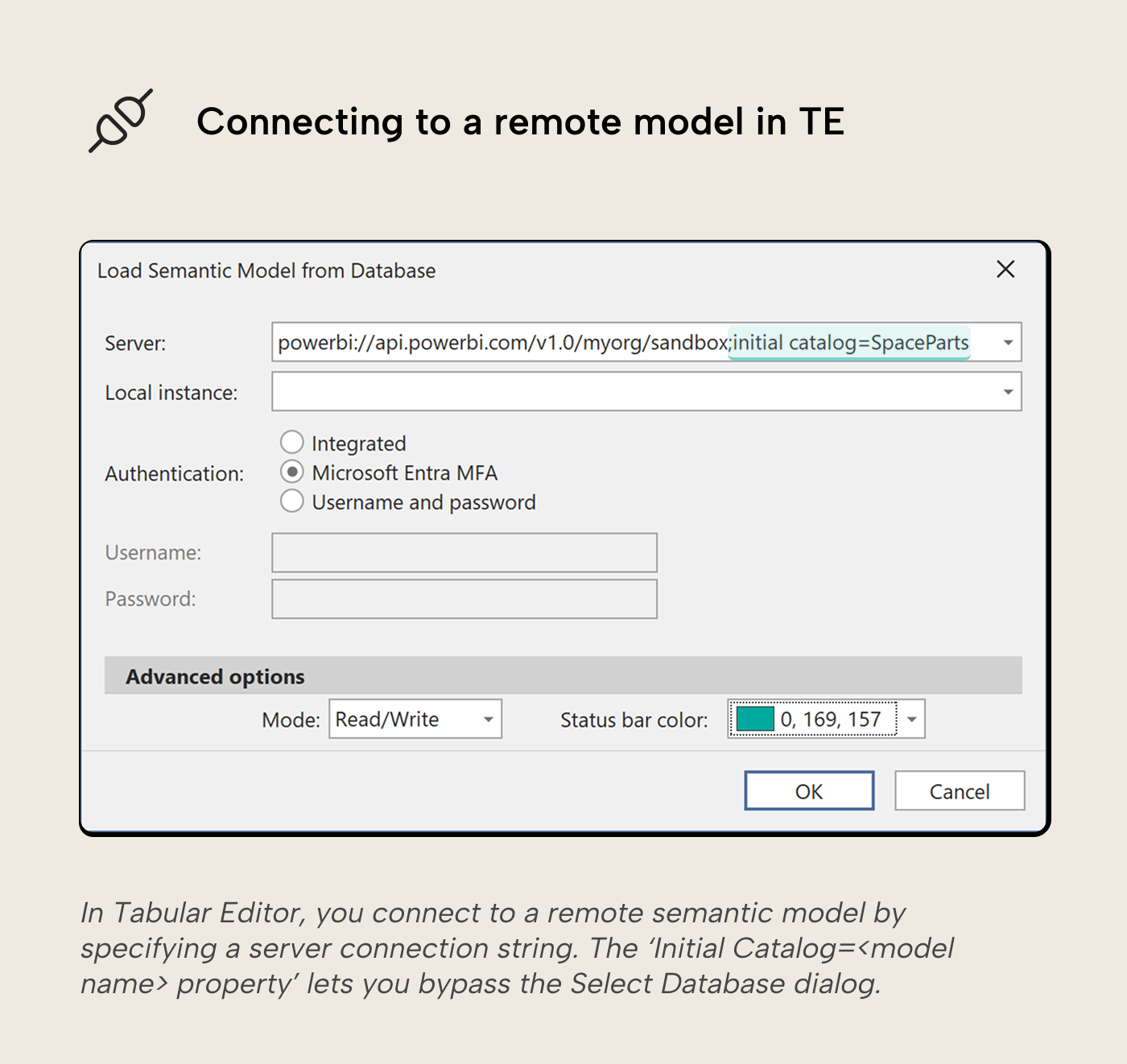
myorg is a literal token Microsoft uses to mean “your home tenant”; most users can leave it as-is. (B2B and guest users connecting to a workspace in a different tenant replace myorg with the target tenant’s domain name, like contoso.com.) <workspace> is the workspace display name; names with spaces or special characters need to be URI-encoded, so Sales Workspace becomes Sales%20Workspace. You can optionally append ;Initial Catalog=<dataset> to point at a specific model in that workspace. In sovereign clouds (US Government and China), the host portion of the URL changes (e.g., api.powerbigov.us for the US Government cloud); the /v1.0/<tenant>/ path segment stays the same.
Authentication has three common shapes: signing in with your Microsoft Entra account (interactive, MFA-friendly, the default in Tabular Editor or SSMS), a service principal (used for unattended jobs and CI/CD pipelines; see Daniel’s Service Principal access guide for the setup), and bearer tokens (for Fabric REST flows that pass an access token directly).
In Tabular Editor 3, the path is File → Open → Power BI. TE3 lists the workspaces you have access to (each one shows up as an Analysis Services server in the connection panel), you pick one, and you pick the model. The same connection string works in SSMS, DAX Studio, and Excel.
What you can do with it
Five categories cover most of what developers actually use the XMLA endpoint for.
Querying the model. Run DAX or Multidimensional Expressions (MDX) queries directly against the live model, not from a report but from a query window. DAX Studio does this; so does TE3’s DAX query view; so does Excel’s pivot table experience (which sends MDX queries, not DAX).
Editing the model. Add measures, change calculations, manage relationships, edit Row-Level Security (RLS) roles, set up calculation groups, configure perspectives, manage translations, etc. Many of these features are still partially or fully missing from the Power BI Desktop UI, which is why XMLA-aware editors like Tabular Editor 3 exist; they’re designed around the protocol and expose what the host applications don’t.
Deploying a model from source files. TMDL, PBIP, BIM and Tabular Editor’s save-to-folder format all let you keep your model as text in a git repo. When you deploy directly with tools like Tabular Editor or SSMS, that push goes over XMLA. (Fabric Git integration syncs through its own native pipeline and doesn’t use XMLA write.) Either pattern is common in modern Power BI CI/CD.
Refreshing data. Programmatic refreshes can be triggered through XMLA, including partition-level refreshes and refreshes. Useful for incremental refresh, staged loads, and external orchestration.
Automating from scripts. Anything you can do interactively in TE3 or SSMS, you can do from a script using Microsoft’s client libraries: ADOMD.NET for queries, the Tabular Object Model (TOM, part of Analysis Management Objects, or AMO) for metadata edits.
Working with XMLA in practice
Few developers write XMLA themselves. The protocol carries DAX, MDX, and TMSL messages, but composing those by hand is something tools do for you. Most work happens through wrappers.
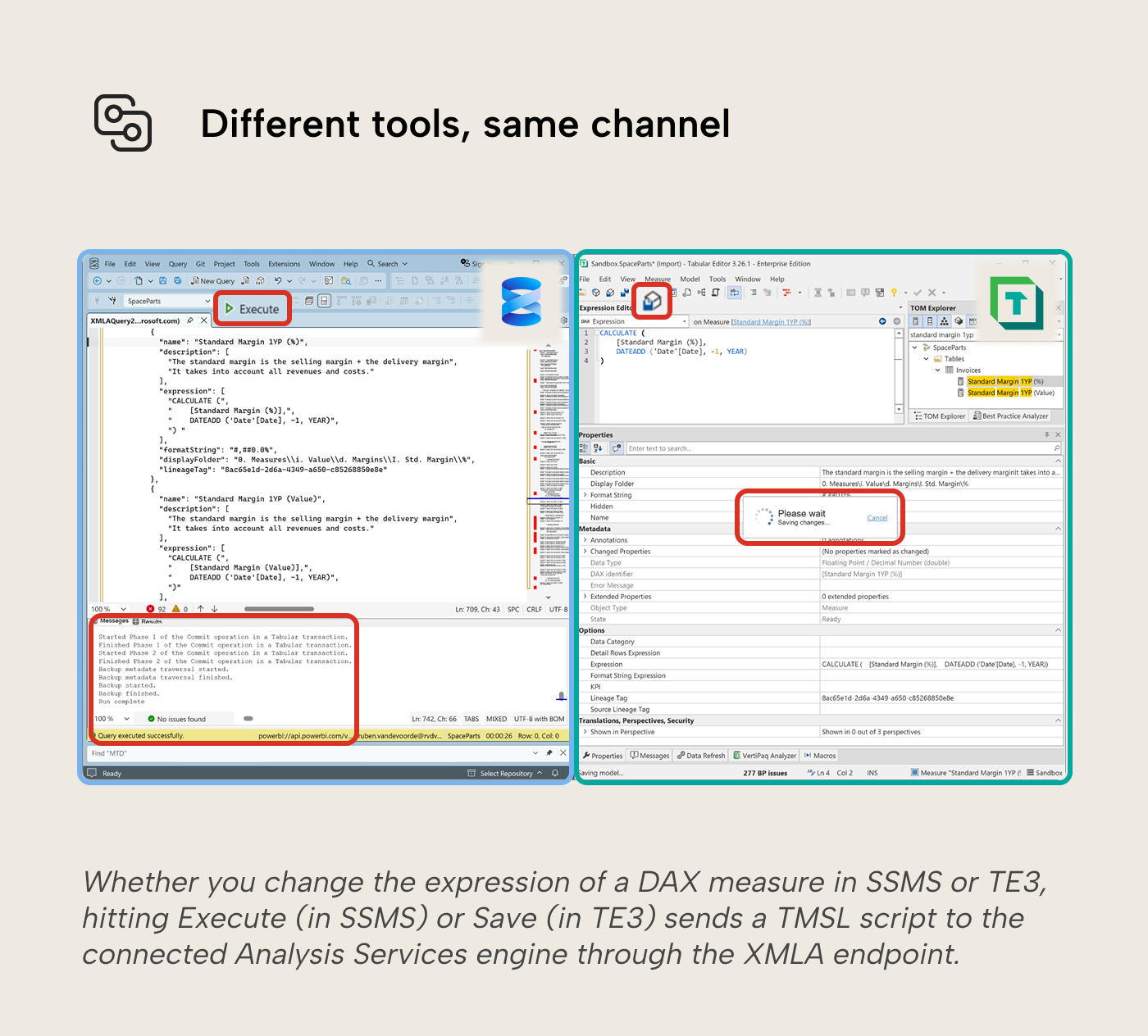
Tabular Editor 3, SSMS, DAX Studio, and Excel’s Analyze in Excel all wrap XMLA, each shaping its primitives for its audience: interactive editing, ad-hoc queries, pivot tables. The Tabular Editor CLI is the newer entry built for terminal and CI use. Keep an eye out for the Tabular Editor CLI release blog where we show installation and commands with worked examples.
Picking the right surface for the job
XMLA is the broadest connection to semantic models but not the only one. Here’s how the four surfaces compare:
Surface | Best for | Limits / can’t do |
|---|---|---|
Editing models (measures, calculation groups, RLS roles, perspectives, translations); deploying source-controlled models (TMDL, PBIP, BIM, or save-to-folder); large queries; partition-level and customizable refresh; scripted automation | Requires Premium / PPU / Fabric capacity; needs Microsoft client libraries (ADOMD.NET, AMO/TOM) or a wrapper | |
Triggering refreshes, managing semantic model permissions, running DAX query (executeQueries) from any HTTP-capable client (Postman, a small script, an app), ad-hoc scripting against the Service | Capped at 100,000 rows or 1,000,000 values per query, 15 MB per query, 120 calls per minute per user; no metadata edits; refresh management is coarse compared to customizability through XMLA | |
Managing the model’s lifecycle: refresh schedules, capacity assignment, gateway settings | No interactive query path; granular query and edit work typically goes through XMLA | |
Working with a semantic model from a Fabric notebook in Python | Notebook-only; depends on Fabric being your platform; only operates on already-deployed models in the service |
XMLA covers the most ground in the table, but it’s rarely the only path: the Fabric REST API can drive refresh schedules, and Sempy reaches a deployed model from a notebook. The lighter-weight surfaces save you from authentication and library setup when the task is small.
A few practical considerations
RLS and edit permissions. Just like in Power BI reports, anyone connecting with edit permissions on the model bypasses Row-Level Security when they connect over XMLA. Editing the model means editing the security rules, so the only thing stopping them from seeing the data is their own choice. That’s convenient when you’re developing, and dangerous when you’re testing. To check what an analyst will see under their assigned RLS role, connect using the role explicitly via the EffectiveUsername and Roles connection-string properties; TE3 has these in a “connect as role” option, other clients like SSMS and DAX Studio have a similar impersonation option.
Capacity consumption. The XMLA endpoint itself is the connection. The operations it triggers (refreshes, large queries, model writes) are what consume Capacity Units on the underlying capacity, the same as if they were triggered from any other surface. They appear in the Capacity Metrics app, the workspace’s refresh history, and the activity log. The refresh history and activity log distinguish XMLA refreshes from REST and scheduled ones.
Tool versions. Older versions of TE 2.x or SSMS predate some newer model features (TMDL semantics, V3 calculation groups). Connecting to a modern model with an old client can produce confusing schema errors; keeping tools current is worth the effort.
In conclusion
XMLA covers the broadest range of work against a Power BI semantic model: read, edit, deploy, refresh and script. The Power BI REST API, Semantic Link, and the Fabric REST API each carved out a narrower use. Which one fits usually comes down to what's already in your toolchain.
For further reading
- Service Principal access to dedicated capacity XMLA endpoint (tabulareditor.com). Step-by-step setup for the unattended service principal authentication needed for CI/CD pipelines connecting over XMLA.
- Semantic model connectivity with the XMLA endpoint (Microsoft Learn). The canonical reference for XMLA connection requirements, supported clients, and current capacity behavior across F-SKU, PPU, and Premium tiers.
- Editing through XMLA endpoint (docs.tabulareditor.com). The Tabular Editor walkthrough for connecting to and editing a deployed semantic model through the XMLA endpoint.
Connect to Power BI models over XMLA with Tabular Editor 3.
Give Tabular Editor a spin