





Automate your tabular modeling workflow
Write DAX faster, apply changes in seconds, and enforce best practices automatically.
Tabular Editor combines AI, scripting, and best practice analysis to remove manual work across your entire model.
Automate your tabular modeling workflow
Write DAX faster, apply changes in seconds, and enforce best practices automatically.
Tabular Editor combines AI, scripting, and best practice analysis to remove manual work across your entire model.
Three ways to automate your workflow
AI Assistant
Scripting
Best Practice Analyzer
Work faster with the AI Assistant
Write, fix, and understand your model instantly.
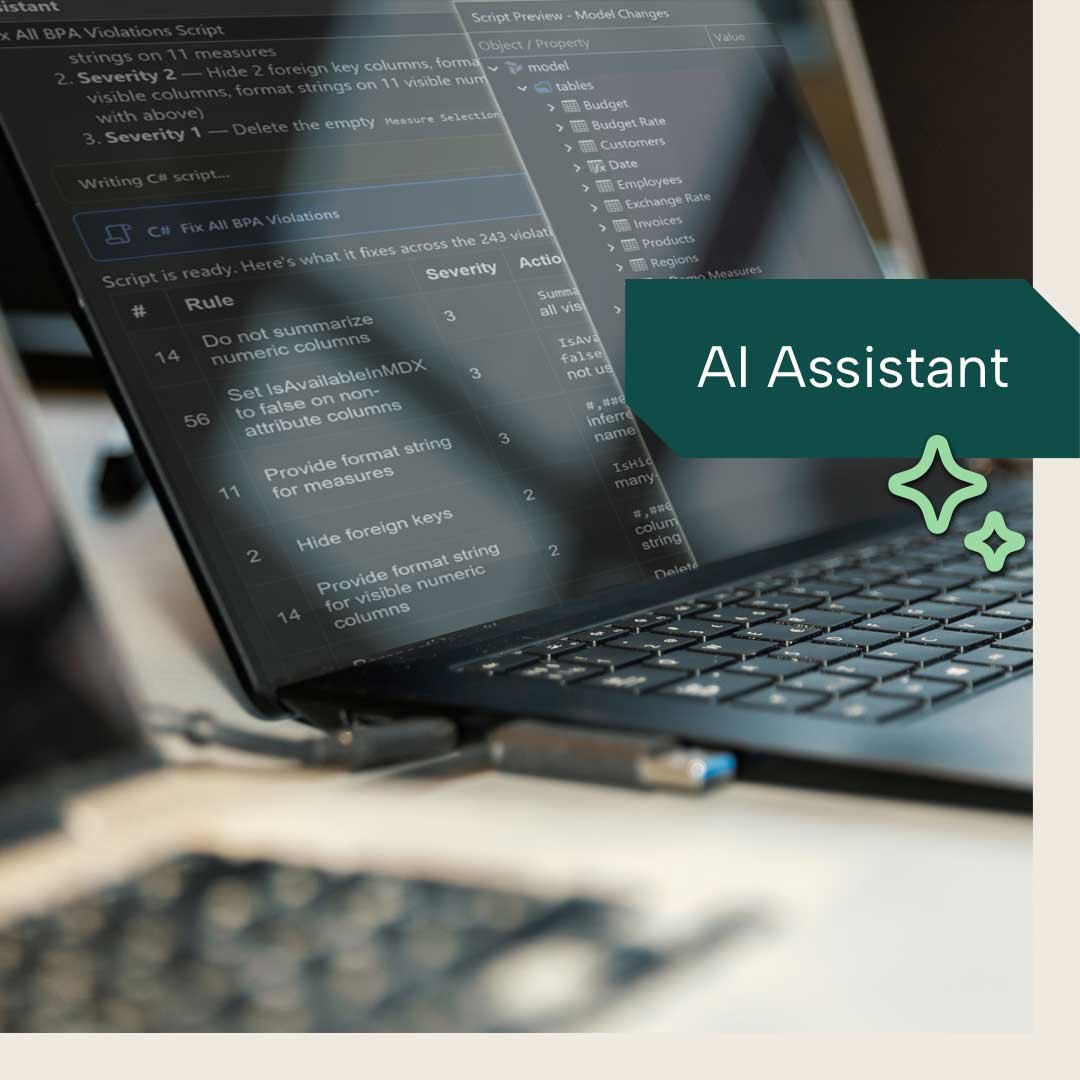
With the AI Assistant, you can write DAX, generate scripts, and understand your model in seconds. Get instant help with changes, fixes, and explanations – without leaving your workflow.
And yes, Ctrl+Z also works on changes performed by the AI Assistant.
- Generate DAX queries instantly
- Create C# scripts for bulk changes
- Explain measures and model logic
- Troubleshoot issues faster
Automate changes with C# scripting
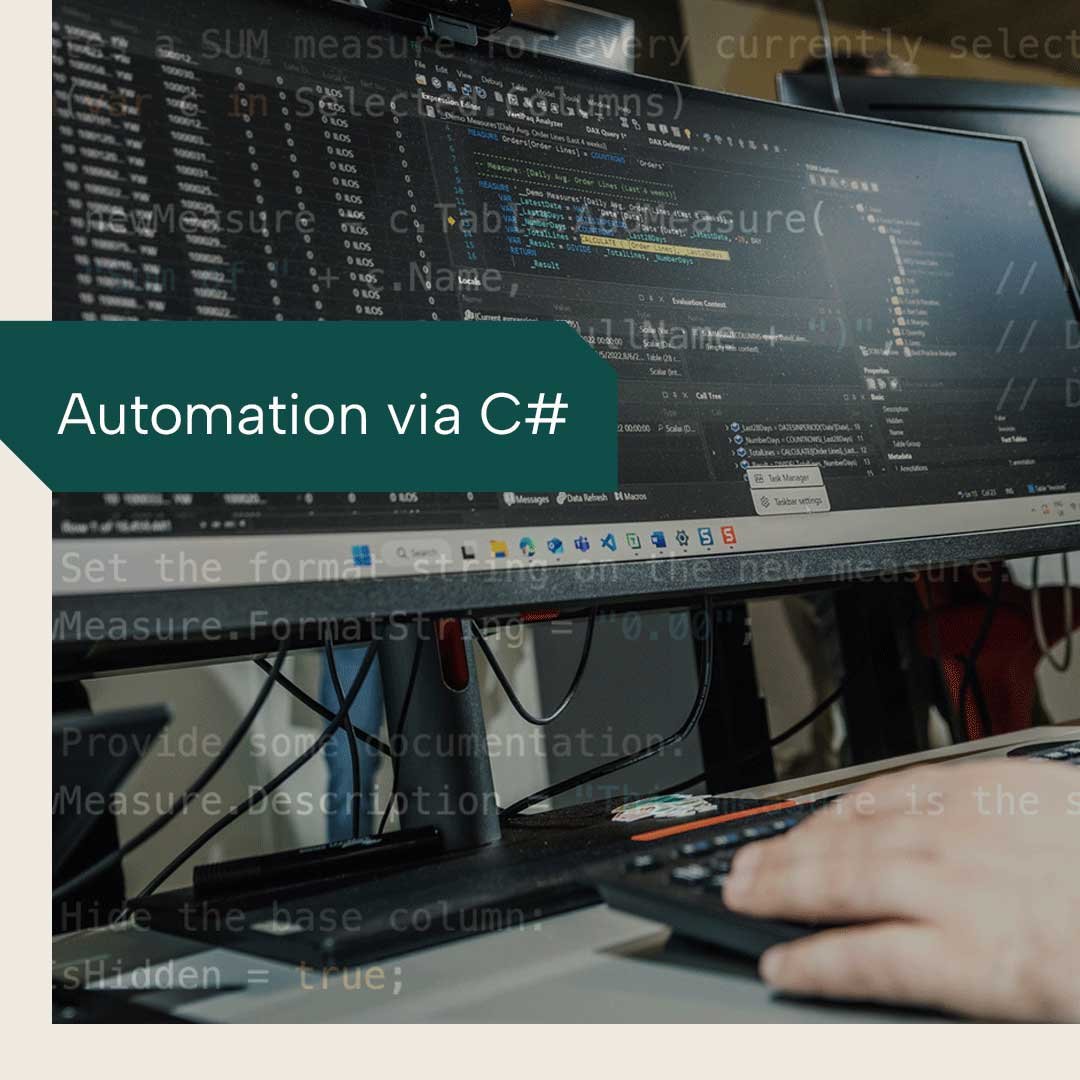
Make large-scale updates in seconds. Whether it's bulk-renaming measures, applying formatting rules across dozens of columns, or generating documentation automatically, scripts let you do in seconds what would otherwise take hours of clicking.
Prompt the AI Assistant to solve your issues through a script, and it will do the rest.
- Bulk edit measures, columns, and tables
- Apply consistent formatting
- Generate documentation automatically
- Save and reuse scripts as macros directly from your context menu
Enforce best practices automatically
Keep your model clean, consistent, and production-ready. As you develop your model in Tabular Editor 3, you'll be able to keep track of the issues flagged directly in the UI.
- Detect issues and anti-patterns instantly
- Get actionable recommendations in the UI
- Use built-in rules or create your own

Ready for the next level?
Stop doing manual model work
Automate repetitive tasks and focus on building better models.
What is the Tabular Editor AI Assistant?
The Tabular Editor AI Assistant is an intelligent co-pilot integrated directly into Tabular Editor. It helps you write C# scripts, create and optimize DAX queries, explore your semantic model, and answer questions related to data modeling, Tabular Editor, and Power BI. Because it understands your specific model structure, it can generate production-ready code tailored to your environment.
What can the AI Assistant help with?
The AI Assistant helps you work more efficiently by generating solutions and suggesting changes that you can review and apply with a single click. It can assist with writing and modifying C# scripts, creating and optimizing DAX queries, and exploring your semantic model.
Because the AI Assistant has full access to the full model context, it can provide highly relevant and precise recommendations tailored to your specific setup. All suggested changes are presented for your review, giving you full control before anything is executed.
The AI Assistant is built for enterprise use, with granular control over what data is shared with your chosen LLM provider.
How does the AI Assistant work in practice?
The AI Assistant uses your model context together with a large language model (LLM) to generate suggestions and solutions. You interact with it through a chat interface inside Tabular Editor, where you can ask questions, request scripts, or explore your model. Any changes suggested by the AI must be reviewed and explicitly approved by you before they are applied.
Is the AI Assistant included in all Tabular Editor license types?
Yes, the AI Assistant is available in all Tabular Editor 3 editions.
Who should use the Tabular Editor AI Assistant?
The AI Assistant is designed for both beginners and experienced users. It helps new users get started faster while enabling experts to work more efficiently. It is especially useful for professionals working with semantic models, Power BI development, and DAX, as well as teams with mixed experience levels who want to standardize and accelerate their workflows.
How do I get started with the Tabular Editor AI Assistant?
To get started, ensure you are using the latest version of Tabular Editor that includes the AI Assistant. Open Tabular Editor and connect to your semantic model. Locate the AI Assistant panel, typically available from the View menu. From there, configure your preferred LLM provider in the preference menu and enter your API credentials. Once set up, you can begin interacting with the assistant by typing your questions or requests. See more here.
Do I have to use the Tabular Editor AI Assistant?
No, the AI Assistant is completely optional. It is only installed if selected during setup, and it can be disabled at any time. Organizations can also control availability through IT policies, including disabling it entirely via group policy.
Which LLM providers can I use with the AI Assistant?
The AI Assistant follows a bring-your-own-LLM approach, allowing you to choose the provider that fits your needs. It supports any OpenAI-compatible API as well as providers such as OpenAI, Azure OpenAI, and Anthropic. You can also connect internal models if they expose a compatible API.
Is data sent to third-party LLM providers?
If enabled by the user, the AI Assistant may send relevant model metadata, queried data, and open documents to the selected LLM provider. You remain in full control of what is shared, and permissions can be configured to meet your organization’s requirements. The design prioritizes transparency and user control over data access.
Does Tabular Editor store any data?
No, Tabular Editor does not store your model data, scripts, or queries on any remote server. Conversation history is stored locally on your machine in %LocalAppData%, ensuring that your data remains within your environment.
Is the AI Assistant safe to use?
Yes, the AI Assistant operates entirely under your control. It does not access your data, make changes, or run in the background without your explicit permission. All actions must be reviewed and approved before execution. If your organization has strict policies around AI usage, the assistant can be fully disabled.