Key takeaways
- Smaller models perform better and cost less: Reducing model size improves performance, cuts cost, and keeps you under tenant limits, whether you use Import or Direct Lake. This article presents six patterns to do it.
- Simple optimizations remove what you don't need: Drop unnecessary columns and rows first, then reduce precision, split high-cardinality columns like DateTime, choose appropriate data types, and disable unneeded attribute hierarchies via
IsAvailableInMDX. - Advanced optimizations tailor the design: User-defined aggregations shift detailed data to DirectQuery while keeping aggregates in Import, trading memory for query time. You can also split a large model into smaller subject-oriented ones.
- Compression techniques are situational: Optimizing for run-length encoding can further reduce the footprint once structural optimizations are already in place.
Understanding model size optimization
This article is the second in a series on optimizing semantic model memory in Microsoft Fabric. In the first article, we explained that:
- Memory refers to the size that your semantic model takes on disk in Power BI and Microsoft Fabric.
- There’s hard memory limits for Power BI semantic models; if you exceed these limits, then you experience query and refresh errors.
- Fabric enforces memory per semantic model, and full refresh requires headroom.
- You can measure where memory is consumed by using the VertiPaq Analyzer by SQLBI in Tabular Editor 3 or DAX Studio, or in Fabric notebooks (where it’s called the “Memory Analyzer”).
This article shifts from understanding to action: practical modeling decisions that measurably reduce semantic model size. The goal isn't to blindly apply tricks, but to understand what you can do, why each pattern works, and how to validate its impact.
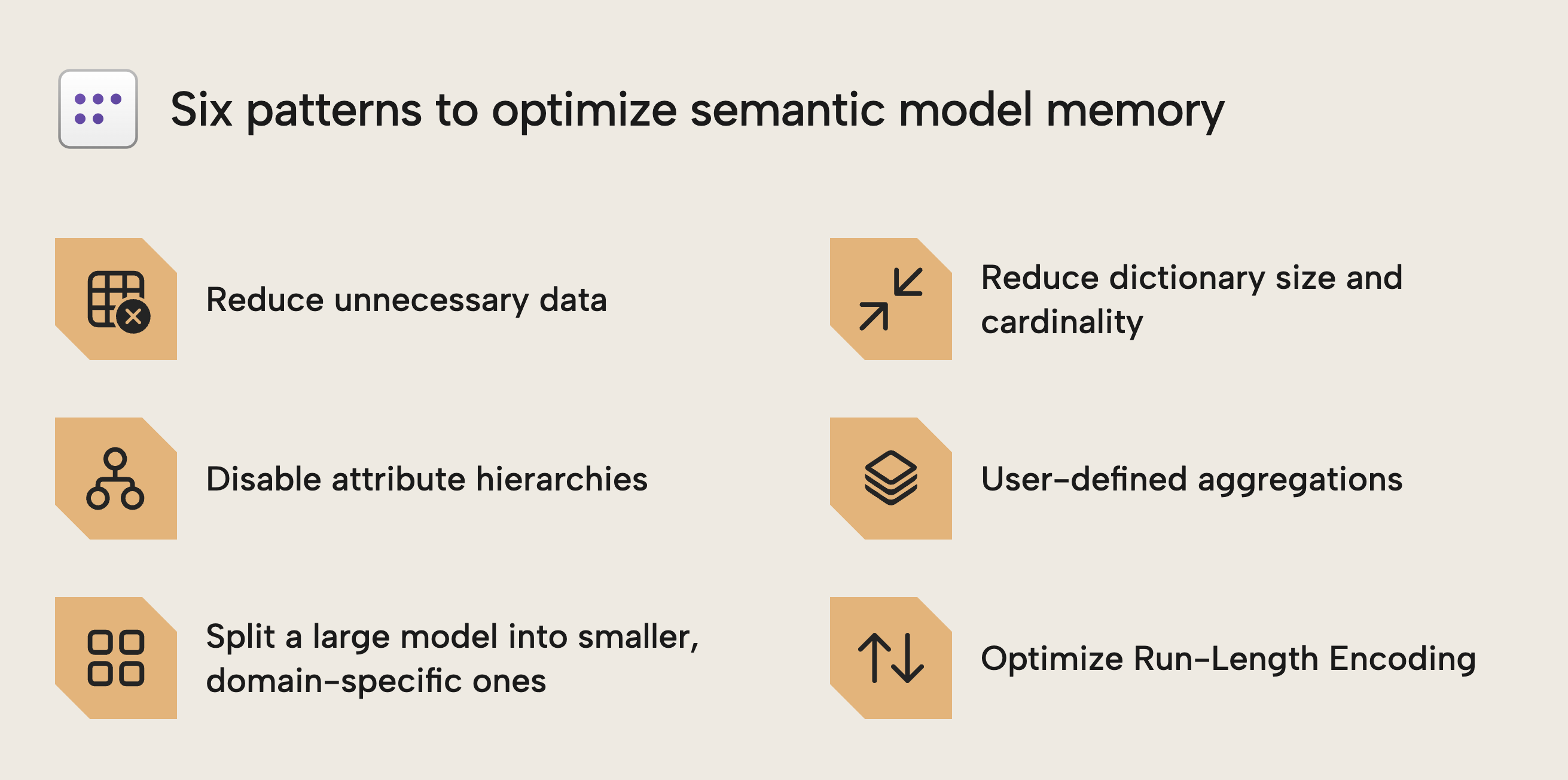
The following six patterns are concrete design choices that reduce memory usage, each building on the principles from Part 1:
Pattern one: reduce unnecessary data
Reducing unnecessary data is the simplest and most effective way to lower model size: reduce the width (columns) and height (rows) of your tables to only what reporting and analysis require. Apply this to every model, new or existing. It sounds obvious, but in practice it takes discipline.
It’s common to include columns in a semantic model “just in case” someone needs it. It’s also common to import years of detailed history because it’s available in the source. A question you should ask is: does this data serve a concrete reporting requirement today? If not, it is probably better left out. You can always add it later, if and when it’s needed.
Include only the data analysis requires. Is ten years of detailed transactions necessary for YTD and year-over-year analysis? Often current and previous year suffice at detailed grain, while older data can be aggregated. Removing rows through filters or incremental refresh can significantly reduce model size without affecting business value.
Columns are often the bigger problem. Audit fields, GUIDs, technical identifiers, and rarely used attributes frequently consume disproportionate memory, especially when they have high cardinality. Once such columns are used in measures or report visuals, removing them becomes difficult. It is therefore safer to identify and exclude them early during model design and development, rather than to remove them later, when they might be already used in some obscure visual or reporting process.
NOTE
Even if someone is asking for obscure columns or data ranges, it doesn’t mean that you should include it. You should always engage with users to understand the why behind their request, particularly if it’s coming from a small number of vocal individuals. You might be able to help them find alternative solutions that are more effective, efficient, or reasonable.
Also, don’t be afraid to stand your ground and say “no” if the request isn't reasonable and will result in a net negative for the rest of the user base. Just make sure to explain clearly, simply, and empathetically if that is the case.
Why this works
This pattern is the simplest to do and understand; if you exclude or remove a column or table, then it’s not contributing to the model size. To reiterate, the difficulty here isn’t in the implementation. It comes in deciding what to remove, the implications for your model and report designs, and how you’ll fulfill inevitable user requests when they do need that information.
WARNING
More and more developers are turning to AI tools to help them optimize semantic models. This can be very helpful and efficient; however, it can also lead to disaster. An AI agent can’t decide for you which columns to remove. This decision must be made with the broader context of your users, the business process, and the reporting requirements.
How to reduce unnecessary data
To implement this pattern, define the narrowest range of data you need (via filters and table/column selection), for any category, not just date ranges. Once you exclude columns, remember to aggregate your data too.
Focus on which columns take up the most size, and identify whether you can remove them outright. Consider the highlighted columns from the previous article's example:
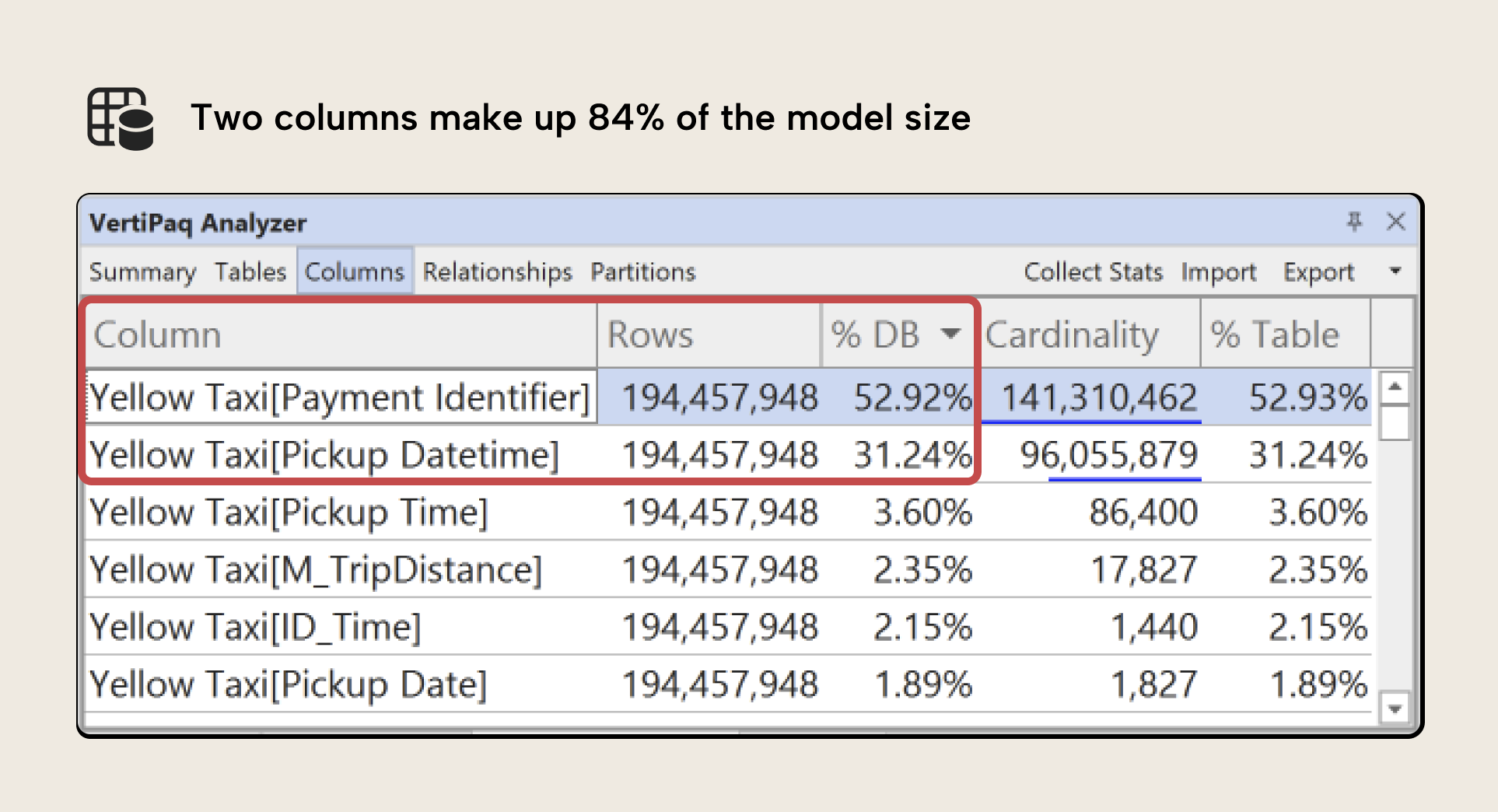
These two columns account for 84% of the model size. It’s likely that we need the Pickup Datetime field (but can optimize it, further), but Payment Identifier is a key field we might remove, perhaps replacing with an aggregate Number of Payments if necessary.
TIP
Sometimes the VertiPaq Analyzer might show you columns that you don’t recognize, because they don’t show up in Power BI Desktop. These are DateTime columns created automatically when you have the Auto Date/Time setting enabled in Power BI Desktop. This setting automatically creates a date table populated by a range of dates for every date column in your model. Generally, you want to disable this setting and use your own explicit date tables, instead. Otherwise, Power BI might be generating massive date tables that you don’t need or use. This is especially common in source systems that use dates in the far past (1/1/1900) or far future (12/31/2199) as placeholder values when null/blank values aren’t allowed.
If you’re refactoring an existing model, then you might want to know which columns aren’t used in calculations and relationships. Tabular Editor’s Best Practice Analyzer includes a rule to detect unused columns in the model. While this doesn't account for report usage, it provides a useful starting point for identifying obvious candidates for removal.
But let’s say that you have identified some large columns, but you do need them in your model; you can’t remove them. What then?
Pattern two: reduce cardinality and dictionary size
In the previous example, we can remove the Payment Identifier column, but not the Pickup Datetime column. Both columns are large because they have a high cardinality, which refers to the number of unique rows in that column. You can see this in the example screenshot; a cardinality of 96M means that there’s 96M unique rows in the Pickup Datetime column, for instance.
High-cardinality columns are one of the most common causes of large models. VertiPaq builds a dictionary of unique values per column and stores encoded references to it; with many unique values, the dictionary grows and compression efficiency drops.
To understand this better, consider the following diagram:
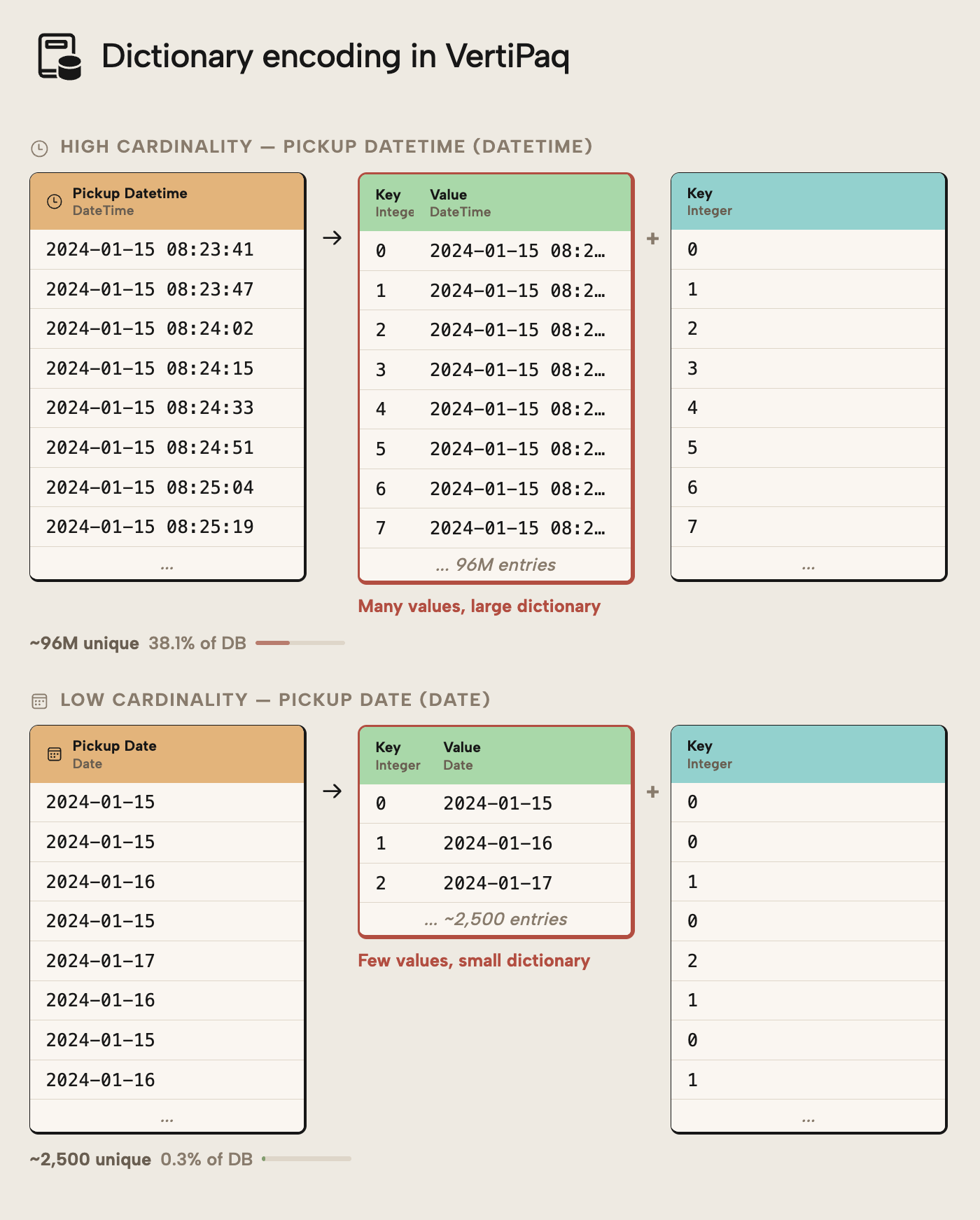
Pickup DateTime has 96M unique values; the dictionary is therefore very large and the column can’t be well compressed by VertiPaq. In contrast, if we have the date alone (such as when splitting date and time into separate columns), there’s only 2,500 unique values. The column is much more effectively compressed and the model is smaller size… even though the number of rows did not change at all.
NOTE
It is important that you understand the difference between “data size” and “row count” in Power BI and Fabric. A model can be millions of rows, but still easily take less than 1 GB on disk if it’s well-optimized using techniques like we talk about, here.
A DateTime column is a very common example of this. Often, columns like this serve as a technical identifier in the source system. From a reporting perspective, only the Date might be required. By either trimming the time altogether or splitting Date and Time into separate columns, the semantic model size can drop dramatically… anecdotally, we at Tabular Editor have seen numerous cases where a simple operation like this reduce model size by more than 50%!
Therefore, a second way to reduce model size is by transforming the data to limit the number of unique values. Think of it like this: reducing unnecessary columns removes entire structures from the model, while reducing cardinality shrinks the columns that must remain.
Why this works
Dictionary size is directly tied to the number of unique values in a column. By reducing precision, splitting columns, or selecting more appropriate data types, you reduce cardinality and increase compression efficiency. The result is often large memory savings from relatively small modeling changes.
NOTE
High-cardinality columns are not inherently wrong. They become a problem only when their analytical value doesn't justify their memory cost. Always validate business necessity before changing precision or structure.
The advanced patterns discussed later in this article provide you with guidance about optimization when you need high data volumes and cardinality.
How to reduce cardinality
Any technique that reduces unique values helps. Splitting a DateTime column into separate Date and Time columns is often beneficial: the Date column has low cardinality and compresses well, and the Time column can be reduced to minute precision. A combined value can be recreated as a measure rather than stored.
This is true not only for DateTime columns, but also other identifiers. Consider an example where a utilities company needs the identifier of customers’ electricity meters in reports. This field could be a long alphanumeric string with near-unique cardinality, with values like SE-GBG-E-2019-0045821, where segments encode region, meter type, installation year, and a sequential number:
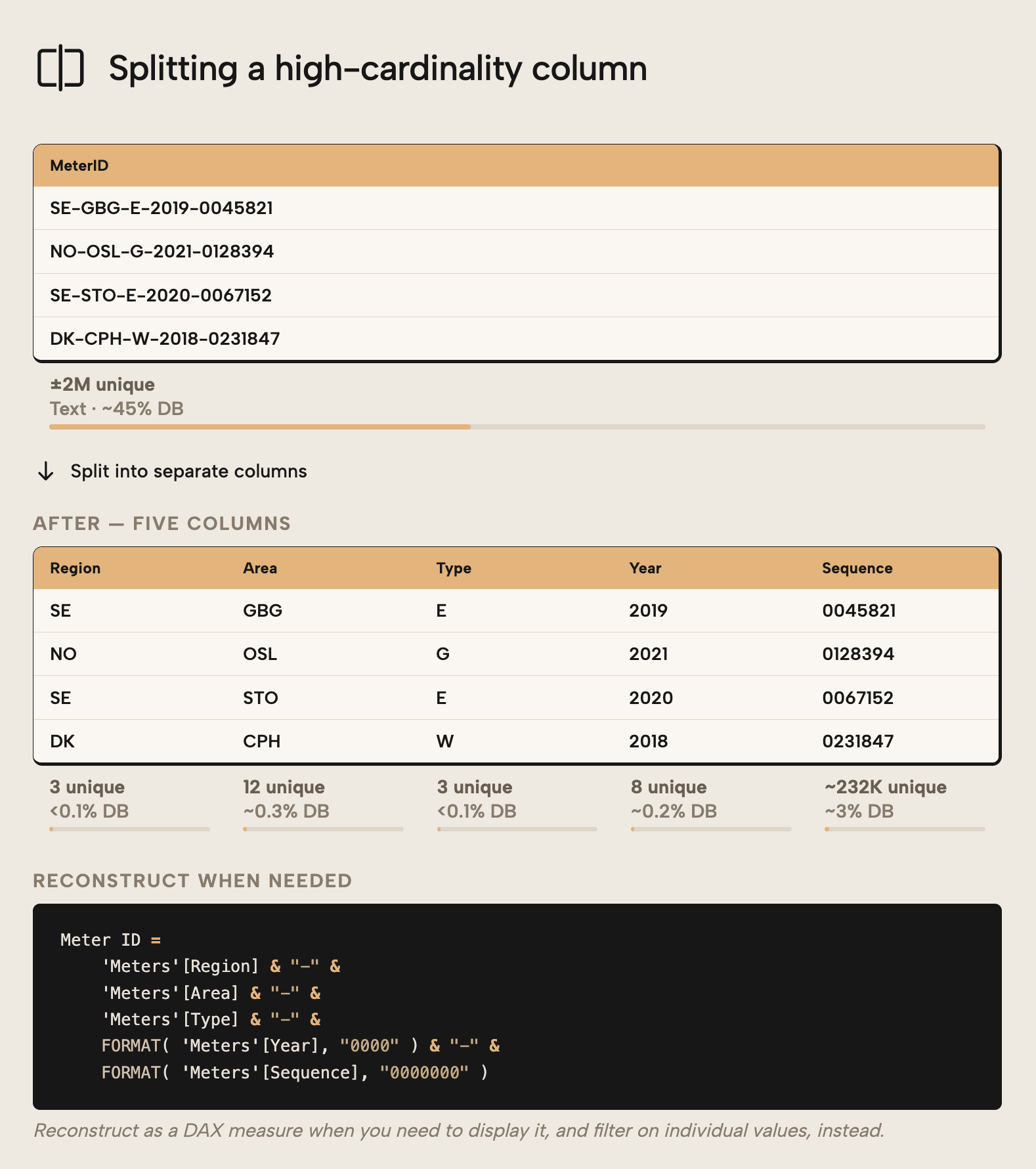
Stored as a single column, the dictionary must hold one entry per meter; ±2M total which make up 45% of the model size in the example. Splitting it into separate columns (Region, Type, Year, and Sequence Number) replaces one high-cardinality column with several low-cardinality columns that compress more efficiently than the composite string identifier. Filters can still be applied to individual columns, while the full identifier can still be reconstructed as a DAX measure when you need to display it in a report or query.
Another common improvement is choosing appropriate data types. Avoid floating-point types (Double, Single, Float) for values that require exact precision, especially financial amounts. Use Fixed Decimal (Currency) where appropriate and Integers for identifiers and counts. The precision of floating-point types increases memory usage and can introduce rounding inconsistencies.
Further, you want to avoid using String data types for numerical columns. When you use a string data type, the column will not be able to optimally compress because of how the model encodes the data. The following diagram depicts a few examples for you to better understand how data types affect column (and therefore model) size:
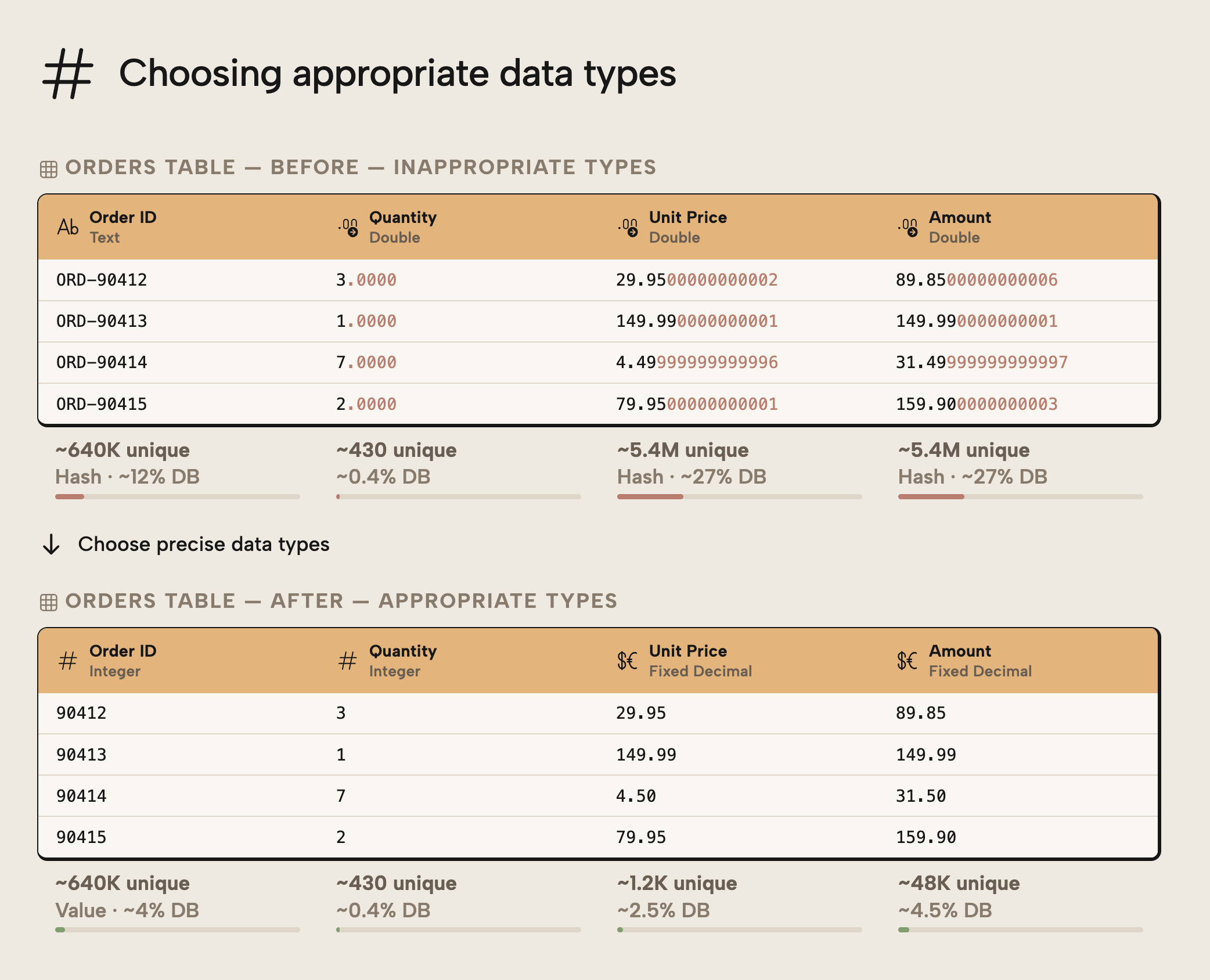
The examples above demonstrate the following:
OrderIDbecomes smaller because an integer column can use VALUE encoding for better compression in VertiPaq.- Qty doesn’t become smaller because the number of unique values doesn’t change. Changing the data type from Double to Integer has no effect on cardinality or dictionary size, so the column isn’t made smaller.
- Unit Price and Amount have too much decimal precision. Changing to a Fixed Decimal data type reduces the precision, which reduces the number of unique values. It’s important that you make sure that you only reduce precision in a way that won’t meaningfully affect the values of calculations that use these columns.
NOTE
A notable exception here is in relationships. In relationships, VertiPaq uses internal dictionary IDs for the lookup regardless of the original data type, so the relationship scan itself performs identically whether the key column is a string or an integer. The data type choice primarily affects dictionary size and memory footprint rather than query speed, which matters more for model size than for relationship performance specifically.
The notion that Integer data types are preferred for columns participating in a relationship is rather often a dogmatic holdover from relational data modelling, rather than a best practice that’s relevant for a semantic model in Power BI and Fabric.
This pattern focuses on reducing column size via data transformations. However, a simple property switch can in some cases have the same effect.
Pattern three: disable unnecessary attribute hierarchies
The previous two patterns focused on the data itself… removing columns you don't need and shrinking the ones you choose to keep. However, the VertiPaq engine doesn't just store your data, but also builds supporting structures around it. Those structures consume memory, too.
By default, Power BI creates what's called an attribute hierarchy for every column in your model. An attribute hierarchy is a piece of metadata that allows certain client tools (most notably Excel PivotTables like in Analyze-in-Excel) to browse and interact with that column. Under the hood, Excel doesn't speak DAX; it uses an older query language called MDX, and attribute hierarchies are what make MDX queries work. If you've ever dragged a field onto a PivotTable axis, you've used an attribute hierarchy to query the data.
The problem is that these structures are generated for every column in your model, including columns that will never appear in a pivot table… surrogate keys, technical identifiers, GUIDs, and columns used only inside DAX measures. Your users might not even be using Analyze-in-Excel, in which case these hierarchies are literally just wasted space with cost and no value. Particularly for high-cardinality columns, this overhead is sizable.
The impact is clearly visible in VertiPaq Analyzer:
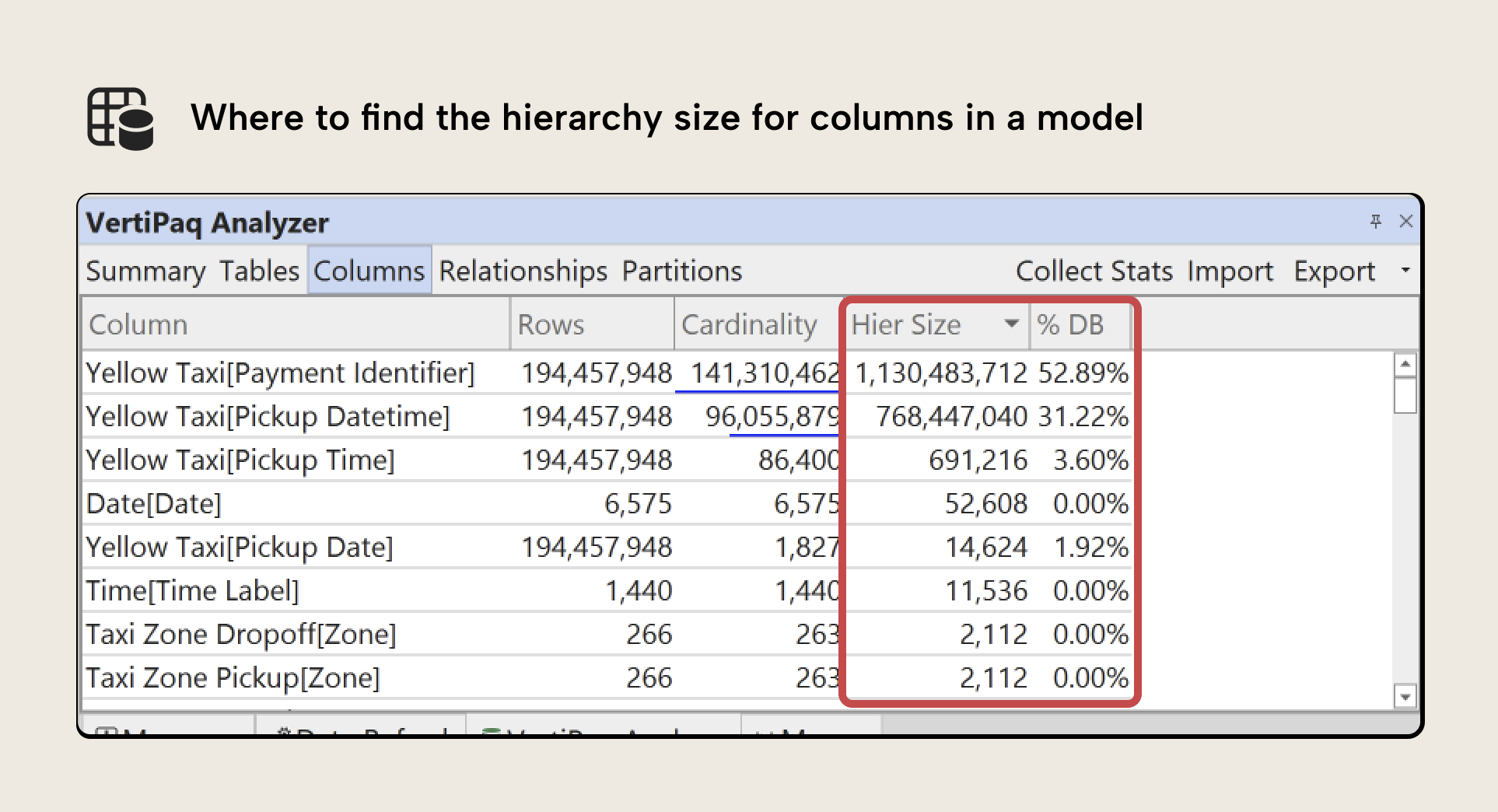
In the example above, the Payment Identifier column has a hierarchy size of approximately 1.1 GB, out of a total column size of 7.7 GB. That is the hierarchy overhead alone.
Why this works
Disabling IsAvailableInMDX removes unused hierarchy structures and reclaims the associated memory. If you disable IsAvailableInMDX, then Hier Size comprises only the explicit hierarchies that you create yourself.
How to remove unwanted or unused attribute hierarchies
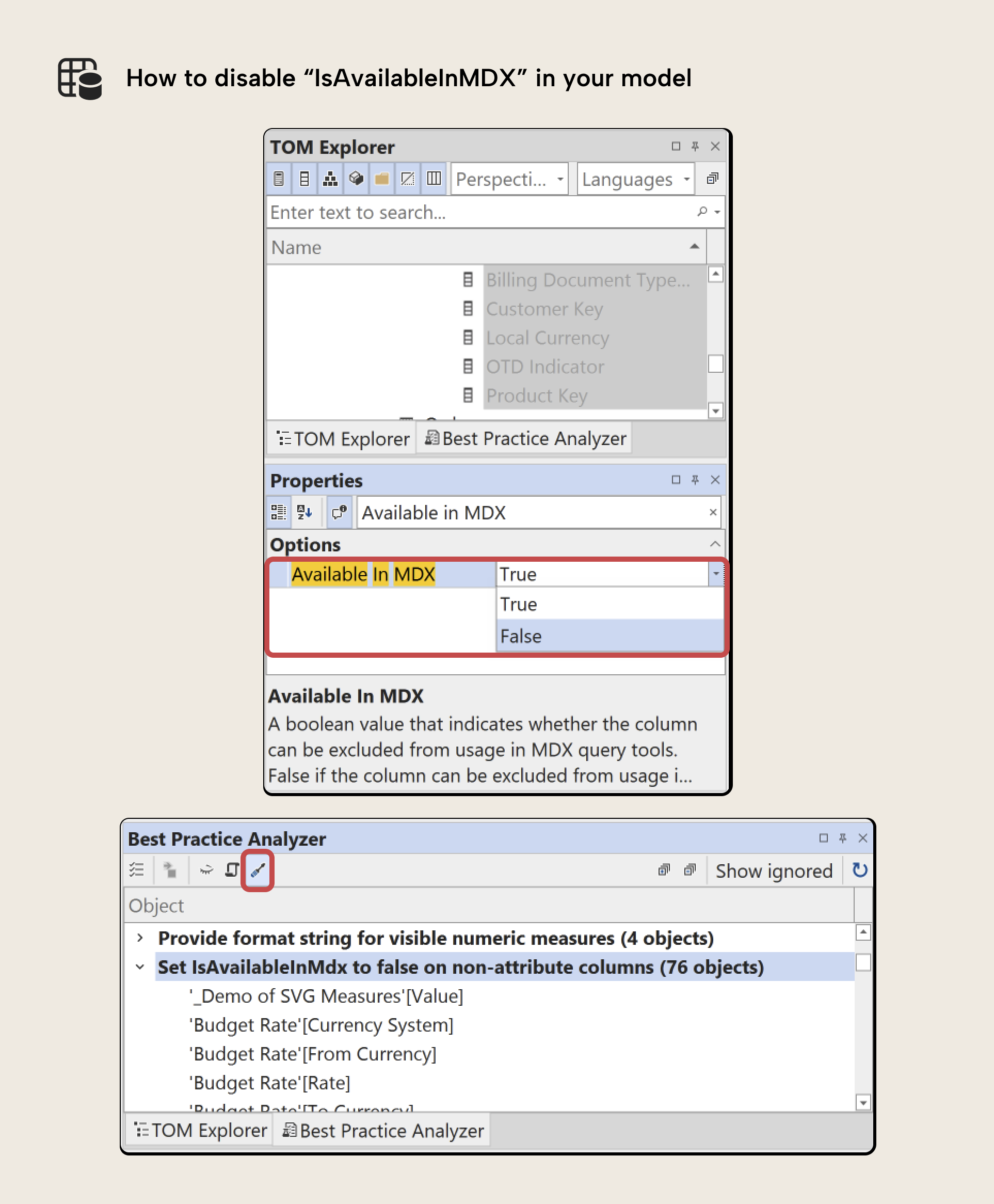
Setting IsAvailableInMDX to false on a column prevents its attribute hierarchy from being created; the column stays fully functional but stops generating MDX metadata nobody uses. Do this in Tabular Editor's Properties pane (selecting one or more columns), with Semantic Link Labs in a notebook, or in the TMDL view of Power BI Desktop.
TIP
Setting IsAvailableInMDX = false should be standard practice for all hidden columns. Excel PivotTables cannot query hidden columns anyway, and there is no benefit in generating attribute hierarchies for them. The corresponding Best Practice Analyzer rule in Tabular Editor explicitly checks for this condition.
Bonus tip: Use Detail Rows Expression to preserve controlled access
A concern with disabling attribute hierarchies is whether users lose the ability to see detail. If you disable IsAvailableInMDX on Order Number and Order Line Number, what if users want this data in a pivot table? Detail Rows Expressions in DAX solve this.
In Excel, double-clicking an aggregated PivotTable cell drills through to the rows behind it. With no Detail Rows Expression, that drillthrough returns every column from the fact table, including surrogate keys and GUIDs that produce enormous result sets and spike CU consumption on Fabric.
Defining a Detail Rows Expression replaces that default: the drillthrough runs a DAX query returning only the columns you specify via SELECTCOLUMNS, in the order and names you choose. Related attributes can be pulled in via RELATED, giving a curated result set rather than a raw fact-table export.
This is a better default for most models: users can still drill through intentionally, but can't accidentally drag a million-row identifier onto a PivotTable axis.
Thus, this technique allows you to:
- Disable unnecessary attribute hierarchies
- Prevent high-cardinality columns from being used directly in PivotTable rows or columns
- Return only the columns required for detailed analysis
- Improve performance by avoiding unnecessarily wide result sets
A full step-by-step implementation guide is provided in the Detail Rows Expressions tutorial published on the Tabular Editor documentation.
WARNING
Allowing high-cardinality columns to be used directly in Excel PivotTables is generally a bad practice. MDX queries over such columns can generate very large intermediate result sets and significantly increase capacity unit (CU) consumption in shared Fabric capacities.
Disabling attribute hierarchies on those columns prevents this misuse pattern while still allowing controlled detail retrieval via a Detail Rows Expression.
The patterns so far eliminate or shrink columns and can often be done in minutes. The next patterns are more advanced, since they involve design or architectural changes to your model.
Pattern four: user-defined aggregations to isolate high-cardinality detail
Sometimes you cannot remove or reduce high-cardinality detail columns. They may be required for reconciliation, auditing, operational verification, etc. In those cases, a technique called user-defined aggregations provides an alternative to keeping all details fully imported into memory.
User-defined aggregations split a fact table into two layers in a composite model: a smaller aggregated Import table for most queries, and a detailed DirectQuery table for the high-cardinality columns you can't import. Power BI routes each query to the layer that can answer it:
- Aggregated queries should hit the fast in-memory cache by default. This is your standard import table that has the aggregate data.
Detail-level drillthrough hits DirectQuery; against the source… but only when necessary. This is a detailed DirectQuery “shadow” table, containing high-cardinality columns.
Moving high-cardinality detail columns out of the import tables removes their dictionary, data, and hierarchy structures from VertiPaq, making the imported model significantly smaller and more compression-efficient.
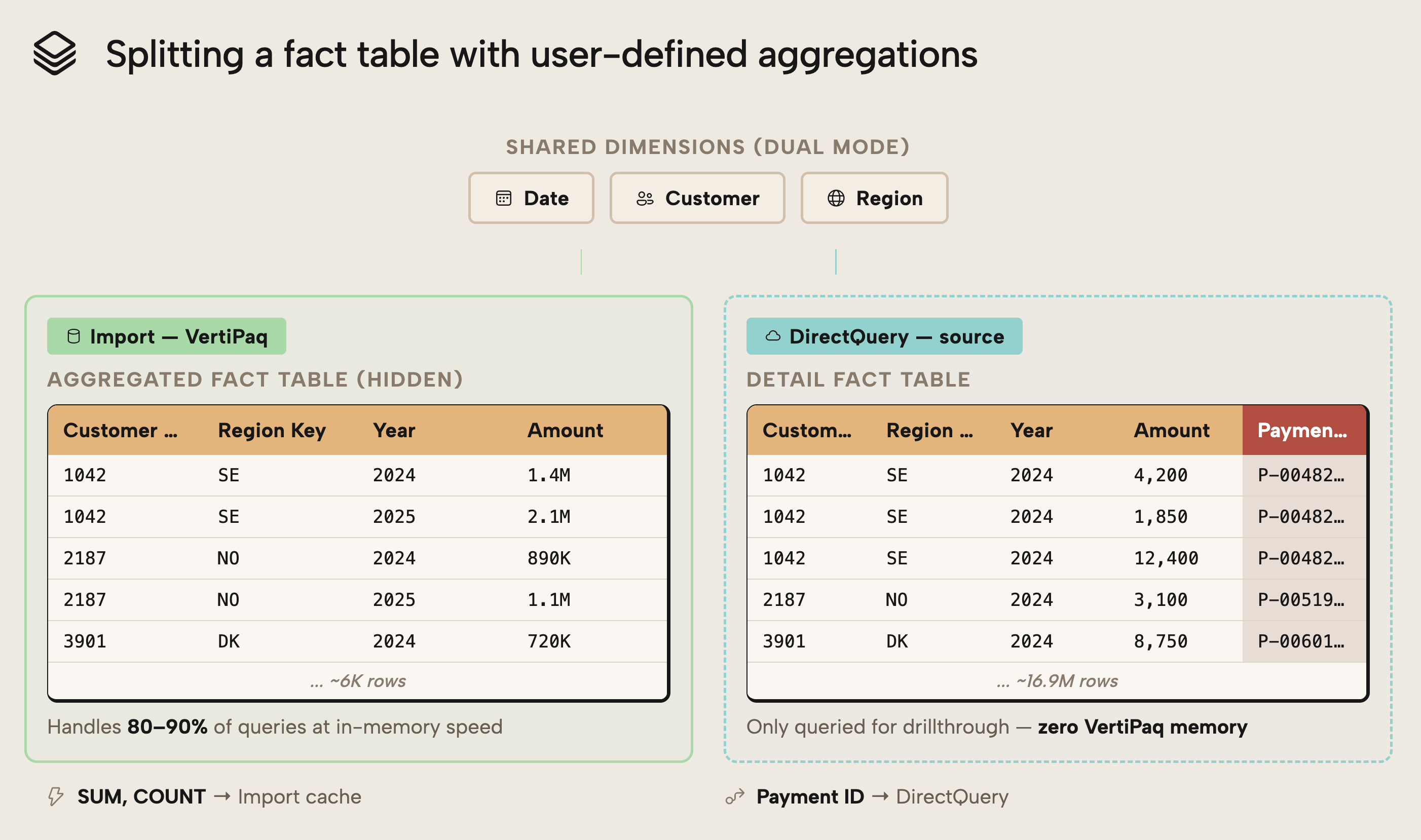
The detailed DirectQuery table still exists, but it doesn't consume VertiPaq memory as an imported column does. Memory usage is therefore reduced at the cost of query-time access when detail is required.
As the following image demonstrates, you can reduce the size of a model by a lot with this pattern; 90% in this example:
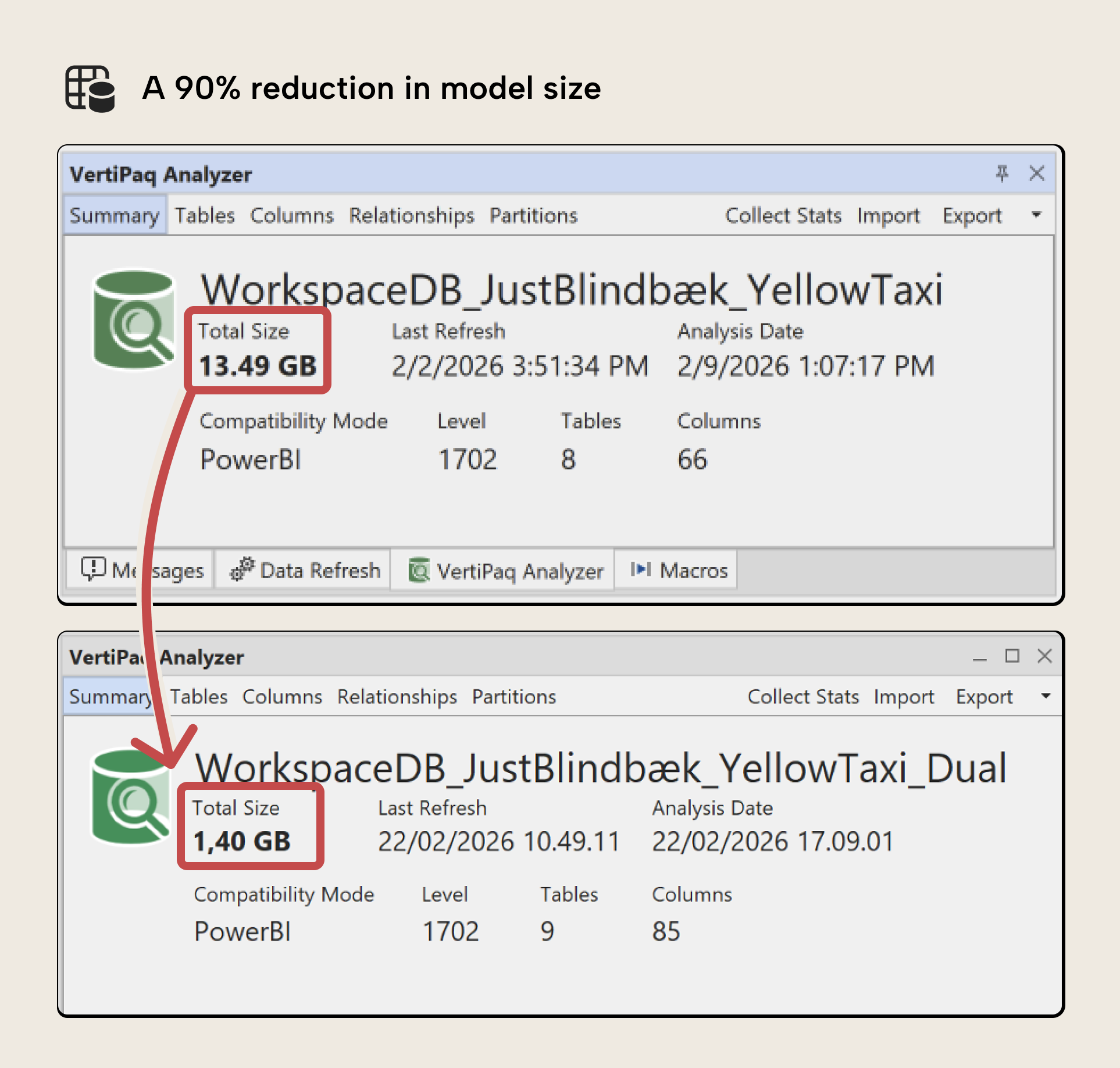
This pattern is especially effective when:
- 80–90% of reporting relies on aggregated measures
- Detailed rows are accessed infrequently
- High-cardinality columns dominate model size
- Detailed data is typically accessed with strong filters, allowing source system indexes to efficiently retrieve relatively small result sets
To avoid accidental performance degradation:
- Hide DirectQuery detail columns from report users
- Provide guidance on when detailed access is appropriate
- Combine this pattern with Detail Rows Expression where relevant
WARNING
User-defined aggregations introduce DirectQuery behavior into the model. Queries that fall back to the detail table will incur source latency and may consume additional CUs if the data source is in Fabric, or query costs for other systems.
This pattern shifts cost from memory to query time. It must be evaluated carefully.
Why this works
VertiPaq memory is consumed by imported data structures. By keeping only aggregated data in Import mode and moving granular, high-cardinality columns to DirectQuery, you reduce dictionary and segment storage while preserving access to full detail when needed.
How to implement user-defined aggregations
User-defined aggregations are a complex, multistep process to set up in Power BI Desktop or Tabular Editor. You need to consider various factors that depend on your data and scenario. Therefore, implementation details are intentionally omitted here, as a full tutorial is provided separately in the Tabular Editor documentation.
Bonus tip: Working with storage mode
User-defined aggregations turn an import model into a composite model with both import and DirectQuery partitions. As the previous article noted, you can also choose DirectQuery or Direct Lake, but changing storage mode has significant consequences and isn't a memory-optimization solution:
- DirectQuery shifts the cost from memory to query and results in worse performance.
- Direct Lake still requires memory optimization and has additional technical factors to consider.
In short, this pattern turns one import model into one composite model. The next pattern splits the model into multiple smaller ones, kept in sync.
Pattern five: split it up into smaller models (the master model pattern)
As the first article explained, Fabric enforces memory limits per semantic model, so a large multidomain model concentrates all memory pressure in one artifact. Splitting it into smaller, subject-oriented models reduces the footprint per model and helps avoid SKU limits.
Instead of one large model covering Sales, Finance, Inventory, and Operations, you create a separate model per domain, each containing only the tables and columns its scope requires. This reduces imported data per model.
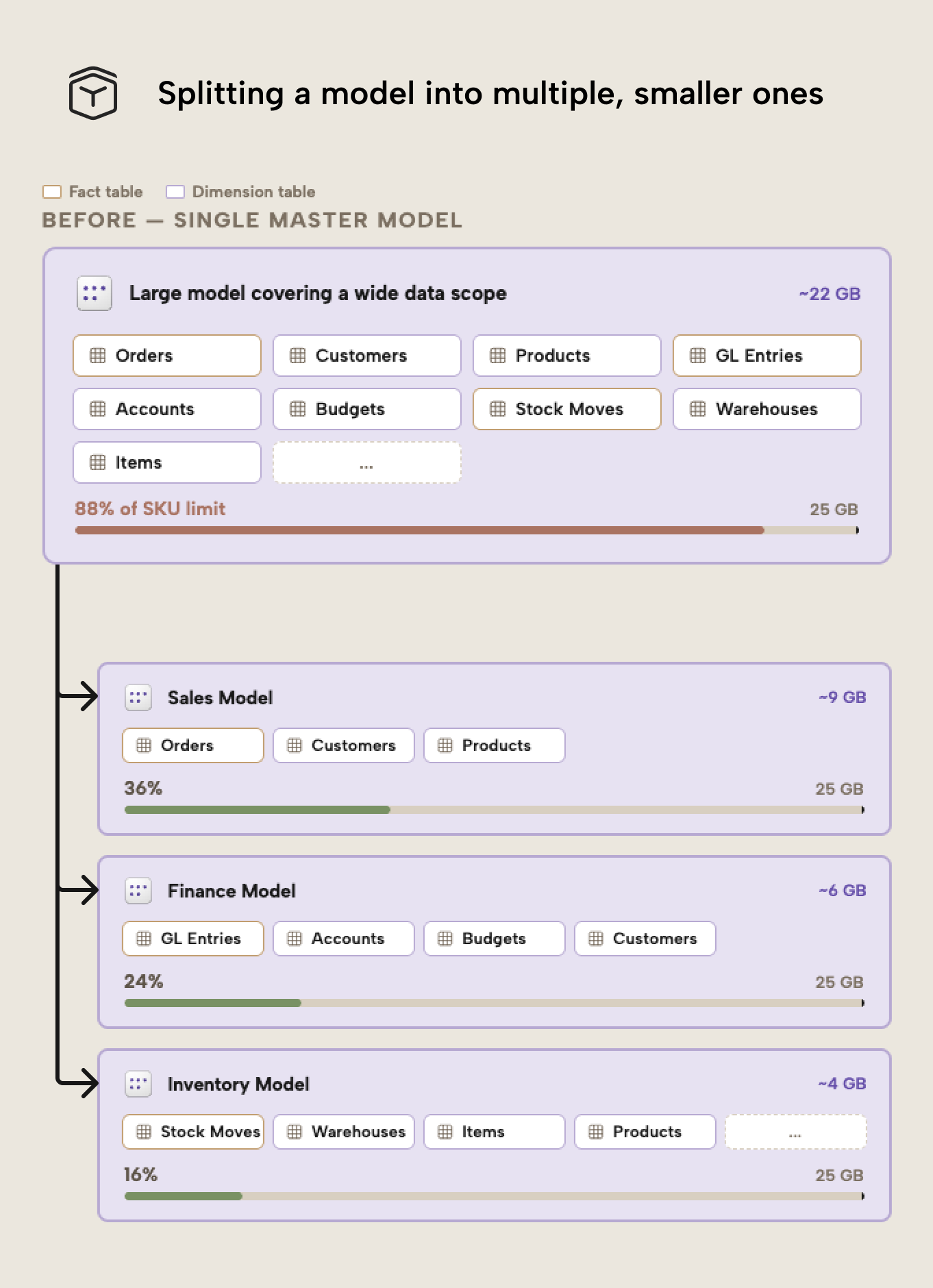
The result isn't necessarily a smaller overall data footprint across the organization, but it is smaller per semantic model. Because Fabric capacity limits are enforced at the model level, this distinction is critical.
Note that this isn’t just a memory optimization technique. It can also improve governance and maintainability by:
- Aligning semantic models with organizational ownership
- Isolating deployments per domain
- Simplifying security management
- Allowing independent release cycles
These benefits might even justify the design choice if memory pressure or performance isn’t a pain or primary driver.
A note on architectural implications
A Power BI report can connect to only one semantic model at a time. Splitting models therefore introduces constraints. Cross-domain reporting becomes more complex and may require:
- A lightweight “management” model containing shared KPIs.
- Conformed dimensions across models.
- Use of other items, like dashboards that pin visuals from multiple reports, or even notebooks that consume and present data from multiple models.
This works best when domains are naturally separated and users rarely combine them. It also increases operational complexity and typically requires a code-first deployment strategy (CI/CD with Tabular Editor, the Fabric CLI, and Fabric CI/CD), since manual, report-first workflows don't scale when many models must stay synchronized.
NOTE
The Master Model Pattern is most effective when memory pressure stems from a broad data scope rather than extreme cardinality. If a single fact table dominates memory usage, column-level optimization probably yield better results than larger design changes and architectural splits.
Why this works
Because memory limits are enforced per semantic model, distributing data across multiple models reduces peak memory consumption per model. This can prevent refresh failures and allow lower SKUs (or even Power BI Pro) to be used more effectively.
How to split and maintain a model into multiple smaller ones
This is a significant design decision. Special care is needed to keep the smaller models in sync, such as a master model pattern; a detailed implementation guide with Tabular Editor scripting examples is in the documentation.
Pattern six: optimize run-length encoding (RLE)
Run-Length Encoding (RLE) is one of the compression mechanisms used by VertiPaq. While dictionary encoding often receives the most attention, RLE can deliver meaningful memory savings when data is structured to take advantage of it.
RLE compresses consecutive repeated values: the longer the runs of identical values in a segment, the more efficient the compression. Data ordering and column design therefore affect the memory footprint.
When fact tables are sorted so similar values are grouped together, columns with repeating values achieve longer runs within segments, which increases compression and reduces size. The following diagram shows this:
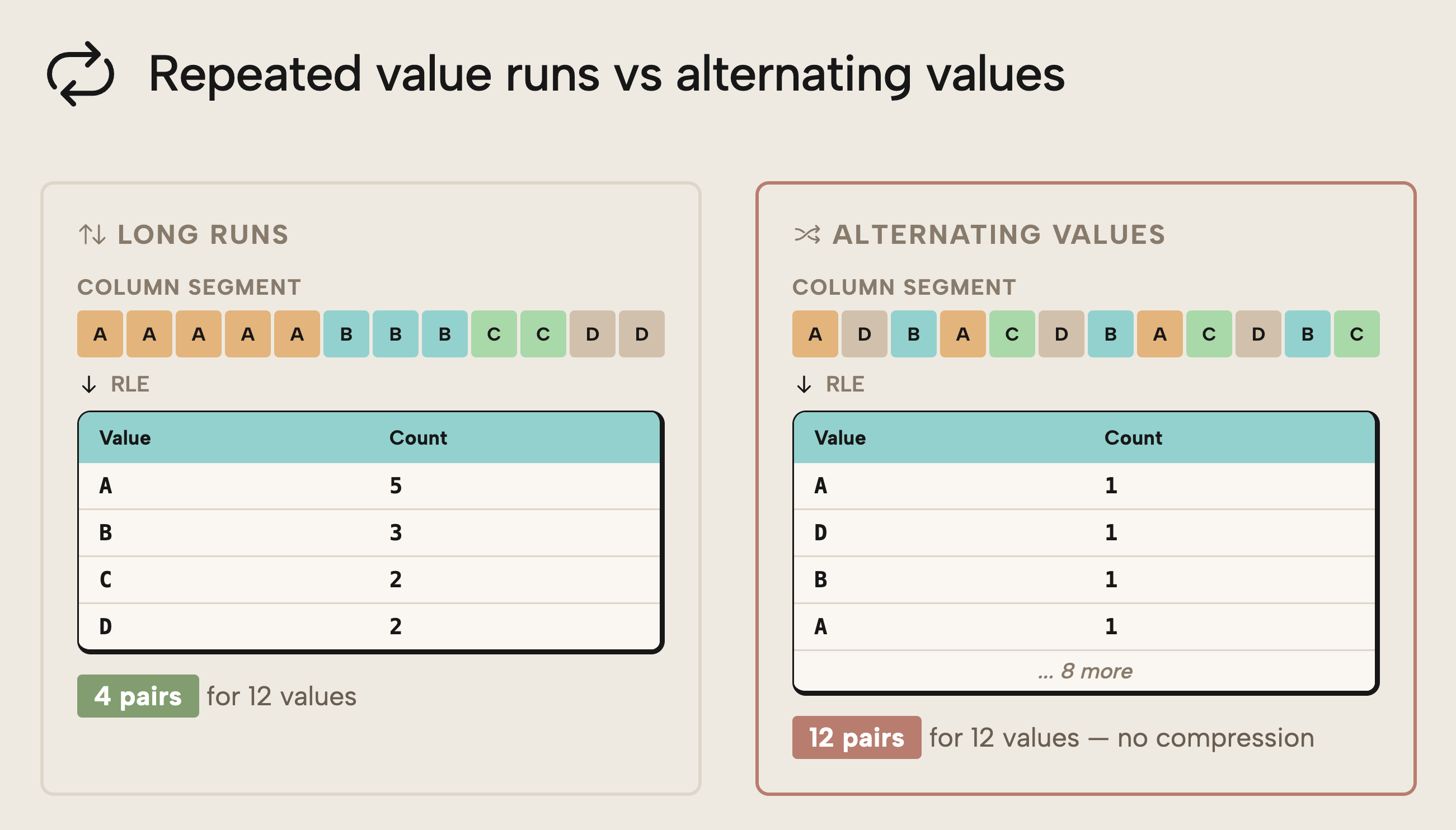
On the left, a sorted column with long runs compresses to 4 pairs for 12 values; good compression. On the right, suboptimal sorting can't compress the column to few pairs.
Since this is a complex technical topic, here’s another (still simple) example, this time from the Space Parts dataset:
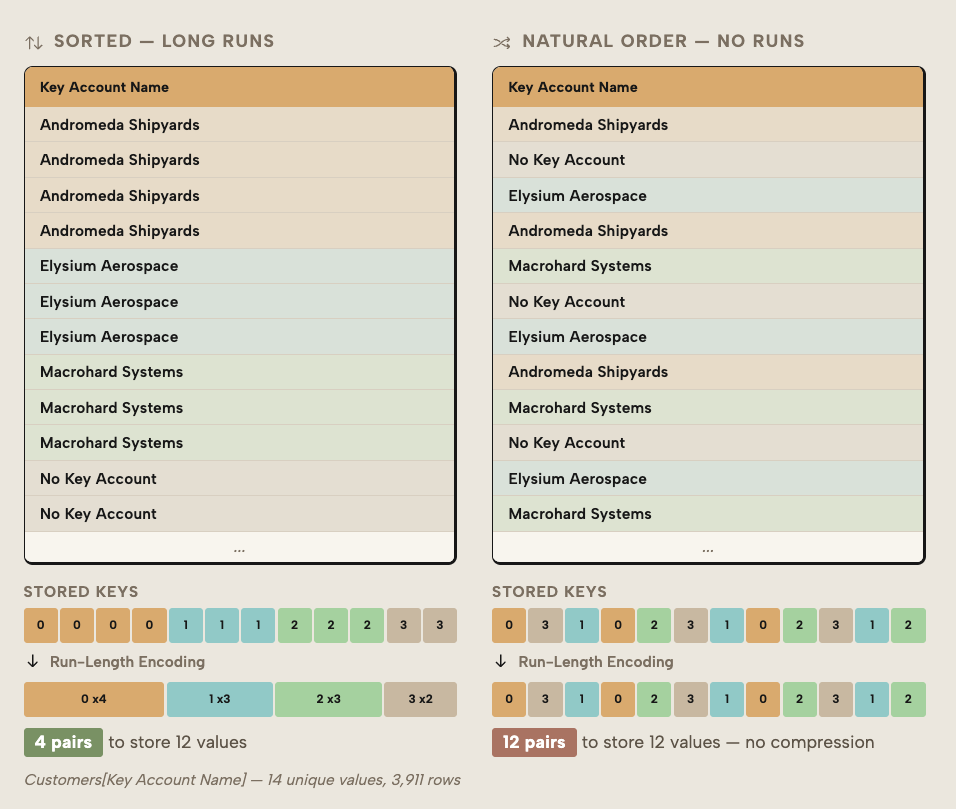
In short, you can see that the optimal sorting results in better RLE, and therefore smaller column sizes.
The effect isn't theoretical. In a practical example shared by Jonathan Otykier, optimizing for RLE reduced the size of a fact table by approximately 16% without removing any data. The savings came solely from improved compression behavior.
You want to consider this pattern in the following scenarios:
- When large fact tables dominate memory usage
- When other column-level reductions have already been applied
- When the model cannot be split further
- When you want to optimize without changing business semantics
NOTE
RLE optimization doesn't change the data itself. It changes how efficiently VertiPaq can compress it. However, it may require adjustments in load order, sorting strategy, or ETL logic. In most models, VertiPaq can handle this for you. However, in complex scenarios or very large models, you may want to experiment with this advanced approach to get the best results.
Why this works
VertiPaq stores data in column segments. When identical values appear consecutively within those segments, RLE can store them compactly as value + count instead of repeated entries. Structuring data to maximize these runs increases compression efficiency and reduces overall memory footprint.
WARNING
If you have multiple partitions because you are using incremental refresh, hybrid tables, or custom partitioning strategies, then you might want to be careful with RLE. RLE works within a partition. When you have too many partitions, the sort order might not be as optimal, and you could end up with larger data. In this case, you might want to find a way to use fewer but larger partitions so that the compression occurs more optimally.
How to implement RLE optimization
Optimizing RLE involves modifying sort order or sometimes partitioning (if you have multiple partitions) of your data.
Wrapping up
This series has explained what semantic model memory is, why it matters, and how to measure it. This article covered six patterns, basic and advanced, to optimize your models:
- Reduce unnecessary data
- Reduce unnecessary cardinality and dictionary size
- Disable unnecessary attribute hierarchies
- Leverage user-defined aggregations
- Apply the “master model pattern”
- Optimize run-length encoding (RLE)
In the next article of this series, we continue guiding you through optimization with a focus on optimizing semantic model refresh.
For further reading
- Optimizing Semantic Model Memory in Fabric (Tabular Editor). Part 1 of this series: explains memory limits, the side-by-side refresh behavior, and the VertiPaq Analyzer workflow that motivates the six patterns covered here.
- Optimizing semantic model refresh memory in Power BI (Tabular Editor). Part 3: covers partitioning, refresh scale-out, and Direct Lake to reduce peak memory during processing once steady-state size is under control.
- Storage analysis tool documentation (SQLBI). Covers the VertiPaq Analyzer output used to measure dictionary size, hierarchy overhead, and model footprint before and after applying each optimization pattern.
- Import modeling data reduction techniques (Microsoft Learn). Microsoft's official guidance on reducing columns, rows, and grain, a complementary reference for patterns one and two in this article.
In conclusion
Optimizing the size of the semantic model in Fabric isn't about applying a single technique or blindly following best practices. Rather, you must consider your scenario, measure memory to inform decisions, and then apply deliberate design choices where they matter most to get the best results. Doing so will ensure that you get the most from your semantic models while keeping cost and performance well under control.
Shrink Power BI and Fabric models with targeted Tabular Editor 3 review.
Give Tabular Editor a spin