Key takeaways
- Imported data needs a refresh strategy: Power BI works best with imported data, and several options keep it fresh; knowing which to use keeps your data landscape efficient.
- Scheduled vs process-driven refresh: Scheduled refresh is convenient when there are no special requirements, while process-driven refresh adds customization via the API and XMLA at the cost of more setup.
- Partial refresh cuts the workload: Partial refresh reduces how much data you refresh, using native incremental refresh with date partitions or custom partitioning.
This summary is produced by the author, and not by AI.
Overview
Semantic models are the backbone of your Fabric data landscape. In essence, they are databases that serve data to a variety of applications: Power BI reports, Fabric assets like notebooks and explorations, but also to Excel workbooks and other applications through API endpoints. Indeed, the data they serve must be accurate and relevant.
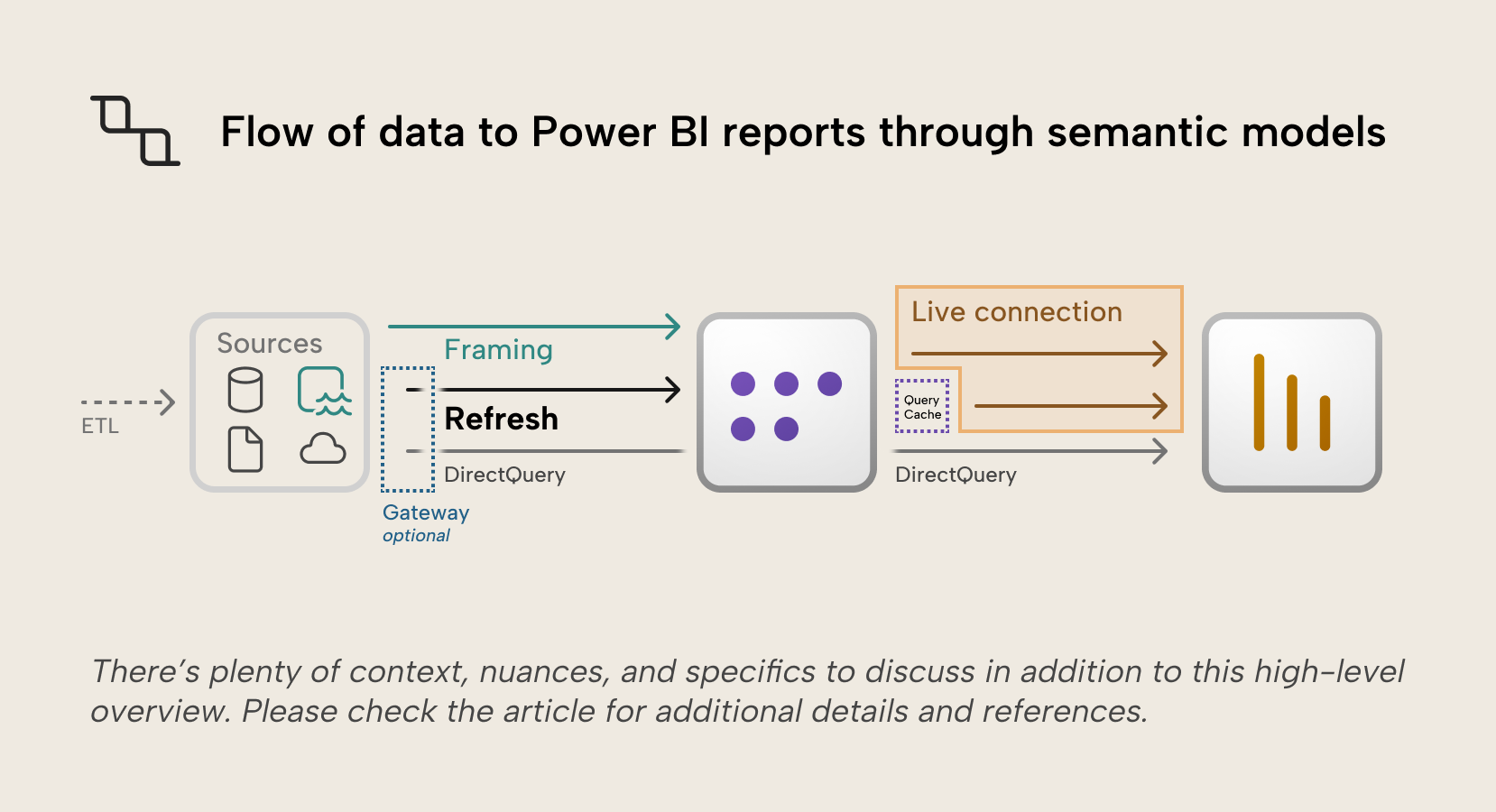
In a previous article we discussed storage modes for Power BI semantic models and mentioned that the preferred default is import storage mode, where source data is periodically refreshed into memory. Those imports must then be kept up to date to ensure they are accurate and relevant. This article will focus on refreshing the data stored in the semantic model, but also touch on other storage like cached query results and the concept of framing in Direct Lake storage mode since it relates to the concept of loading data in batches, like the import storage mode does. Real-time data processing deserves its own article we may write in the future.
We will discuss the different ways data can be refreshed, from an overview perspective rather than technical details, and link to helpful resources where relevant.
Scheduled refresh
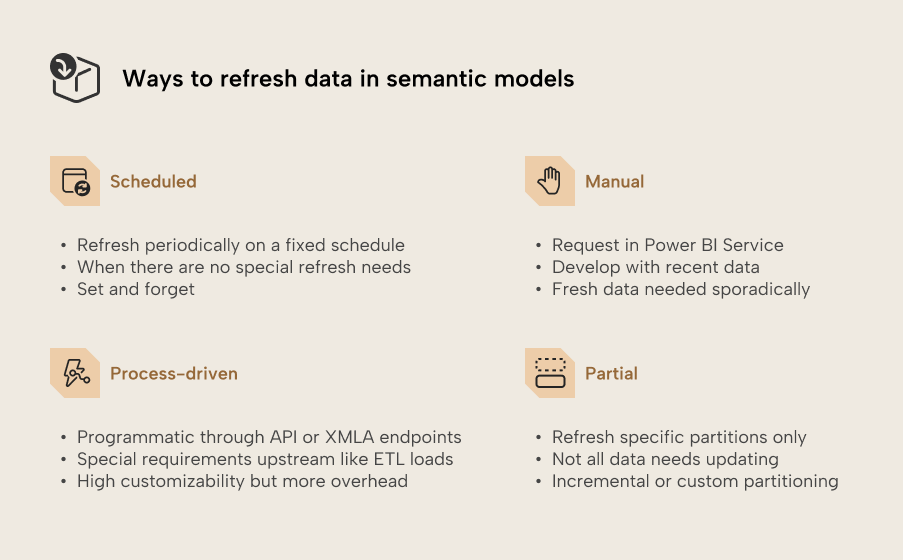
For import semantic models without special refresh needs, the refresh schedules configured in the settings of published semantic models are the way to go. Scheduled refresh is a simple yet flexible mechanism that’s as close to set-and-forget as it gets for keeping imported data updated.
When to use?
- Data sources have predictable load schedules.
- Import data needs to be updated every few hours or days.
Where to configure?
- The semantic model owner can set schedules in the semantic model settings user interface of published models.
- Schedules can also be set through the API endpoint, also by the semantic model owner.
What are the limits?
- Maximum duration depends on workspace capacity: 2 hours for Pro, 5 hours for Premium
- Daily refreshes depend on workspace capacity: up to 8 for Pro, up to 48 for Premium
- Supported refresh types: automatic refresh of the entire model
- Schedule parameters: a schedule can have multiple times that apply to all selected days of the week in the schedule.
- E.g. Every day at 07:00 → 1 time, applied every day.
- E.g. Mondays and Thursdays at 07:30 and 14:30 → 2 times, applied on 2 days of the week.
- E.g. Mondays at 07:30 and Thursdays at 07:30 and 14:30 → not possible since the times are different across days of the week. Times must apply across all selected days.
NOTE
The ‘automatic’ refresh type will recalculate tables and columns, and refresh tables and partitions based on the state of partitions. The other refresh types are clear, full, calculate, data only and defragment. They can be performed with Tabular Editor and other tools supporting XMLA or TMSL commands, such as SQL Server Management Studio.
What to look out for?
- Schedules will be deactivated automatically in some cases. When this happens, the model owner and contacts will be notified by mail.
- After 2 months of inactivity (i.e. no downstream usage by reports or other assets).
- After 4 consecutive scheduled refresh failures.
- After a configuration error such as expired credentials.
- Distribute the schedules over time to avoid sudden load spikes on source systems and Fabric capacities. Consider when fresh data is actually needed and let the schedules follow those requirements, considering typical duration of refreshes.
- The refresh isn't guaranteed to start at the exact scheduled time slot. Depending on capacity availability, a scheduled refresh can start anywhere between 5 minutes before and 1 hour after the scheduled time slot.
WARNING
The feature ‘OneDrive refresh’ shouldn't be confused with scheduled refresh, as it synchronizes the file from OneDrive but doesn't reload data from underlying sources. To refresh data from sources, scheduled or on-demand refresh is still required. An on-demand refresh will trigger both a file sync and a data refresh.
Manual refresh
As its name suggests, a manual refresh starts whenever it’s requested by manually clicking the ‘Refresh’ button in the user interface. In Microsoft documentation, this is often referred to as on-demand refresh. On-demand refreshes can be requested manually or programmatically. These request methods have different use cases and customization options, so we consider them separately in this article.
When to use?
- Test feature developments for import semantic models with recent data.
- Fresh data is only needed sporadically, and refresh completes near-instantly.
Where to configure?
Anyone with ‘Write’ permission to the semantic model can request an on-demand refresh on the model details page.
What are the limits?
- Maximum duration depends on workspace capacity: 2 hours for Pro, 5 hours
- Daily number of refresh requests depends on workspace capacity: 8 for Pro (including scheduled refresh), no limit for Premium as long as the capacity has resources available.
- Supported refresh types: automatic refresh of the entire model
What to look out for?
A manual refresh can’t be requested when a refresh is already ongoing. The ongoing refresh must first be cancelled before a new refresh can be requested.
Process-driven refresh
Sometimes your semantic model should only refresh when a process has finished, like upstream ETL loads or data quality checks have completed successfully. A fixed schedule could interfere with those processes in case they take longer than typically, and a manual refresh is just not scalable. In those cases, an on-demand refresh requested by an automated process through the API or XMLA endpoints ensures synchronization. These endpoints allow enhanced refresh with more customization options than scheduled or manual refreshes.
When to use?
- A refresh should only occur when specific conditions are met, for example when source data loads have finished and quality checks have completed successfully.
- Specific parts of the model should be refreshed, i.e. only some tables or historical partitions. This isn't possible with scheduled or manual refresh.
Where to configure?
- In the application or process that will be sending the requests to the API or XMLA endpoints. The API endpoint is better suited than the XMLA endpoint for automated orchestration tasks like this, but the XMLA endpoint gives more granular control over refresh operations, like overriding polling expressions.
- The authentication token passed into the header of the request must be used by a user or application service principal with ‘Write’ permission to the semantic model.
What are the limits?
- Number of refresh requests depends on workspace capacity: 8 for Pro (including scheduled refresh), no limit for Premium as long as the capacity has resources available.
- Maximum duration depends on workspace capacity and endpoint: 2 hours for Pro, for Premium 5 hours by default or up to 24 hours (by specifying as timeout parameter in request to API endpoint), and no limit for XMLA refreshes.
- The API endpoint is available for models in Pro workspaces. The XMLA endpoint requires models to be in a PPU workspace, or a workspace assigned to a Premium or Fabric capacity.
- Supported refresh: all refresh types are supported.
What to look out for?
A refresh can’t be requested when a refresh is already ongoing. The ongoing refresh must first be cancelled before a new refresh can be requested. A request to cancel can be made through the API endpoint.
Partial refresh
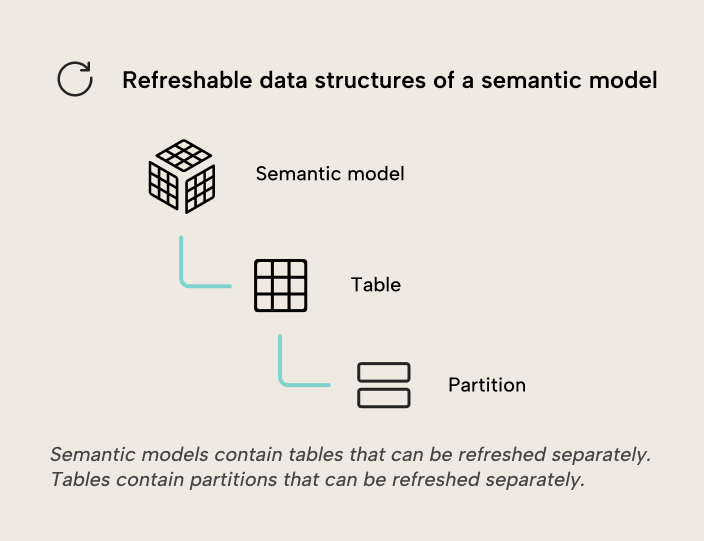
Source data doesn’t always change often, so it can make sense to reload only what needs reloading with a partial refresh. Incremental refresh can significantly reduce the amount of data to refresh by reloading only new or updated data. An incremental refresh policy can be configured for a table, and on refresh that table will be split into partitions organized by date granularities (i.e. years, quarters, months or days) according to the policy. Each partition can then refresh separately. On every refresh, partitions will be managed automatically, creating and loading new partitions, reloading partitions when source data has been updated, and merging historical partitions.
Partitioning tables by non-date columns is also an option. Custom partitioning allows more flexibility than the partitions automatically created by incremental refresh policies, at the cost of some more overhead to manage.
When to use?
- Not all data must be refreshed on the same schedule.
- The source data that must be refreshed can be reliably partitioned, for example by a date column for incremental refresh, or other columns for custom partitioning.
Where to configure?
- Set incremental refresh policy for the table of the semantic model in Power BI Desktop, then publish to the Power BI Service and refresh. Custom partitions can’t be configured in Power BI Desktop or the Power BI Service user interface.
- Incremental refresh policy and custom partitions can be configured and applied in Tabular Editor and other tools supporting XMLA or TMSL commands, like SQL Server Management Studio.
What are the limits?
- Partial refresh is partition-based, and partitions must be refreshed entirely. It isn’t possible to “upsert”, i.e. refresh just the rows that have updated.
- “Hard” deletes (i.e. rows that are deleted from the source table) aren’t detected by incremental refresh and will remain in the partitions of the semantic model. “Soft” deletes where the column to detect data changes is updated will trigger a reload of the partition.
- For incremental refresh, the data source must be filtered by a date. The
RangeStartandRangeEndfiltering parameters must be passed into the queries to the source. - Incremental refresh is supported in Pro workspaces. Refreshing historical partitions and managing custom partitions through the XMLA endpoint requires models to be in a PPU workspace, or a workspace assigned to a Premium or Fabric capacity.
What to look out for?
- If updates to historical data are prevalent and spread over time, incremental refresh may often have to reload many partitions. Verify that the candidate source table follows the transactional update pattern (new rows appended, old rows rarely updated) before you apply an incremental refresh policy.
- Incremental refresh policies and custom partitions are another configuration to manage and understand. For tables with modest volumes, the performance gain might be limited relative to technical overhead.
Query caching
Query caching stores the results of queries for report landing pages so visuals can be rendered faster. This feature is available to import semantic models in Premium or Embedded capacities, and the caches will be refreshed after a refresh requested through the interface (scheduled or manual on-demand). Refreshes requested through the API or XMLA endpoints won't automatically refresh query caches.
Direct Lake framing
In Direct Lake storage mode, data is loaded into the semantic model's VertiPaq engine. Just like Import mode, queries run against in-memory columns. How data gets into the VertiPaq engine is different, though: instead of the import and refresh process, Direct Lake uses column transcoding to load Parquet columns directly from OneLake into VertiPaq. Direct Lake is a deep topic we’ve covered before, but what’s relevant to the topic of data refresh is the concept of framing. Framing controls which data version the semantic model sees. A frame is essentially a pointer to a specific point-in-time snapshot based on the Delta Table transaction log, similar to how the import storage mode captures data as it existed at a specific point in time.
For further reading
- Model storage overview (Tabular Editor). Covers how Import, DirectQuery, and Direct Lake storage modes coexist in a single model, complementing this article's coverage of how each mode handles data refresh.
- Lake model workflow (Tabular Editor). Explains the framing mechanism mentioned in this article and how lake-backed models avoid traditional refresh cycles.
- Incremental refresh reference (Microsoft Learn). Covers policy configuration, partition management, and DirectQuery fallback for incremental refresh.
- Lake storage reference (Microsoft Learn). Explains the framing and transcoding concepts that make this storage mode fundamentally different from import refresh.
In conclusion
There are different ways to keep data imported to Power BI up to date. Understanding them will help you choose the right approach, and in doing so help keep the data landscape efficient and fresh.
Scheduled refresh is a convenient option if there are no special requirements. If there are, then process-driven refresh offers a myriad of customization options and partial refresh can cut down on amount of data to refresh, at the cost of some more overhead to manage. Remember that cached queries need to be refreshed too, and make use of framing in Direct Lake to select which frame of recent data is best suited to consumption.
Design refresh-friendly semantic models with Tabular Editor 3 before schedules break.
Give Tabular Editor a spin