Key takeaways
- AI instructions can steer Copilot and data agents: They're a freeform text field on the semantic model that provide model-specific context to get better results for with conversational BI experiences, mainly. They aren’t automatically exposed or read by coding agents like GitHub Copilot or Claude Code without using special prompts, tools, or scripts. You can edit them in Power BI Desktop or external tools.
- Writing good context for AI is an important skill: As a data professional, you should understand what context AI needs to use your data, both for conversational BI and agentic development. Writing good context for AI is the most straightforward way to get better results, not just for AI instructions but also agent documentation, memory, and skills. This is not a task that you can offload to AI if you expect to get meaningfully good results.
- Inform AI instructions with evidence from users and query logs: Don't just guess what's useful for instructions; you must engage with users to ensure that you can provide instructions that accurately describe the parts of your business process that the semantic model represents. If possible, also gather then analyze data from query and agent logs to identify failure or clarification points where you can tighten instructions to try and get better results.
- Iterate and improve AI instructions, incrementally: Regularly test with Copilot and data agents yourself, but most importantly touch base with users, then refine the instructions based on that feedback. Ideally, you should set up an automated evaluation that measures how instructions lead to improvements in AI-generated queries and responses.
This summary is produced by the author, and not by AI.
What are AI instructions and why are they important?
In a semantic model you can specify freeform text instructions, which are automatically read by Copilot and data agents to steer their behavior and outputs. You can think of AI instructions like a description for your entire semantic model; a specific text where you write in 10,000 characters or less some key points that an agent needs to query your semantic model, effectively. Providing these instructions is one of the most important ways to steer and improve Copilot so that it works the way you want, and more importantly, the way that users expect:
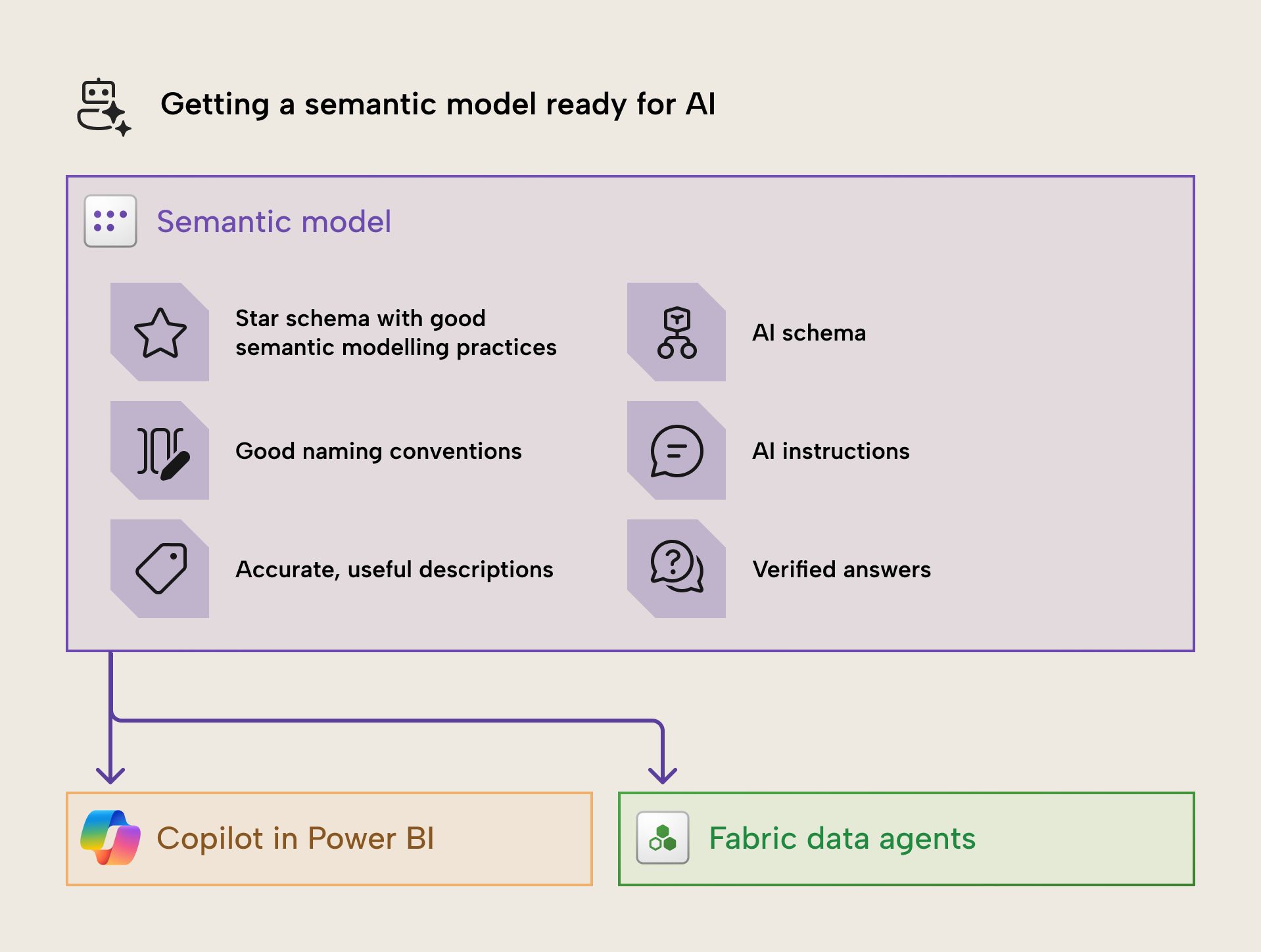
To get a semantic model ready for AI, there are many development tasks that are always necessary to produce a good model. These include ensuring that you work toward a star schema with good modelling practices, follow good naming conventions, and create accurate, useful descriptions. As we have discussed before, following the best practices for a semantic model ensures that you get the most out of it with or without AI.
However, there are also tasks that are specific to AI consumption, and which only pay dividends if you’ll use Copilot or data agents:
- AI data schemas let you disable fields that an agent shouldn’t see or use in queries. This is particularly useful if you have many report-specific objects.
- AI instructions are the model-level, free-form context that we discuss in this article.
- Verified answers let you configure specific approved responses for Copilot based on a specific visual.
Verified answers require the most time and effort to set up, since you need to create the visual and pair it with certain phrases; it’s usually only worth doing with highly recurring and important questions that need a specific visual response.
You add AI instructions in Power BI desktop from the “Prep data for AI” menu:
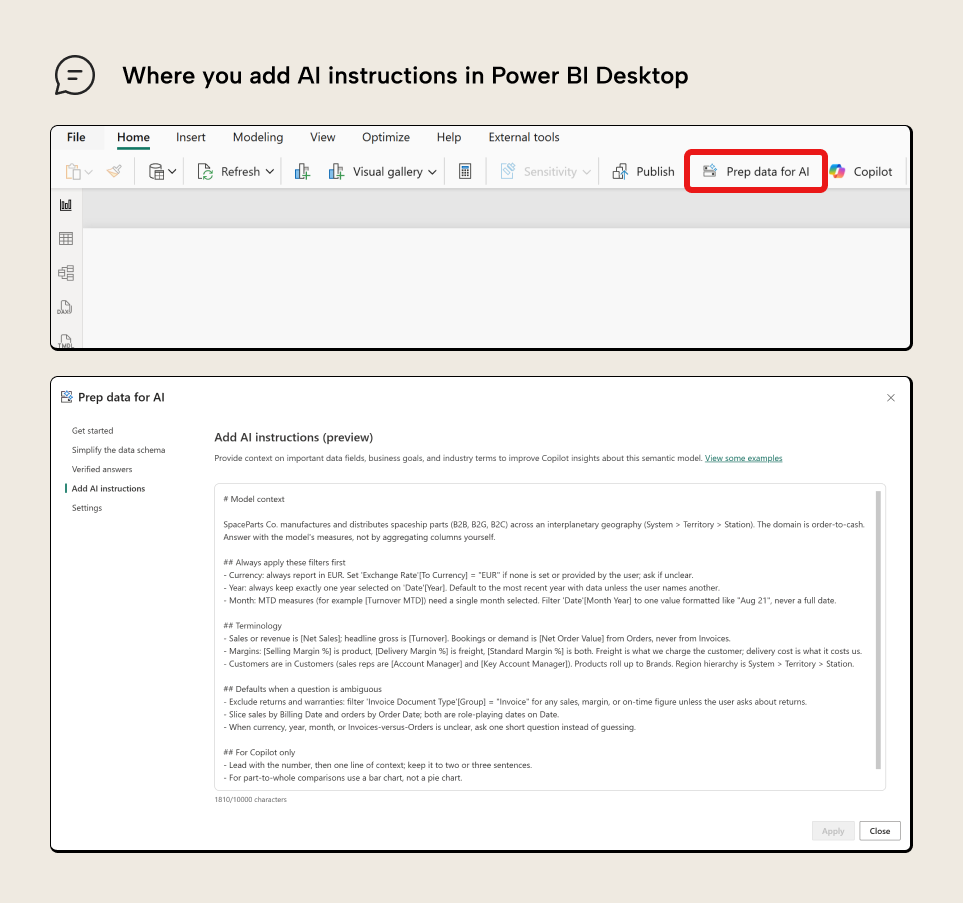
As mentioned, AI instructions are just text. Here, they are styled as markdown syntax with # used for headings and so forth, but that’s not mandatory.
NOTE
AI instructions are one part of the Prep data for AI experience in Power BI, alongside AI data schemas (the subset of fields the AI should prioritize) and verified answers (validated responses to common questions). This article focuses on instructions, but the three work together.
AI instructions aren't read automatically by coding agents (such as Claude Code, Codex, or GitHub Copilot) that use MCP servers, CLI tools, or APIs. To use AI instructions in these tools, you must explicitly specify this in your prompts, agent memory files, or MCP server configuration.
How to edit AI instructions
You can add and manage the AI instructions for a semantic model in several places:
- Power BI Desktop: When you click on “Prep your data for AI”, you can select from the menu AI Instructions and enter text, there. This is a simple text property editor, which shows you the character limits. This is going to be the preferred approach for self-service creators who primarily use Power BI Desktop for semantic model development.
- Text editors like Notepad or code editors like VS Code and Cursor: Since the February 2026 release of Power BI Desktop, AI instructions are saved as a markdown (.md) file in the /Copilot folder of a Power BI Project. If you save your Power BI semantic model using the PBIP format, you can see the AI instructions, linguistics, and model schema as files in this folder. You can also obtain this if you retrieve the semantic model definition using the Fabric Get Definition APIs.
- Tabular Editor: In Tabular Editor you can use a C# macro to open and edit the AI instructions in a pop-up window. You can dock this window and use it like one of the native panes of Tabular Editor to read and write changes to your AI instructions. You can see an example of this below:
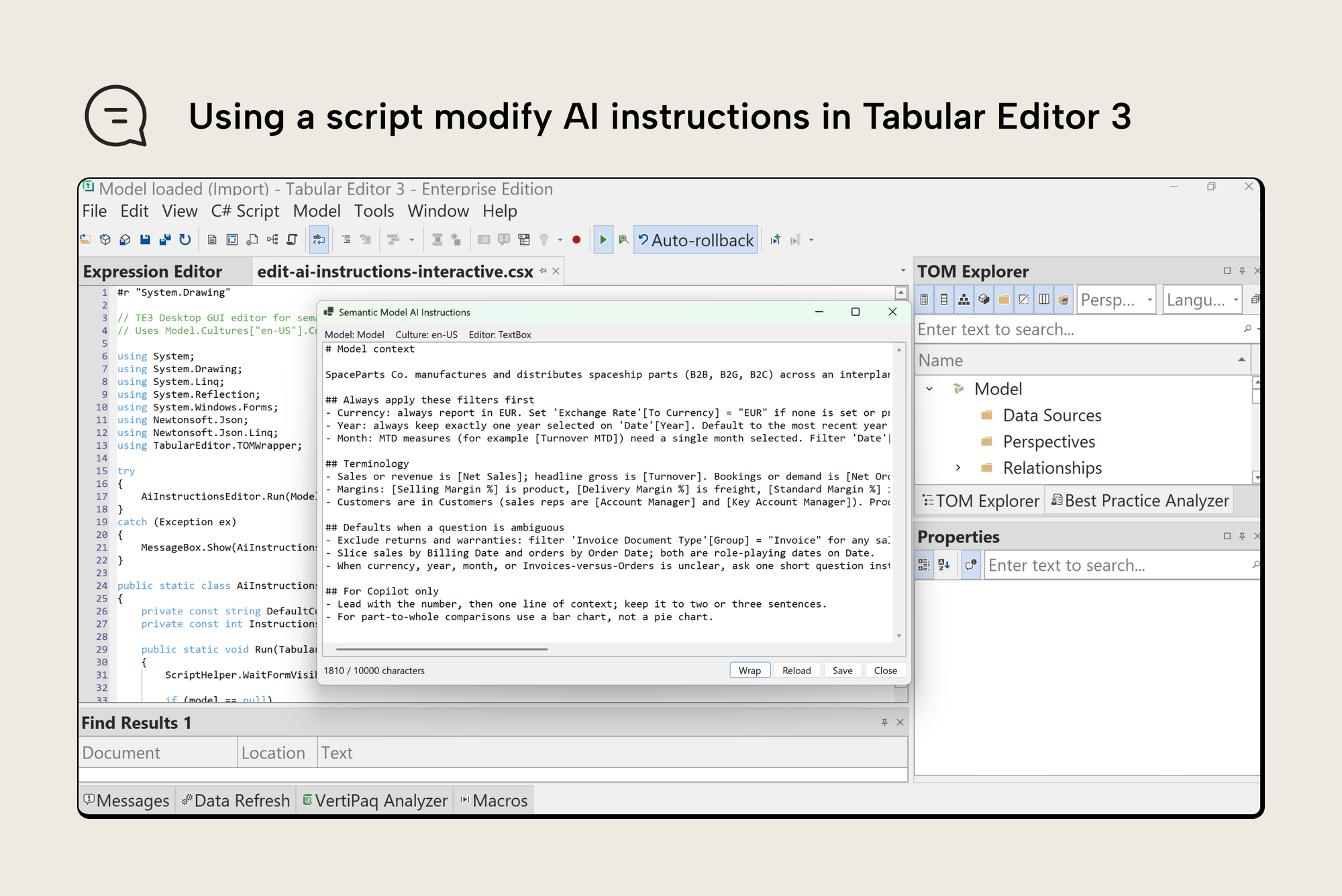
In general, it doesn’t really matter where you edit your AI instructions. However, the best experience is likely to be in a text or code editor like VS Code, since you can leverage extensions for markdown syntax highlighting and linting (which fixes syntax issues).
TIP
You can find these scripts in the power-bi-agentic-development repository, in the te-cli plugin, or in the C# scripts library.
Programmatically working with AI instructions
AI instructions are part of the model metadata, so you can read and write them in bulk with a non-interactive script (a script that runs from start to finish without asking further input). With the Tabular Editor CLI (te) you can use a C# script to stamp or sync instructions across one or many models at once. With the Fabric CLI (fab) you can use a Python script to do the same against a semantic model in a workspace. The C# route is faster and cheaper (by tokens) since you don’t have to download and re-upload the entire model definition:
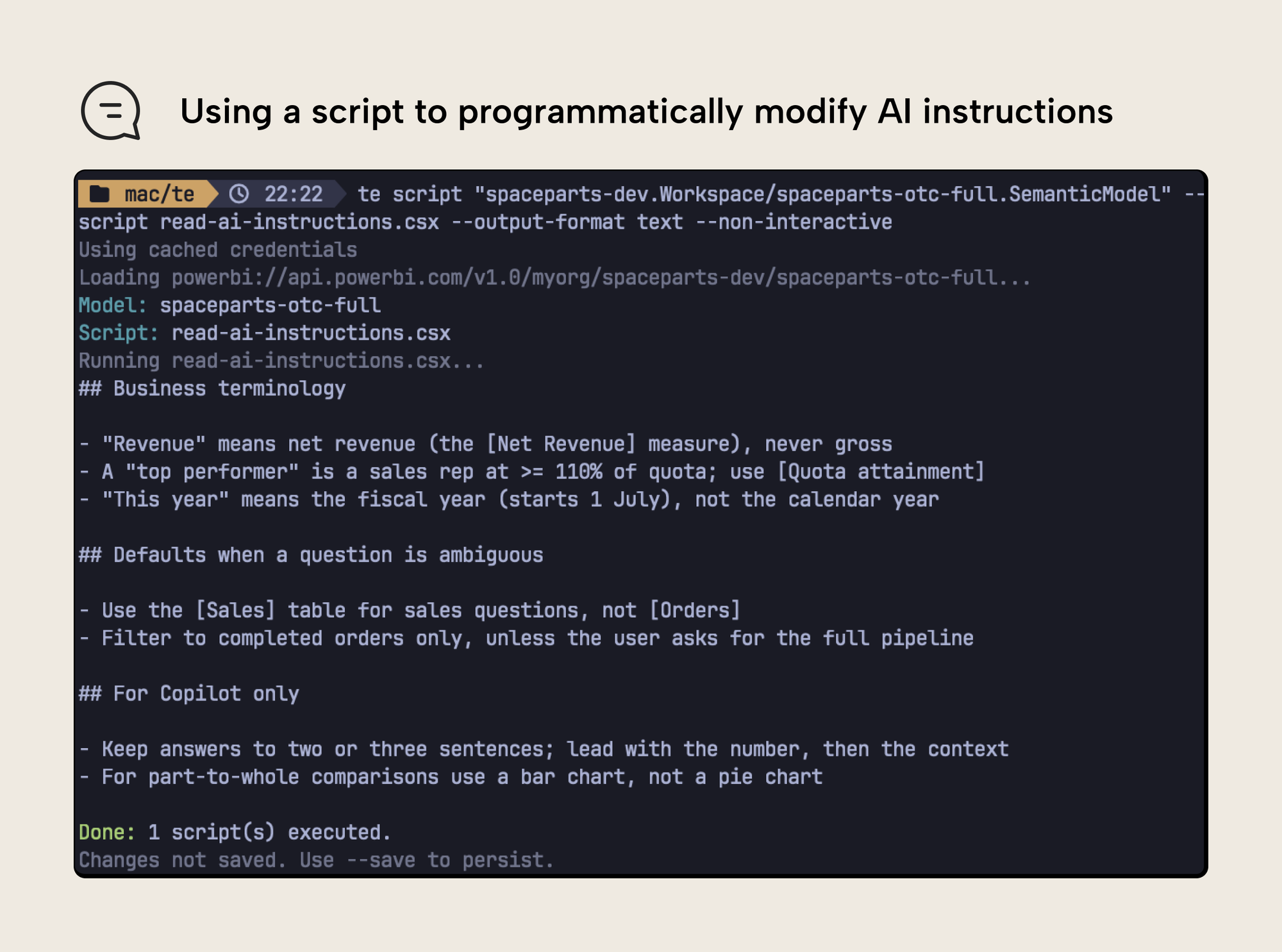
The previous example shows a non-interactive C# script reading the AI instructions from a semantic model. This is both important and interesting, as it provides a route for coding agents like Claude Code or GitHub Copilot to read and use these instructions either during queries or development. You just have to provide the script and instruction in a skill or memory files for your project (or user-level configuration) and reference it, like so:
Use the script `read-ai-instructions.csx` with `te script` to read and follow the model AI instructions before proceeding with any queries or development tasks.
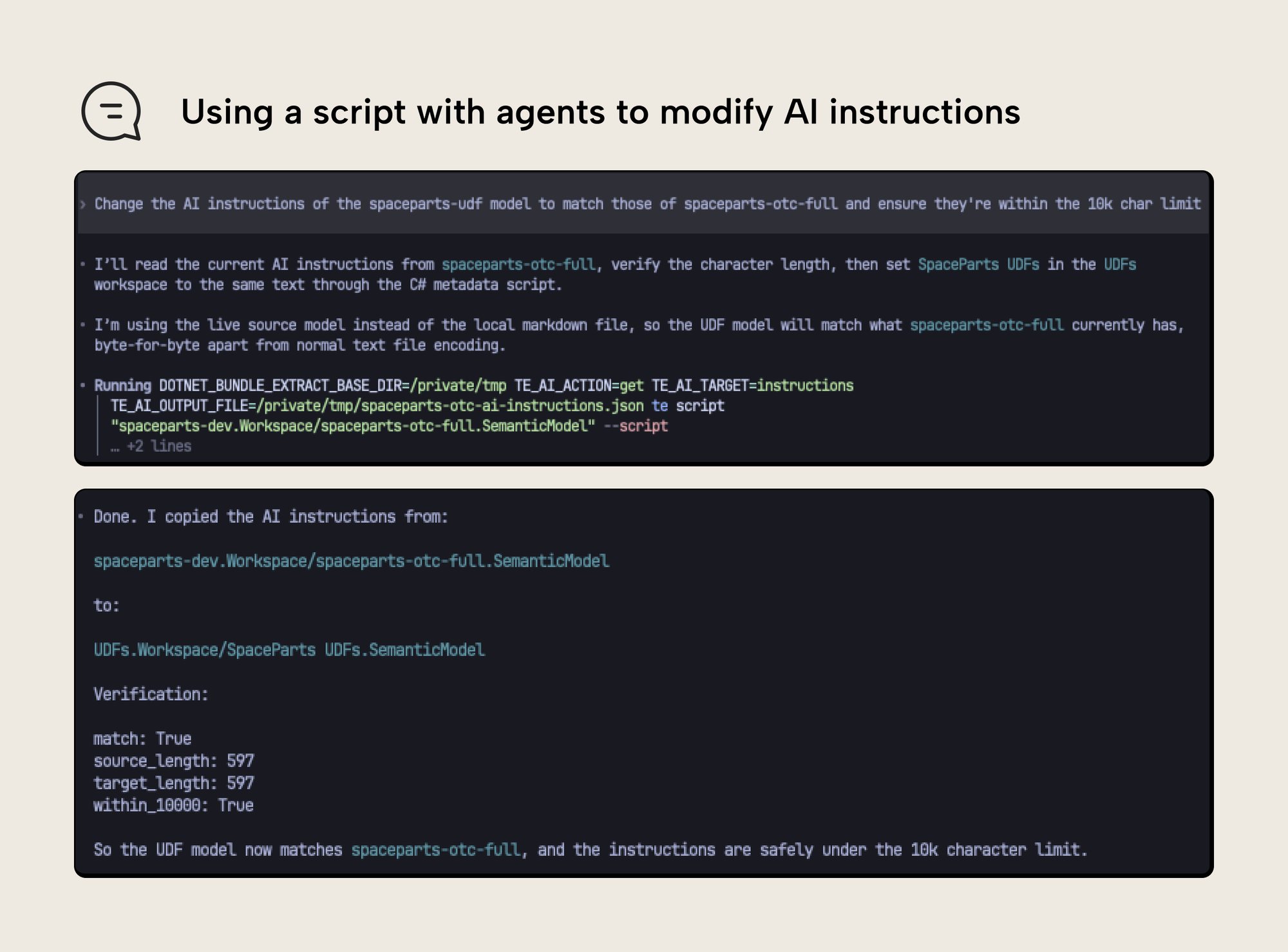
You can use similar scripts to modify the instructions, too. These scripts can be run within a pipeline as part of your CI/CD, or as part of other scripted automations or ad hoc batch processes. You can also use these scripts with agents to manage the AI metadata during agentic development, like the below example where an agent copies the instructions between two models:
NOTE
Programmatic AI instruction modification can help you achieve more complex workflows like centralizing maintenance of AI instructions, like atomic instructions based on rules, for example if a model contains a table starting with “Orders”, and that table contains a [Net Revenue] measure, the atomic instruction specific to that combination of model objects gets added. This is just an example, see the section on what you can control with instructions for more inspiration.
AI instructions are a writing skill, not engineering or technical one
Writing AI instructions will feel like an unfamiliar task, since it basically involves providing documentation for AI to use and query the model. It’s somewhat familiar to table, column, and measure descriptions. However, AI instructions are scoped over the whole model, and are always read before an AI queries the model.
When writing AI instructions, you should remember to focus on deliberate, clear, and concise communication. Microsoft puts it plainly: AI instructions are prompt-based, so prompt engineering best practices apply. They’re also unstructured guidance that the LLM interprets; there’s no guarantee it follows them exactly, so clear and specific instructions work better than complex or conflicting ones.
It helps to think of this as context engineering rather than writing a manual. As Anthropic describes it, the goal is to find “the smallest possible set of high-signal tokens that maximize the likelihood of some desired outcome”, keeping the context “informative, yet tight”. More isn't better: piling in everything you can think of causes “context rot”, where the model’s ability to recall and act on any individual instruction decreases as the text grows. You’re aiming for the right altitude, as Anthropic calls it, instructions that are specific enough to guide behavior but not so brittle that they break the moment a question doesn’t fit your assumptions.
NOTE
If you already use coding agents, then you can understand AI instructions as semantic model memory files like AGENTS.md for Copilot and data agents.
What can you control with AI instructions?
The primary purpose of AI instructions is to inform Copilot or data agents about the semantic model fields and the underlying business process. This context can help improve their performance when generating DAX queries. Here’s some information that you might want to include in the AI instructions which pertain to both Copilot and data agents:
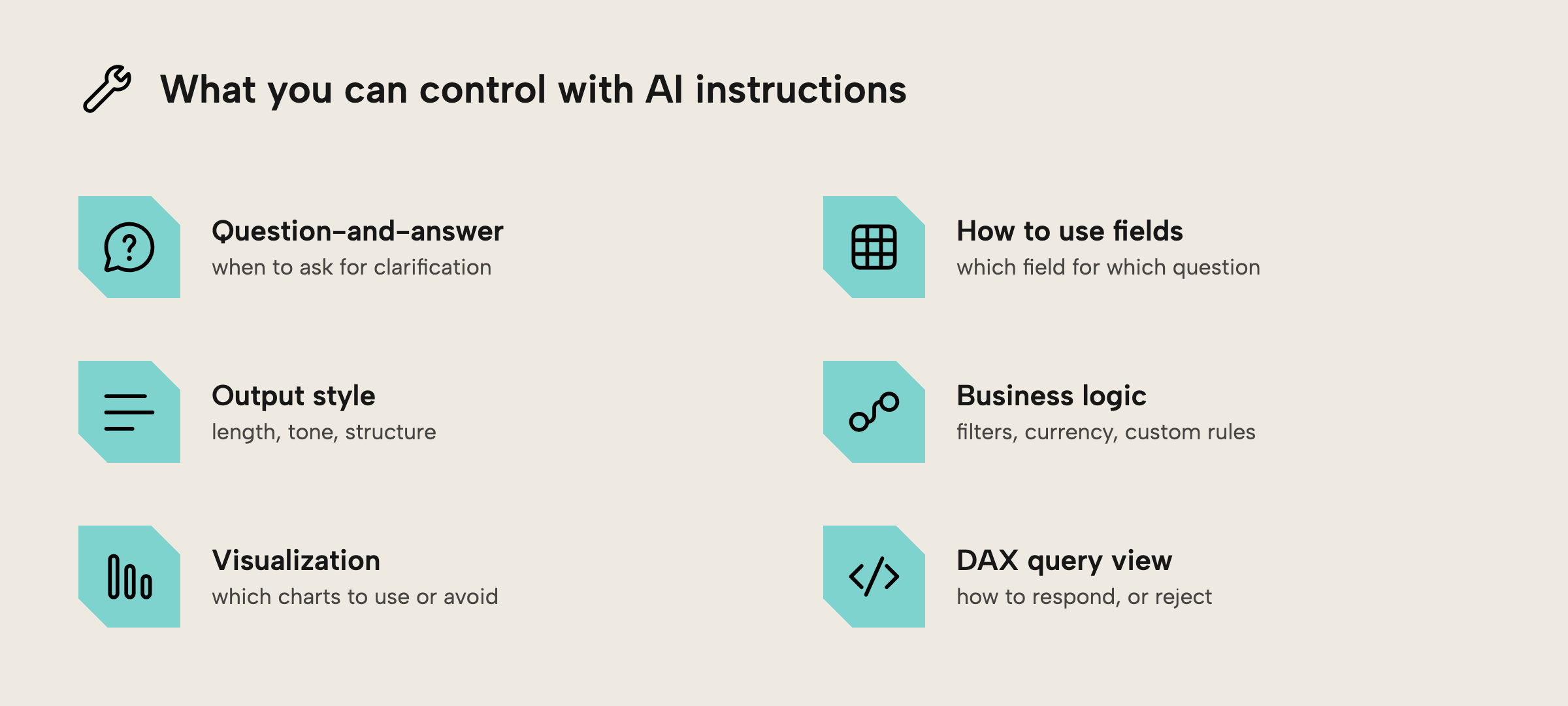
- Question-and-answer: Typically, Copilot will try to be informative, but it can sometimes ask for clarification from the user. You can request that Copilot more frequently asks questions and works with users to guide them to answer their questions.
- Output style: By default, LLMs are quite verbose. They produce a lot of text, which adds cognitive load and makes it more difficult and less efficient for users to read and understand the information presented.
- How to use certain fields: You can tell Copilot which fields to use for which kinds of questions, and which to avoid. A common example is instructing it to default to Net Sales rather than Gross Sales when someone asks about “sales”, so it doesn’t have to guess between similarly-named measures.
- How certain business logic works: This includes filters as well as certain operations like dynamic currency conversion.
TIP
Consider also whether certain business semantics should go in a Fabric ontology rather than in semantic model instructions, descriptions, or linguistics. Ontologies are mainly for linking business semantics to data entities and elaborating on their relationships with graphs. Freeform directions are better suited for AI instructions (if they are not specific to a particular field) or descriptions (if they are specific to one or more fields).
For data agents, AI instructions only pertain to the DAX generation. However, Copilot has a variety of experiences, most of which use AI instructions as context (except for creating a report page, getting suggested report page topics, or a semantic model summary in Power BI Desktop, where instructions might not be respected). You can thus steer a wide variety of behaviors and responses from Copilot, for instance:
- Disabling certain experiences: There’s no model- or tenant-level control over specific Copilot experiences; these controls are only workload-specific (i.e. Power BI, data engineering, etc.).
- Visualization: You can tell Copilot which charts to use in general or for specific data, or how to configure those charts (within the limits of what Copilot supports). You can also discourage Copilot from using visualizations, or certain visualization types (like pie charts) or adhering to better visualization practices, like when to use part-of-whole chart types versus time series and so on.
- DAX query view: You can control how Copilot responds in the DAX query view, or even reject requests for query generation outright.
IMPORTANT
When a Fabric data agent queries a semantic model, only the AI instructions you set in Prep data for AI reach the DAX generation tool. Instructions you add for the data agent are ignored for that model. Keep semantic model-specific guidance in Prep data for AI, and reserve data agent instructions for things that apply across all sources, like tone, cross-source routing, or generic business process knowledge that doesn’t fit in other context areas.
An example of good AI instructions
Instructions read best as a short, sectioned document of high-signal lines, rather than a wall of prose. Here’s a compact example for a sales model:
## Business terminology
- "Revenue" means net revenue (the [Net Revenue] measure), never gross
- A "top performer" is a sales rep at >= 110% of quota; use [Quota attainment]
- "This year" means the fiscal year (starts 1 July), not the calendar year

## Defaults when a question is ambiguous
- Use the Sales table for sales questions, not Orders
- Filter to completed orders only, unless the user asks for the full pipeline

## For Copilot only
- Keep answers to two or three sentences; lead with the number, then the context
- For part-to-whole comparisons use a bar chart, not a pie chart
Notice what makes this work: it’s organized into clear sections, every line is concrete and points at a real field, and it resolves the ambiguities a user’s phrasing would otherwise leave open. It says nothing the model can already see from the metadata, and it stays short enough that each instruction still carries weight.
NOTE
It’s possible to have different AI instructions for Copilot and data agents. For instance, instructions for Copilot can affect various experiences, like DAX query or report page generation, or which Power BI visuals it uses to answer data questions. Mind that while data agents do respect AI instructions
For further reading
- Effective context engineering for AI agents (Anthropic). This article provides some context (pun intended) about what good context looks like for an AI agent and how you can write it.
- Maximizing Power BI Copilot: a data analyst’s guide to AI-ready semantic models (Ross McNeely). Ross walks through Prep Data for AI, with concrete before/after examples of instructions that change Copilot’s answers.
- Semantic model best practices for data agent (Microsoft Learn). Worth reading for the data-agent-vs-Prep-for-AI distinction alone, plus a solid list of pitfalls (conflicting instructions, over-complex instructions) that cost you accuracy.
- Automatically populate Data Agents with Semantic Model Synonyms (Marc Lelijveld). A practical look at feeding Fabric data agents the model metadata they need, complementary to the AI instructions covered here.
In conclusion
AI instructions are the most direct lever you have over how Copilot and data agents behave on your model, and getting them right is a writing problem, not an engineering one. Ground them in what you actually see users ask, keep them concise and sectioned so each line still carries weight, and remember they live in Prep data for AI where both Copilot and the data agent can use them. Most importantly, treat them as something you iterate: test with real users, watch where the AI guesses wrong, and tighten the instructions until it stops.
Give AI better model instructions, then review changes in Tabular Editor 3.
Give Tabular Editor a spin