Key takeaways
- Markdown is a standard for documentation: It’s easy to read and write, and is used in most platforms and applications.
- Markdown (.md) is a file format that you use when you work with agents: Most instructions and context files for AI agents are stored in Markdown because the format is convenient to read and write for agents and humans.
- You write markdown in any text editor (Notepad), IDE (VS Code), or notetaking app (Obsidian): Markdown has a simple syntax for formatting text, so it’s easy to use. You’ll probably use it to write instructions, documentation, AI skills, and other context files that are important to get good results with agents.
- Markdown files for data projects can be stored in various places: Some Markdown files you write will be temporary, but many will persist as context and should live in and be distributed via Git repositories, including inside a definition folder like
.Reportor.SemanticModel.
This summary is produced by the author, and not by AI.
Why you should use Markdown files
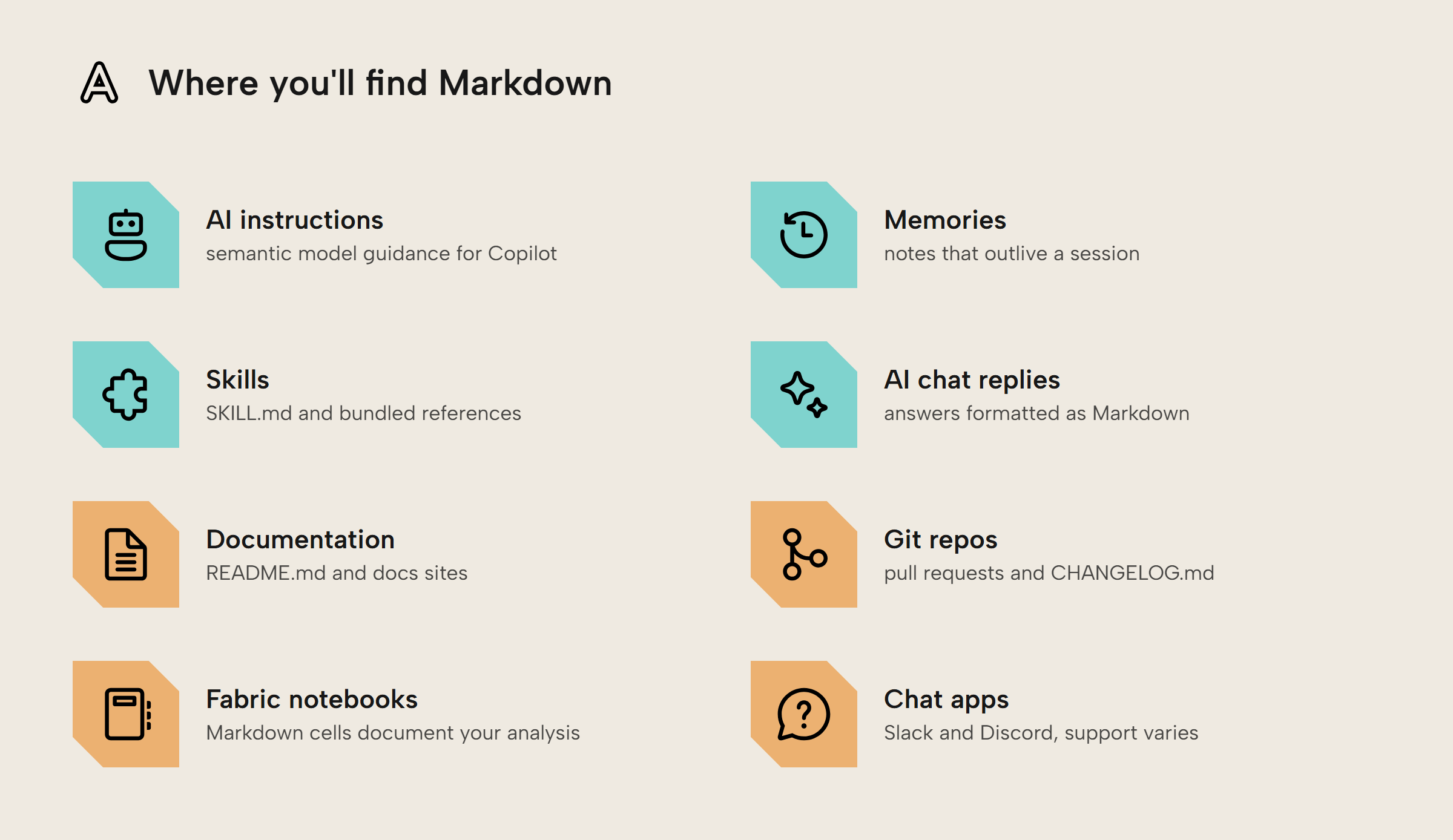
When performing agentic development, most of your time will be spent either writing prompts or context files in Markdown (.md) files. This is a simple format used for documentation and notetaking, but which is also easy to read or write for humans and agents. You have almost certainly encountered Markdown before, but you may not have known it. Markdown is used by AI agents, in code documentation, and in some chat programs. Even Microsoft Teams supports a subset of Markdown.
In this article, we give you a brief introduction to the Markdown format and why it’s relevant to use when you work with agents.
NOTE
This article is intended for a non-technical audience starting with agentic development, for whom the Markdown format and code editors where you write Markdown files feel unfamiliar.
What is Markdown and why do we use it?
In the history of computing, it’s been useful to take simple plain text and add details around the text indicating how the text should be rendered or how the pieces interrelate. This is often done with a markup language, the name being inspired by when editors would mark up paper manuscripts. At this very moment, you are interacting with the most famous markup language ever invented, the Hypertext Markup Language (HTML), simply by reading this blog post which is served as HTML.
If you’ve ever worked with data stored in the Extensible Markup Language (XML), that is another place where you may have used a markup language. It’s also possible you have used YAML files to modify configuration settings. YAML originally stood for Yet Another Markup Language (yes, really). In 2000, it was renamed to YAML Ain’t Markup Language. It’s all a bit silly but now you know.
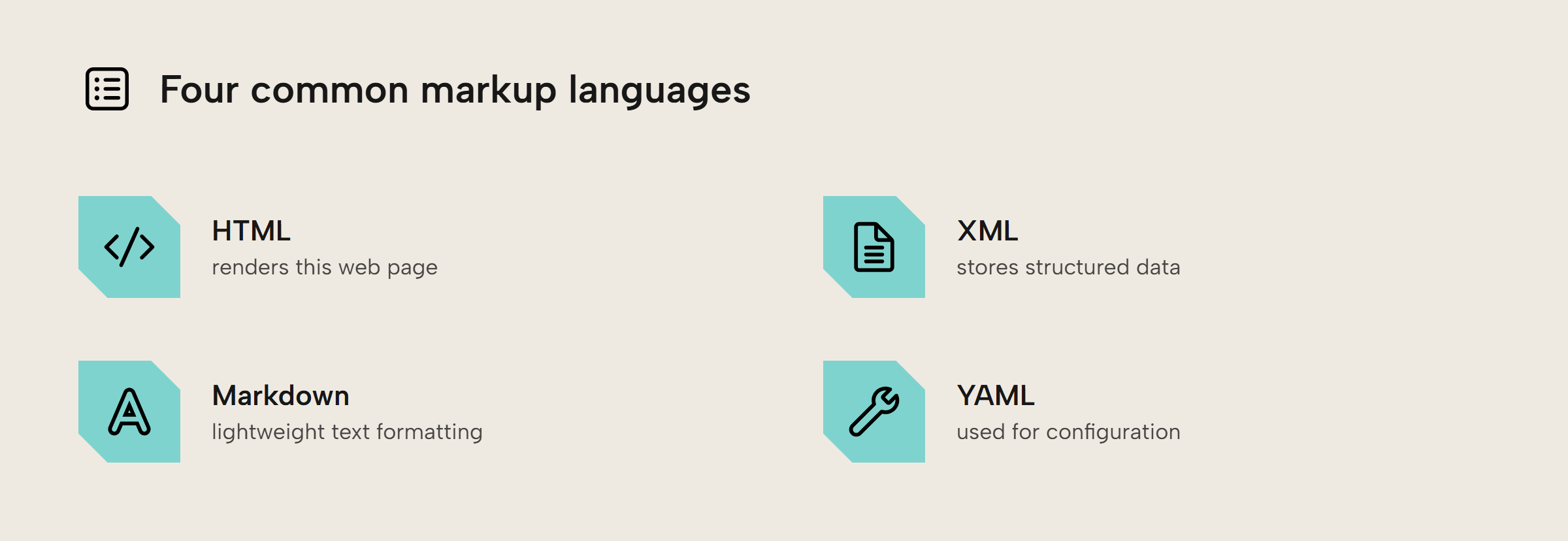
While HTML is powerful, writing HTML isn’t very intuitive for most people and feels more like programming. Markdown was invented as a way of writing that is ergonomic and intuitive, inspired by how people naturally use punctuation to format plain text emails.
NOTE
Code repositories in GitHub and Azure DevOps will automatically render Markdown files and it’s extremely common to have text files for humans such as a README.md or CHANGELOG.md.
How do you write Markdown?
Writing markdown is straightforward, but it’s different than writing in a Word or Text file. Something like Word is “What You See Is What You Get” (WYSIWYG); you write with the formatted text, despite a .docx file having a lot of syntax behind-the-scenes. In Markdown, you generally write in the source, which will display in the rendered output (although many WYSIWYG editors do exist, now, like Obsidian or Typora).
To write Markdown source, you use a few pieces of punctuation to change the format of nearby text. For instance:
- Double asterisks surrounding text mark it as bold, so
**bold**renders as bold - Single underscores italicize text, so
_italicize_renders as italicize - One or more hash (
#) symbols at the beginning of a line make a header, like### How do you write Markdown? - Images are referenced in-line in the text with

When you write markdown, you’ll notice that text formatting and images don’t appear. Like the markup formats mentioned above, this renders as bold, italic, headings and so on when you display it somewhere like an application or website. You can usually preview markdown in editors where you write markdown, like VS Code.
NOTE
If you write markdown for agents only, you don’t usually preview or format it. This is something you would typically do only for a human reader. It can be helpful when you review AI-generated markdown files, like plans, reports, summaries, and so on.
Where do you write and view markdown?
Below is a screenshot of Markdown source in VS Code (left) being rendered by the Markdown Preview Enhanced extension (right). While you can edit Markdown in any text editor, code editors like VS Code or Zed often provide syntax highlighting natively and previewing right out of the box. You can add advanced features which improve the preview or automatically enforce formatting rules from extensions:
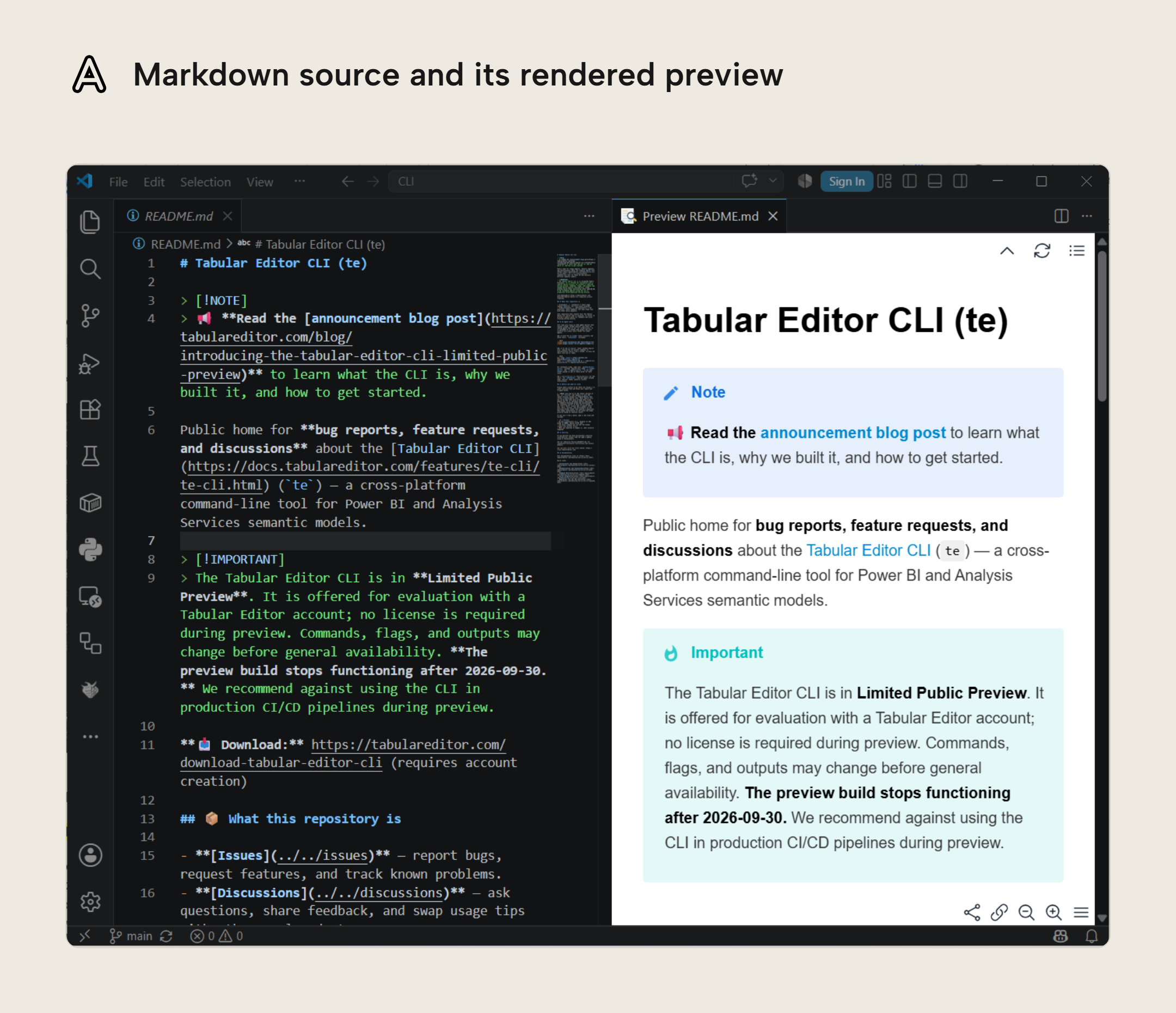
For example, all of our articles and documentation in Tabular Editor are written in Markdown. If you want to learn markdown in more detail, read the Common Mark Guide or GitHub documentation, or play around with the interactive widget below:
Markdown has the following advantages:
- It’s lean, which makes it easier to read without previewing and it costs fewer tokens for AI.
- It’s not packaged like text is in a Word document (.docx), which uses the Open XML Standard.
- It’s ubiquitous, so almost every program recognizes and supports it (even SharePoint)
TIP
You can write in Microsoft Word and Google Docs, then ask an agent to read it or convert it to Markdown.
For instance, in Tabular Editor, we write articles, documentation, and other text interchangeably in various tools and formats. However, in-house tools can parse all of these to Markdown for a source-of-truth, which facilitates source control, validation, and automation. An example of this is our automated editorial process for our blog articles, which helps us enforce consistency, authenticity, and quality standards. It also reduces the time to handle and publish articles by more than 90% compared to manual review, upload, and publication.
Markdown is common in LLM training and tooling
It’s good to be comfortable with Markdown so that you can read and write the most common format for agent instructions and context files. You write Markdown files for agents in the following scenarios:
- Memory files, which agents automatically read. Memory files give preferences and important rules but should be kept to a minimum. These include AGENTS.md, CLAUDE.md, or Markdown files in special folders like
.claude/rules/ - Skills, which agents or a user can invoke. Skills teach processes to agents and you can add them to a user or project configuration. They usually consist of markdown files but also other files, too.
- Instructions, plans, and requirements (or “specs”): These are typically temporary documents that you create as part of a planning and requirements gathering process. Later, you should refactor them into other documentation.
- Other documentation: Any documentation or text to describe a process can be written using the Markdown format. An example of “other documentation” could be freeform notes that you take in i.e. an Obsidian vault, Notion, or something else.
NOTE
We explain and guide you to create each of these in future articles in this series.
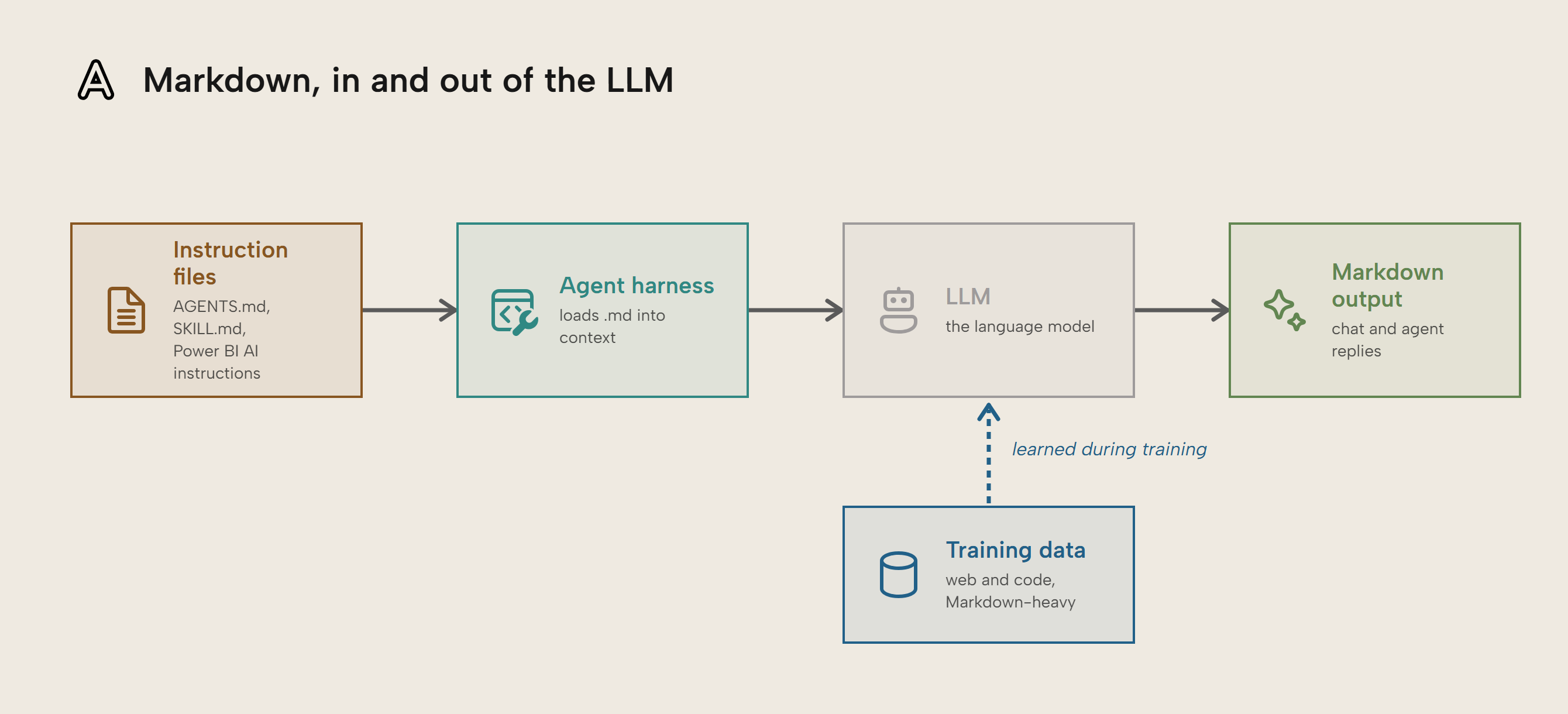
Almost all agents will store instructions for every session in a markdown file such as AGENTS.md or CLAUDE.md. If you write AI instructions in a Power BI model, those instructions can also use a Markdown syntax.
Additionally, AI agent skills store their instructions in a SKILL.md markdown file as well as any references optionally bundled in the references folder. Coding agent providers have all consolidated around markdown as the primary text format.
Because Markdown is so ubiquitous on documentation sites, LLMs are very familiar with it, and it’s a very convenient way to format their outputs:
NOTE
- A coding harness is the application built around the model that reads your context files and runs tools for the agent; Claude Code and GitHub Copilot are examples.
How Markdown compares to file formats in a PBIP
If you use the PBIP format, which we recommend, then you have seen a PBIX file exploded into a bunch of little plain text files. It’s worth comparing these to Markdown.
The bulk of a PBIP project is two file formats: JSON and TMDL. JSON, or JavaScript Object Notation, is a data storage and serialization format that is ideal when you need to store nested or hierarchical data. It’s also useful when you want a format that can be parsed by machines and edited by humans, although large JSON files can get quite cumbersome to edit.
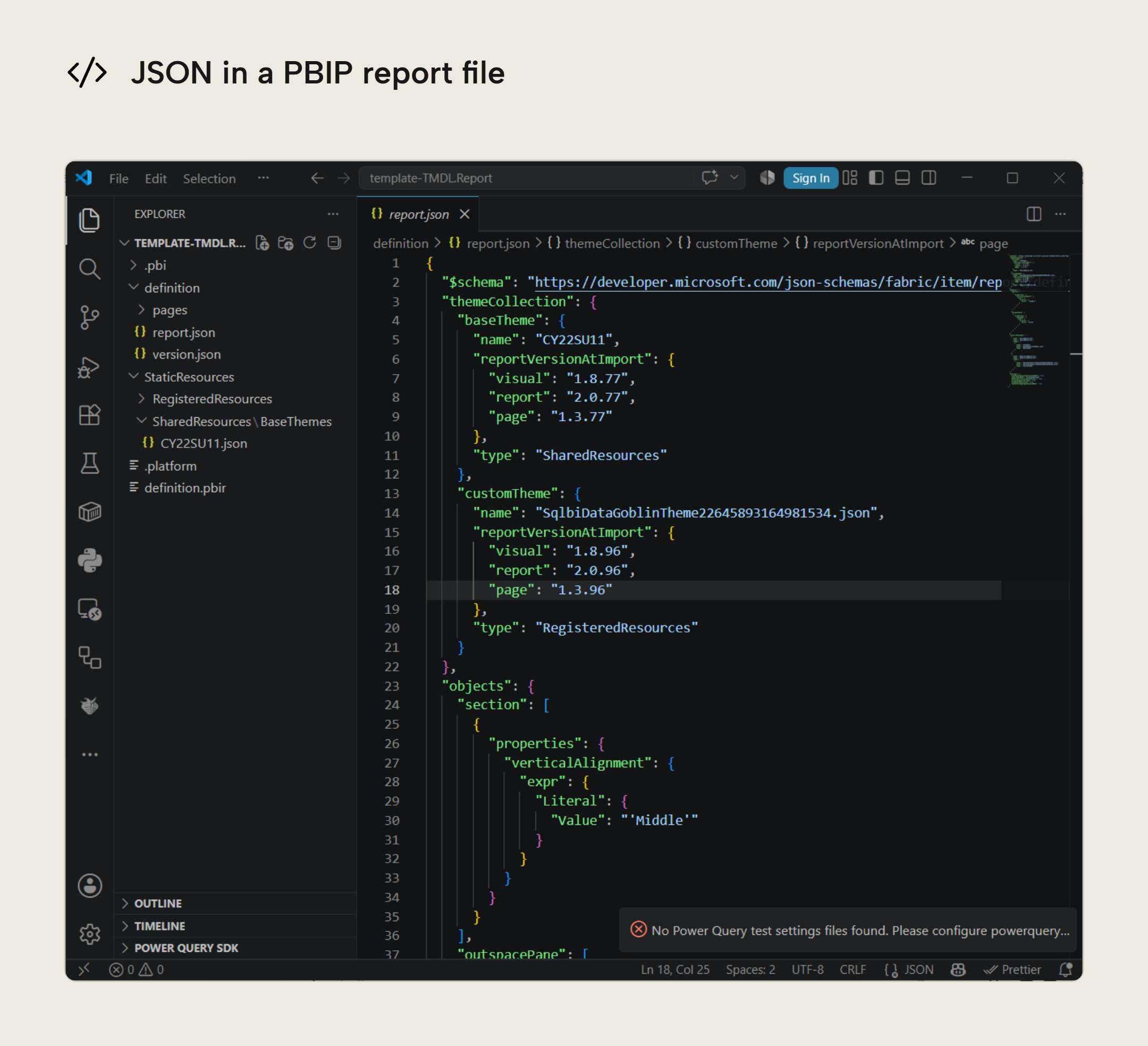
On the semantic model side, if you have a legacy model.bim file that’s stored as JSON. However, we recommend using TMDL, which is a custom Microsoft format inspired by DAX script syntax in Tabular Editor 3. Both bear similarities to YAML in structure.
TMDL is easier to edit than JSON because you don’t have to worry about quoting strings of text or closing braces. We have a course on TMDL if you are new to it.
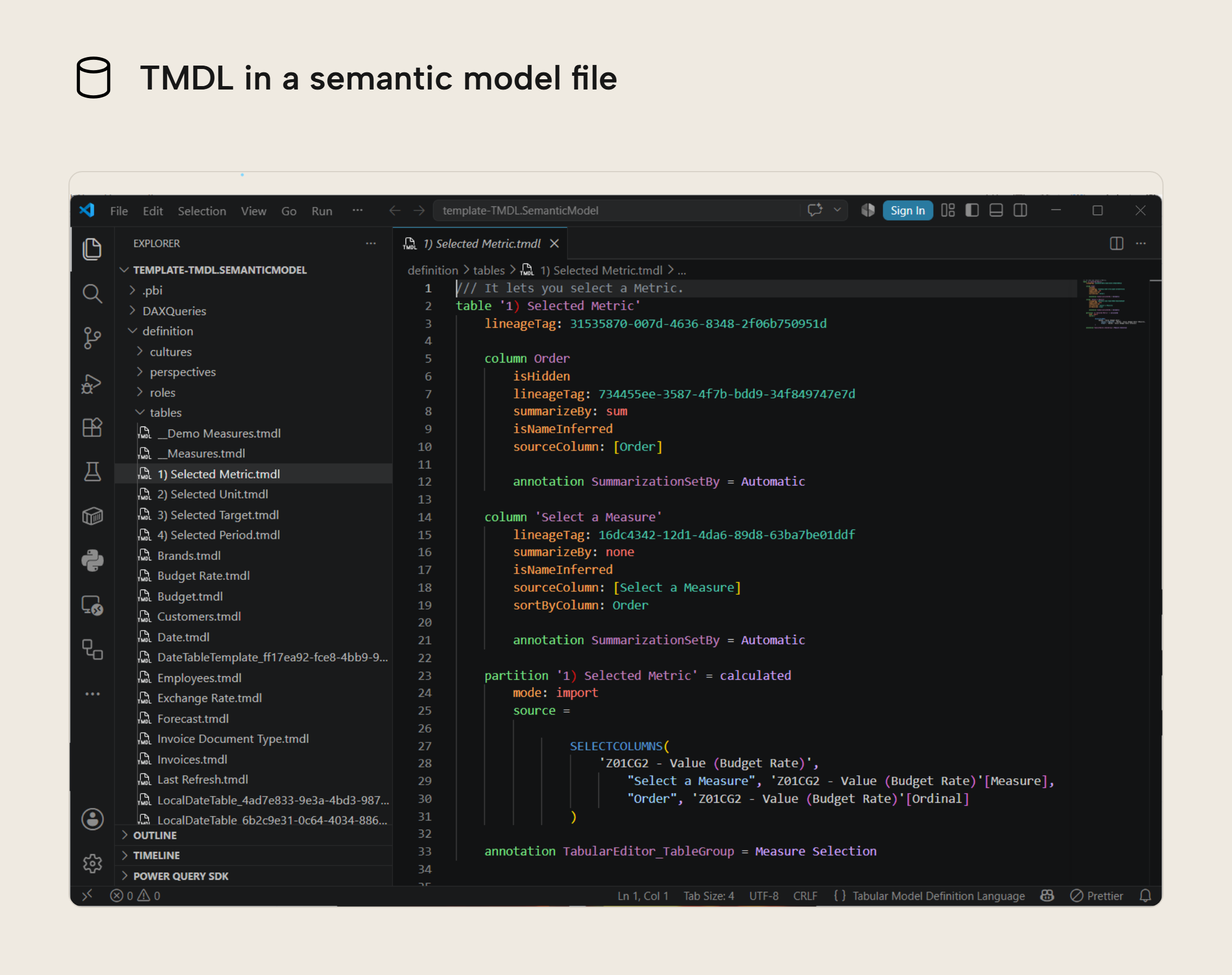
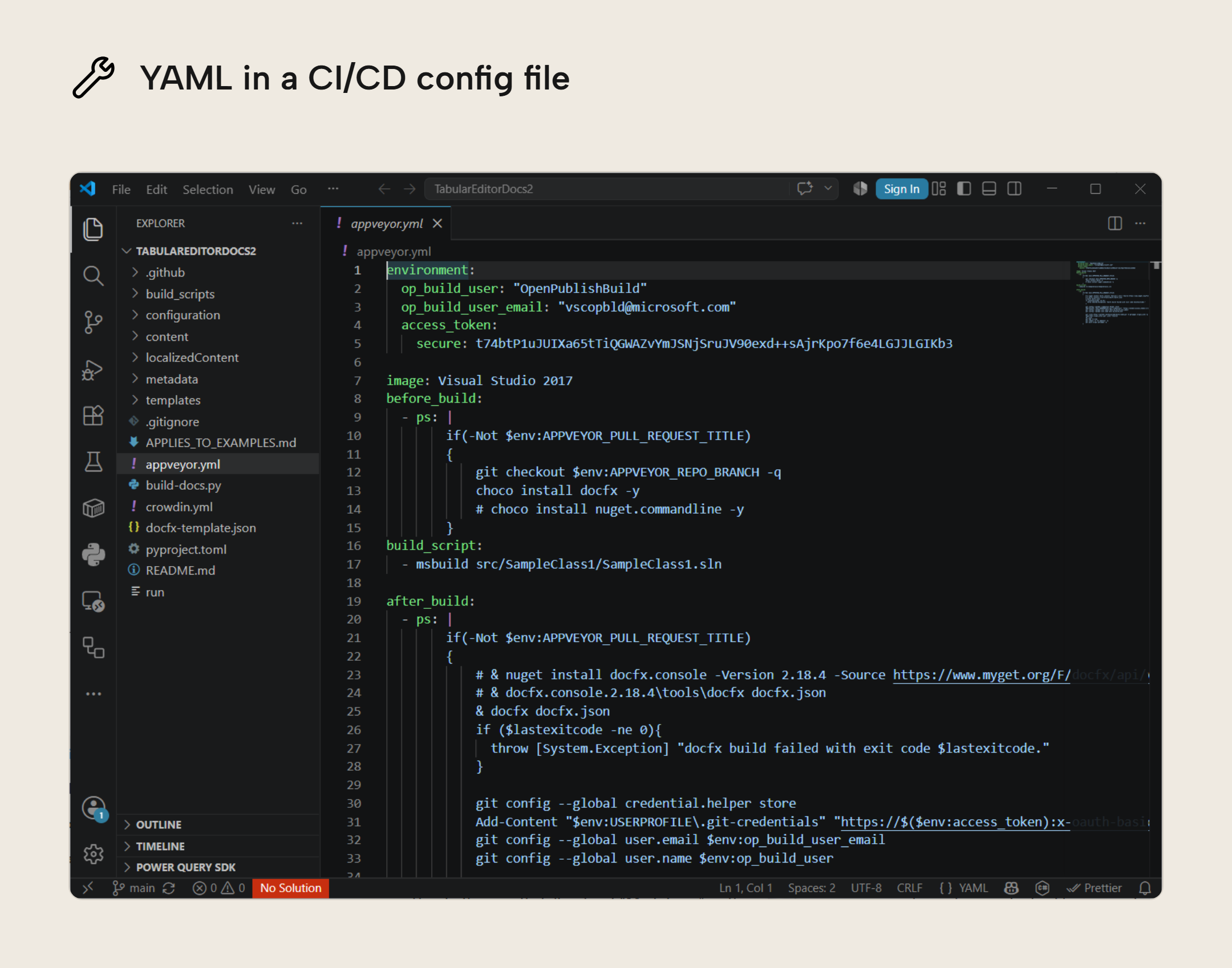
The TMDL format is very similar in style and structure to YAML. It’s good to be aware of YAML, because in some cases you might also run into the format, particularly if you are using CI/CD. YAML is used primarily for configuration files a human might edit. YAML looks fairly simple, but can be finicky to edit because it uses significant whitespace. This means that a misplaced tab can break your config.
An example of a YAML file is below. Note that YAML can also commonly contain other languages (like how TMDL can contain DAX or Power Query / M code):
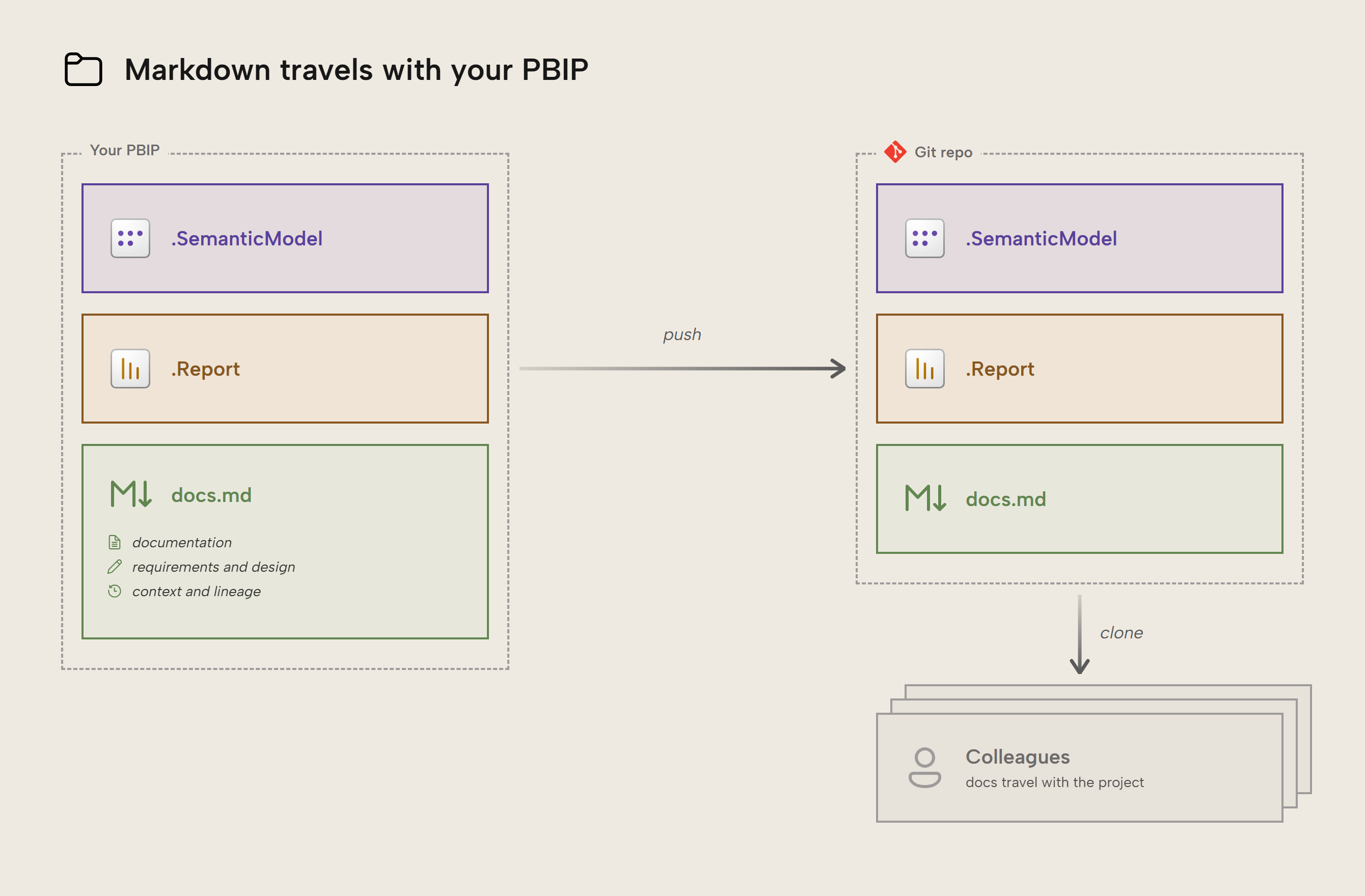
You can also put a Markdown file inside the PBIP so the documentation travels along with the project. That keeps it close to the model it describes, and Markdown is ideal for source control.
For further reading
- CommonMark Markdown Syntax Guide (CommonMark). Reference for writing Markdown format.
- Markdown Philosophy (John Gruber). An explanation of the inspiration and motivations of Markdown from its creator.
- Markdown and Visual Studio Code (Microsoft). Documentation for working with Markdown in VS Code.
- Tabular Model Definition Language (Microsoft). Documentation around the TMDL format.
In conclusion
Markdown is a simple and lightweight language for formatting plain-text documents. It has been popular for many years in code repositories and has become increasingly popular because of LLMs and AI Agents. Markdown differs from JSON, TMDL, and YAML which are intended as machine-readable formats that can also be edited by humans.
Take your semantic models further with Tabular Editor.
Give Tabular Editor a spin