
Key Takeaways
- CI/CD is within reach: There are levels between non-existent version control where you have trouble finding which PBIX version had that DAX pattern you vaguely remember, and fully automated tested deployments to production. This blog series walks you through it from the ground floor. The first step gets you a full and searchable history of changes made to a semantic model.
- For this step you need Git and a repository host: Git records every committed change to the model, and Azure DevOps or GitHub hosts the repository. Later parts add pipelines on that host and the Tabular Editor CLI to validate, deploy and test the model from the command line.
- Getting the model into source control is a first step that's easier than it sounds: You just need to save it in a plain-text, Git-friendly format like PBIP and then commit it to the repository.
This summary is produced by the author, and not by AI.
Preface
Some years ago, our founder Daniel wrote a five-part blog series titled "You're deploying it wrong!", which was essentially him shouting that he stole fire from the software gods and handing out torches. He was talking about how software engineers had this wonderful thing called CI/CD, and how it was finally within reach of data people working with Analysis Services. Jokes aside, the core ideas have not changed, but the landscape and toolchain have, so the series deserves an update, and this is it.
The number that should have been stable
Someone pings you asking why that 16.8% in yesterday's dashboard is 15.6% today, insisting it shouldn't have moved and to please look into it ASAP as they need to present the number in a meeting this afternoon.
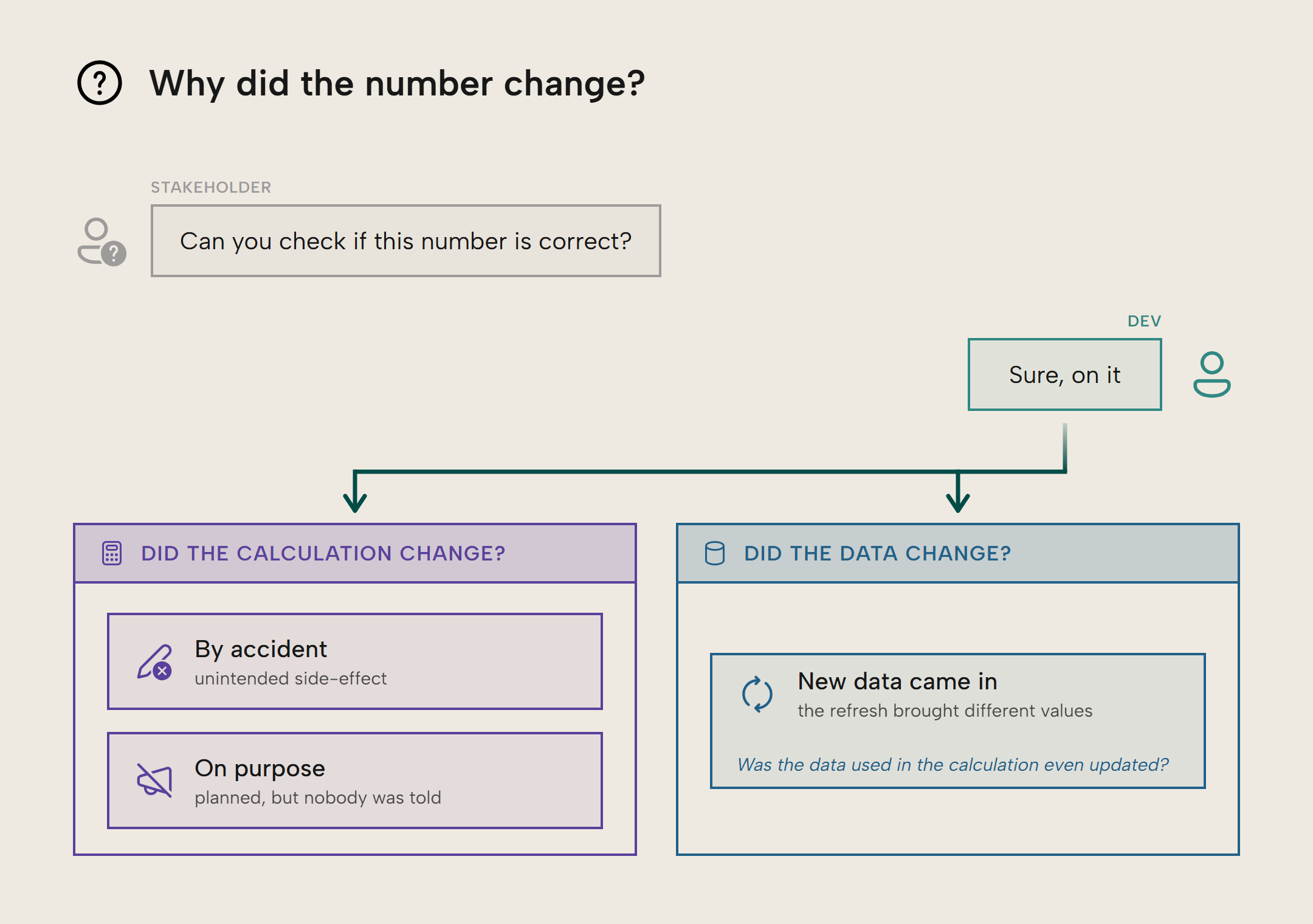
This may be a familiar scenario depending on how long you've been in BI. Regardless of experience, it's never a message you like reading because there are multiple possible causes for the number changing. Did the underlying data just refresh as it should, and is this the accurate number? Did some piece of logic change how it was calculated by accident, or was this a planned change the startled stakeholder was not informed of?
Depending on whether you have adopted any CI/CD processes, and how far you have taken them, the root cause can be easy or hard to pin down.
CI/CD is a ladder you can climb
Without a way to tell whether measure definitions were changed, you can only go looking at the data refresh logs, and even then, the timestamp of this morning's refresh doesn't tell you whether the data used to calculate the measure even updated. If you only use PBIX files in their most ephemeral state, you can't really provide answers to this stakeholder: the latest PBIX only tells you the current state, not how it got there.
Resourceful devs cover themselves by keeping a folder of dated PBIX copies, or the previous version of the measure commented out in the code with a timestamp. Workarounds like this can hold the answer, but they require you to hunt for one change in a pile of many, opening files side by side and eyeballing differences. It's rational but painful. With Git-controlled models, finding whether something changed is a matter of a few targeted lookups in the model history.
CI/CD is not all-or nothing. You can adopt the parts of it that help you today and postpone what you know won't yet fit your team. It's a ladder you can climb where every rung unlocks some benefits and mitigates some risks. Workarounds like those above are a hint that it's time to look for the next rung to climb.
The first step is Git-controlling your model metadata
Git is the tool software engineers use to track changes to their code over time. With Git, you get a full history of all committed changes made to the model since it was first checked in. This paper trail is extremely valuable, and if you use the PBIP format to save the model as text files, it is very convenient to browse changes made to specific parts of the model. The aforementioned hunt gets narrowed down by orders of magnitude.
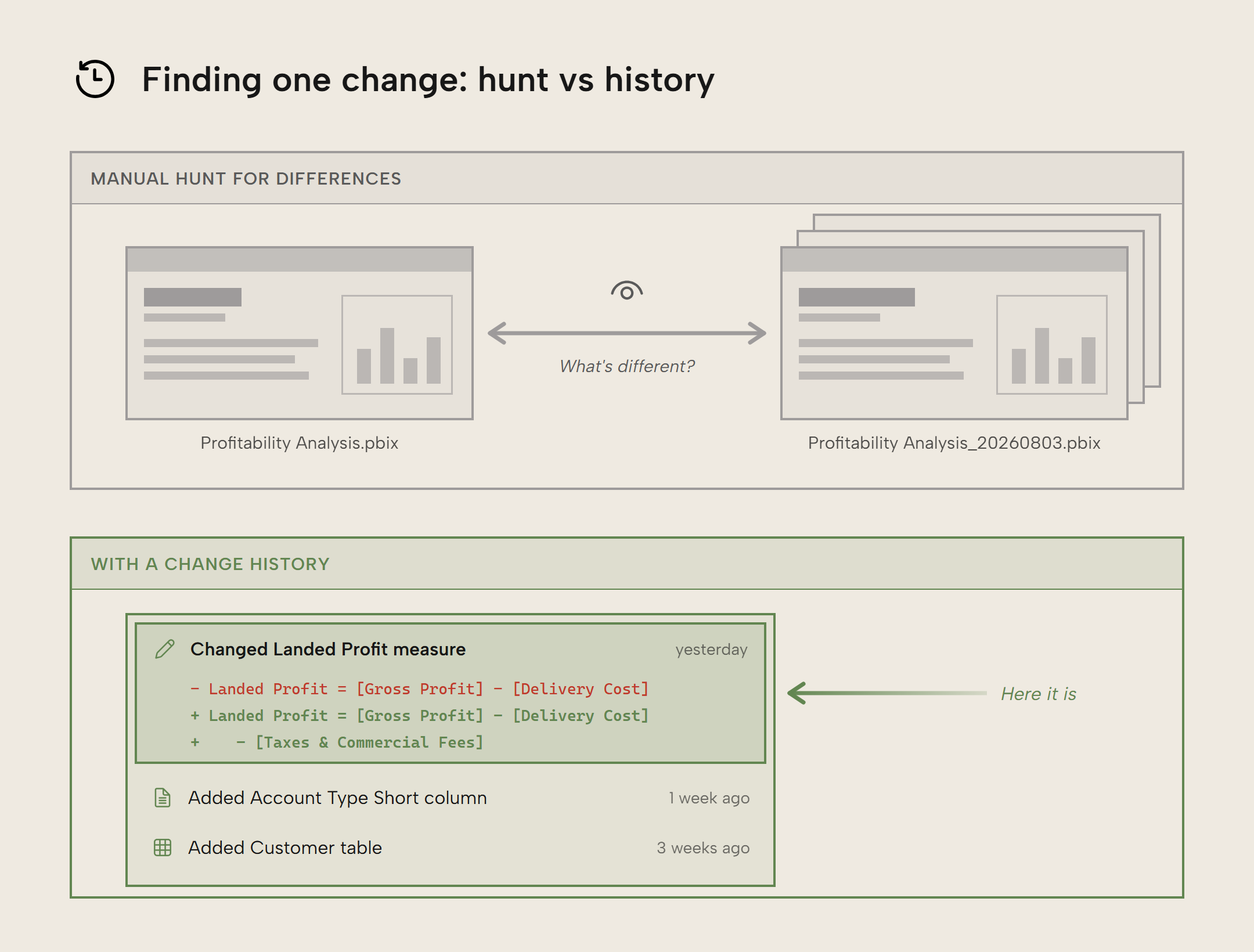
How do you take this first step? Save the model in a Git-friendly format, meaning plain text files where a small change in the model causes a small change in the files, so Git can compare them line by line. There are two variants: the full Power BI project, which holds the report and the semantic model together, and model-only formats, which hold just the semantic model. Which one you get depends on the tool you save from.
NOTE
The same Git workflow applies to reports saved as PBIR: you can commit the report folder alongside the semantic model in the same repository. Report changes can also be included in your CI/CD process, with validation and deployment steps suited to reports. This series focuses on semantic models; Eugene's Building CI/CD maturity for report development covers the report side.
Models you manage in Power BI Desktop
For a model you build or edit in Power BI Desktop (an import, DirectQuery, or composite model; this saves the whole project, report and model together):
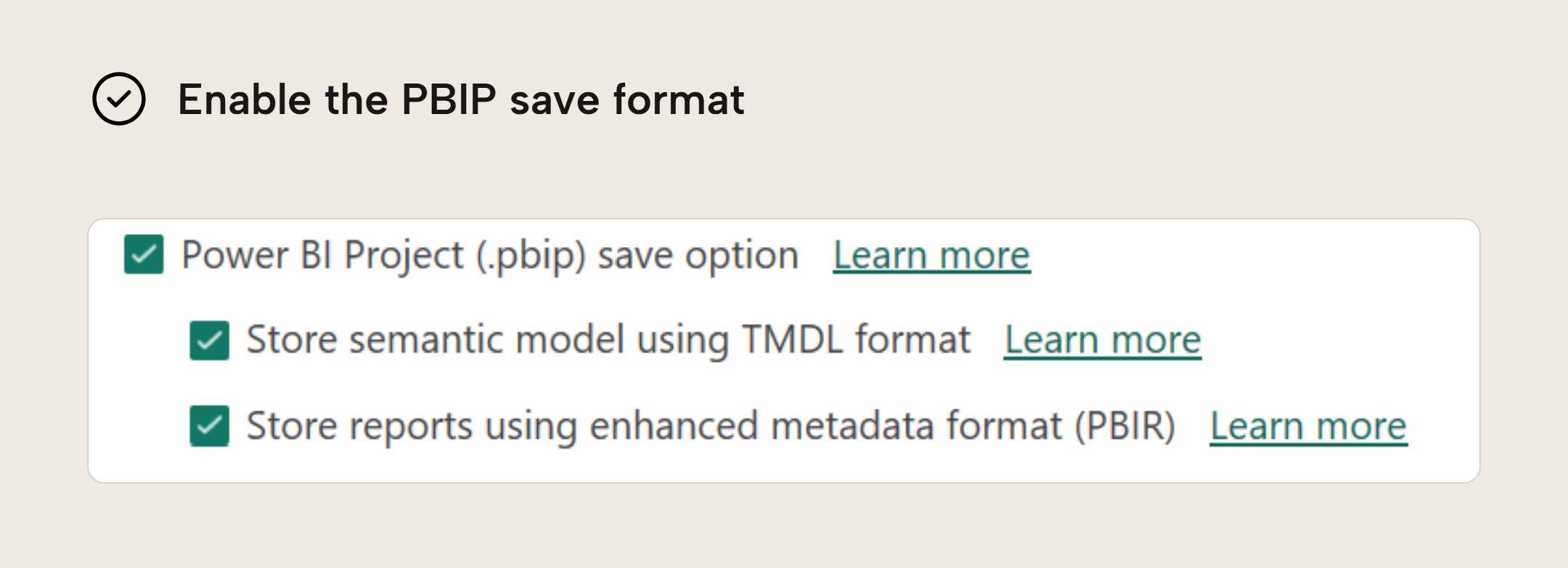
- Ensure the options Power BI Project (.pbip) save option and its child options Store semantic model using TMDL format and Store reports using enhanced metadata format (PBIR) are enabled.
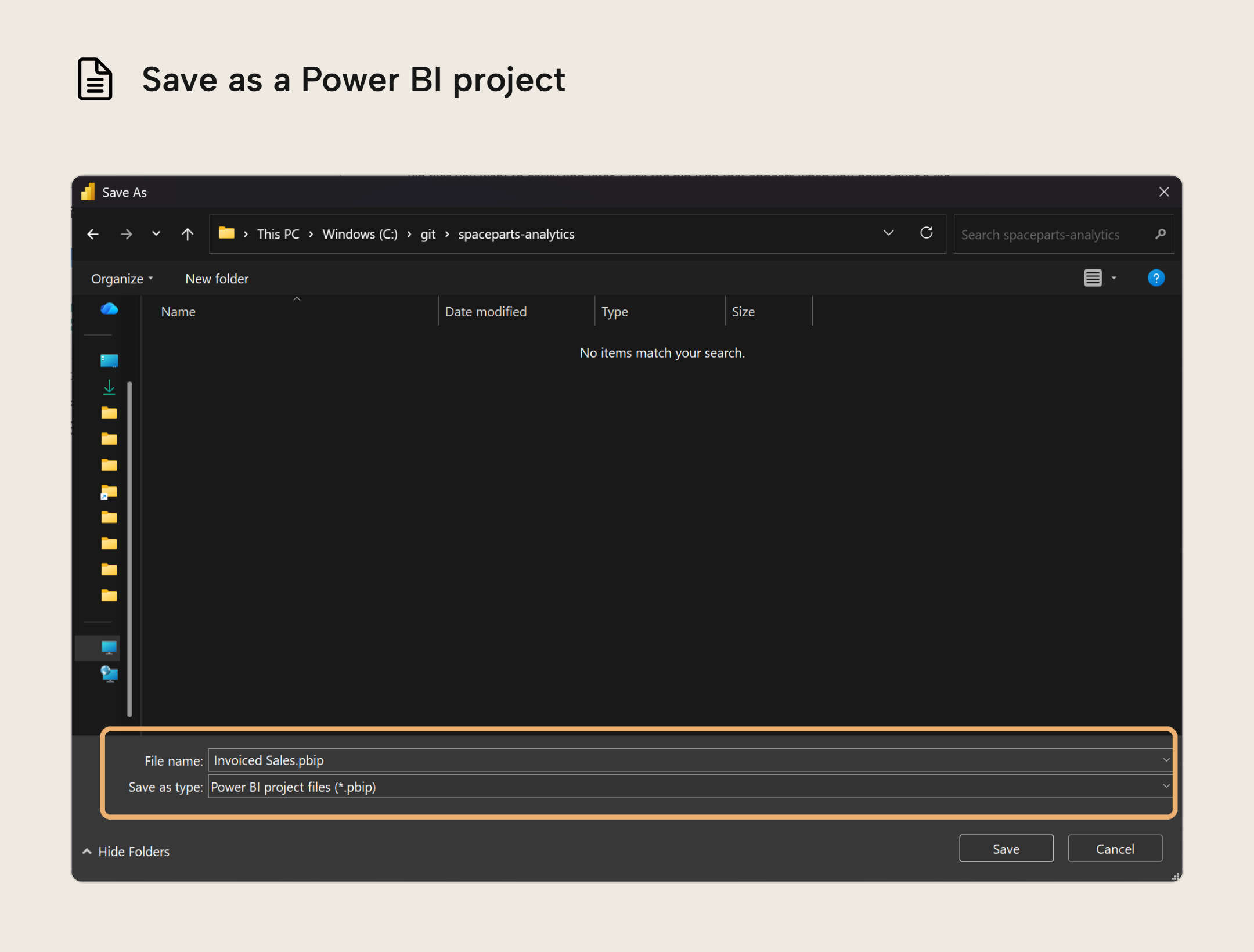
- If the saved files have these
.Reportand.SemanticModelfolders alongside a.pbipfile and.gitignorefile, you now have a Git-friendly model. The.gitignorefile is Power BI Desktop being helpful: this file tells Git to skip the files that only make sense on your machine, like the local.abfdata cache. More on this later.
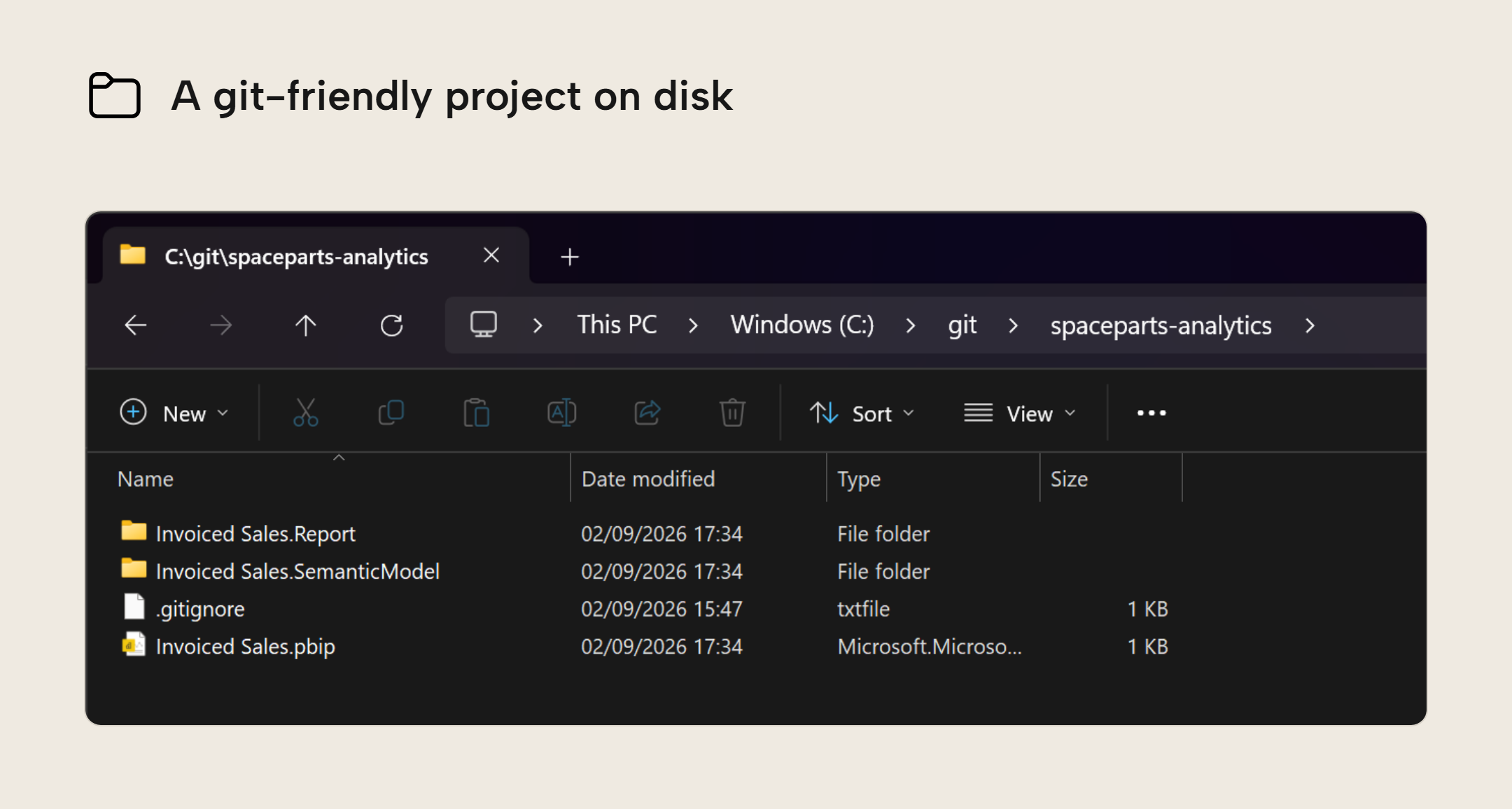
- If your report is live-connected to a model published elsewhere, Power BI Desktop only saves the report (a
.Reportfolder, no.SemanticModel); to get that model in source control, save it with Tabular Editor 3 or the Tabular Editor CLI (TE CLI) discussed below.
Models you manage with Tabular Editor
For models you open in or connect to with Tabular Editor 3 (this saves the model only, no report):
- Save the model to a folder of its own and choose TMDL as the serialization format. The save-to-folder documentation shows where to find the serialization settings and save options.
- Enable Save with supporting files to get a
.SemanticModelfolder with the same model structure used in a PBIP project:.platform,definition.pbism, and adefinitionfolder containing the TMDL files. The folder name comes from the Database object's Name property. - Without supporting files, you get the TMDL files directly in the folder you chose. Neither option creates a
.pbipfile or a report. Tabular Editor 3 does not add the.gitignorethat Power BI Desktop creates, so add one yourself for any local files or credentials that must stay out of Git.
For models you open in or connect to with the TE CLI (also model-only):
te save -o <folder> --serialization tmdlwrites a folder of TMDL files without the supporting files.
NOTE
In this series we use the TE CLI for full control over validation, deploy and testing. Fabric-native CI/CD (Git integration and deployment pipelines) is adjacent and sometimes complementary.
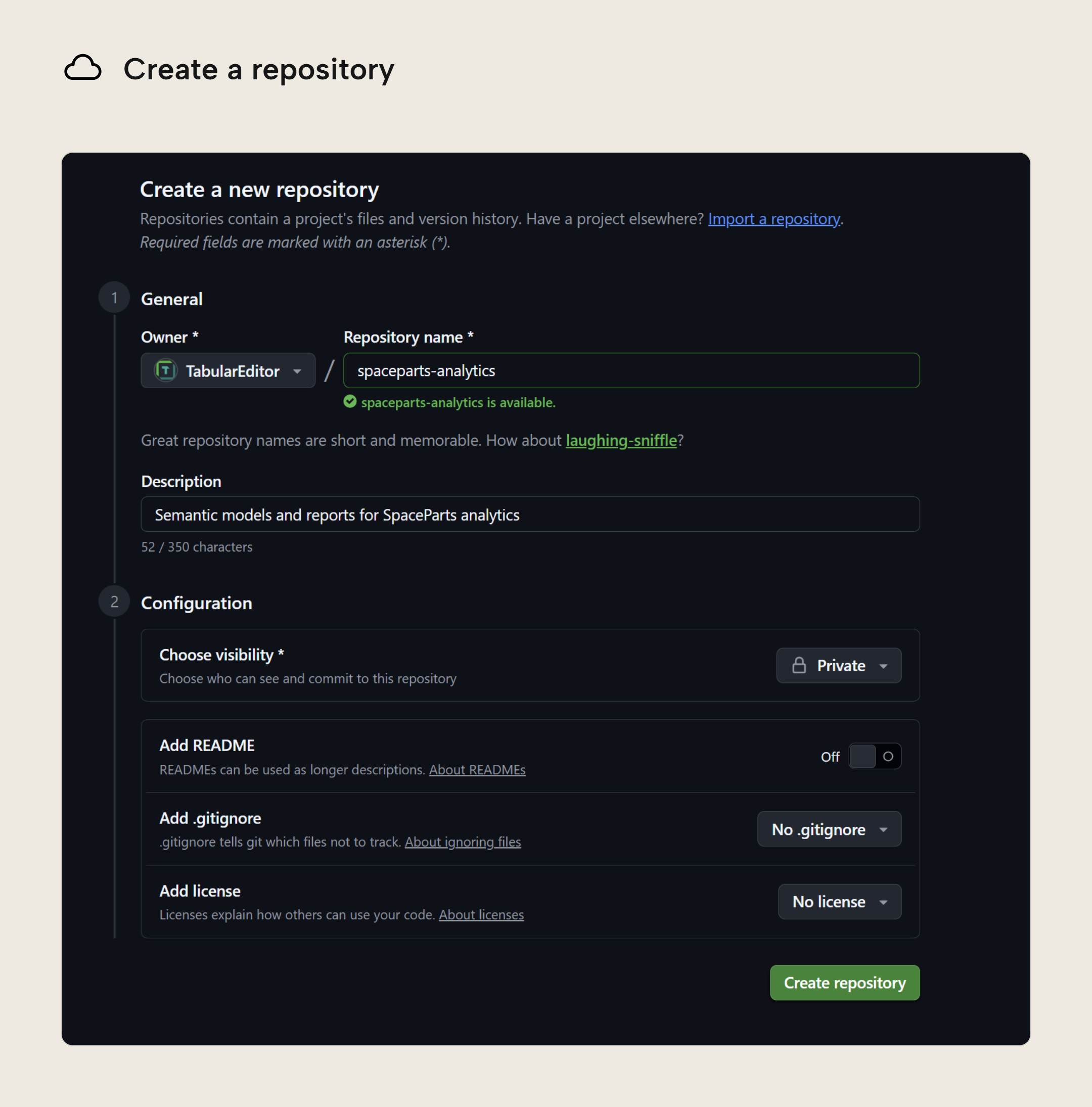
Once your model is saved in a Git-friendly format, you can check it into a Git repository. Here you need to make a choice, or rather check which one your organization or team potentially already aligned on: which Git provider will host your repositories. Azure DevOps and GitHub are popular platforms. Creating a new Git repository is pretty straightforward in their web UIs; create it empty, leaving the Add a README and Add a .gitignore options unchecked, so your clone starts clean and Power BI Desktop can add the right .gitignore itself when you save the model into it:
After creating the remote (the repository living in the cloud of your Git provider), you can create a local clone of it, on your device. For this you will need to install Git, no way around it. Run git --version in a terminal to check whether you already have it. Once installed, you can run git clone <url> in a folder on your device. Putting local clones into a repos or git folder on their disk root (e.g. C:\ or home) is a common pattern. Whichever pattern you choose, it's important that this folder is not synchronized by OneDrive; Git and OneDrive will step on each other's toes if it is.
The repo you just cloned is empty so far (Git even warns you about it with "You appear to have cloned an empty repository"), which is expected. Copy the model files you just saved into that repository folder. Once they're there, git status will show them as untracked; they're in the repository folder, but Git isn't tracking them yet.
PS C:\git\spaceparts-analytics> git status
On branch main

No commits yet

Untracked files:
  (use "git add <file>..." to include in what will be committed)
        .gitignore
        Invoiced Sales.Report/
        Invoiced Sales.SemanticModel/
        Invoiced Sales.pbip

nothing added to commit but untracked files present (use "git add" to track)
VS Code's Source Control can handle the Git workflow in a Graphical User Interface (GUI), but we show the workflow in a terminal because we think it's useful to get comfortable with the basics of Git in a Command-Line Interface (CLI). CLIs are a common sight in CI/CD, and increasingly in workflows featuring agents.
The clone command you only use when you don't have a local copy of the repo yet. There are three basic verbs you'll use often when adopting Git, and an action that bundles two of them:
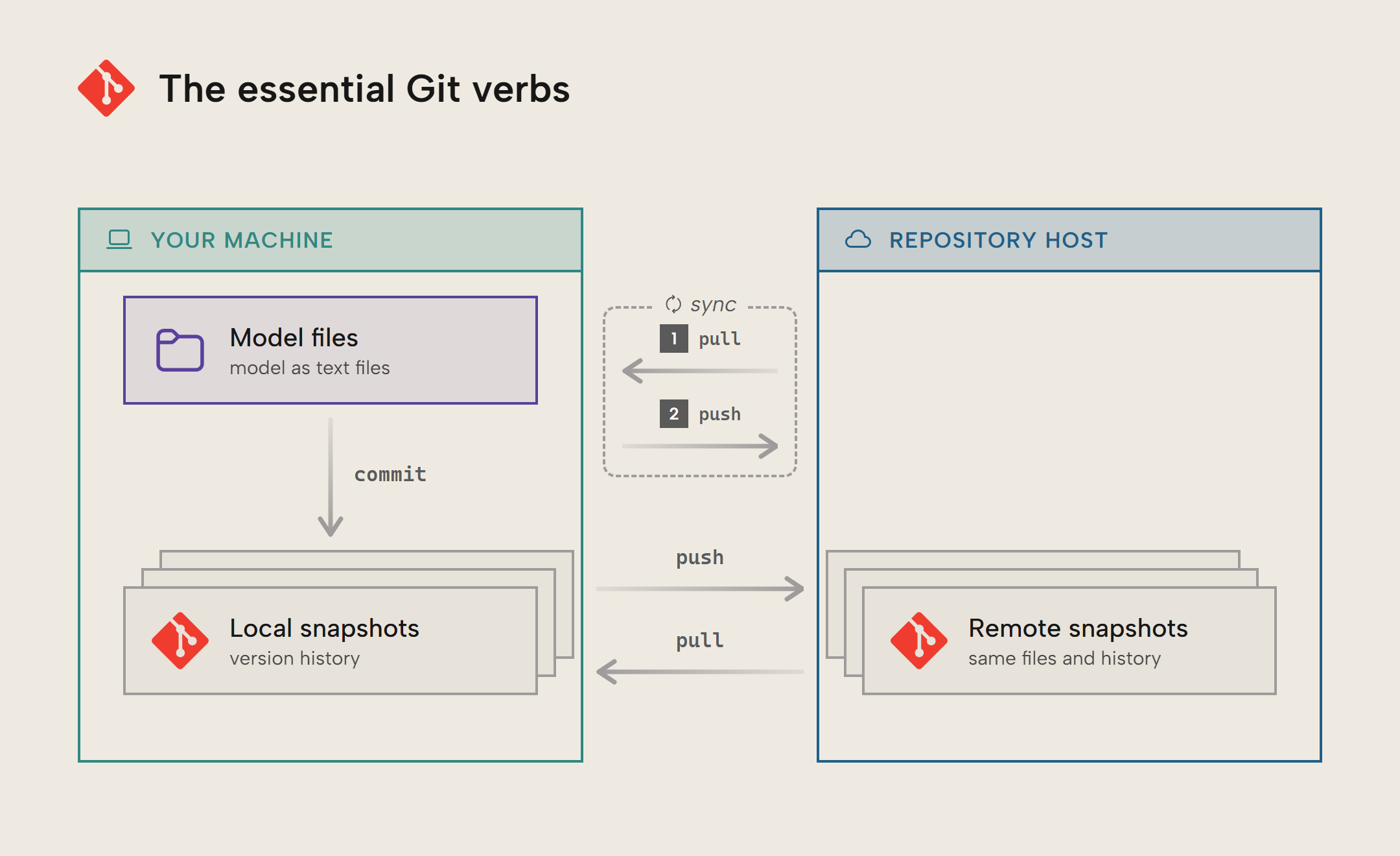
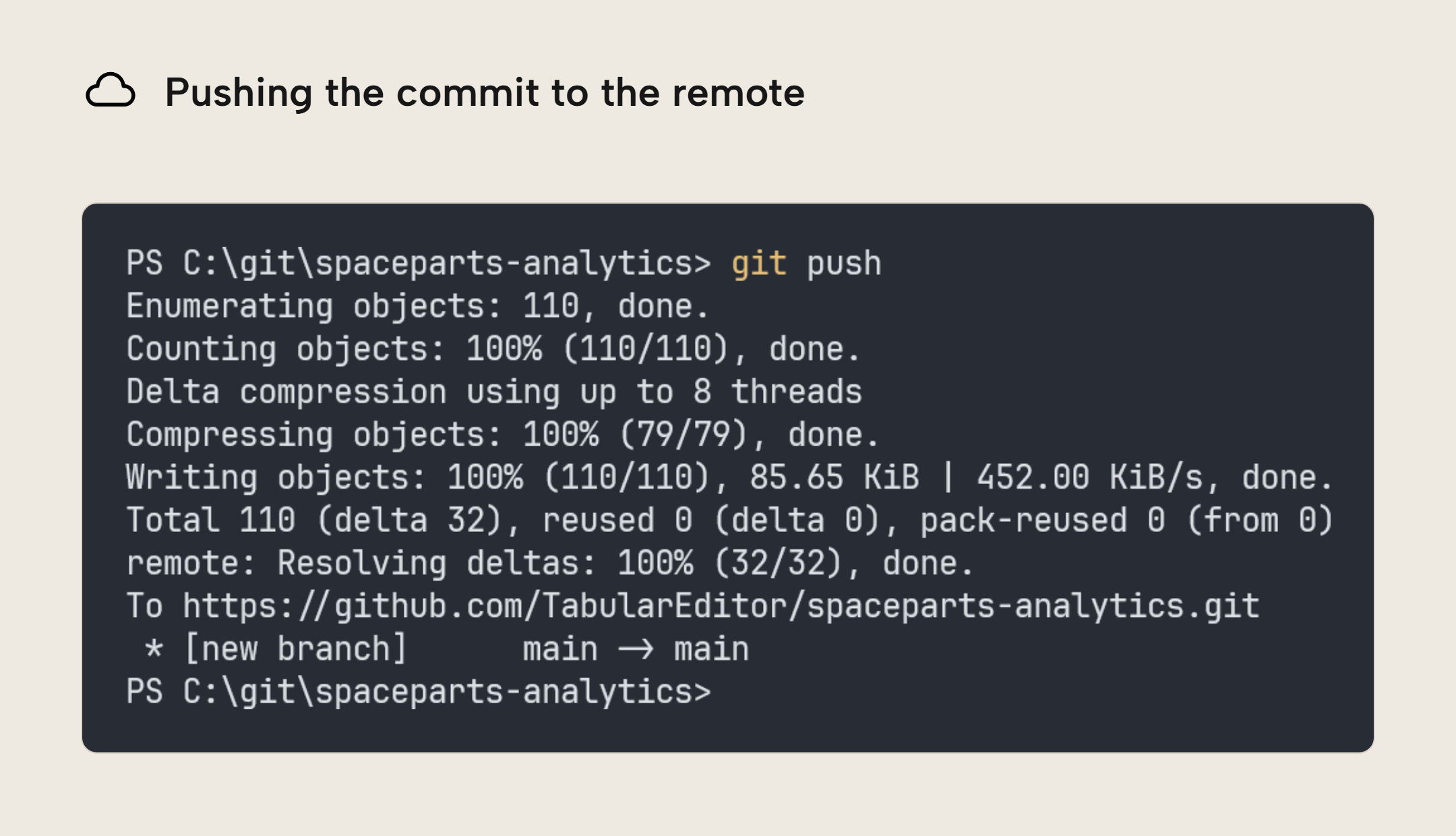
commit: saves a snapshot of your changes locally, do this to create a checkpoint in the local history you can return to; an undo-point.push: sends your snapshots to the repository host (remote), do this when you have work others should see, or when your commits contain work that you can't afford to lose if something were to happen to your device.pull: fetches snapshots that others have sent to the remote and merges them into your local copy, do this when you need the latest work others have contributed.- Sync. This is not a command but a common term used for an operation that first does a
pulland then apush. You will find it as a button in source control GUIs like VS Code's.
Try the Git commands
Use the buttons to see what each action does to your local repository and the remote.
NOTE
Before your first commit, set your identity once so your name appears on the commits you make. Run git config --global user.name "Your Name" and git config --global user.email "you@example.com". This is not a login. The first time Git reaches the remote (by cloning a private repo, or your first push), it will ask you to log in, usually by opening a browser to sign in to your Git provider (some setups prompt for a username and token in the terminal instead). The identity can be whatever you want it to be (use yours, though), the login is what allows you to use the remote repository.
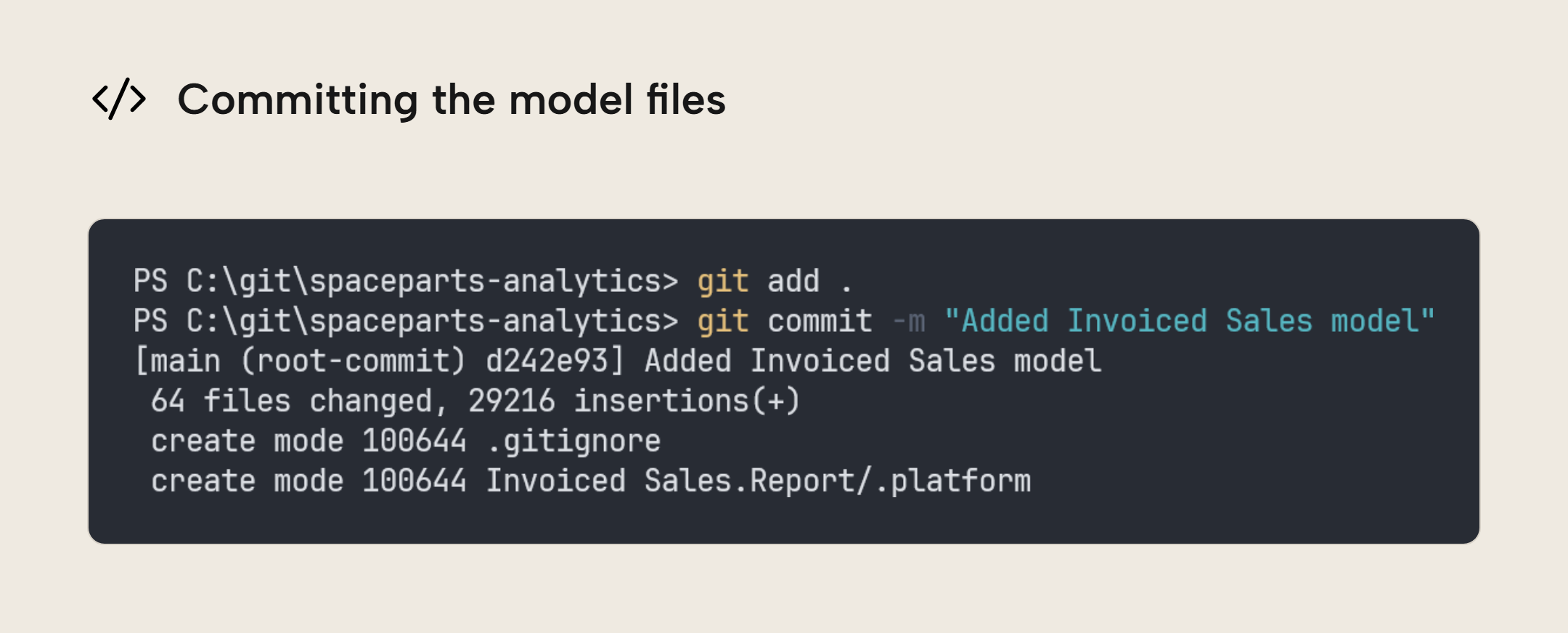
- You'll want to commit some of those untracked files, but to include new files in what the repository tracks you must first
addthem (the sameaddalso stages later edits to files Git already tracks). The.gitignorefile lets you specify specific files or types to never add because tracking them would be a bad idea (secret information like passwords or credentials) or add noise (big, binary and/or machine-specific configuration files). - Once the files to commit are added, you need to think of a message to describe what the commit contains; every commit needs a message. There are existing conventions to write commits, but you should align with what's already adopted in your organization.
At this point thecommitcheckpoint only exists on your machine; nobody else can see it, and it's not backed up anywhere else.
- Now you can
push, which sends your commits to the remote, backing them up to the cloud server and making them available to your teammates.
With this set up, there's a better way of narrowing down the root cause of thrown-off numbers. Open the repository in your Git provider's web UI and go to the history to see every commit listed newest first, each with a timestamp, author, and description.
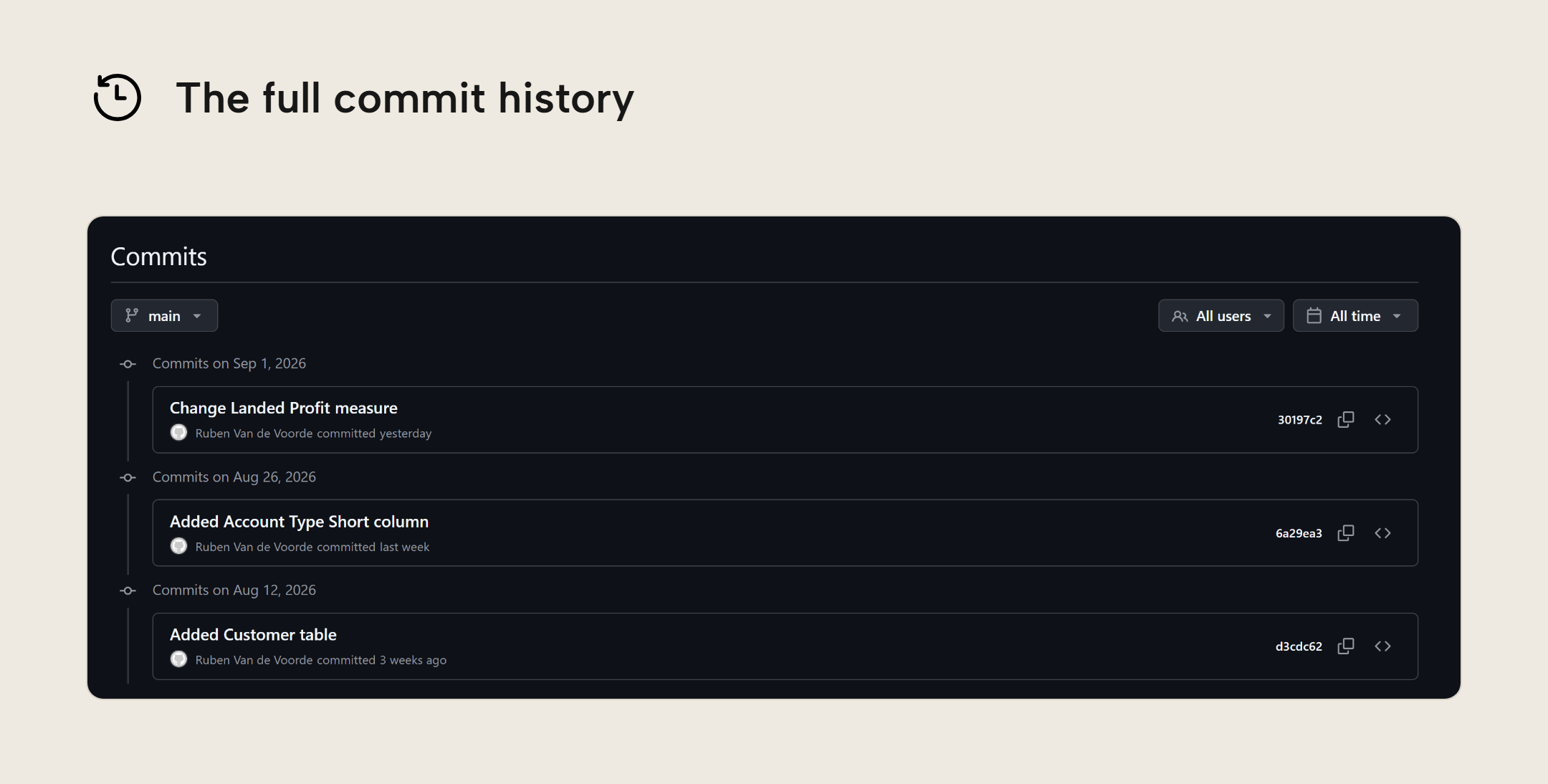
The latest commit happens to have changed a measure involved in calculating that number the stakeholder asked about, and gives you a clearer path to continue debugging:
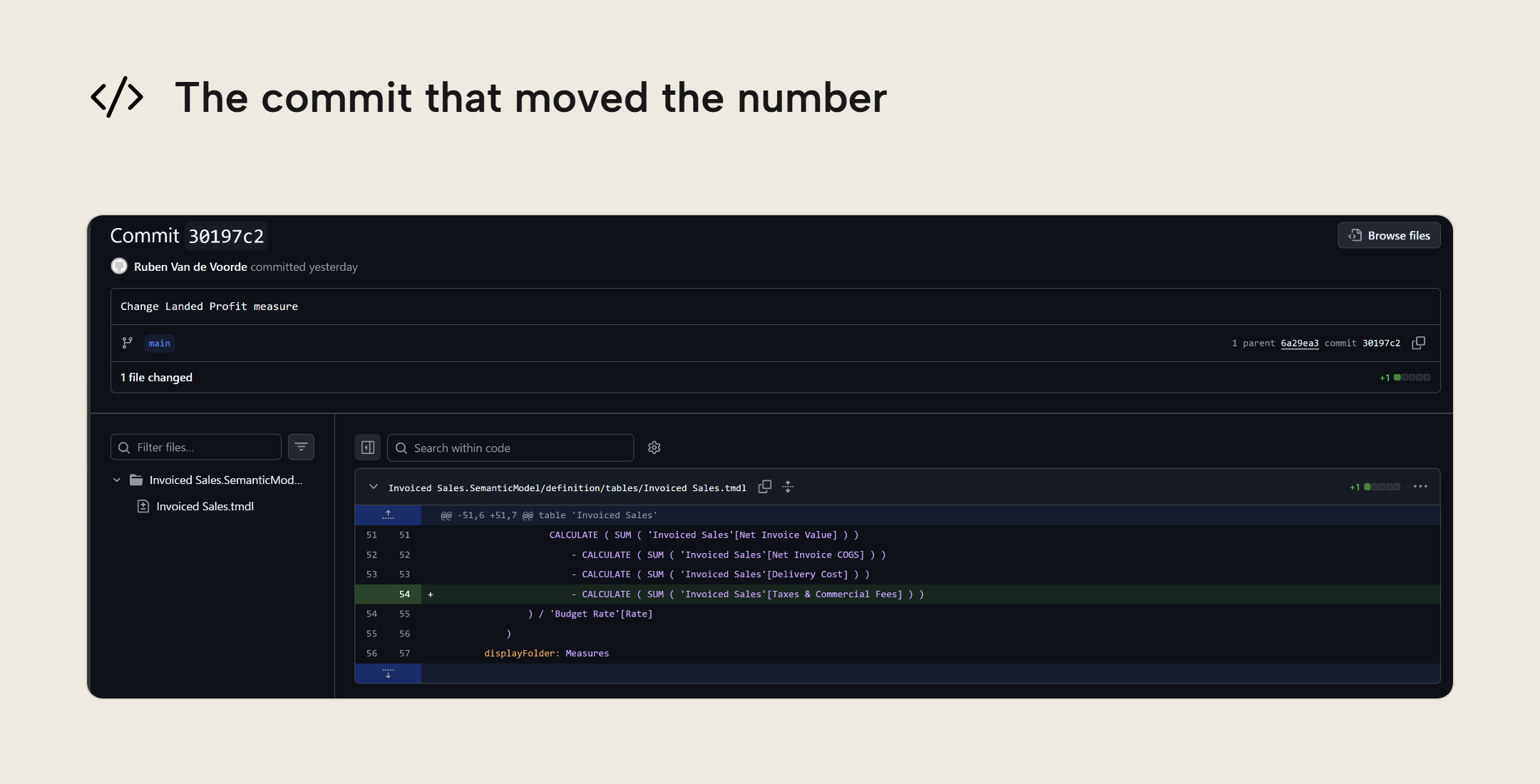
When you open the commit, you see exactly who changed what and when, line by line in each file. In this case, the measure was expanded so the calculation logic changed. If the recent history had shown no change to this measure, you'd know to look elsewhere (the underlying data, a report-level filter, etc.). Either way you narrowed it down in a few clicks instead of going through the mentally taxing and tedious labor of comparing PBIX files side by side. In this scenario you need a new skill (Git) and a new tool (a repository), and every time a similar question comes up you know where to start looking.
There are still two knowledge gaps here: we don't know if the person that changed the measure also published that change to the live model; this is still a separate step not tracked at this point. The second gap is in the demo itself; we show that the measure changed, which is the smoking gun to continue digging in that direction. If the measure itself wasn't changed, the culprit is somewhere the model history can't spell out: the underlying data, or a report-level filter. We'll capture these in the rest of the blog series.
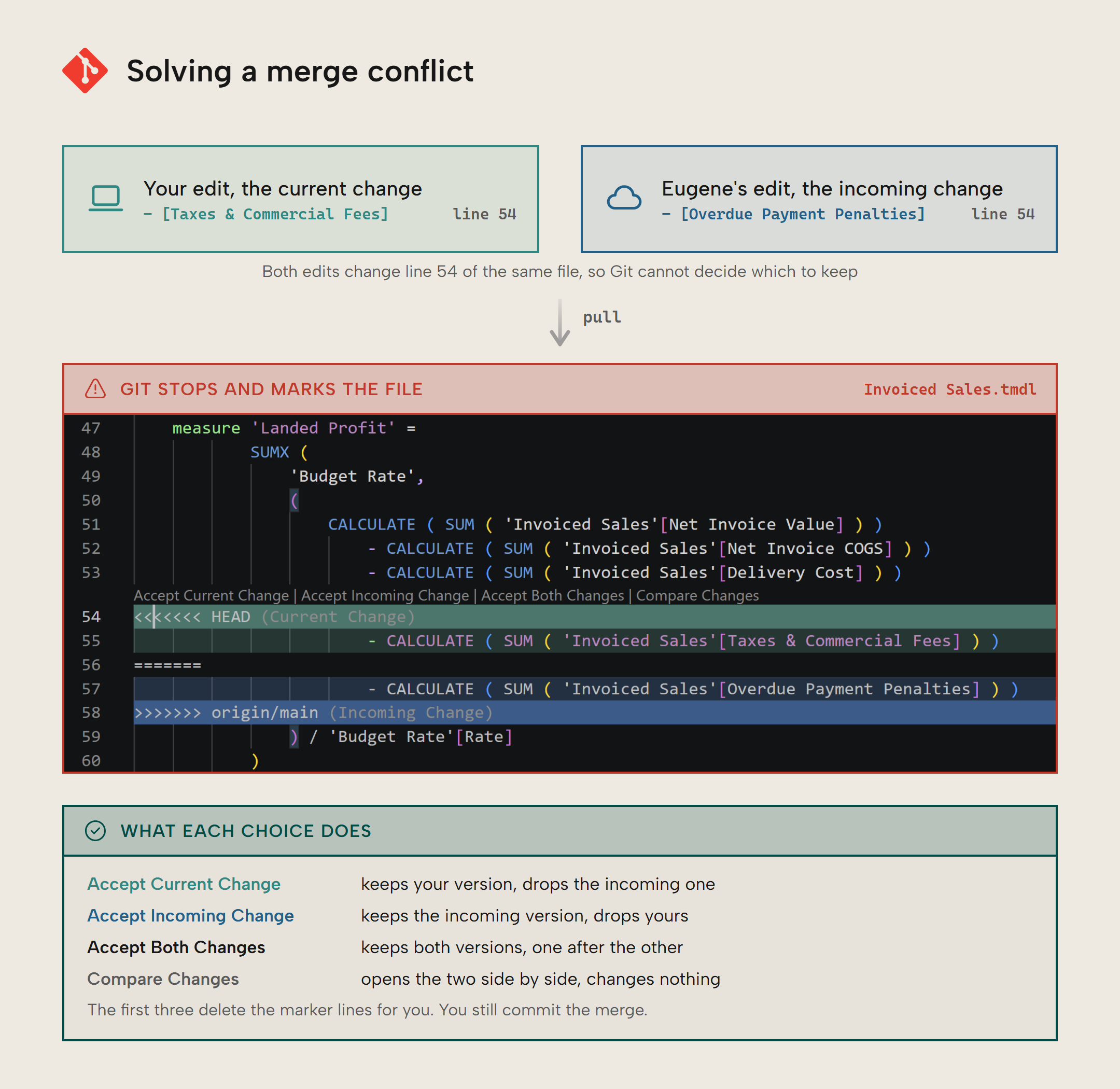
When collaborating with others on the same thing, you can run into conflicts. If someone else edits model files directly in the repository's web UI while you are working on the same model locally, a push after committing your local work will be refused.
 ! [rejected]        main -> main (fetch first)
error: failed to push some refs
hint: Updates were rejected because the remote contains work that you do
hint: not have locally.
This is a safeguard. Git will not let your push overwrite the work someone else already added. It refuses because the remote has a commit you don't have, nothing to do with what either of you changed. The fix is to pull their commit down first, then push again. When you pull, Git tries to combine their changes with yours. If the two of you edited different parts of the file, it merges them for you and you're done. If you both edited the same lines, Git can't tell which version to keep, so it stops and asks you to sort it out; that is a merge conflict. This is why sync always pulls before it pushes.
WARNING
Edits to a semantic model that each make sense on their own can merge cleanly and still break the model. If one commit renames a measure, and another adds a measure that references it by the old name, then Git merges both without complaint. The second measure can't run because it references the old name that no longer exists. To catch this, you need something that validates the model, like the TE CLI we'll introduce in the next part of the series. Branches let you work on changes separately and review them before merging, but those changes still need validation. Part 4 covers branching, pull requests and environments.
Further Reading
- Power BI Desktop projects (PBIP) (Microsoft Learn). The save format this post relies on, described: what it is and why it's preferred over the PBIX format.
- Getting Started with Git (Pro Git). If the Git verbs here were new to you, this is a gentle introduction to the fundamentals.
- The Tabular Editor CLI (Tabular Editor). The command-line tool that validates, deploys and tests the model through the rest of the series.
Conclusion
Getting a semantic model into source control is the first step towards CI/CD. It's easier than it sounds: save the model as text, commit it, and then push it to a repository. In return you get a full, searchable history of every committed change, which on its own is often enough to answer the kind of question that used to mean opening PBIX files side by side. The next step is to have a pipeline automatically check every change for you, and that is where part 2 begins.
Take your semantic models further with Tabular Editor.
Give Tabular Editor a spin