Key takeaways
- DAX UDF support is current: Tabular Editor 3.26.2 supports the syntax and metadata of DAX user-defined functions (UDFs) now that they’re generally available. DAX UDFs are supported for tabular models with a compatibility level of 1702 or higher. You can read more about them here.
- Optional parameters make functions easier to reuse: A function parameter can now have a default expression, so common cases stay short while the edge cases remain configurable. Read more about optional parameters in this article from SQLBI.
- NAMEOF has new parameters: The new optional
componentandescapedparameters let a DAX expression choose whether to return a full name, a table name, the object itself, or a less escaped display form. - Table groups are easier to manage: You can move one or more selected tables into a group, or remove them from a group, directly from the table context menu.
- Semantic Bridge handles metric view YAML 1.1: The June release continues the work of aligning Databricks metric views with Tabular and Power BI semantic models, including newer v1.1 metadata that carries more business context.
Version 3.26.2
We are happy to launch the June 2026 release of Tabular Editor 3. This is a focused release featuring improvements for anyone working with DAX user-defined functions, model metadata, table organization, or Databricks Metric Views.
The broad theme is keeping a growing model maintainable. Reusable DAX logic is now easier to write and reuse. Object names can be reused more safely in dynamic DAX patterns. Table groups are easier to maintain in larger models. Semantic Bridge keeps moving toward the same idea across platforms: define business meaning once, then carry as much of that meaning as possible into the semantic model.
NOTE
The Semantic Bridge is a feature available only in the enterprise edition of Tabular Editor 3.
The goal of the Semantic Bridge is to facilitate easier and simpler use of Databricks metric views from Power BI and Analysis Services; not explicitly for Tabular Editor to be an external tool for semantic models on other platforms.
DAX UDFs are generally available
If you have been following the DAX language updates, you have probably seen that DAX user-defined functions are now generally available. UDFs are the biggest DAX language change in recent years, and one of the best ways to make your models easier to maintain. They let you package logic once and reuse it in measures, calculated columns, visual calculations, or other functions. In a practical sense, UDFs let you extend the vocabulary of DAX. Before UDFs, the available function vocabulary was owned by the engine. Now, a calculation repeated in ten places can live as a named function with parameters, and your model can have business-specific functions alongside the built-in ones.
For model authors, the practical benefit is maintainability. When business logic is repeated in many expressions, a small change can lead to a lot of manual changes throughout your model. In contrast, when the logic is in a DAX function, you only have to maintain that function; changes happen once rather than needing to update many measures.
For a longer introduction to the concept, review our DAX UDFs in simple terms article. We also have a dedicated course on Tabular Editor Learn.
Optional parameters
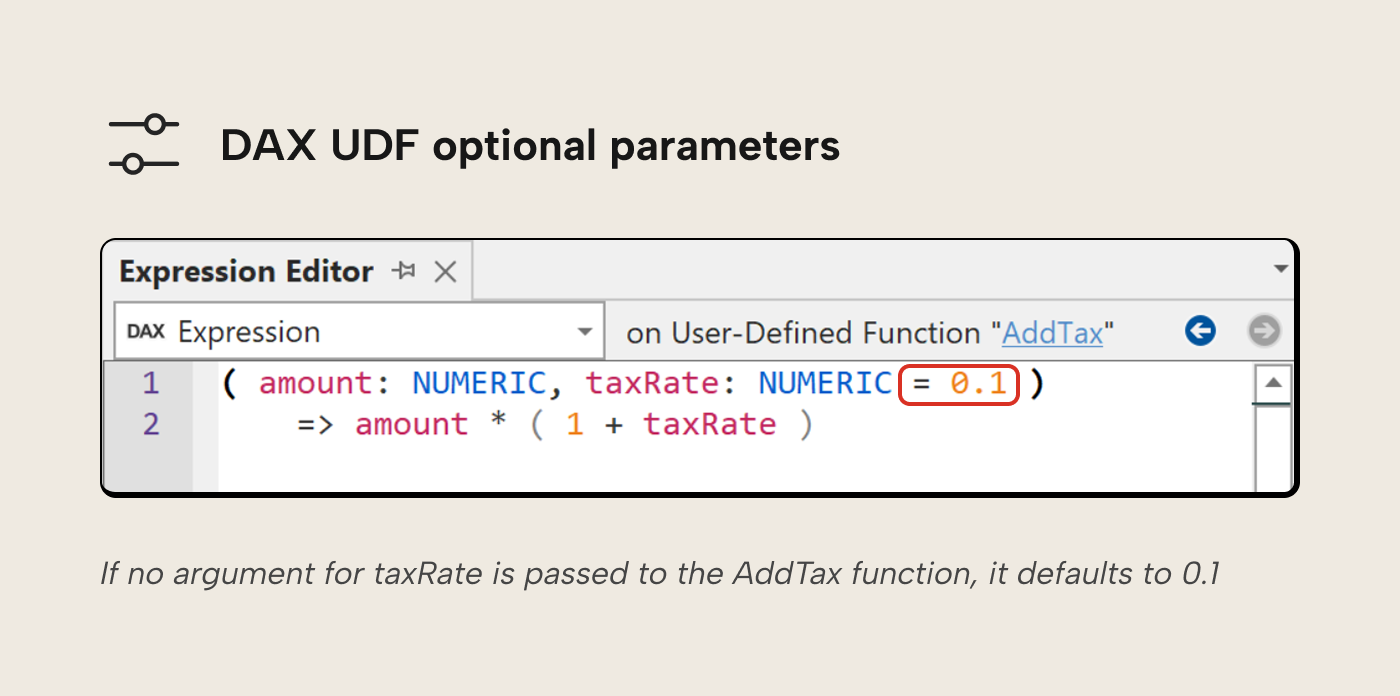
One new addition to DAX UDFs is support for optional parameters. A parameter can now have a default expression, which means downstream expressions that use the function don’t have to specify the parameter and can instead use the default value.
Microsoft's documentation uses a simple tax function to show the pattern:
DEFINE
    FUNCTION AddTax =
        ( amount: NUMERIC, taxRate: NUMERIC = 0.1 )
            => amount * ( 1 + taxRate )
EVALUATE
{ AddTax ( 10 ) }
The important part is taxRate: NUMERIC = 0.1. When you use this function and you don’t pass a second argument, the function uses the default, which is 0.1. If you do pass a second argument, the explicit argument wins.
This small addition makes DAX functions more flexible for everyday use. For instance, suppose you have a function that handles a common time-intelligence calculation. Most of the time, you may want a standard period shift or a standard comparison behavior. Optional parameters let you keep the common case brief, while still exposing the extra dial for the cases that need it:
DEFINE
    FUNCTION PriorYears =
        ( measure: ANYREF, yearsBack: INT64 = 1 )
            => CALCULATE (
                measure,
                DATEADD ( 'Date'[Date], - yearsBack, YEAR )
            )
EVALUATE
{
    PriorYears ( [Total Sales] ),    -- the default: 1 year back
    PriorYears ( [Total Sales], 3 )  -- the optional dial: 3 years back
}
Keep in mind that optional parameters do not remove the need to think about parameter types. A SCALAR value parameter and an ANYREF reference parameter still behave differently because one receives a value and the other can defer evaluation. If your function changes filter context inside its body, that distinction still matters.
To see the catch, compare two functions with identical bodies that differ only in that one keyword:
DEFINE
    FUNCTION ClearDatesVal = (
            m : SCALAR
        ) =>
        CALCULATE (
            m,
            ALL ( 'Date' )
        )
    FUNCTION ClearDatesRef = (
            m : ANYREF
        ) =>
        CALCULATE (
            m,
            ALL ( 'Date' )
        )

EVALUATE
{
    -- 2025 only (Wrong)
    CALCULATE (
        ClearDatesVal ( [Total Sales] ),
        'Date'[Year] = 2025
    ),
    -- all years (expected result)
    CALCULATE (
        ClearDatesRef ( [Total Sales] ),
        'Date'[Year] = 2025
    )
}
ClearDatesVal returns the 2025 figure: its argument was evaluated before the function ran, so ALL ( 'Date' ) has nothing left to clear. ClearDatesRef returns the all-years figure, because the measure is passed in unevaluated and re-evaluated inside CALCULATE, where ALL ( 'Date' ) removes the year filter.
Better warnings for UDF argument mismatches
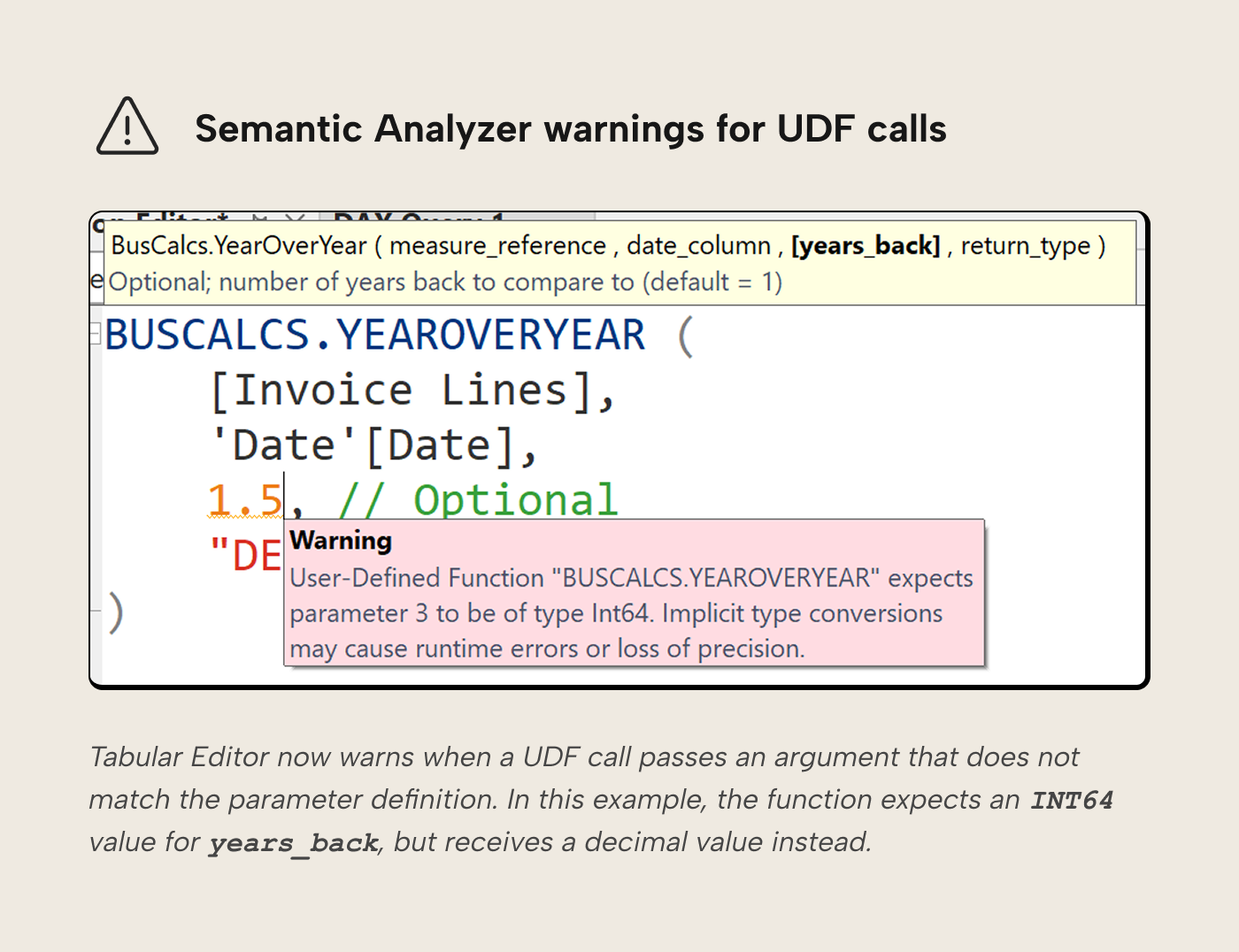
The Semantic Analyzer in 3.26.2 now warns when a UDF receives an argument that doesn't match a parameter’s declared type. In the example below, the function expects an INT64 value for years_back, but the expression passes a decimal value instead. Semantic Analyzer warns about the mismatch in the expression editor and in the Messages pane.
Tabular Editor support for new NAMEOF parameters
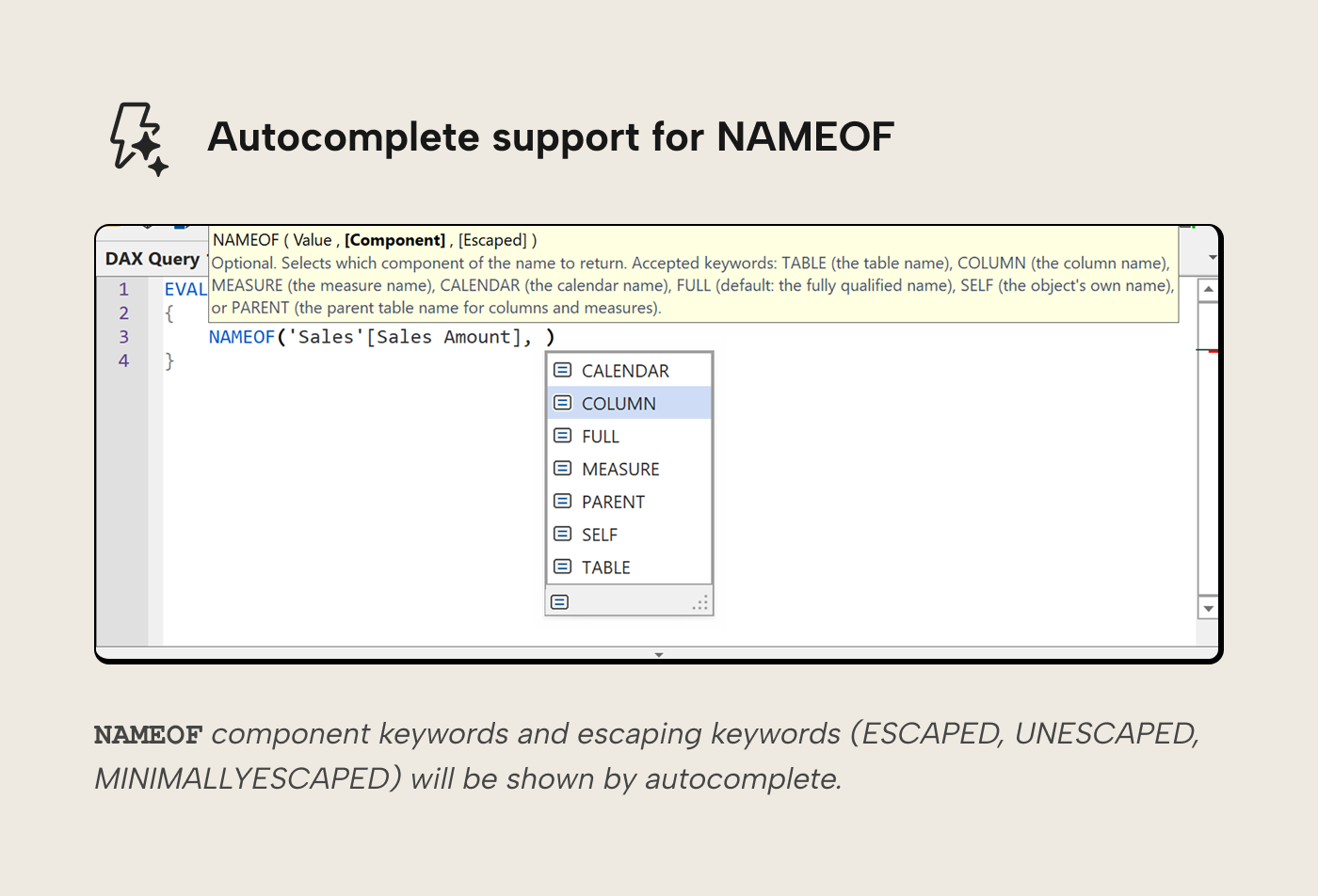
Power BI Desktop's April 2026 update introduced new optional component and escaped parameters for the NAMEOF function. Tabular Editor 3.26.2 now recognizes those keywords, validates them as you type, suggests calendars alongside tables, columns, and measures, and updates table references inside NAMEOF functions during formula fixup.
The DAX function itself now accepts this syntax:
NAMEOF ( <object> [, <component> [, <escaped>]] )
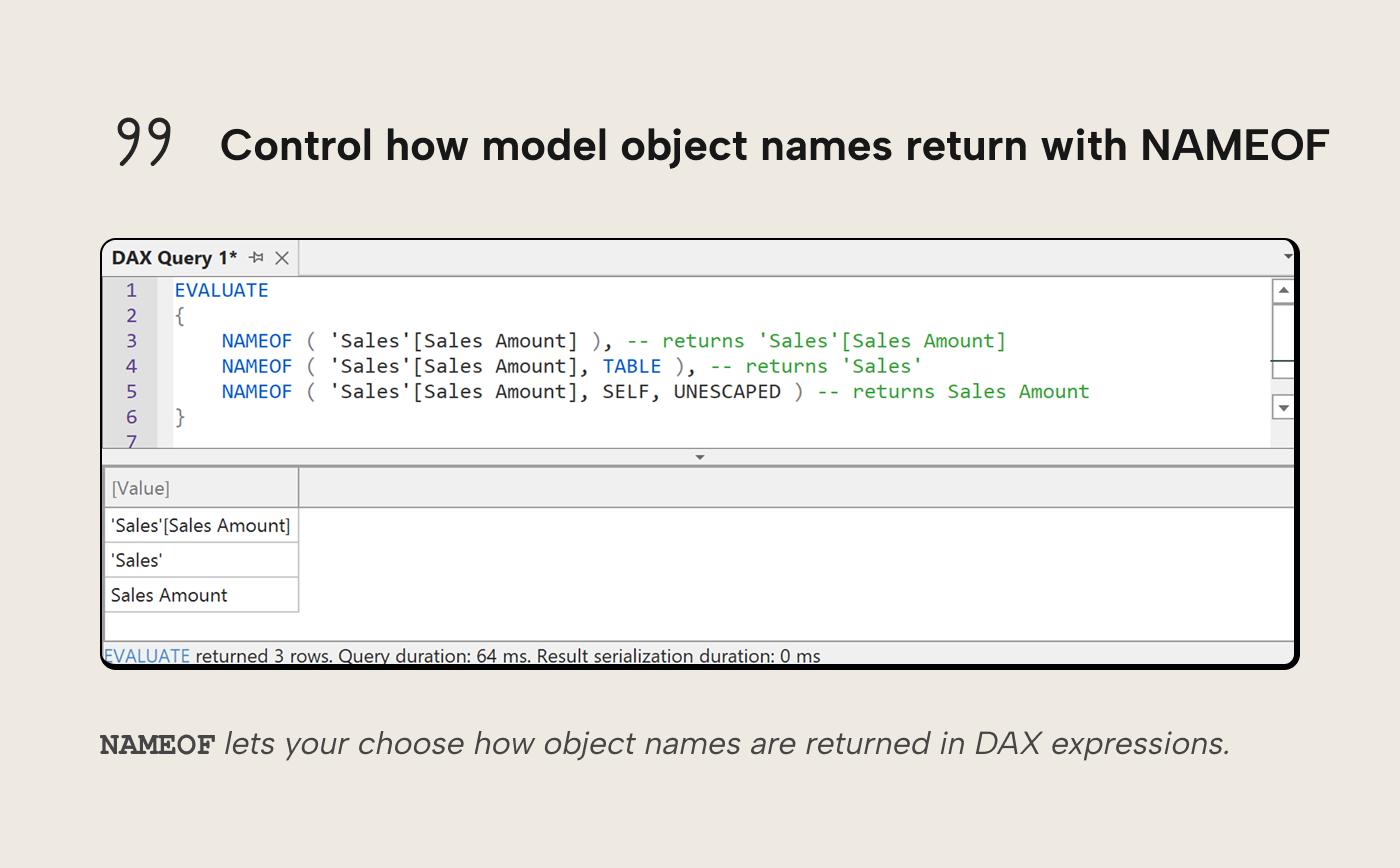
Before this update, NAMEOF was useful when you needed a model object name as text, with one fixed output format: the fully qualified escaped name 'Sales'[Sales Amount]. That is often right for DAX-safe references. Display labels, metadata tables, and scripts often need only one part of the name, like just Sales Amount rather than the full 'Sales'[Sales Amount].
The new component parameter lets you ask for a specific part of the name. For a column, for example, you can ask for the table name, the column itself, the parent table, or the fully qualified name. The new escaped parameter controls how much DAX escaping is applied to the returned string.
EVALUATE
{
    NAMEOF ( 'Sales'[Sales Amount] ), -- returns 'Sales'[Sales Amount]
    NAMEOF ( 'Sales'[Sales Amount], TABLE ), -- returns 'Sales'
    NAMEOF ( 'Sales'[Sales Amount], SELF, UNESCAPED ) -- returns Sales Amount
}
In plain terms, the function can now answer slightly different questions:
- "What is the fully qualified DAX name for this object?"
- "Which table does this column or measure belong to?"
- "What is the object name I can show to a user without brackets or quotes?"
Those questions arise often when you build reusable DAX patterns, generate metadata-driven labels, or write scripts that need to inspect model objects and produce readable output. With the updated DAX function, you can request the component you need and control how it is escaped.
Move tables to groups from the context menu
Table groups are folders to organize your model tables. They’re useful once a model grows past the point where a flat table list is easy to scan. Facts, dimensions, calculation groups, helper tables, field-parameter tables, and technical tables all compete for attention in the TOM Explorer. Grouping leaves the model logic unchanged while making the right part of the model easier to find.
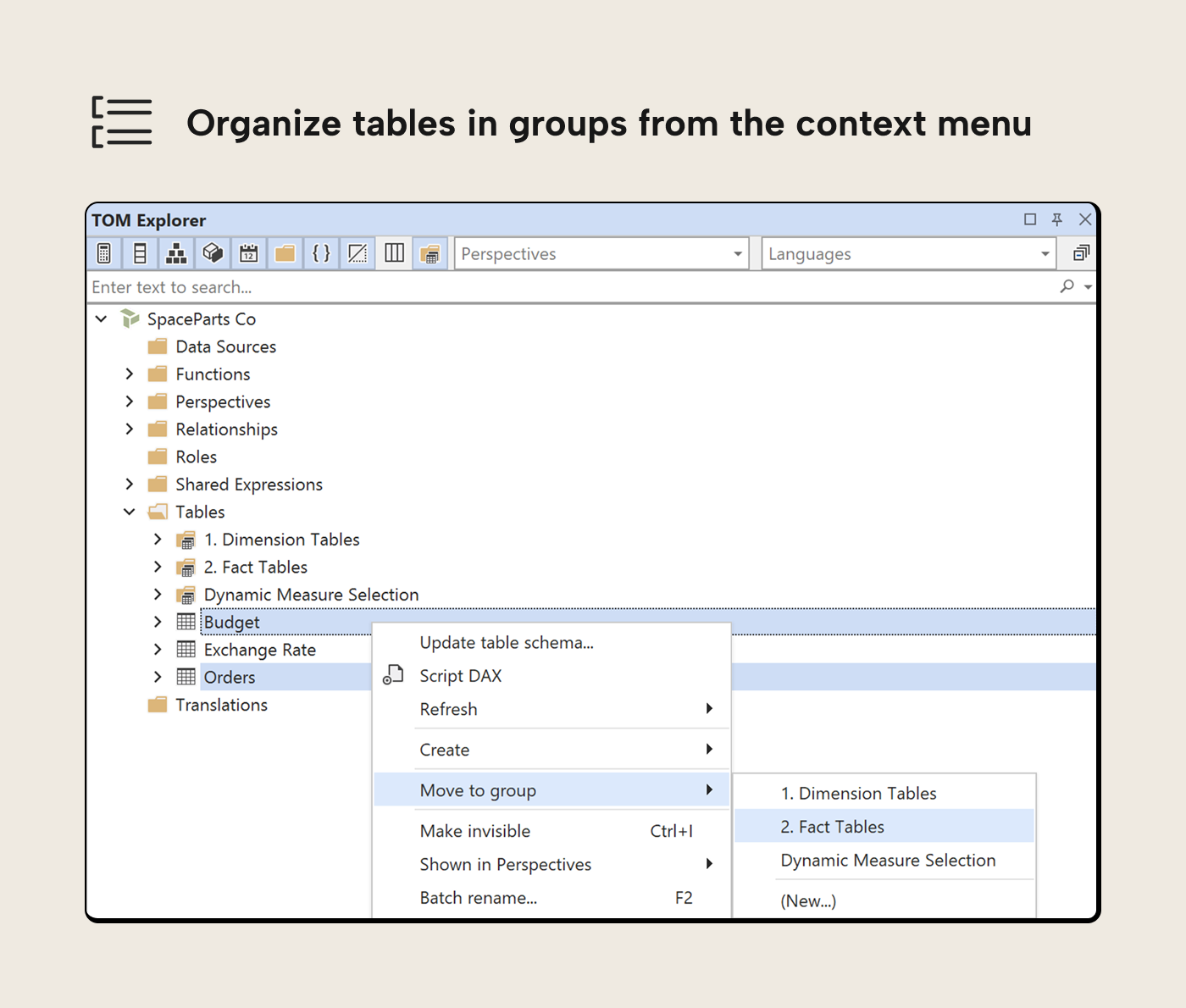
In this release, you can right-click one or more selected tables in the TOM Explorer and move them into a table group directly from the table context menu. You can also remove tables from a group from the same place, so cleanup work doesn't have to happen one table at a time.
The Move to group submenu lists your existing Table Groups, plus a (New...) entry that creates a new group from the selected tables and opens the name editor, and a (None) entry that clears the group assignment.
This is a small workflow change, but it removes friction from a task that tends to happen during model cleanup. If you inherit a model with a long table list, or you are reorganizing a model after adding new helper tables, this is the sort of feature that saves clicks without needing a new mental model.
Semantic Bridge support for metric view YAML 1.1
Semantic Bridge continues to develop alongside Databricks Metric Views. Databricks metric view YAML 1.1 adds more semantic metadata, including display names and format specifications. Databricks describes the broader category as agent metadata, but the key point here is familiar BI metadata: friendly names, descriptions, and format strings.
That context is exactly the kind of information you want to preserve when translating between semantic layers. A metric named total_revenue may be technically clear to the person who wrote the YAML, but a display name like "Total Revenue" and a currency format are what make the metric easier for report authors and natural language tools to consume.
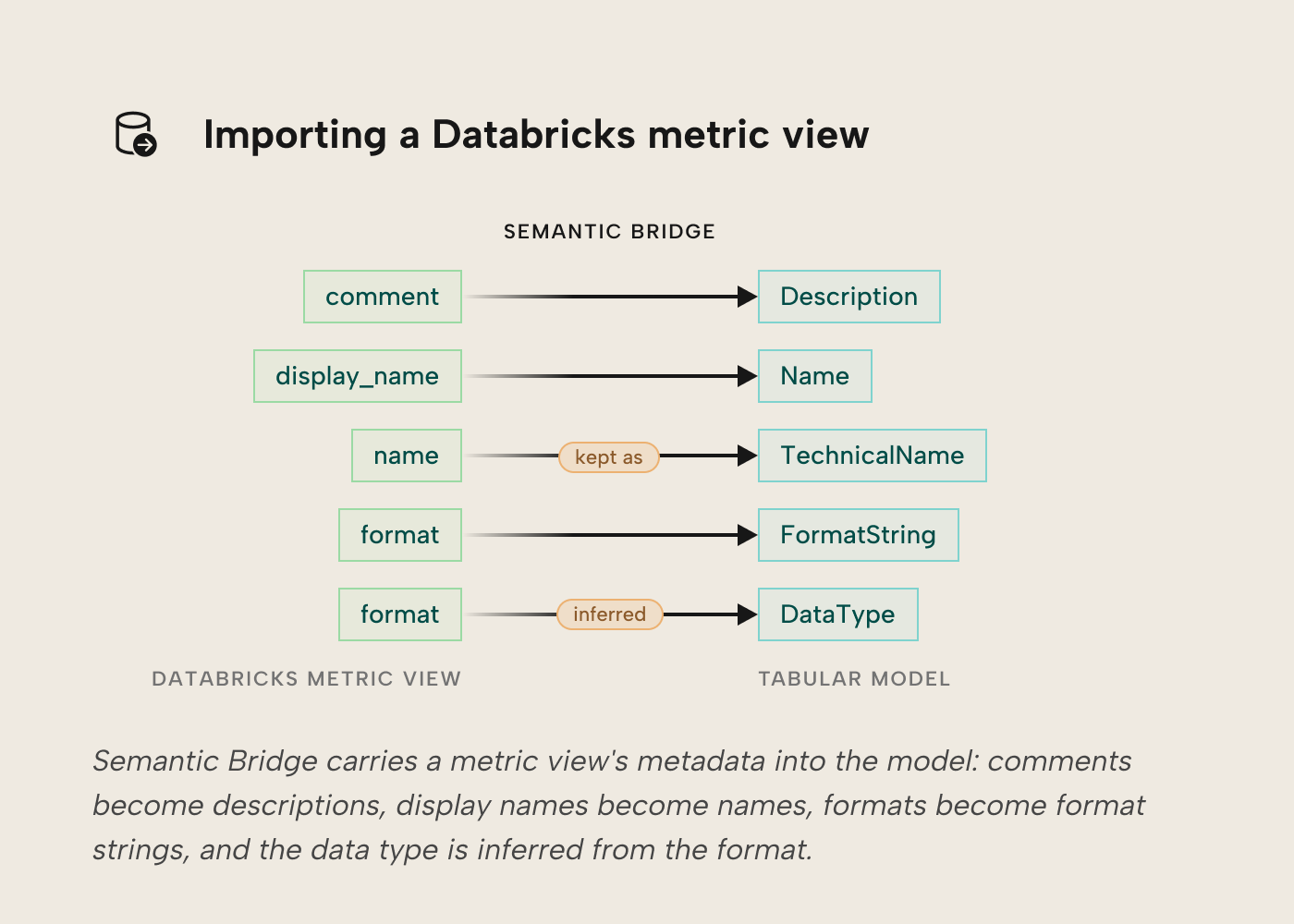
More concretely, importing a Databricks Metric View now carries more of its metadata and expression structure into the generated Tabular model:
- The view's
commentbecomes the description on the model, its dimensions, and its measures. display_namebecomes the user-facing Name in the generated Tabular model. Ifdisplay_nameisn't present, Semantic Bridge falls back to the metric viewname.- Each metric view measure or dimension
formatbecomes a TOM measure or columnFormatString, and the TOMDataTypeis inferred from that format (currency, percentage, date, and so on). Formats without a clean equivalent fall back to a default and provide warning output to the user; the object is still translated. - SQL-to-DAX translation now handles row counts (
COUNT(*)andCOUNT(<literal>)),MEASURE(name)references, binary operations, literals (includingNULLbecomingBLANK()), blank-safe division viaDIVIDE, and precedence with parentheses. - Snowflake schemas with nested joins are supported.
Any SQL construct outside the recognized set still falls back to verbatim SQL passthrough with a warning, so continue to treat the generated DAX as a draft to review before deploying.
The detail that matters for users is simple: more metadata in the source semantic layer means more meaning that can survive the trip into a Tabular or Power BI semantic model.
Also available in the Tabular Editor CLI
All of these improvements are also available in the Tabular Editor CLI (te-cli), which leverages semantic analysis and DAX language support. This helps you with scripting operations and also ensures agents get better results with DAX than they would using other tools.
Other improvements
The June release also includes several smaller fixes and quality improvements:
- More reliable sorting and pagination in the table data grid across storage modes, with
WINDOW-based paging where the engine supports it, attribute-hierarchy availability read directly from the server, and clearer messaging for DirectQuery tables. - Several Semantic Analyzer corrections, including
IGNOREused outsideSUMMARIZECOLUMNS,TABLEOFpassed to filter-removal functions, and a filter-removal function used as a UDF body. - Update Table Schema now behaves correctly on a mix of object types or on a Table Group.
See the full 3.26.2 release notes for the complete list of changes and bug fixes.
For further reading
- DAX User-Defined Functions Generally Available. Microsoft's announcement for DAX UDF GA.
- DAX user-defined functions. Microsoft Learn reference for defining, typing, documenting, and using DAX UDFs.
NAMEOFfunction. Microsoft Learn reference for the newcomponentandescapedparameters.- Agent metadata in metric views. Databricks documentation for semantic metadata in metric view YAML 1.1.
- Semantic Bridge documentation. Tabular Editor documentation for importing Databricks Metric Views into Tabular models.
In conclusion
The June release is practical: DAX UDFs are now generally available, optional parameters make reusable functions easier to reuse without giving up flexibility, Tabular Editor understands the new NAMEOF parameters, table groups are easier to maintain, and Semantic Bridge keeps moving with Databricks Metric Views as their metadata becomes richer.
The priority of this release is model maintenance. Once a semantic model becomes important, small, repeated tasks become more important, such as repeating DAX logic, finding the right table, carrying business metadata across tools, or keeping names usable in generated expressions. This release gives model authors a few more ways to keep that work under control.
Try the June 2026 Tabular Editor 3 release for better model work.
Give Tabular Editor a spin