
Key takeaways
- The CLI enables new workflows: The TE CLI enables specific workflows that weren't possible before, including semantic model work on macOS and Linux, structured and deterministic model changes that any AI agent can drive, and automated testing.
- It amplifies what you already have: If you have existing investments in TE3 such as C# scripts, macros, and Best Practice Analyzer rules, the CLI reuses that same work in new places, so you get more value from what you already have.
- Start by exploring a model: The easiest way to get started with the CLI is to practice exploring a model.
This summary is produced by the author, and not by AI.
What is the Tabular Editor CLI?
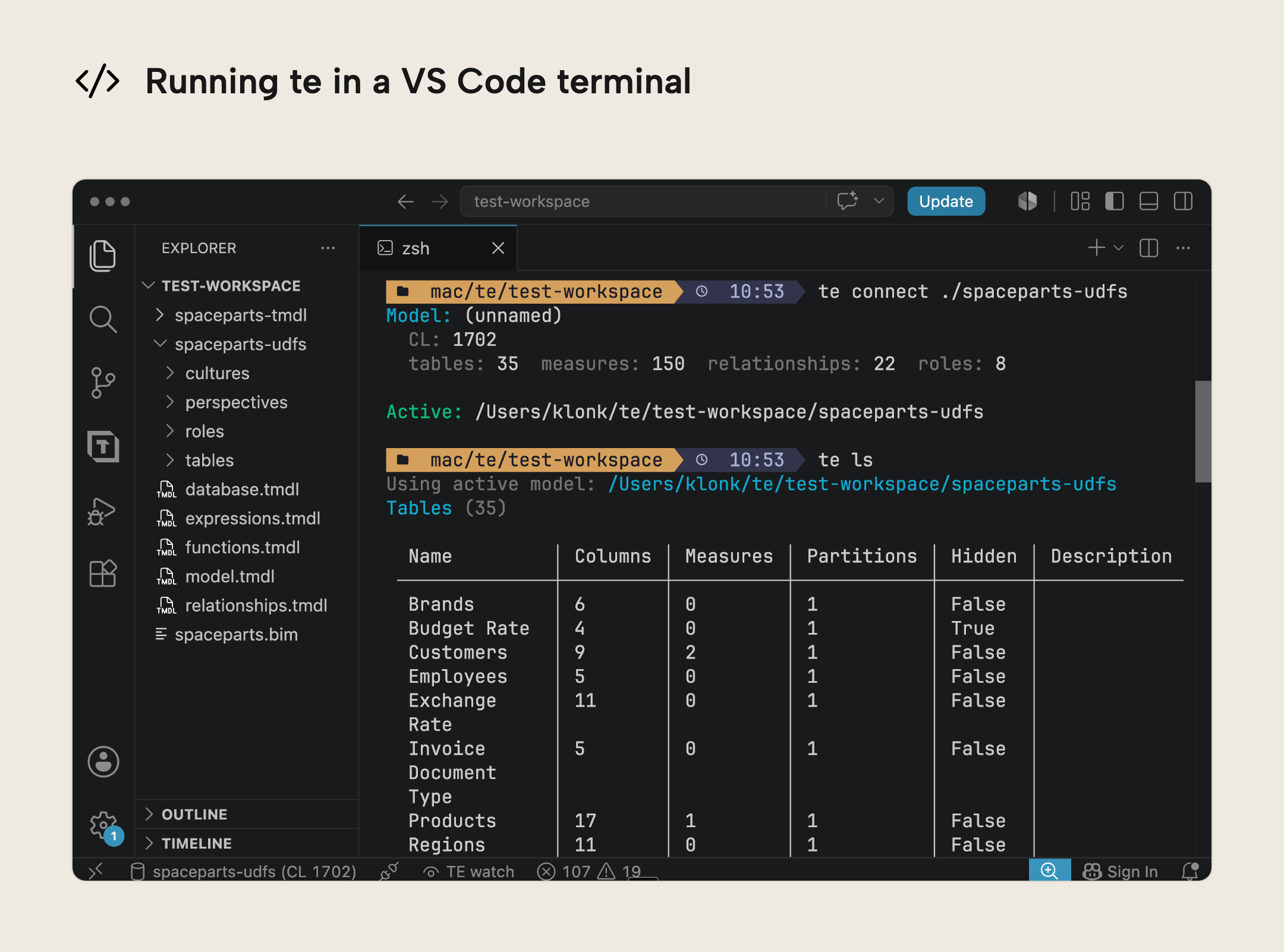
The Tabular Editor CLI (TE CLI) is a command-line interface that lets you interact with semantic models programmatically, whether that is to view, query, build, manage, or test them. This is different from Tabular Editor 2 and 3, each of which has a graphical user interface (GUI) with buttons that you click to take actions and make changes. In the CLI, you type and submit te <command> like:
te connectto connect to a modelte listto list its contentste vertipaqto run the VertiPaq Analyzerte add Sales/Revenue -t Measure -i "SUM('Sales'[Amount])" --saveto add a measure
You can also execute these commands in a pre-written script. If you are new to terminals and shells, don't worry; we build up gently and explain what these commands are as we go. This typically happens in the terminal, which can be a standalone application that you open (like the default Windows or macOS terminals) or one embedded in an application like VS Code or Cursor, where you can also see your files in an explorer:
This isn't the only way to use the CLI, though. In short, it's useful for three main scenarios:
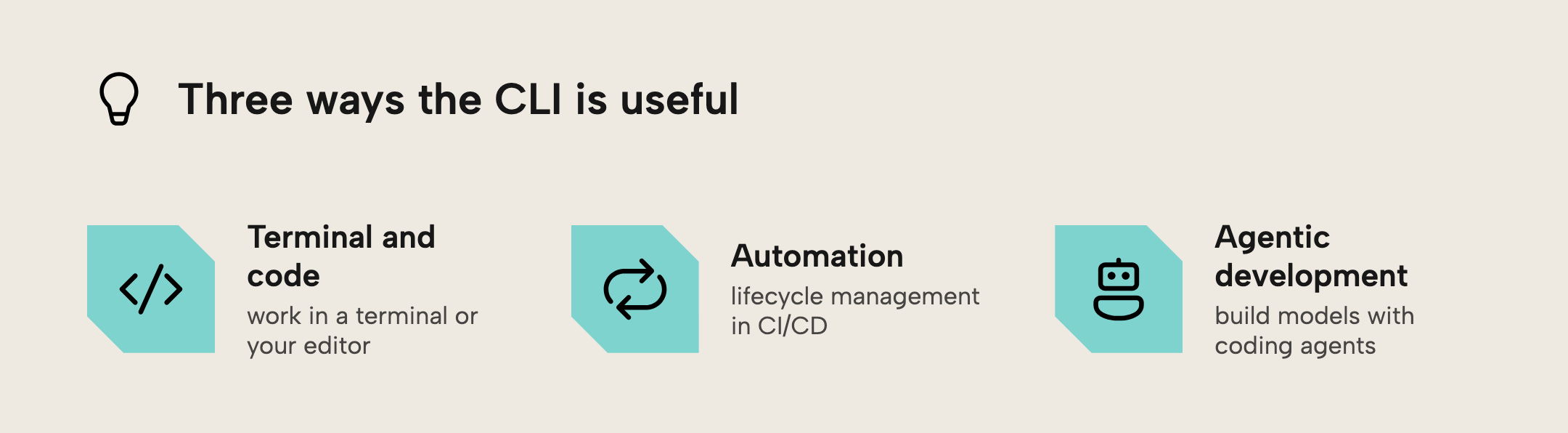
- Working with semantic models in the terminal or in code
- Automation and lifecycle management in Continuous Integration / Continuous Delivery (CI/CD) pipelines
- Agentic development of models with coding agents
We discuss these in the following sections.
What is the CLI useful for?
If you are used to primarily working with GUIs (Graphical User Interfaces), it can be challenging to figure out how to get value out of the TE CLI. Command-line tools have simply fallen out of everyday vogue for most users, even though interactive mode (te interactive) exists specifically to make the CLI more approachable to work in directly. We don't expect many people to discard the TE3 GUI and work solely through the CLI, though interactive mode is designed to make that a smooth process if you do.
Instead, you should understand the CLI as a supplement that enables workflows not available with Tabular Editor 3, including cross-platform work, and amplifies tooling and infrastructure you may already have. While this is exciting as a turbo boost to certain ways of working, if those ways are new to you then it might be hard to see or realize the value. In this article, we discuss the types of workflows enabled and amplified by the CLI and provide simple examples for each.
CLI as an enabler
The CLI is most interesting for use cases where the Tabular Editor GUI simply isn't available. This falls under 3 main categories:
- Cross-platform work
- Continuous Integration / Continuous Delivery
- Agentic AI with third-party agent harnesses
Cross-platform work
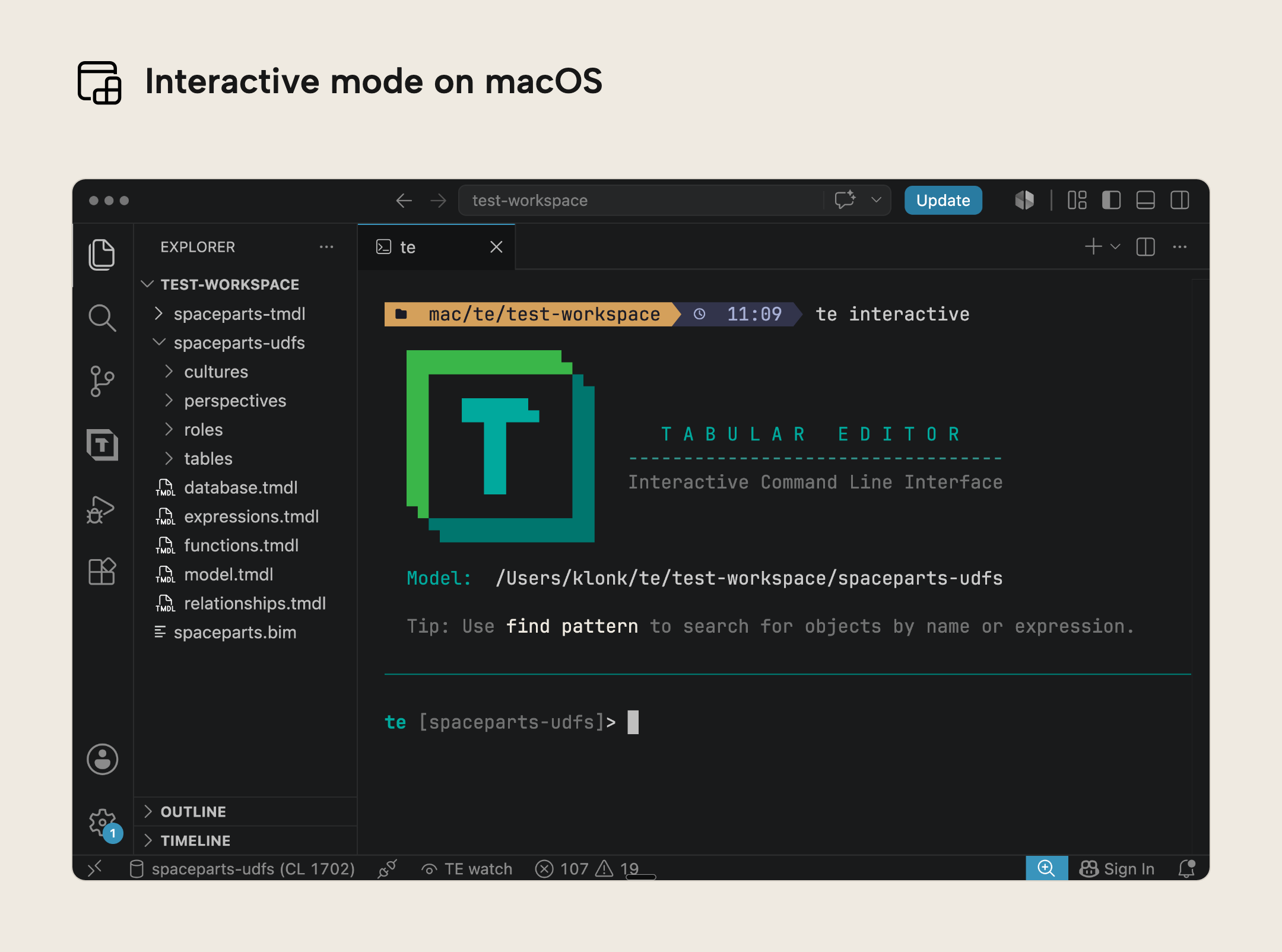
The most obvious benefit of the CLI is if you use macOS or a Linux distribution. Both Tabular Editor and Power BI Desktop are only available on Windows, which means you either have to run Windows in a virtual machine or depend heavily on the Power BI web authoring experience. With the CLI, however, you can explore and review your model locally, either with te commands from the shell or using interactive mode.
One example is using the VertiPaq Analyzer to see what is taking up space in your model. If you are on a Mac, then you don't have access to TE3, DAX Studio, or the SQLBI VertiPaq Analyzer Excel template, which are the main ways to run the VertiPaq Analyzer. However, with the TE CLI, you can run a single command:
te vertipaq --top 10 --fields name,%db,bar,size,rows
And you will get a detailed analysis of your model:
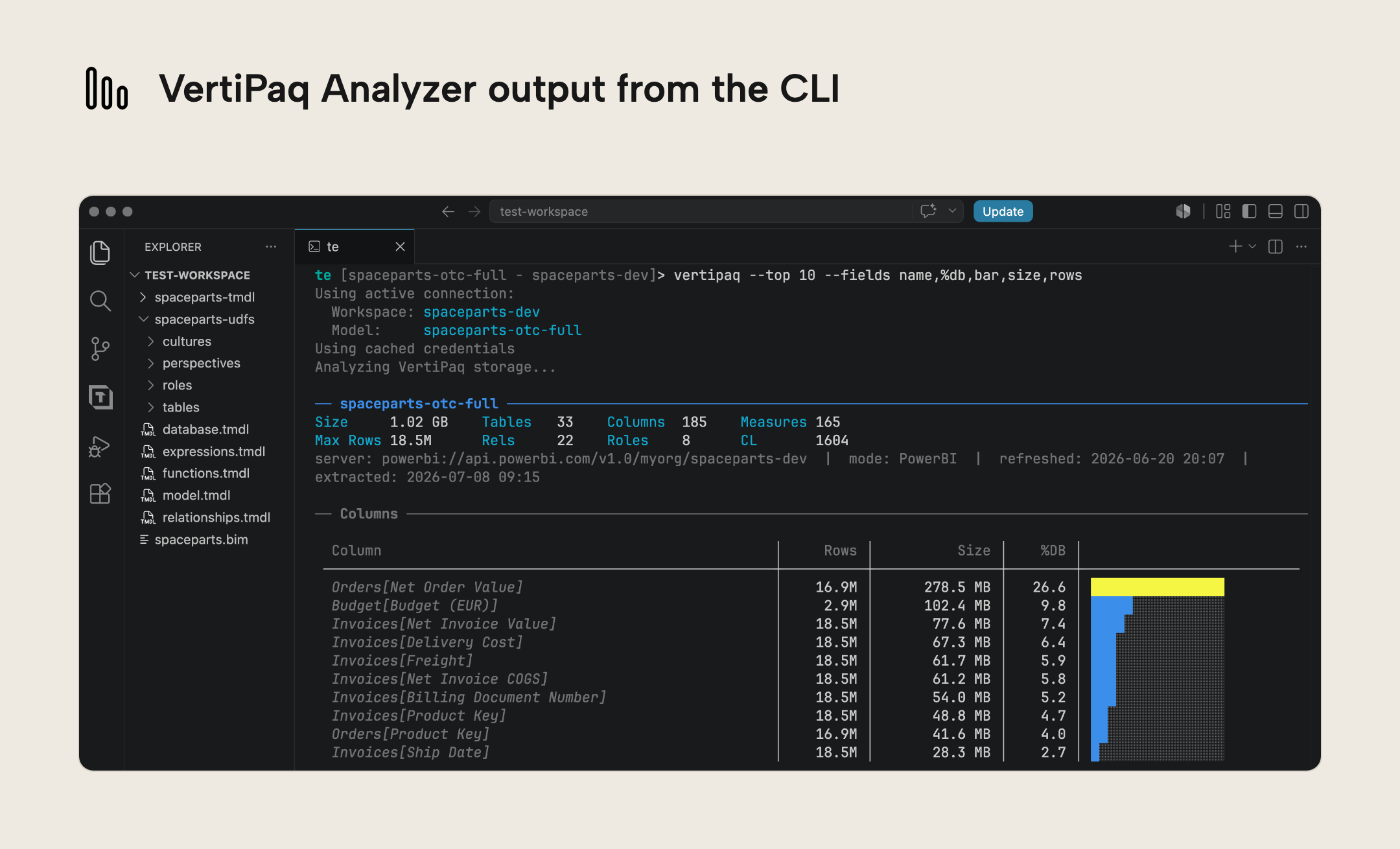
You can then run more specific commands to look at a specific subset of that, or you could export the information as a VPAX file to be analyzed elsewhere. More importantly, though, you can follow guidance from us or from Microsoft to reduce the memory footprint (for example, by removing unused columns or turning off unneeded attribute hierarchies), then run te refresh and examine the te vertipaq results again to check for improvements.
Continuous Integration
CI/CD is the practice of using source control together with automated build, test, and deployment, with approvals and gates, so that multiple developers can work on the same project and deliver changes at a high frequency. In practice, a pipeline is mostly orchestration of command-line tools, which is exactly where the CLI fits.
As you can imagine, writing tests for traditional programming languages is simpler than it is for semantic models since there are often decades of tooling to support this. Many folks today use the TE2 CLI to run checks automatically as part of a CI/CD workflow (such as DAX assertions, best-practice rule checks, or schema validation). This is even recommended in the official guidance from Microsoft to scale and mature your Power BI deployments and usage. However, there are limitations. The Tabular Editor 2 CLI was difficult to set up and use for most people. In contrast, the new TE CLI does much more, and is designed to be backward compatible with the TE2 CLI so it can eventually replace it without disruption as it matures. To name just a few:
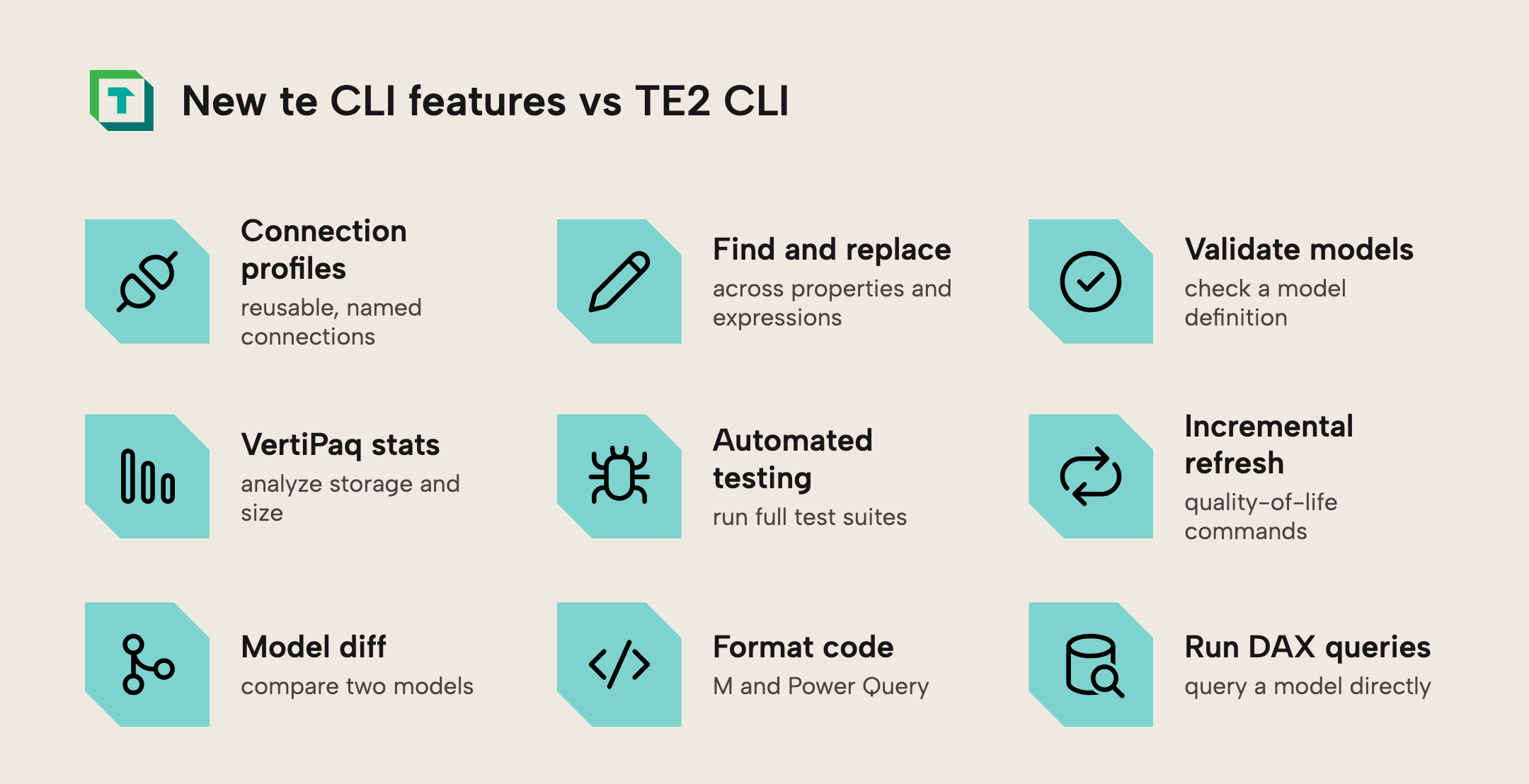
- Connection profiles
- Find/Replace text in object properties and expressions
- Validate a model definition
- Obtain VertiPaq Analyzer statistics
- Support for automated testing suites
- QoL commands for incremental refresh
- Comparing two models with a
diff - Formatting M / Power Query code
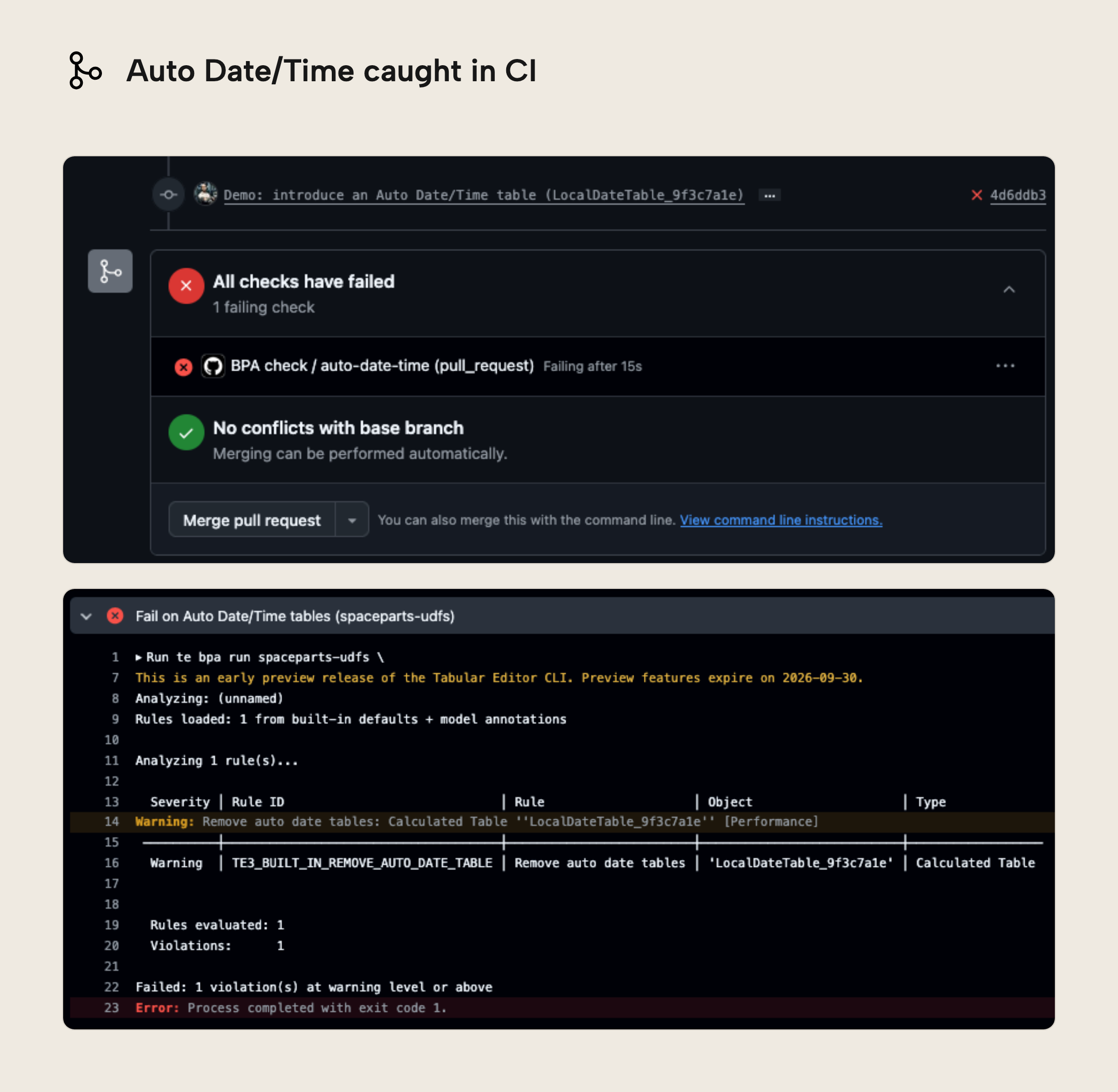
Now, imagine after reviewing the size of your data model, you realize that Auto Date/Time is on and taking up unwanted space. You want to prevent this in all future models, so you set up a GitHub action or Azure DevOps Pipeline that uses the following command to make sure that you get an error if any model has Auto Date/Time on.
te bpa run --rule DISABLE_AUTO_DATETIME --fail-on error --ci github --auth env
Basically, you can configure your GitHub or Azure DevOps Repo to automatically run this command at certain events. Instead of manually reviewing whether models are following good practices, you can just run tests with the BPA, DAX queries, and custom scripts, which check these things for you (and fix them). This is much faster and more efficient, especially when you use agents. You can even make remediation hands-off, for example having the pipeline disable Auto Date/Time and then re-validate the model with those tables removed, so the fix and its verification happen automatically.
This is very useful to scale and automate your development, particularly when working with multiple team members or agents on the same model. You can see an example of this below, where an agent has changed the model and submitted the change for review. The automated test scripts (CI) run with the example rule, which detects Auto Date/Time is enabled, and returns an error:
NOTE
This is a simple example meant to introduce the concept. We'll create new articles, videos, and tutorials to help you create these CI/CD pipelines for yourself. Because the Tabular Editor 3 CLI is designed to be backward compatible with the TE2 CLI, you can adopt it in an existing pipeline with minimal disruption.
Agentic workflows
Tabular Editor 3 comes with an AI Assistant built in, which lets an LLM participate in the TE3 GUI with a human guiding and approving its actions. For those who prefer another harness, or who want a fully agentic workflow, a CLI or a Model Context Protocol (MCP) server gives agents access to the same core functionality without depending on the GUI or Windows, and lets them work autonomously.
In our experience, while MCP servers like the Power BI Modeling server can be useful for agents, CLIs are more concise and flexible. They can be chained with existing command line utilities that the agent already knows how to use. This is especially true for the TE CLI, which provides detailed error messages and a variety of output formats. A local CLI also lets an agent combine several invocations into a single, reusable script that a human or another automated workflow can run too, whereas an MCP server's tools are only usable by the agent, one action at a time.
Consider the following example: Typically, when you rename a field in the model or move a measure to a different table, this "breaks" downstream reports. Such a pain in the butt! But using the CLI, you can "chain" this with a command using the pbir-cli, so that the model change happens at the same time as the fields are renamed in the report, preventing the issue:
# In the model: rename the measure, fix the DAX that calls it, and validate
te move "Actuals/Actuals MTD" "Actuals/Actuals MTD V2" --save
te replace "Actuals MTD" "Actuals MTD V2" --in expressions --save
te validate --errors-only

# In the report: rewrite every binding that still points at the old name
pbir fields replace "Data Goblins Flash Report.Report" --from "Actuals.Actuals MTD" --to "Actuals.Actuals MTD V2"
pbir validate "Data Goblins Flash Report.Report" --fields
Scope the replace carefully so it only rewrites the references you intend; a broad search can catch similarly-named measures (for example, Actuals MTD LY). When in doubt, review the change with te validate and the model diff before saving.
Here's a video demonstrating this:
In short, this opens up a lot of scenarios where an agent (or you) can modify multiple models or items (or item types) at once, combining CLI tools and even custom scripts. It's convenient, simple, and also repeatable.
More importantly, however, is that if the agent is making any changes to the underlying model, it can run te validate to validate the model, DAX expressions, and relationship integrity. This is particularly useful if you're using an agent to directly modify TMDL files, or doing so yourself.
WARNING
We don't recommend that you directly modify metadata like TMDL or PBIR files with coding agents. In our testing, this is slower and more expensive (in tokens) and has a higher likelihood to produce errors and mistakes. This is even true if you are using skills. Instead, you should use dedicated tools like MCP servers or CLIs.
CLI as an amplifier
While the most obvious use cases for the CLI are things you simply couldn't do before, the tool benefits the most from existing investments you already have:
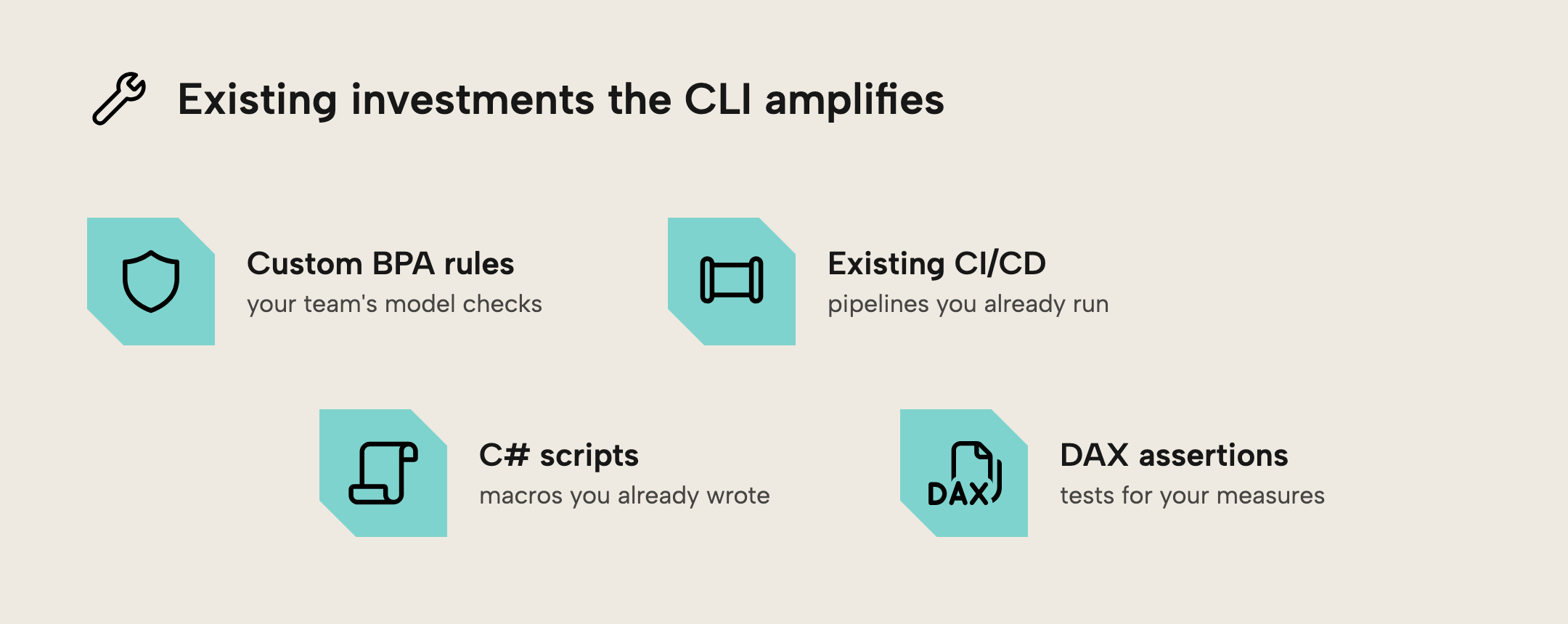
- Custom BPA rules: your team's model checks now run automatically in every pipeline, not just on demand.
- Existing CI/CD: slot the CLI into pipelines you already maintain instead of building new ones.
- C# scripts and macros: the ones you wrote for TE3 become repeatable steps in an automated build.
- DAX assertions: turn "this measure should equal X" into a test that fails loudly when it doesn't.
Now with the CLI:
- If you are using the TE2 CLI, you can expand what it can do and use cheaper Linux runners, saving a lot of cost.
- You can take existing cleanup scripts in C# and now make them part of your build process.
- You can use and expand your BPA rules.
NOTE
Consider using agents with skills to help you curate custom scripts/macros and BPA rules for your team and organization. You can use the c-sharp-scripting and bpa-rules skills from the power-bi-agentic-development repo to help you with this.
Starting from scratch
With all of this, however, you may still be feeling a bit lost. Maybe you don't have much experience with CLIs and terminals, or maybe you don't have the existing investments in TE3, CI/CD, or AI. In that case, what is a good way to get started?
First, you will want to check out our interactive mode which acts more like a self-contained experience instead of having to run individual command line calls over and over again. When you are in interactive mode, you no longer need to specify te at the beginning of your commands, and you don't have to name the model on every call.
Next, use --help on any command to see what it does, whether that's te --help for the top-level overview, te bpa --help for a command group, or te bpa run --help for a specific command. This is a good way to get familiar with te's flags in general, along with commands like status, list (or its ls alias), and get to orient yourself.
From there you can use commands like bpa, vertipaq, and deps (short for dependencies) to start to investigate the quality of the model. It's worth noting that these all have a rich set of parameters that allow you to be more specific, whether that's using bpa run --fix to automatically fix best practice violations or vertipaq --top 10 to look at the 10 largest model objects.
Finally, it's worth exploring how you can run DAX queries directly against your model with query "INSERT DAX HERE". Part of growing comfortable with the tooling is realizing that it's not just a read-only tool: you can edit a model, run scripts, refresh it, and even deploy it.
Further reading
- Tabular Editor CLI documentation (Tabular Editor Docs). The command reference and overview for the cross-platform
teCLI, including thevertipaqandbpacommands used above. - Building your Power BI CI/CD pipeline (Fabricated Insights). Daniel Patkos walks through a hands-on Power BI CI/CD pipeline that gates on the Best Practice Analyzer.
- TMDL, Power BI semantic modeling, and version control (lukasreese.com). Lukas Reese introduces TMDL as a text-based, version-controllable format, helpful background for driving models from the terminal.
In conclusion
The TE CLI earns its place not by replacing Tabular Editor 3, but by reaching the places the GUI can't: your macOS or Linux machine, your CI/CD pipeline, and your AI agents. If you already have C# scripts, custom BPA rules, or a CI/CD setup, the CLI amplifies that investment instead of asking you to start over. And if you are new to all of this, the fastest way in is to open interactive mode and practice exploring a model. Pick the one workflow that is most painful today, try it from the terminal, and build from there.
Explore your semantic model from the terminal with the Tabular Editor CLI.
Give Tabular Editor a spin