Key takeaways
- AI workflows are now integrated in Tabular Editor: Work on the same open model alongside your agent with the MCP server. The AI Assistant is Generally Available and can apply model changes directly from chat.
- You decide how much to delegate: Separate permissions let you allow model edits without granting access to the data.
- Keep track of changes: Change indicators mark changed objects and properties, you can revert selected edits and restore deleted objects without discarding the rest of the work.
- Enterprise-ready AI integration: The AI Assistant and MCP server come with administrator controls that give you full control. For details, see release notes.
- Check your scripts before upgrading: Calls to query and command methods on
Model.Databasemust use the built-in script helpers instead.
This summary is produced by the author, and not by AI.
Intro
This is one of our biggest releases ever. We tightly integrate AI workflows so you can delegate work to your AI agents and the built-in AI Assistant, with clear visibility on the changes they made, while staying in Tabular Editor. This release also brings improvements to Data Preview, model validation and saving model files, alongside a .NET 10 build.
Working with AI
Say you've inherited a messy model that many users depend on. Its refresh has slowed progressively, so you're now forced to sit down, understand and analyze the model to diagnose the issue. You fire up Tabular Editor and immediately see it's a big and complex model. Best Practice Analyzer (BPA) waves red flags and VertiPaq Analyzer shows big objects.
You can now lean on AI to help you make sense of the chaos and fix the model, without leaving Tabular Editor. You can ask the built-in AI Assistant, and bring in your own agents through MCP (Model Context Protocol; an open standard to let agents interface with an application).
Tabular Editor enforces the permissions you set and you can follow along with the changes that are made as AI carries out the work. When it's your time to review, you know where to look and can adjust or revert any changes you disagree with.
MCP Server
Tabular Editor's MCP server lets an AI agent such as Claude Code or GitHub Copilot work on the model you have open. You can delegate a task that involves multiple changes and let the agent work through it, using Tabular Editor's tools like Best Practice Analyzer (BPA) and VertiPaq Analyzer.
In most MCP servers, you can't easily see or follow what agents are doing or changing. In Tabular Editor, this is baked into the interface; you have full visibility on everything the agent is doing, plus you can easily undo those changes. This works both in the TOM Explorer and the Properties pane.
- You choose what the agent can access. Permissions are separated so you can choose to let the agent read/write metadata without allowing it to read data, and so on.
- Executed scripts give the agent feedback about changed objects and errors so the agent can correct their work.
- The agent can check your configured BPA rules and use VertiPaq Analyzer statistics to investigate model size and column cardinality.
- With live connected models and permission to read model data, the agent can run DAX queries to check results.
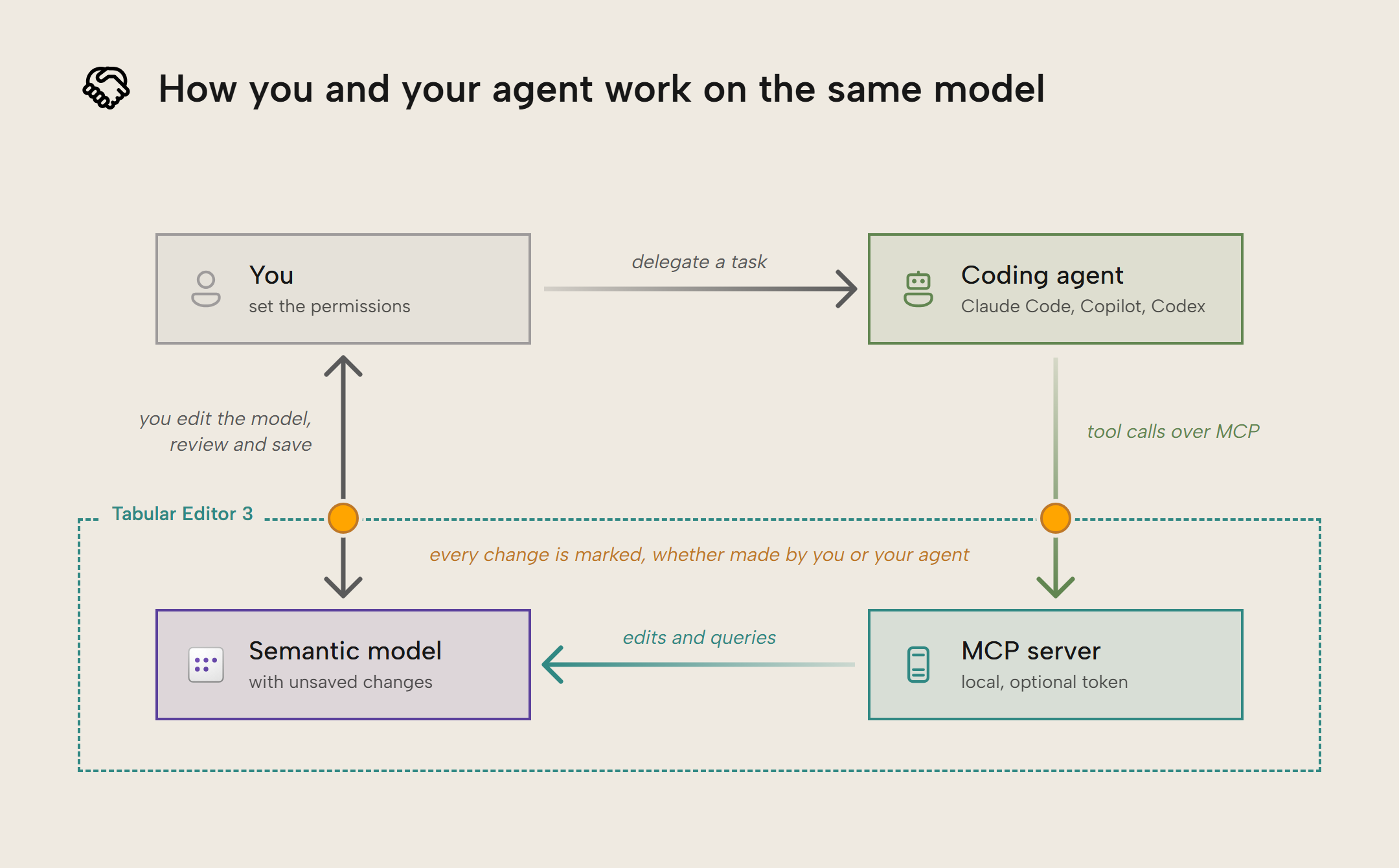
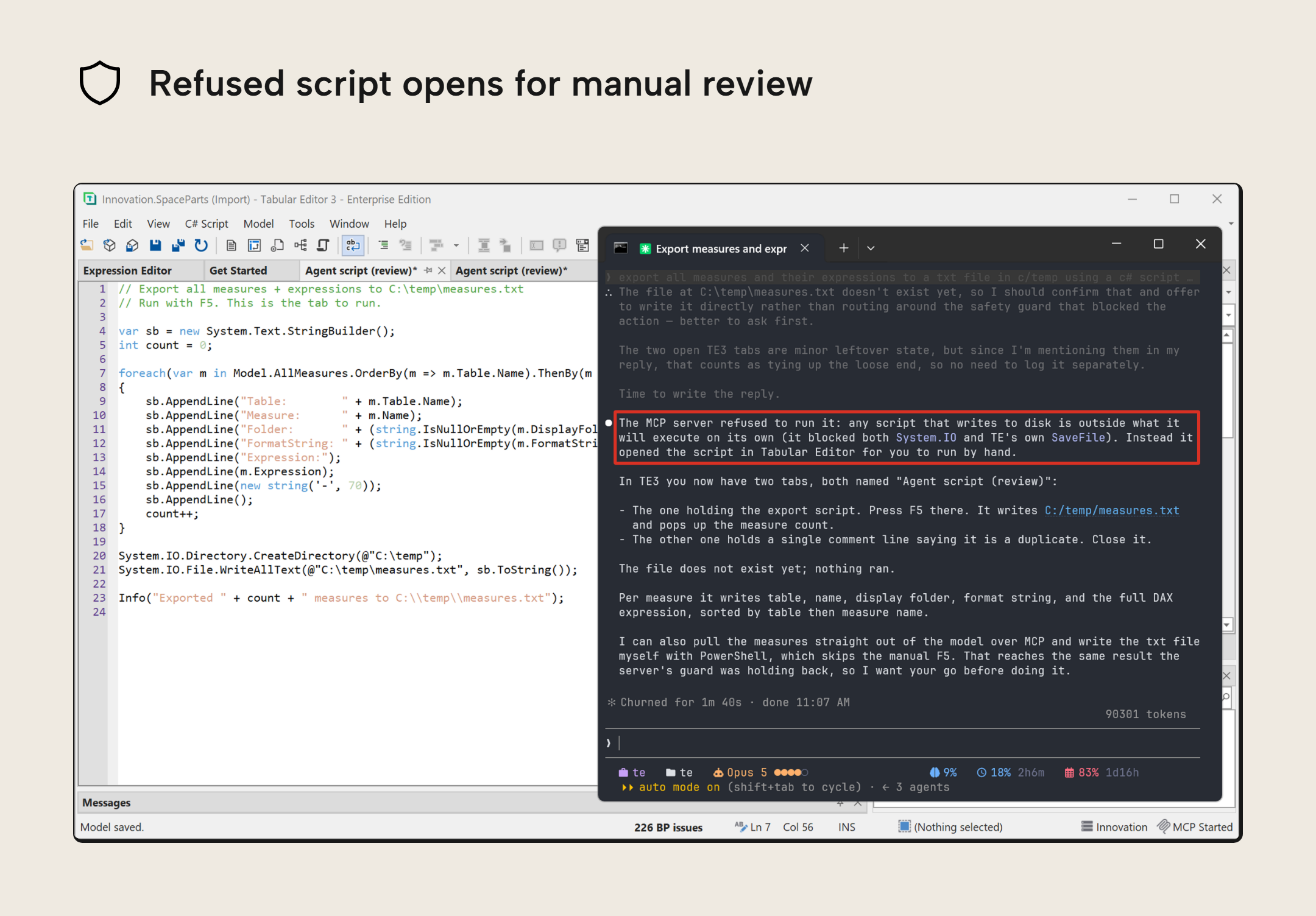
The MCP server checks scripts before running them. A script that tries to write a file, for example, is refused for automatic execution and can be opened in TE3 for you to review and run yourself.
A more autonomous AI Assistant
The built-in AI Assistant is now Generally Available and can apply model changes directly from the chat. You can ask it to investigate a problem, discuss what it finds, and let it make the changes you agree on.
Here too, you keep full visibility of what the AI Assistant is doing and changing. You can undo all the changes or revert a select few.
- Direct changes like this are opt-in; you have to enable the setting Allow AI assistant to run C# scripts directly in Tools > Preferences > AI Features > AI Assistant and grant Model metadata: Read/Write under AI Features > Permissions.
- Direct changes use C# scripts, with the same safety checks and undo behavior as MCP. Scripts that fail the checks require manual review and execution.
- Preview changes is on by default, so you can inspect the result and choose Revert to undo it.
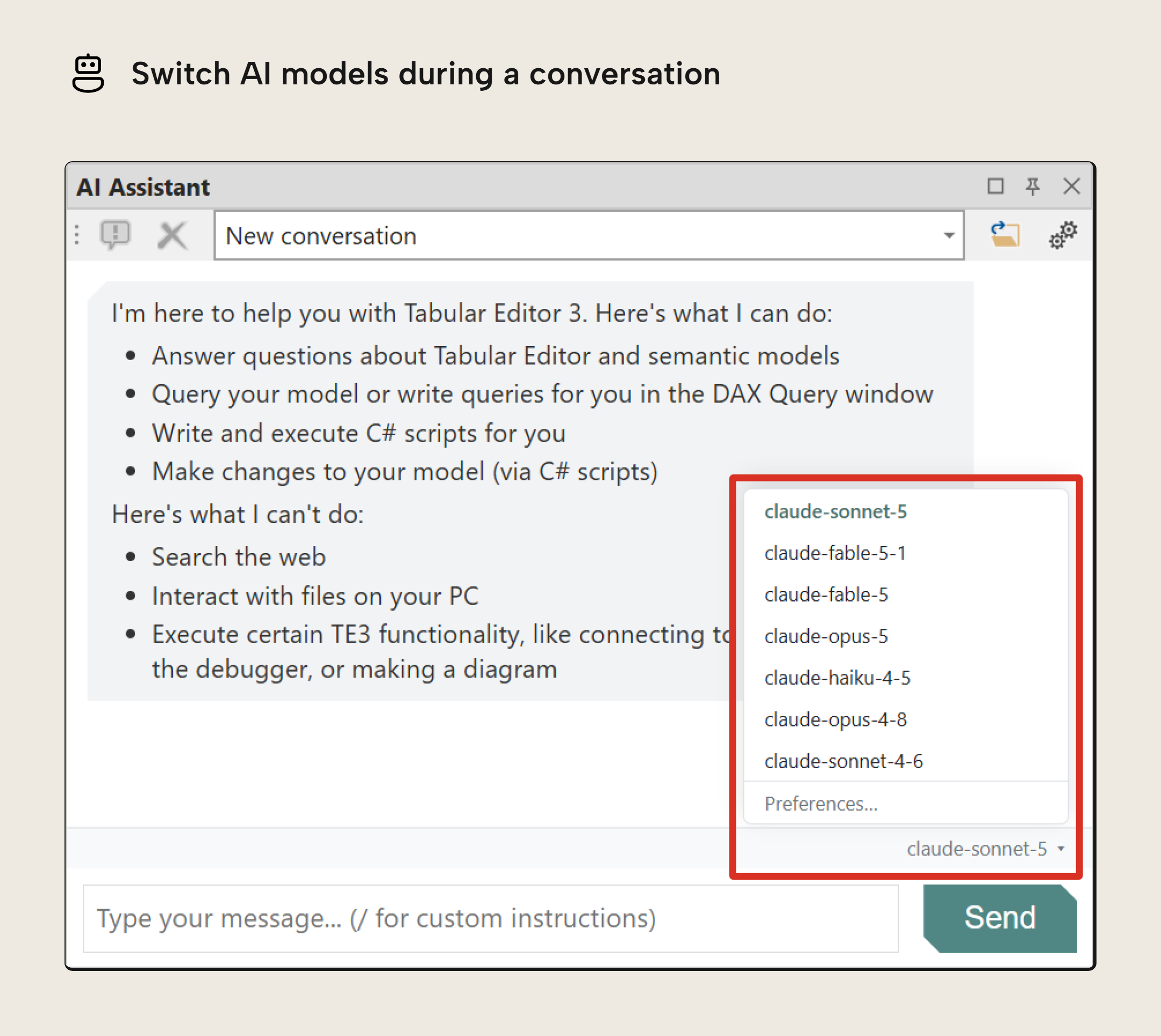
You choose the AI model and provider. The active model is shown in the chat, and with OpenAI or Anthropic as model provider you can switch models without starting a new conversation:
In this demo, the AI Assistant uses Qwen 3.8 27B with fast inference (from a provider) to change the semantic model. The recording is not sped up. Qwen 3.8 27B is an open-source model you can host locally, keeping the conversation and model information sent to it within your own infrastructure.
Reviewing and managing changes
When you or an agent make changes across a model, you need to see what changed and decide what to keep. This release makes those changes easier to find, adjust and undo.
Unsaved change indicators
We added change indicators to mark added, edited and deleted objects in the TOM Explorer. Use Show changes in the TOM Explorer and Properties pane to focus on the objects and properties that differ from their last saved state.
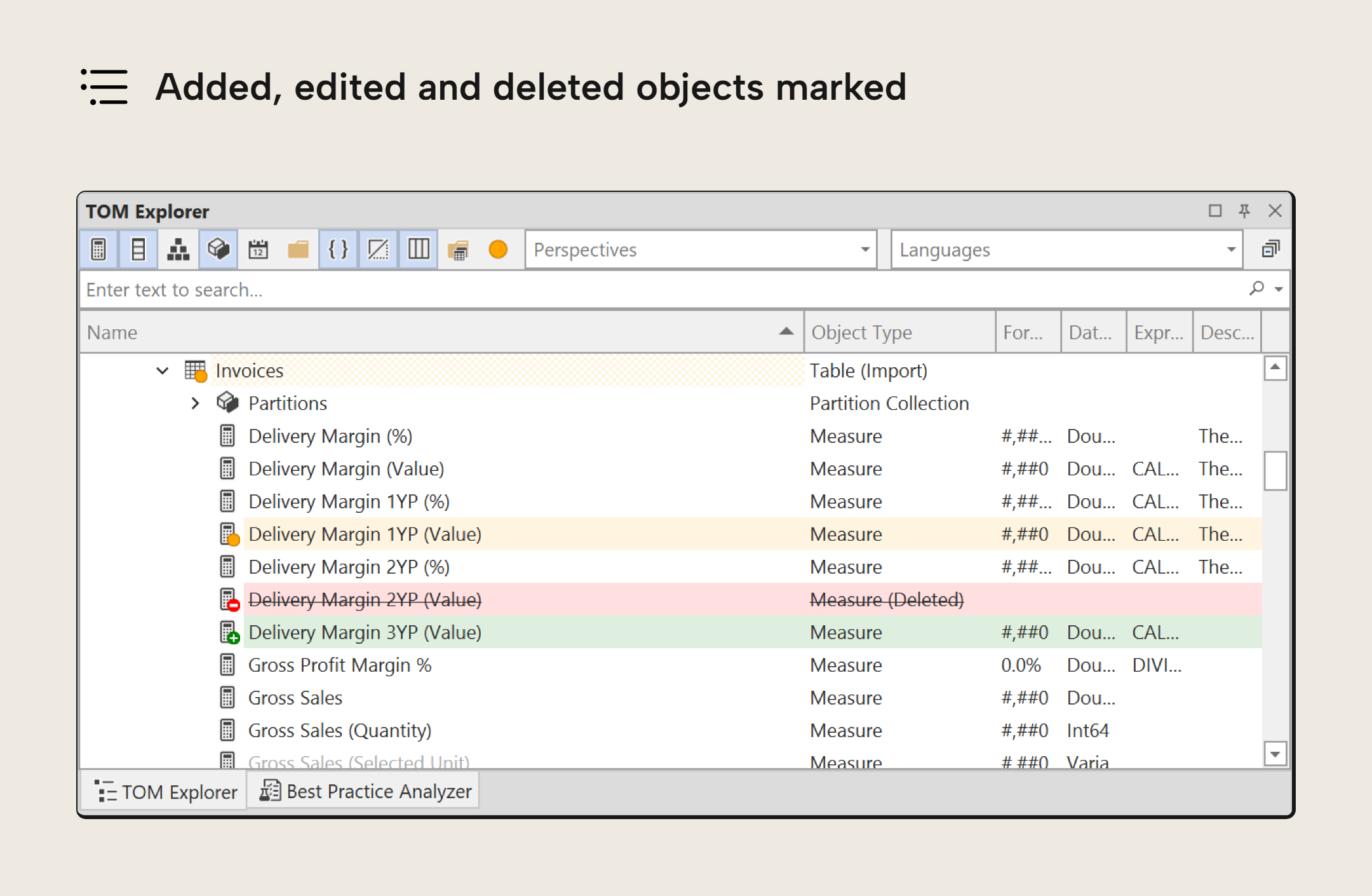
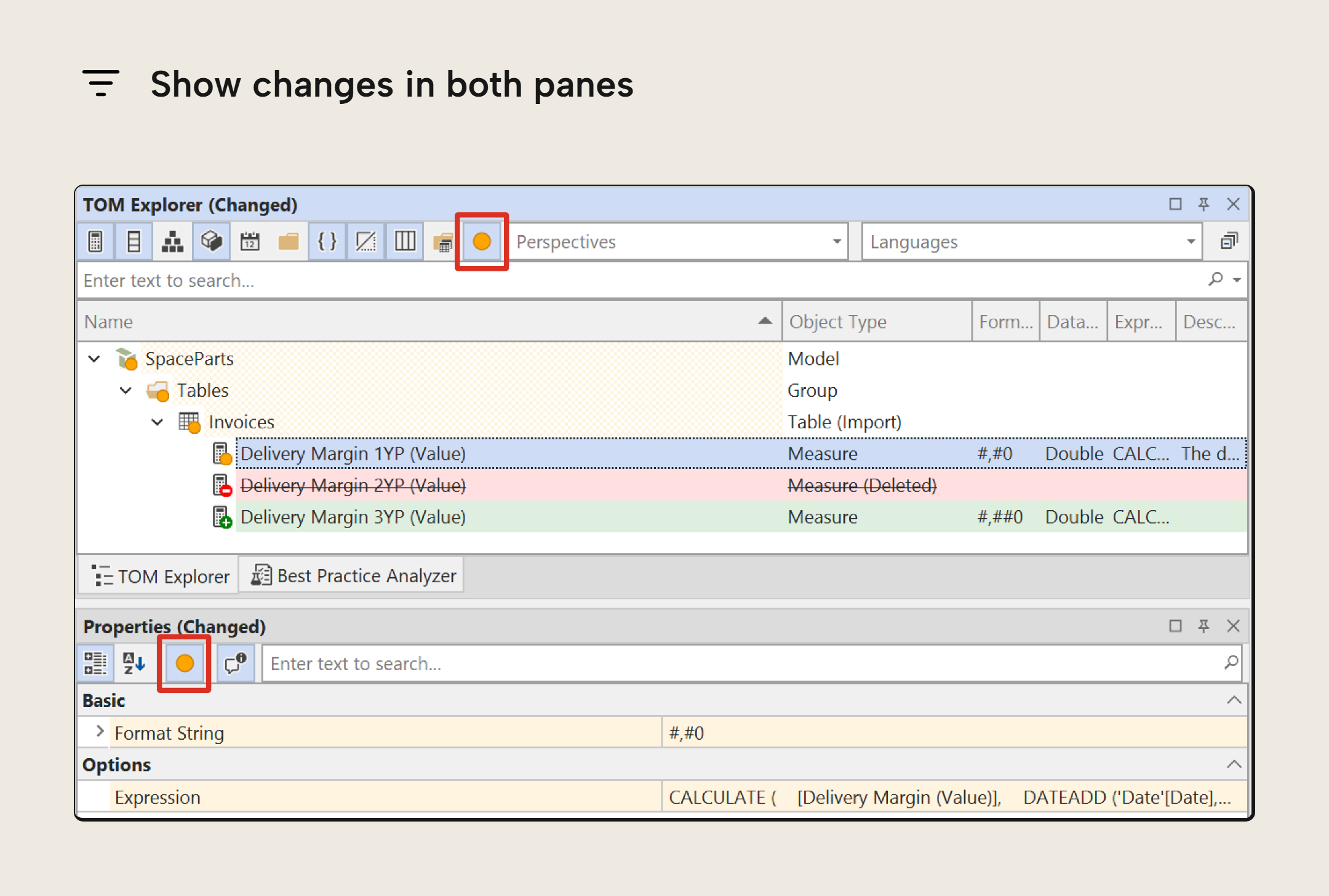
- Objects that were added have a green plus, deleted objects a red minus, and edited objects an orange dot. Color blindness mode under Tools > Preferences > User Interface > Accessibility uses teal for added objects.
- Parent tables and folders also show indicators and remain visible when Show changes is enabled, so you can find edits without expanding every part of the model.
- The indicators apply whether you, a script or an agent made the changes.
- Saving clears the indicators, as does returning an object or property to its last saved state (whether you edit it back, undo the change or use Revert).
Revert selected changes
You can revert an individual property without discarding other changes to the same object. Right-click the property and choose Revert to return it to its last saved value.
Copilot in Power BI web modeling (preview) creates a checkpoint at the start of a chat session. Restoring that checkpoint also discards changes from the session that you might want to keep. In TE3, you can revert individual objects or properties while keeping the other changes.
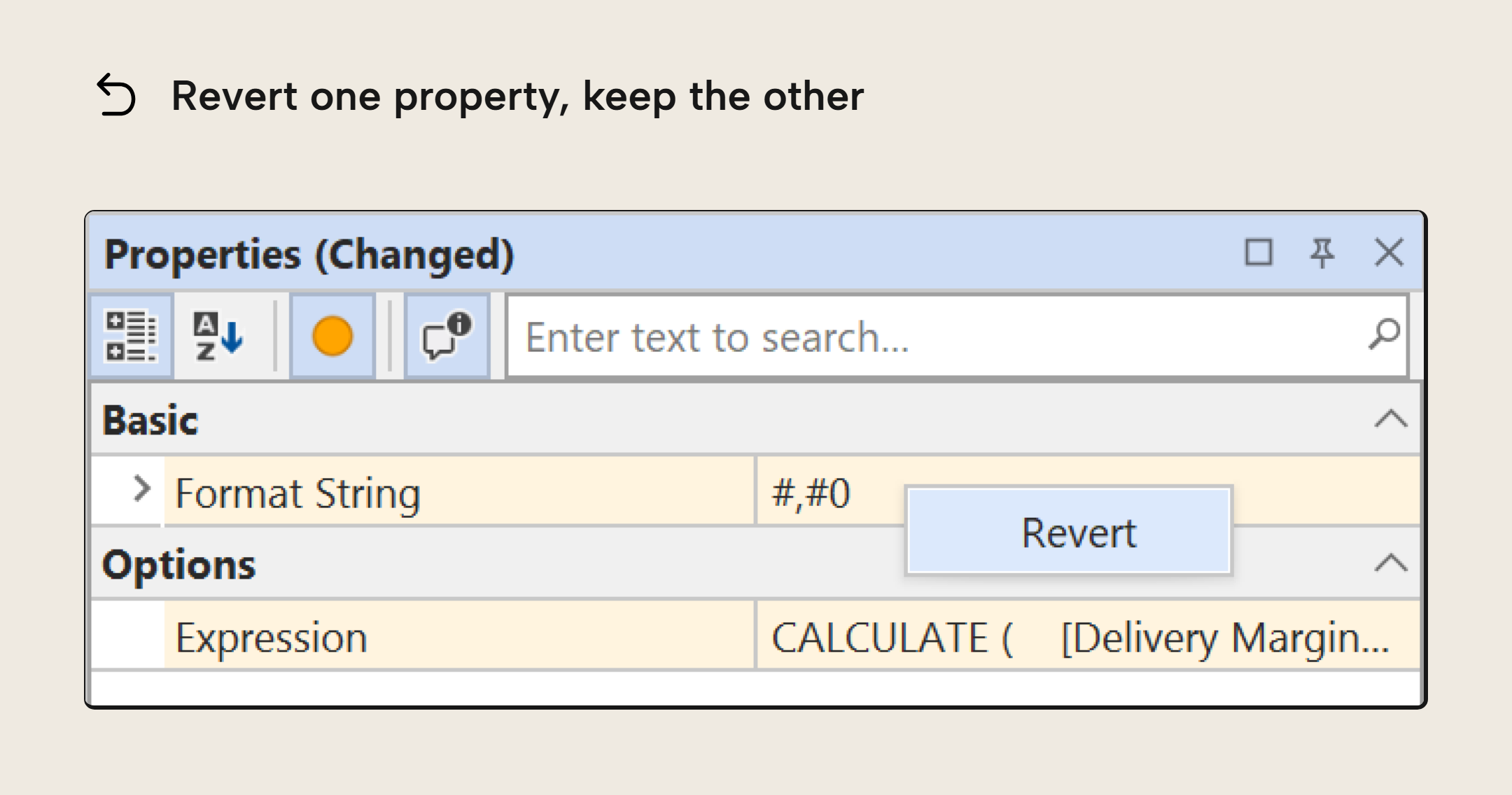
- You can also right-click a changed object, its table, a display folder or the Model node and choose Revert. The selection and everything beneath it return to their last saved state: additions are removed, deleted objects come back and edited properties return to their saved values. Changes elsewhere in the model remain.
- Each revert is one undo step. Use Edit > Undo if you change your mind.
- If an object can't be put back, Tabular Editor will report it. The changes it could revert remain reverted.
Restore deleted objects
By default, deleted objects stay visible in the TOM Explorer with a strikethrough until you save the model. Right-click a deleted object and choose Restore to bring it back.
- Restore brings an object back as it was immediately before deletion, including unsaved edits. Revert returns it to its last saved state.
- Under Tools > Preferences > TOM Explorer > Unsaved changes, you can keep deleted objects visible until you save or until you close the model, or hide them entirely. You can also gather them under a Deleted objects node. Keeping them visible until you close the model lets you restore them even after saving.
Reload external changes from disk
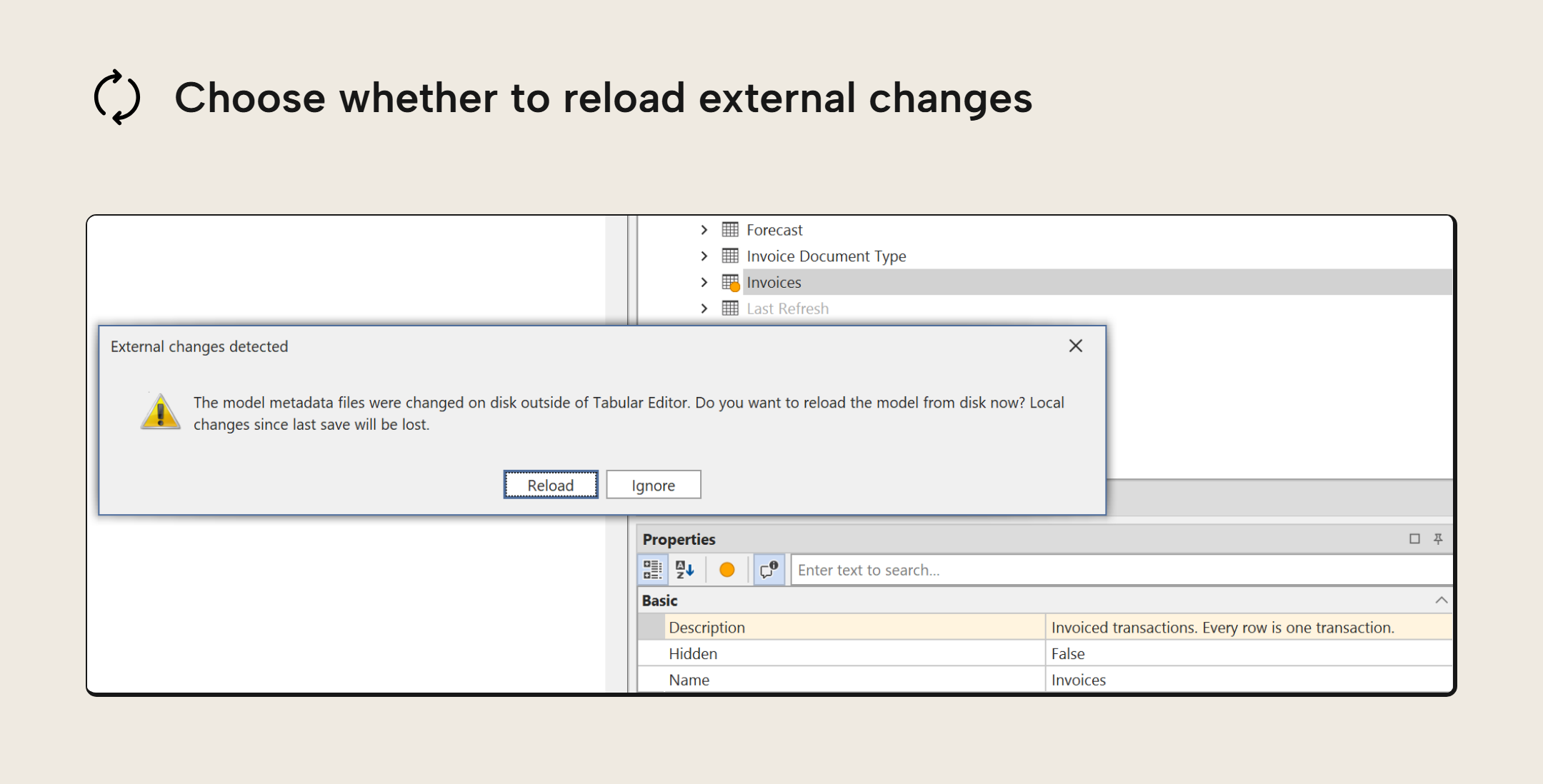
When an agent or another editor changes your model files on disk, Tabular Editor can reload them automatically so you can continue working with the updated model.
- With no unsaved edits in Tabular Editor, the model reloads automatically. Otherwise, the External changes detected prompt lets you choose: Reload discards your local edits and loads the files from disk; Ignore keeps your local edits. The two sets of changes aren't merged.
- Changes to the loaded
.bimfile,.jsonfiles in a JSON model folder, and.tmdlfiles in a TMDL model folder are detected. - Automatically revert from disk is enabled by default under Tools > Preferences > Miscellaneous. It reloads the model from disk; the selective Revert command above returns unsaved edits to their saved state. In workspace mode, a successful reload also redeploys the workspace database.
- Direct file edits happen outside TE3's MCP permissions and script checks. Use your version-control diff to review them.
AI activity records
In Enterprise Edition, Tabular Editor keeps a local audit log of AI Assistant and MCP activity, including tool outcomes and the full text of C# scripts run or handed over for review. Use Open audit folder under Tools > Preferences > AI Features to inspect the record. Script text can contain model details and data values, so treat the files accordingly.
Enterprise controls
In Enterprise Edition, administrators can set organization-wide limits on the AI Assistant and MCP server. Users can choose permissions within those limits.
- Restrict what each can access, with stricter limits for MCP than for the in-app assistant if needed.
- Lock AI configuration or restrict which providers and endpoint hosts users may choose.
- Supply a shared folder of Custom Instructions and disable users' personal instructions.
- Withhold individual tools from the MCP server without removing them from the in-app assistant.
Data Preview
Data Preview gets easier to navigate, and you can take the query behind a preview into a DAX Query document for further work.
Column sorting and tracking
Data Preview makes it easier to find columns in wide tables. Selecting a column in the TOM Explorer scrolls the preview to that column and highlights it. You can also display preview columns in alphabetical order.
- Column tracking is on by default; alphabetical sorting is off.
- Both settings, including Sort table preview columns alphabetically, are under Tools > Preferences > Data Browsing > Table Preview.
Show actual DAX query
When previewing a filtered and sorted table, you may want to continue working with the result in DAX. Right-click the preview grid and choose Show actual DAX query to open an editable query. The query includes your filters and sort order, without the preview's pagination.
Model support and validation
The release also improves Metric View editing and validation, checks more restrictions on user-context-aware columns, and recognizes compatibility level 1706.
Metric View improvements
Building on the Metric View YAML 1.1 support covered in June's release, this release makes Metric Views easier to edit and helps you locate problems in their definitions.
- You can rename Metric View objects in C# scripts without deleting and recreating them.
- Importing YAML with duplicate object names reports an error.
- Expression diagnostics identify whether a problem affects a join, field or measure.
Semantic Bridge requires an Enterprise Edition license.
User-context-aware calculated column validation
Tabular Editor flags restricted uses of user-context-aware calculated columns while you edit, so you can find and correct invalid references in the model.
![The Expression Editor flags a standard calculated column that references the user-context-aware calculated column Brands[Foo], and the Messages pane lists the same error.](https://tabulareditor.com/hubfs/blog-images/RV035/RV035-user-context-validation.png)
- Checks cover references from standard calculated columns, calculated tables and row-level security filters, including references through measures, and using the column as a relationship endpoint.
- Errors appear in Messages; direct expression references are also flagged in the DAX editor.
Compatibility level 1706
The New Model dialog now offers compatibility level 1706 for Power BI and Fabric models. The built-in BPA rule for the latest Power BI compatibility level also targets 1706. Existing models aren't upgraded automatically.
Upgrading
Tabular Editor can now use .NET 10. The .NET 10 and .NET 8 builds provide the same Tabular Editor features, so the choice depends on which runtime your machine or organization can use. We recommend the .NET 10 build; the installer will offer to install the .NET 10 Desktop Runtime. The .NET 8 build remains available for machines that can't move to .NET 10.
Breaking change to C# query and command calls
Existing C# scripts need attention if they call query or command members directly on Model.Database. Those calls bypassed the permission checks used for agent-executed scripts and are no longer available. Replace them with the built-in helpers EvaluateDax(...), ExecuteDax(...), ExecuteReader(...) and ExecuteCommand(...).
For example, replace:
var result = Model.Database.EvaluateDax("1 + 1");
with:
var result = EvaluateDax("1 + 1");
Scripts already using the helpers don't need to change. This applies to both the .NET 8 and .NET 10 builds.
Other improvements
- Saving TMDL preserves objects whose file names differ from their object names only by letter case. For example, saving a table named
Salesstored intables/sales.tmdlcould previously delete the table's file, leaving the table missing when the model was reopened. - Saving a Power BI Desktop PBIP semantic model in TMDL format with Save with supporting files enabled preserves the Fabric semantic model item's name and description, stored in the project's
.platformfile. Previously, saving could replace the name withSemanticModeland clear the description. Updating the Fabric workspace from that Git repository would then rename the semantic model and clear its description there too. - Tabular Editor now includes Group Policy templates, so administrators can configure policies through the Group Policy editor instead of editing registry keys. Policies can apply to all users on a Windows machine.
- Menu and toolbar actions no longer block screen readers when a dialog is open.
- Get Started replaces What's New. By default, the page appears on first launch and after upgrades, and is available from the Help menu.
Further Reading
- Version 3.27.0 release notes (Tabular Editor Docs). The full list of changes, fixes and downloads.
- MCP server setup (Tabular Editor Docs). Set up the MCP server and connect an AI agent to the model you have open.
- AI Assistant setup (Tabular Editor Docs). Configure an AI provider and get started with the in-app assistant.
Conclusion
You should try these new workflows on a model you know: delegate a task to your agent or the AI Assistant, then review the changes in Tabular Editor. Let us know how it works for you through our community forum.
Take your semantic models further with Tabular Editor.
Give Tabular Editor a spin