Key takeaways
- Free DAX Optimizer access for Enterprise users: The tool can be run four times per day on one model.
- Redeem and activate a code to start: You’ll also need a Tabular Tools account, which you’ll use to access the DAX Optimizer service within Tabular Editor 3.
- Eligibility has a few conditions: Your Enterprise Edition subscription must be fully paid, the license covers one active model with up to four analysis runs per day, and it's intended for personal use.
This summary is produced by the author, and not by AI.
Introduction
The integration of DAX Optimizer in Tabular Editor 3 has just received a fantastic boost: All Enterprise Edition users can redeem a DAX Optimizer license with four daily runs against the same model. Every Enterprise Edition user with a valid and paid license is eligible for a DAX Optimizer redemption code.
IMPORTANT
A DAX Optimizer license will be available for Tabular Editor 3 Enterprise Edition users under the following conditions:
- Payment received. The Tabular Editor 3 Enterprise Edition subscription must be fully paid. If you're not able to obtain a DAX Optimizer redemption code, please contact your billing department for confirmation of whether payment is made, before reaching out to Tabular Editor support.
- 1 active model. The provided DAX Optimizer license will allow you to have 1 active model within DAX Optimizer. A model can be deactivated no sooner than 30 days after the first analysis. See the FAQ for more information.
- 4 runs per day. You may upload a new version of your active model in order to perform a new DAX Optimizer analysis (run), for a total of 4 runs per day.
- Personal use. The DAX Optimizer license provided through Tabular Editor 3 is intended for personal use. As such, licenses obtained this way can’t be consolidated and must be managed separately. Moreover, if your Tabular Editor 3 Enterprise Edition subscription is cancelled, or if you're removed as a user of the Tabular Editor 3 Enterprise Edition license, any previously claimed DAX Optimizer licenses will also expire.
How to access your free DAX Optimizer license
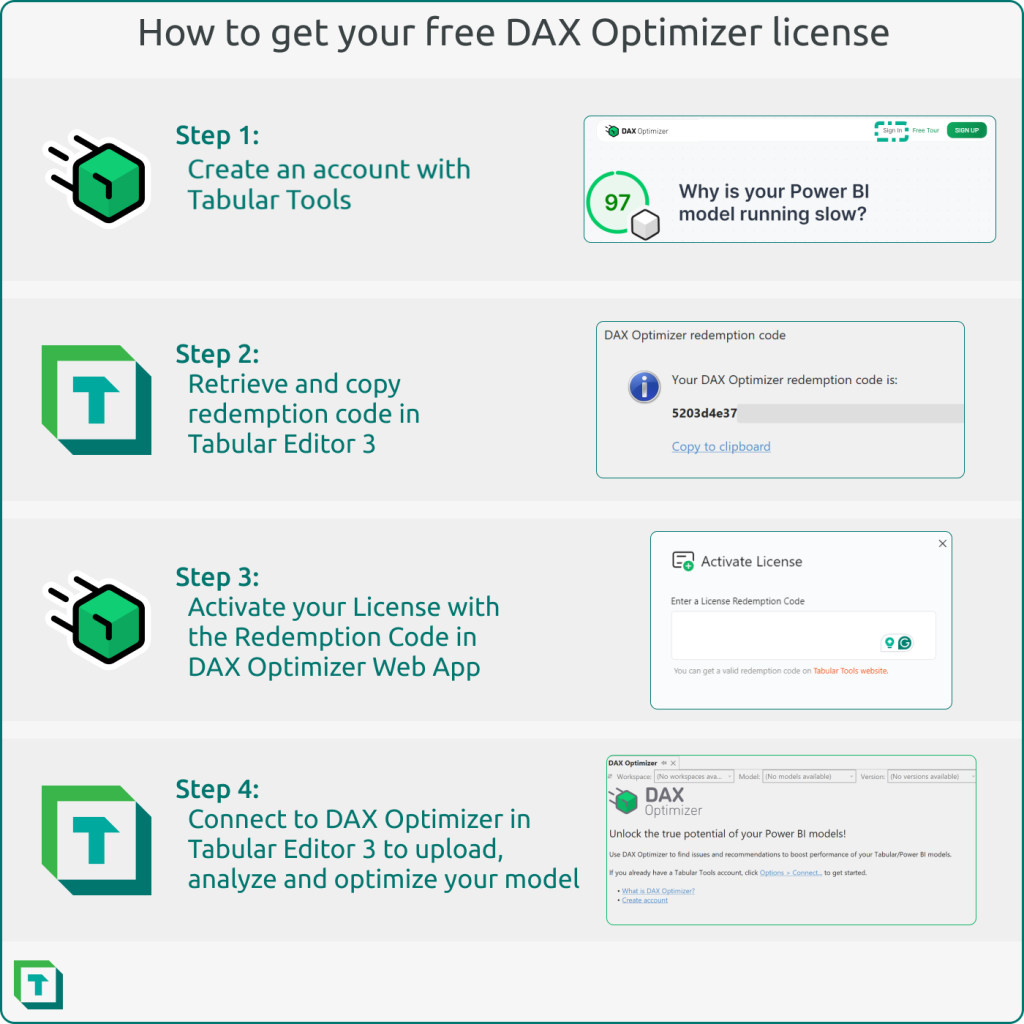
If you have a Tabular Editor 3 Enterprise Edition license, you must retrieve and activate a license redemption code for DAX Optimizer to start using your complimentary license and runs. In addition, you need to create an account with Tabular Tools, which you’ll use to access the DAX Optimizer service. All of this is detailed below.
IMPORTANT
Tabular Editor 3.18.0 or higher is required to retrieve a redemption code.
Step 1: Create a Tabular Tools account
You must have a Tabular Tools account to activate a DAX Optimizer license with your Tabular Editor 3 subscription. To create an account, visit DAXOptimizer.com and launch the Tabular Tools account menu with the sign-in button. Register using either an email and password combination or your Microsoft Entra ID. (DAX Optimizer is a service created by Tabular Tools).
Alternatively, you can visit the Tabular Tools sign-up page directly to create your account.
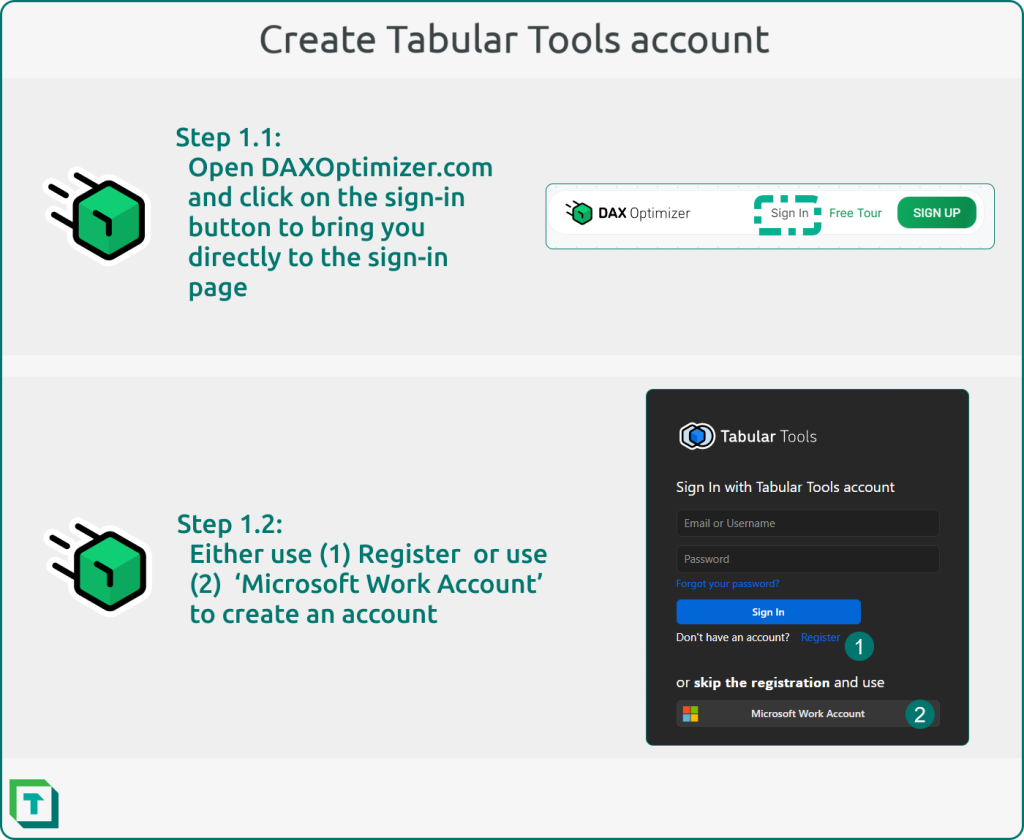
If you use the ‘Register’ approach, you must create an account using your email, retrieve a verification code, and complete the account creation process by setting your password.
NOTE
Each enterprise user is allowed four daily runs to analyze the uploaded model. You can have one model actively associated with your license (contract) at a time. This activation lasts 30 days, after which you can deactivate the current model and associate a new one with your license.
Step 2: Retrieve the redemption code
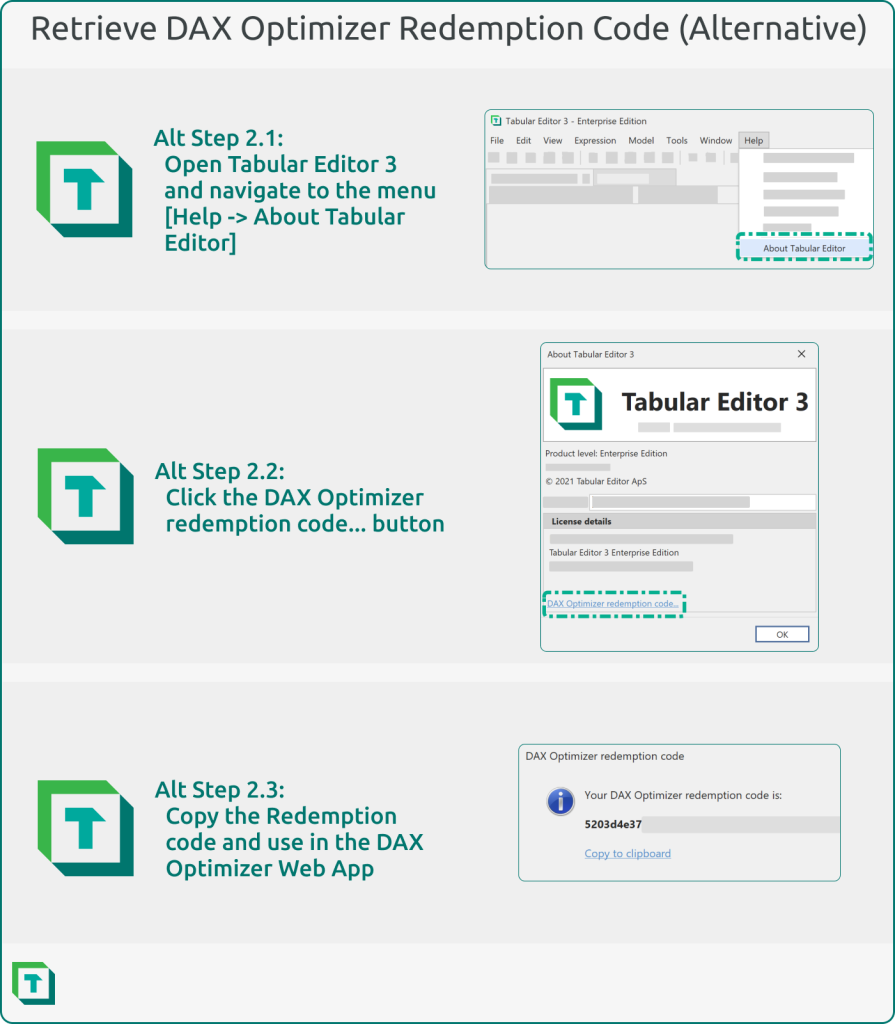
Once you have created a Tabular Tools account and signed in to DAX Optimizer, the next step is to find the Tabular Editor 3 redemption code. To do this, navigate to the Tabular Editor 3 DAX Optimizer integration under the menu: View -> DAX Optimizer. If you qualify for free access to DAX Optimizer, a message will appear at the top of the DAX Optimizer integration menu. You can click on this message to retrieve your redemption code, which you will use in step 3.
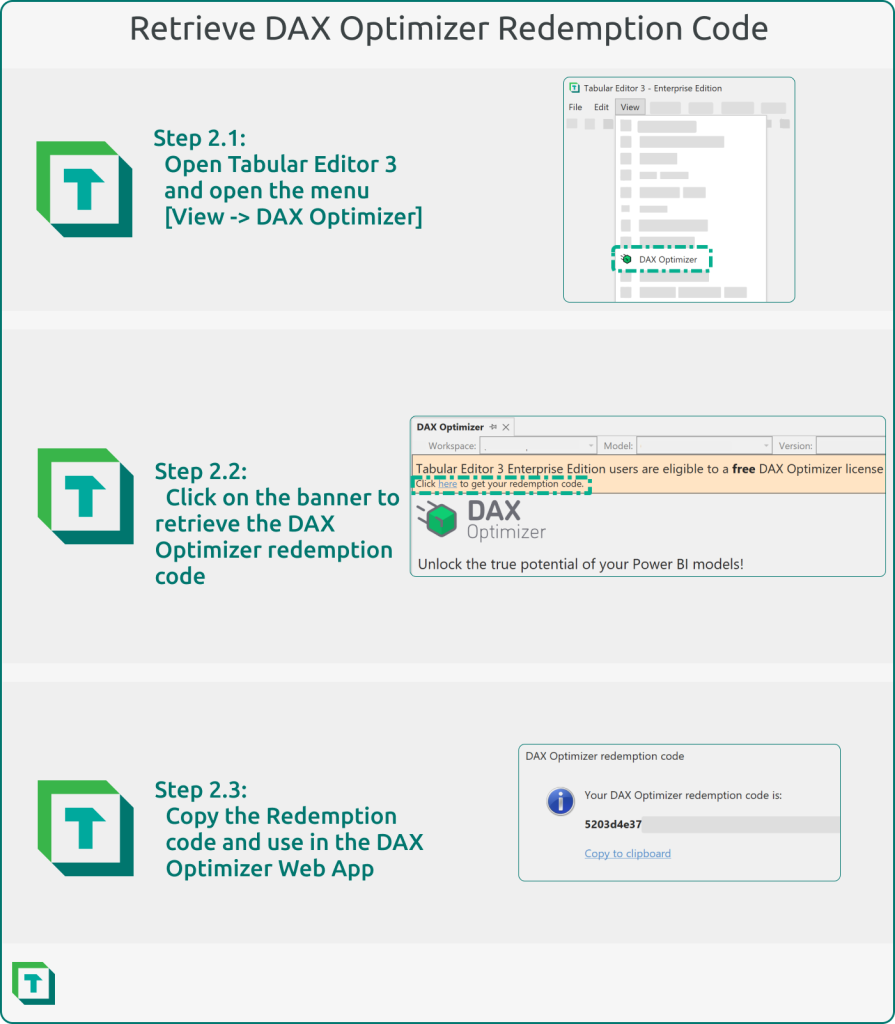
If the banner doesn’t appear or you need to retrieve the redemption code again, simply navigate to the Help menu and select “About Tabular Editor.” Click the ‘DAX Optimizer redemption code’ button, copy the code that appears, and proceed to step 3.
Step 3: Activate the DAX Optimizer license
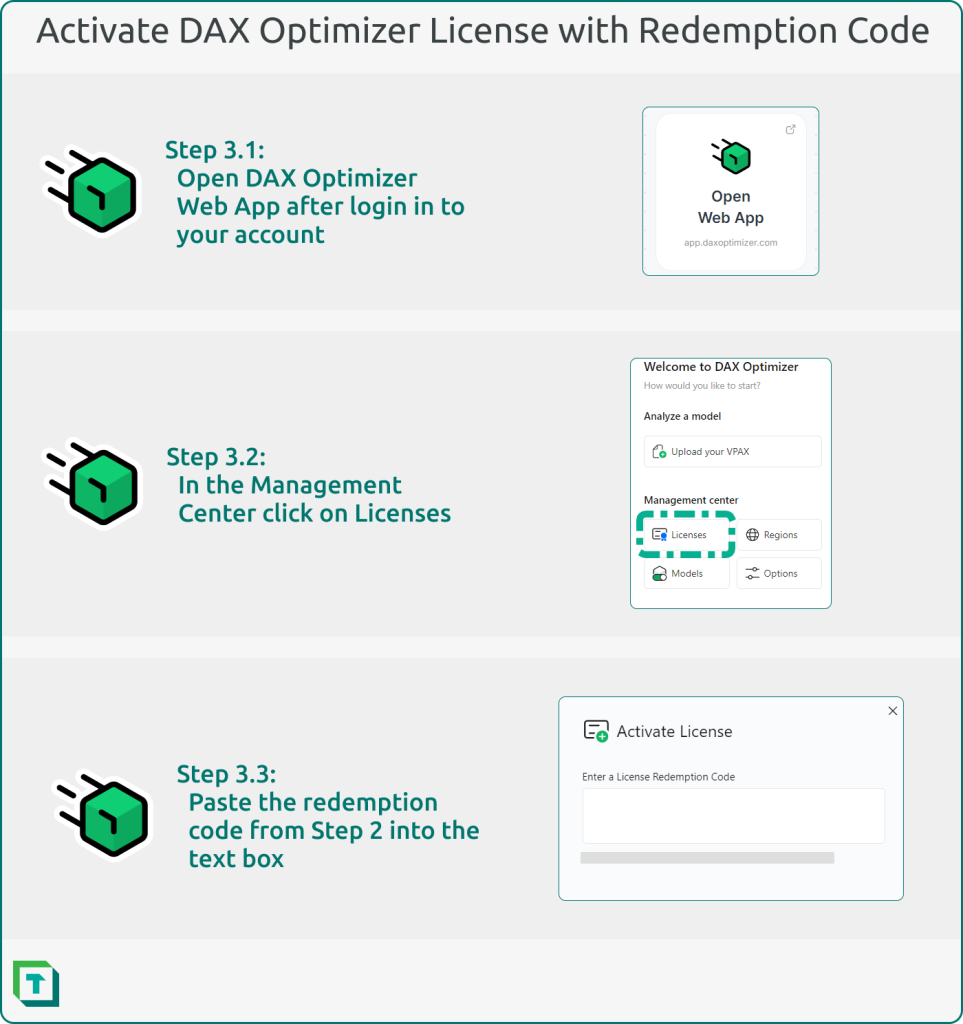
Once you have the redemption code, head back to your web browser and launch the DAX Optimizer web app by navigating to app.daxoptimizer.com. After logging into the web app, you’ll find the ‘Management Center’ on the right side. Select ‘Licenses’ from the options available. Paste your redemption code to activate your DAX Optimizer license in the menu that appears. You have now redeemed your complimentary license and can start using DAX Optimizer to analyze your model and improve your DAX skills.
Step 4: Connect to DAX Optimizer in Tabular Editor 3
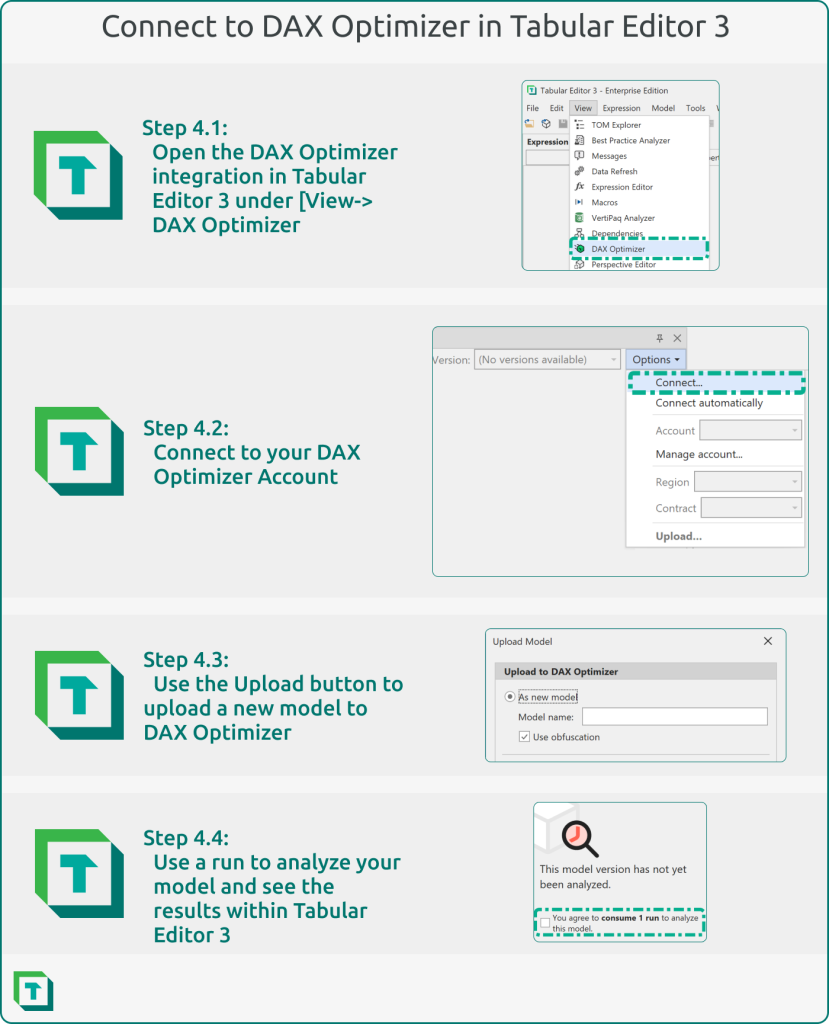
With the integration of DAX Optimizer in Tabular Editor 3, you can use your free optimization runs to improve your model. To get started, open your model in Tabular Editor 3 and navigate to ‘View -> DAX Optimizer.’ From the options menu, connect to your account and upload your model to the DAX Optimizer service. Once the upload is complete, you can analyze your model for any potential issues using one of your optimization runs. You’ll also have the ability to address these issues directly within Tabular Editor at the same time.
NOTE
By default, Tabular Editor 3 uploads obfuscated models to DAX Optimizer, ensuring that your business logic and model metadata remain anonymous.
For more information about the DAX Optimizer integration in Tabular Editor 3, visit our documentation.
For further reading
- Integration reference (Tabular Editor Docs). How to connect, upload an obfuscated model, and review issues inside Tabular Editor.
- Optimizing semantic model size in Power BI and Fabric: a comprehensive guide (Tabular Editor). A broader guide to semantic model optimization that pairs well with DAX Optimizer, covering cardinality, relationships, and storage mode in addition to DAX.
- License FAQ (DAX Optimizer). Eligibility and license behavior for model activation, run limits, and deactivation.
In conclusion
Free access to DAX Optimizer for Tabular Editor 3 Enterprise Edition users is now available, and we hope you’ll use this new tool in your Tabular Editor 3 toolbox!
Find and review DAX performance issues directly from Tabular Editor 3.
Give Tabular Editor a spin