
Key takeaways
- Available now: Tabular Editor 3.27.0 includes the MCP server in every edition. It works with agents such as Claude Code, GitHub Copilot, Codex and Cursor.
- Live access: An agent can read and edit the model open in Tabular Editor through MCP, including your unsaved edits. It can only do what you give permission to, and scripts that reach outside the model open for your review instead of running.
- Tabular Editor's tools: The agent can run your Best Practice Analyzer rules, read VertiPaq Analyzer statistics and check Tabular Editor's C# scripting reference for your version, so it doesn't write scripts from memory.
- Model review: Review its changes in the TOM Explorer, Properties pane and expression editor.
- Undo: Inspect, adjust or undo the changes before saving.
This summary is produced by the author, and not by AI.
Agentic development
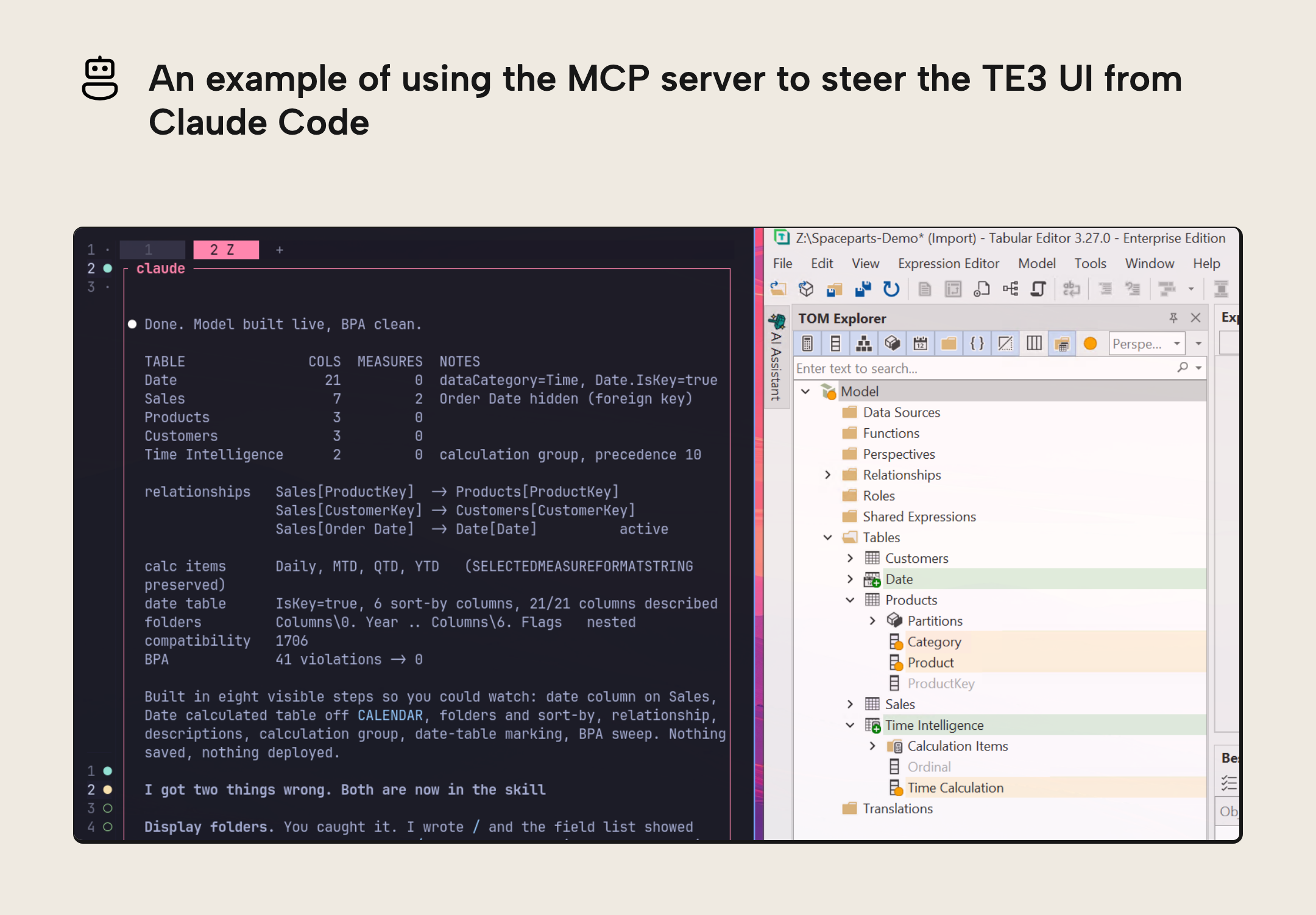
AI agents are now capable to help you build semantic models. They perform their changes in code, but you can't just stare at TMDL and JSON to understand what's going on; that's like driving a car with mud all over the windshield. Especially in the early phases of developing a model, you need to be able to closely follow that your intent is adhered to and unfounded assumptions don't make their way from the agent's training data into your semantic model.
Agents are fundamentally a new actor you need to command and understand, and that requires better tools. We're deeply conscious of this and aspire to ensure that Tabular Editor works well with agents, if you are using the CLI or the TE3 application. If you're already using agents with our AI Assistant and our CLI, Maxim Anatsko's SemanticOps MCP, or Microsoft's Power BI Modeling MCP server to let an agent work on your model, you should be able to review its work in Tabular Editor as it happens.
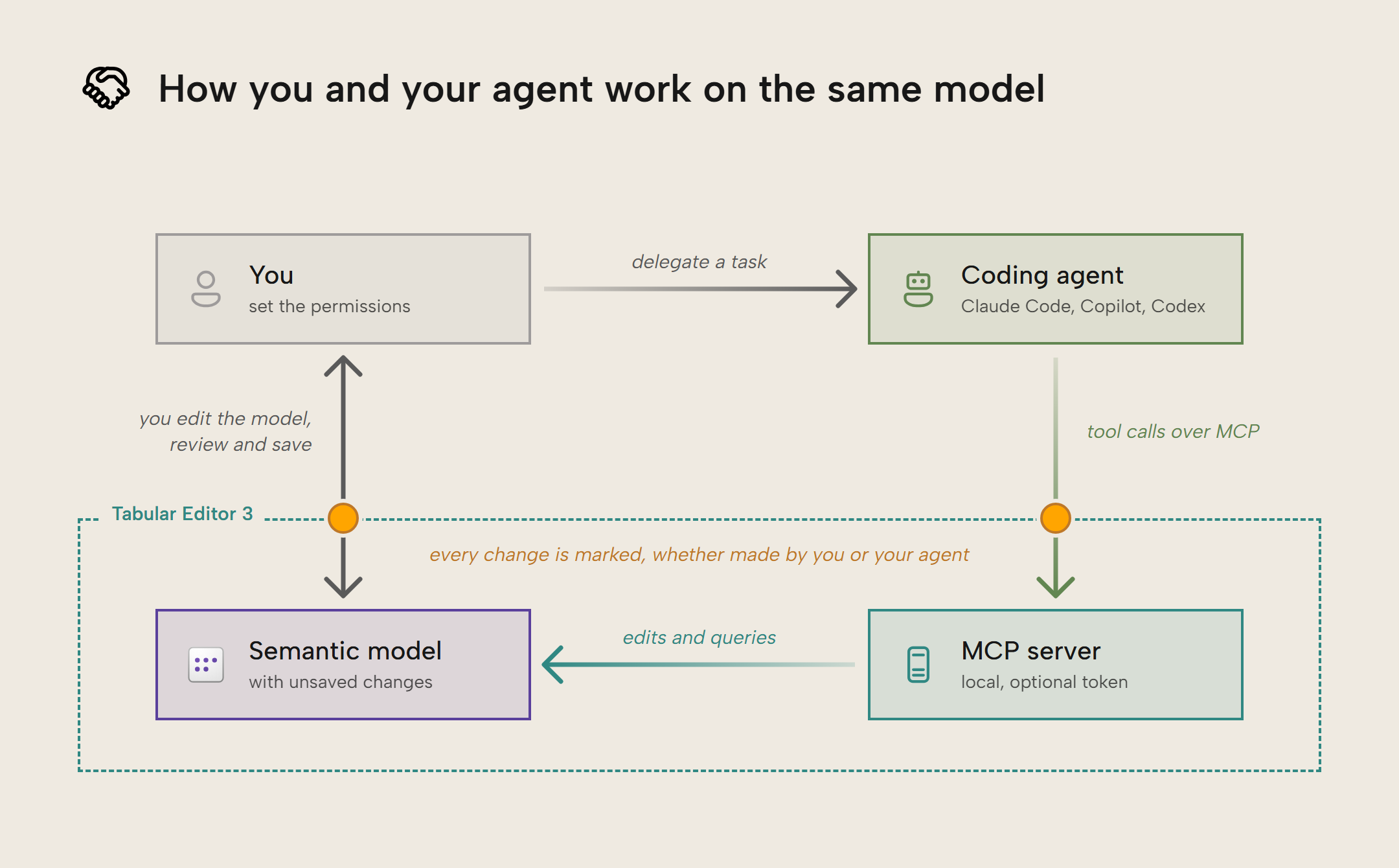
That's why we're working hard on better AI integration, and Tabular Editor 3.27.0 brings a new feature: a new MCP server to give your agent access to the TE3 user interface. An MCP (Model Context Protocol) server makes an application's tools available to an agent; TE3's connects it to the model you have open, so you can work together in the same session:
TIP
This MCP server is mainly intended for existing TE3 users to benefit from agentic development workflows while still leveraging all the IDE features in Tabular Editor. It can complement any existing agentic workflows that you have today with other MCP servers, our CLI, the AI assistant, and of course skills.
Seeing what the agent is doing
When agents are moving on your model, your work shifts to reviewing; identify what has changed, what was the previous state, and how this change impacts other things, and ultimately decide whether to reject, keep, or further adjust the change. Code diffs are a valuable but rudimentary way to look at those changes in TMDL/JSON; they don't show how it fits into the whole. You need to see the object structure, relationships, and properties. In Tabular Editor, you can select an affected object and inspect its properties and expression, then adjust or undo the change. Connecting the agent to that same session also gives it access to your unsaved edits, so it can work with the model as you currently see it.
The agent also sees what you select in the TOM Explorer. Select three measures and ask it to format these consistently, and it knows which measures you mean.
To connect your agent to Tabular Editor, follow along with the MCP server documentation. It covers starting the server, the permissions, and the configuration for each supported agent. The server works with any model you open in Tabular Editor, from a Power BI Desktop model or PBIP project to TMDL and .bim files or a live connection to Analysis Services or Fabric.
The examples here use Claude Code. The agent uses its own AI configuration; you don't need to configure an AI provider or API key in Tabular Editor for the MCP connection. Read our guide on how to get started with agentic development if this is all new to you.
In the recording below, we start the server with Model metadata: Read/Write, add it to Claude Code, and ask the agent to rename the tables without their DimView and FactView prefixes. Show changes then filters the TOM Explorer to the changed objects.
Each script the agent runs is a single undo step, labelled C# script (MCP), so one Ctrl + Z reverts everything that script changed. To undo only part of the work, right-click a changed object or property and choose Revert; it returns to its last saved state and the other changes stay.
Delegating bigger tasks
The agent also gets Tabular Editor's own tools. It can run your Best Practice Analyzer rules, read VertiPaq Analyzer statistics, run DAX queries if you grant Model data: Read, and check which properties and methods Tabular Editor's C# scripts support in the version you run, instead of guessing them from memory. That lets you hand over tasks that take several steps.
In the recording below, we ask the agent to configure incremental refresh for the Invoices table with five years of history. It first checks the C# scripting reference for the methods it needs, then adds the RangeStart and RangeEnd parameters, filters the partition query on Billing Date and sets the refresh policy, all without saving the model. The TOM Explorer marks the added parameters and the changed partition.
Staying in control
You decide what the agent can do. There are separate permissions for model metadata, model data, the Best Practice Analyzer, documents and macros. By default, an agent can read the model and run the Best Practice Analyzer, but it can't change the model or read a single data value. In Enterprise Edition, administrators can cap these permissions for everyone, and Tabular Editor keeps a local audit log of what the agent did.
Tabular Editor also checks each script before it runs. A script that reaches outside the model, for example to write a file, doesn't run; it opens as an Agent script (review) document for you to review and run yourself.
TIP
The Tabular Editor MCP server has a special architecture that lets you use it from a Mac or Linux machine if you’re running TE3 in a Windows VM. You can set up an encrypted tunnel between the VM and your Mac/Linux machine, then run your agent there to make changes. This can be useful when you have isolated agents to a separate VM or machine for safety or convenience reasons.
We’ll explain more in a future blogpost, but reach out if you’re interested and we’ll share the tutorial already!
Further Reading
- MCP server setup (Tabular Editor Docs). Covers starting the server, registering your agent, and the permissions that decide what the agent can read and change.
- AI agents that work with Power BI semantic model MCP servers (Tabular Editor). Compares the MCP servers an agent can use to read and change a semantic model, and where each fits.
- How BI tools could change with MCP servers and AI integration (Tabular Editor). Explains what an MCP server is and what it means for BI developers, users, and enterprise teams.
- Connect Claude Code to tools via MCP (Anthropic). Documents how Claude Code registers and uses MCP servers, including the
claude mcp addcommand the TE3 dialog exports.
Conclusion
Agents can now work on the same model you have open in Tabular Editor 3, including visibility on unsaved changes made by you. You can inspect what changed and decide what to keep, adjust or undo.
See the release blog for Tabular Editor 3.27.0 for the rest of the release!
Take your semantic models further with Tabular Editor.
Give Tabular Editor a spin